
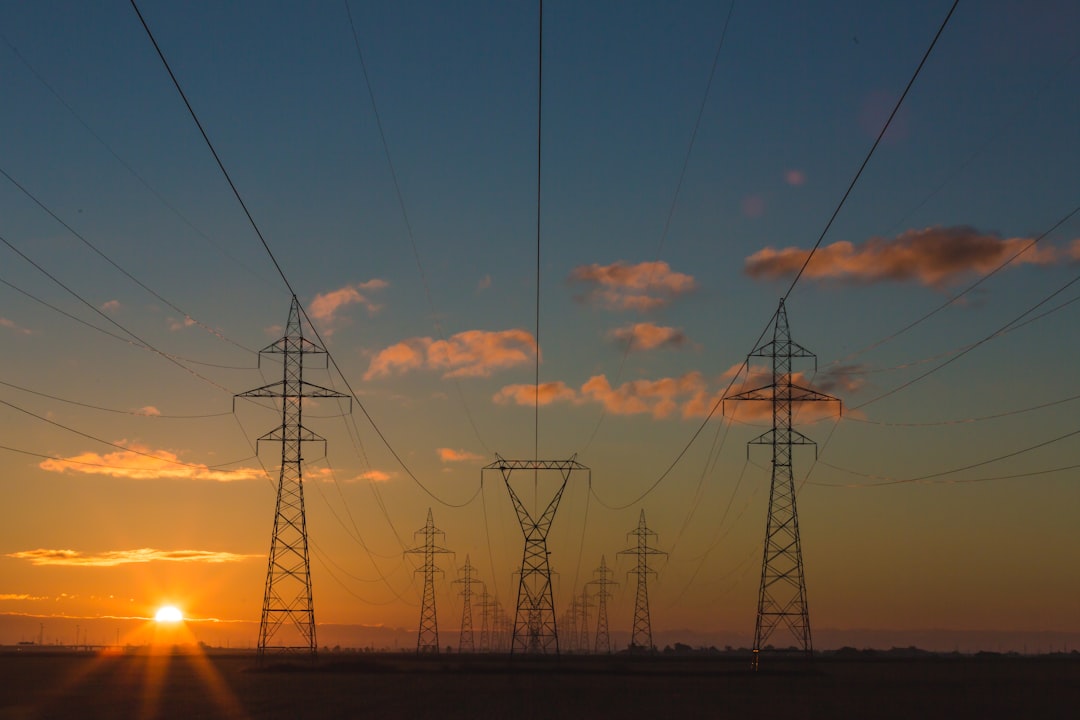
Last August, a transformer on my street blew during a heat wave. The lights flickered for half a second — not even long enough for me to look up from my keyboard. But that half-second was enough to corrupt the SSD on my primary work machine. Three hours of unsaved writing gone. A $280 drive headed for the trash. And a very long evening reinstalling my entire development environment while sweating through a blackout.
I write about tech for a living. I’ve tested hundreds of gadgets. And yet I was protecting a workstation worth more than my first car with a power strip I’d bought at a hardware store in 2019. That’s the thing about power protection — it’s the least sexy category in all of consumer technology. Nobody gets excited about a surge protector. But after that transformer blew, I spent two weeks obsessed with understanding exactly what was sitting between my expensive hardware and the raw, unpredictable chaos of the electrical grid.
What I found changed how I power everything in my office. And if you’re reading this on a machine that cost more than a thousand dollars, plugged into a strip you don’t remember buying, you need to hear it.
The False Security of a Five-Dollar Power Strip

Here’s the dirty secret of the power strip aisle at your local big-box store: most of them offer almost no real protection. A true surge protector and a power strip are two completely different things, but they look identical from the outside. A power strip is just an extension cord with extra outlets. A surge protector contains metal oxide varistors (MOVs) that absorb excess voltage before it reaches your devices. The difference matters because your electronics are far more fragile than you think.
Modern computers, monitors, and networking gear operate on delicate internal voltages measured in single digits. A lightning-induced surge on your line can push thousands of volts through those circuits in microseconds. Even small, repeated surges from appliances cycling on and off in your home — your refrigerator compressor, your air conditioner, your microwave — slowly degrade the capacitors and voltage regulators inside your expensive gear over time. It’s death by a thousand cuts, and a cheap strip does nothing to stop it.
When I finally looked at the bottom of my old power strip, I found a joule rating of 200. For context, Wirecutter recommends a minimum of 1,000 joules for anything with a processor. My workstation — a machine running an AMD Ryzen 9, 64GB of RAM, and an RTX 4070 Ti — was being “protected” by hardware rated for a fraction of what a single lightning strike can deliver.
What Actually Matters in a Surge Protector
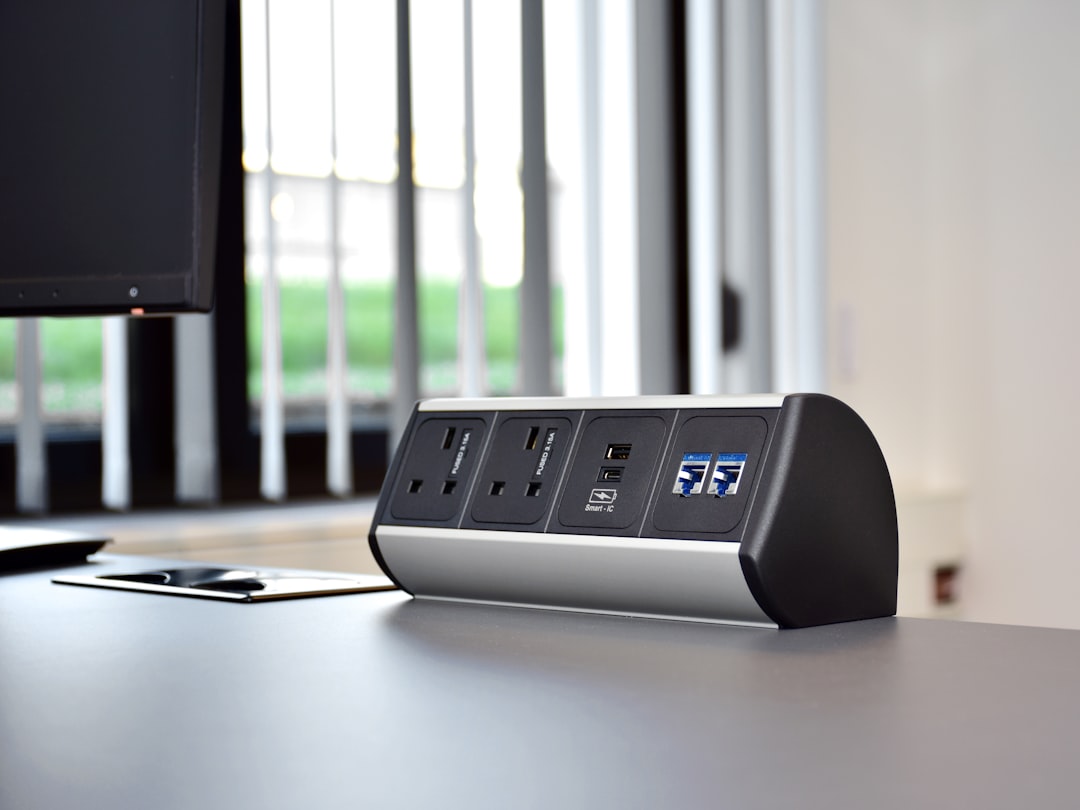
After that transformer incident, I went down a rabbit hole that ended with eleven surge protectors spread across my desk and a multimeter borrowed from a friend who does industrial electrical work. Here’s what I learned, stripped of the marketing fluff.
Joule rating is your total absorption capacity. Think of it like a sponge — once it’s saturated, it’s done. Higher is always better, but the rating doesn’t tell you how fast the protector can react. For anything more than a lamp and a phone charger, look for at least 2,000 joules. The Tripp Lite Protect It 12-Outlet I eventually settled on for my main workstation is rated at 4,320 joules, which is the kind of number that lets me sleep during thunderstorms.
Clamping voltage is the threshold at which the protector starts diverting excess energy away from your gear. Lower is better — 400 volts or less is the gold standard. This is the spec that most cheap strips don’t even advertise, because it’s usually terrible. If the box doesn’t mention clamping voltage, assume it’s not good enough for a computer.
Response time matters more than most people realize. Quality MOVs react in nanoseconds, which sounds instant until you learn that a lightning surge can spike in picoseconds. This is why no surge protector on Earth can guarantee complete protection against a direct strike — but a quality unit will catch the vast majority of surges that actually reach your outlets, which are the attenuated leftovers after traveling through your home’s wiring.
The replacement indicator is non-negotiable. MOVs degrade every time they absorb a surge. After a few years — or one big event — your “surge protector” is just a power strip with a dead component inside, and nothing on the outside tells you. A quality unit has an LED that goes dark when the protection circuit is spent. If yours doesn’t have one, replace the whole unit every three years, full stop.
The UPS: When “Good Enough” Isn’t
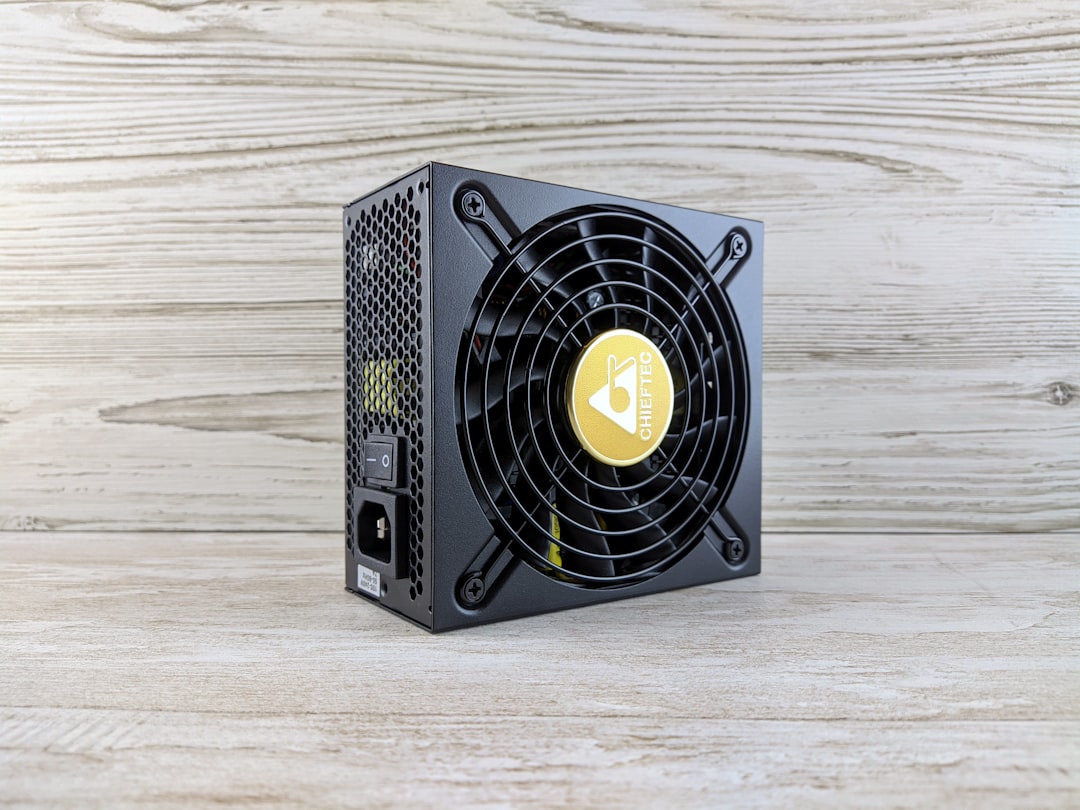
A surge protector handles the violent stuff — the spikes, the surges, the lightning remnants. But the transformer that blew on my street last August didn’t send a surge. It sent a brief, total blackout followed by the lights coming back on. My surge protector never activated. It had nothing to do. My machine simply lost power mid-write, and the SSD’s controller didn’t have time to complete its write cycle.
This is where an Uninterruptible Power Supply — a UPS — earns its keep. A UPS contains a battery and an inverter that switches on within milliseconds of detecting a power loss. It doesn’t just protect your hardware; it protects your work. When the grid blinks, your computer never knows. The screen stays on, the drives keep spinning, and you have time to save and shut down gracefully.
I run a CyberPower CP900AVR on my main workstation and an APC Back-UPS Pro 1500 on my home server rack. The CyberPower gives me about 11 minutes of runtime with my desktop and both monitors drawing power — more than enough to finish a thought, save my files, and shut down properly. The APC on the server keeps my NAS and router alive for nearly 40 minutes, which has gotten me through three outages in the past year without a single corrupted file.
VA vs. Watts: The Number Nobody Explains
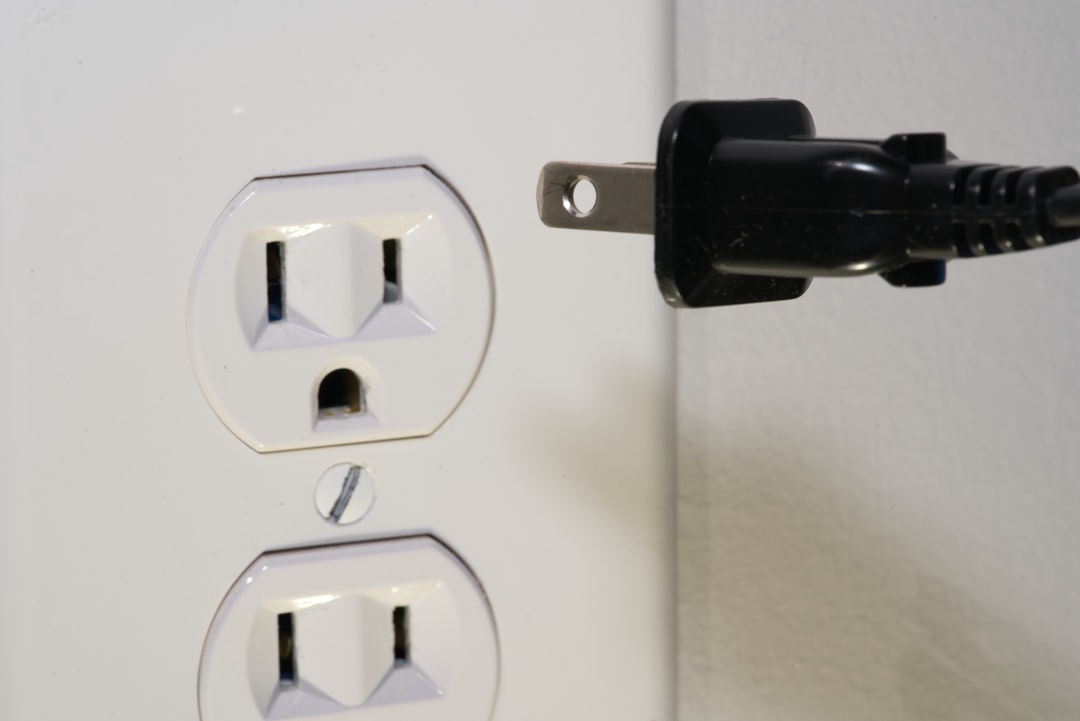
UPS units are rated in VA (volt-amps), which is confusing because your devices draw power in watts. A 900VA UPS is not a 900-watt UPS — it’s typically closer to 540 watts of real capacity, thanks to something called the power factor. If you buy a UPS based on the VA number alone without checking the watt rating, you’ll likely undersize it.
To figure out what you need, add up the wattage of everything you’ll plug into the battery-backed outlets. Your monitor’s power brick usually has the wattage printed on it. For a typical desktop with two monitors and some networking gear, you’re looking at 300-500 watts under load. A Tripp Lite 650VA UPS handles about 390 watts, which covers a laptop setup or a modest desktop. Step up to the APC Back-UPS 900VA for a full workstation with dual monitors.
If you’re running something power-hungry — a high-end GPU under load, a server with multiple spinning drives — look at the CyberPower PFC Sinewave 1000 or larger. The sinewave output matters too: cheaper UPS units produce a “simulated” sine wave that some active power factor correction circuits in modern power supplies don’t handle gracefully. If your desktop has an 80 Plus Platinum or Titanium power supply, spend the extra money for a pure sinewave unit.
Real-World Testing: What Survived and What Didn’t
Over the past ten months, I’ve had my protection setup through three meaningful power events: the transformer blowout that started this journey, a scheduled rolling blackout during a winter storm, and a brownout on a 100-degree day when the neighborhood’s AC demand overwhelmed the local substation. Here’s what I observed.
The UPS units performed exactly as advertised. During the rolling blackout, my workstation stayed on for the full 11 minutes — I finished an email, saved everything, and initiated a clean shutdown with two minutes to spare. My server, on the APC unit, kept running through the entire 25-minute outage without interruption. The network stayed up because the router was on the same UPS.
The surge protectors had a rougher time. After a particularly violent thunderstorm in March, I noticed the protection LED on my Belkin SurgeMaster had gone dark. The MOVs had sacrificed themselves absorbing a surge that would have gone straight into my secondary monitor and audio interface. The strip still passed power, but it was no longer protecting anything. I replaced it the next day. This is exactly why the indicator light exists, and exactly why you should check yours periodically.
The Anker PowerExtend I use at my secondary workstation has been flawless — compact, well-built, with individually switched outlets that let me kill phantom power draws from gear I’m not using. It’s not a replacement for a UPS, but for peripherals and accessories, it’s the cleanest power distribution I’ve found under $50.
The Tiered Approach I Recommend

After a year of living with this setup, I’ve landed on a tiered power protection strategy that I think works for most home offices. It scales from budget-friendly to full-paranoia depending on how much your hardware — and your unsaved work — is worth.
Tier 1: The Foundation — Every piece of electronics in your office goes behind a quality surge protector with at least 2,000 joules of protection and an indicator light. This is the bare minimum. If you’re still using an unmarked strip from a dollar bin, fix that today. The Tripp Lite Protect It series has been my go-to — rugged, well-priced, and honest about its ratings.
Tier 2: The Workhorse — Your primary computer, your primary monitor, and your networking gear go on a UPS. This is the upgrade that would have saved me from that SSD failure. Size the UPS to your actual wattage, not to a VA number that looks impressive on a spec sheet. If you run a docking station, make sure it’s on the battery side too.
Tier 3: Full Redundancy — A second UPS for your server, NAS, or networking rack. If you work from home and rely on internet connectivity, keeping your modem and router on battery is non-negotiable — a UPS on your computer means nothing if you lose your connection mid-video-call or mid-upload. I also keep a TP-Link smart plug with surge protection on gear that benefits from scheduled power cycling, like my 3D printer and a backup drive enclosure.
What Fried Hardware Actually Looks Like
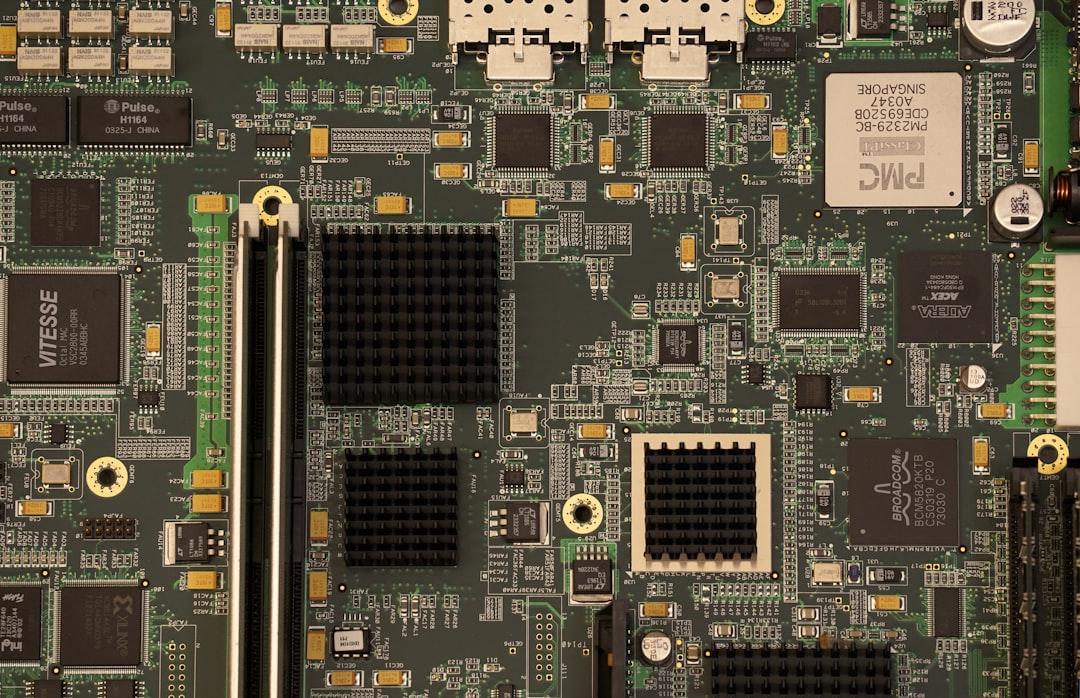
I want to take a moment to describe what happens when protection fails — or doesn’t exist. I’ve seen the aftermath more times than I’d like. The most dramatic case was a friend’s gaming PC that took a surge through a coaxial cable line (yes, surges can enter through more than just your power outlets). The motherboard’s VRM section had visible scorch marks. Two RAM sticks had their heat spreaders warped. The GPU still powered on but produced artifacts within minutes, indicating degraded memory modules. Total damage: around $1,800 in replacement parts. The surge protector on his power strip had never been connected to a coax pass-through, which would have cost an extra $12.
The lesson is that power protection isn’t just about your AC outlets. If you have a wired internet connection, a satellite dish, or a landline, those copper lines can carry surges directly into your network card or motherboard. Quality surge protectors include coax and Ethernet pass-throughs that add another layer of defense. If yours doesn’t, you can pick up a dedicated in-line Ethernet surge protector for under $20 — some of the cheapest insurance you’ll ever buy.
Cable Management Meets Power Strategy
Once you add a UPS and a couple of quality surge protectors to your setup, cable management becomes a real consideration. UPS units are bulky, and the transformers on some surge protectors eat adjacent outlet space. Planning your power layout before you start plugging things in will save you from the kind of tangled mess that makes future changes a nightmare.
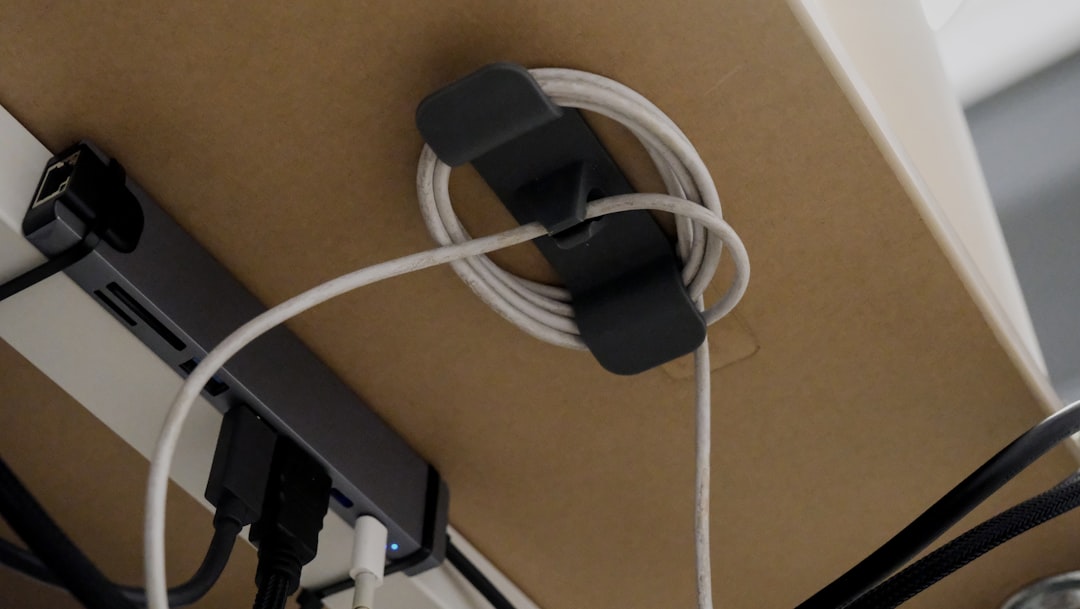
I routed all my power cables along the underside of my desk using adhesive-backed cable channels, keeping AC runs separated from data cables to minimize interference. The cable management reset I did a few months ago made integrating the UPS dramatically easier — there was a clear path from the desk to the floor where the battery backup lives, and the power strips are mounted where I can actually see the indicator lights without crawling under the desk.
If you’re building a home office from scratch or planning a major upgrade, factor power protection into your physical layout from the beginning. Put your UPS on the floor under or beside your desk, run a short heavy-duty extension cord to a surge protector mounted on the desk for easy outlet access, and label every cable at both ends. It’s tedious work that pays off the first time something goes wrong and you need to trace a connection in low light.
Smart Power: The Next Step

The newest wrinkle in power management is smart integration. I’ve been testing a few smart surge protectors and individual smart plugs over the past six months, and while they’re not a replacement for a proper UPS, they add a layer of monitoring and control that traditional power strips can’t match. Being able to see exactly how many watts each device is drawing — and getting a phone notification when my workstation crosses 600 watts under load — has helped me identify a phantom power draw from an external drive enclosure that was never fully sleeping.
The TP-Link Kasa smart power strip with individual outlet monitoring has been the most useful addition. I have it scheduled to cut power to my printer and scanner at 7 PM (when I’m done working) and restore it at 8 AM. It’s cut about 15 watts of continuous phantom draw from my office, which doesn’t sound like much until you multiply it across an entire year of 24/7 operation. For a deeper look at how much power modern desk gear actually pulls, my charging station deep-dive covers the math.
The Bottom Line After a Year of Testing
Power protection is the most boring investment you’ll make in your home office, and also the one most likely to save you from a catastrophic loss. You insure your car, your health, your home — and then you plug a $2,500 workstation into a $7 strip from 2018. I did exactly that, and it cost me a drive, an evening, and three hours of work I’ll never recover.
Here’s the short version: spend $40-60 on a quality surge protector with at least 2,000 joules and an indicator light. Spend $120-180 on a UPS sized to your actual wattage for your primary workstation. Add coax and Ethernet surge protection if you have wired connections. Replace surge protectors every three years or when the indicator goes dark, whichever comes first. Total investment: under $250 for a setup that would have saved me hundreds of dollars and hours of frustration.
Your gear deserves better than a hardware-store clearance strip. And your unsaved work deserves the 11 minutes a UPS gives you to hit Ctrl-S and shut down like a civilized person instead of staring at a black screen wondering what just happened. Ask me how I know.

2 thoughts on “When the Grid Blinks: Why Your Setup Is One Power Spike Away From a Paperweight”