

I’ve purchased exactly one monitor that I’ve kept longer than two years. Every other display I’ve bought — from the cheap 1080p panel that couldn’t hold brightness at the corners, to the 4K screen that looked gorgeous until I tried to game on it — has been replaced, returned, or relegated to secondary duty. If you’re reading this because you’re staring down a spreadsheet of specs and wondering which ones actually matter, I’ve been there. The monitor market is designed to confuse you into buying more panel than you need.
What follows isn’t a spec sheet comparison. It’s the framework I’ve developed after testing dozens of displays across price ranges, use cases, and panel technologies. Some of this is counterintuitive. Some of it contradicts what you’ll read in manufacturer marketing. All of it is based on real-world use, not benchmark scores.

The Panel Type Decision: Where Most People Overspend
Monitor marketing pushes you toward IPS panels as the premium option and everything else as compromise. That’s half the story. IPS delivers superior color accuracy and viewing angles — genuinely important if you’re doing photo/video work or care about color fidelity. But IPS panels also tend to have slower response times and worse contrast than VA alternatives, and they cost more.
For general productivity, coding, writing, and everyday use, IPS is the right call. The text clarity and color consistency make long sessions less fatiguing. But if you’re primarily gaming or watching movies, a high-quality VA panel can deliver deeper blacks and better perceived contrast — especially in dark rooms. OLED is still a niche choice at monitor sizes due to burn-in risk and price premiums, though that’s changing faster than I expected.

The spec sheet won’t tell you whether a panel’s implementation is good. I’ve tested budget IPS panels with disappointing color accuracy and premium VA panels that surprised me. Read reviews from sources that actually measure color gamut coverage and contrast ratios — don’t assume IPS automatically means quality.
Resolution: Stop Paying for Pixels You Can’t See
Here’s the rule I wish more people followed: resolution should scale with screen size and viewing distance. A 27-inch 4K monitor delivers crisp text at normal desktop viewing distance. A 24-inch 4K monitor requires Windows scaling at 125-150%, which defeats the point. A 32-inch 1080p monitor looks like a bargain until you sit in front of it and realize individual pixels are visible.
For 27-inch displays, 1440p is the sweet spot for most users. 4K makes sense if you’re doing creative work or just prefer ultra-crisp text, but you’ll pay a premium and your GPU will work harder. For 32-inch and larger, 4K becomes more justifiable — you have enough screen real estate that the resolution actually matters. For ultrawides, 3440×1440 on a 34-inch panel is sharp enough that pixel density stops being a concern.

I’ve tested the Dell 27 Plus 4K, and its 120Hz IPS panel is genuinely impressive — but you’re paying for that combination of resolution and refresh rate, which most office workers don’t need. For a more balanced 4K option, the LG 27UP650K-W offers excellent color accuracy at a more reasonable price point. If you’re budget-conscious, the Sceptre Prime 4K delivers 4K without the premium price tag, though you trade off some build quality and color precision.
Refresh Rate: The Diminishing Returns Curve
60Hz is dead, and that’s a good thing. The jump from 60Hz to 120Hz is genuinely noticeable — smoother cursor movement, less motion blur, and a more responsive feel. But the jump from 120Hz to 240Hz? That’s where diminishing returns kick in hard for most users. Competitive gamers will argue otherwise, but if you’re doing productivity work, watching media, or playing casually, 120-144Hz is plenty.

Here’s what most reviews don’t tell you: pushing higher refresh rates at higher resolutions requires more GPU power. A 4K 144Hz monitor needs serious graphics hardware to actually hit those frame rates in games. If you’re pairing it with a midrange GPU, you’ll never see the benefit. Buy refresh rate capacity that matches your actual hardware, not theoretical specs.
Ultrawide vs. Dual Monitors: The Honest Tradeoffs
Ultrawide monitors look impressive on desk setup photos, and they genuinely excel at certain tasks. Video editing timelines, spreadsheets, and certain workflows benefit from the horizontal continuous screen real estate. But you’re paying a resolution and pixel density premium compared to dual standard monitors, and some applications don’t handle ultrawide aspect ratios gracefully.
Dual monitors give you more total screen area for less money, and they’re more flexible — you can position each independently, which matters for ergonomics. But you deal with the bezel gap in the middle, and window management across two screens can sometimes be clumsier than one seamless canvas.
For ultrawides, I’ve tested the Samsung 34-inch ViewFinity, and its 100Hz panel and color accuracy make it a strong pick for productivity. The Sceptre 34-inch Curved Ultrawide offers budget-friendly ultrawide with up to 180Hz — impressive for the price, though you trade off some panel quality. The Gawfolk 34-inch Ultrawide provides a 165Hz IPS panel with solid color coverage at a mid-range price point. If you want premium ultrawide without the gaming-focused aesthetics, the LG 34WR55QK-B delivers a cleaner design and solid color performance.
The Accessories That Make or Break Your Setup
You can buy the perfect monitor on paper and still hate using it if you skip the accessories that make it actually work for you. After overhauling my connectivity setup, I can tell you that stands, cables, and lighting matter more than most people realize.
Monitor Arms
The stands that ship with most monitors are functional but terrible for ergonomics. They don’t lift high enough, don’t tilt enough, and lock your screen into a fixed position that probably isn’t your ideal. A good monitor arm pays for itself in neck comfort and desk space reclaimed.
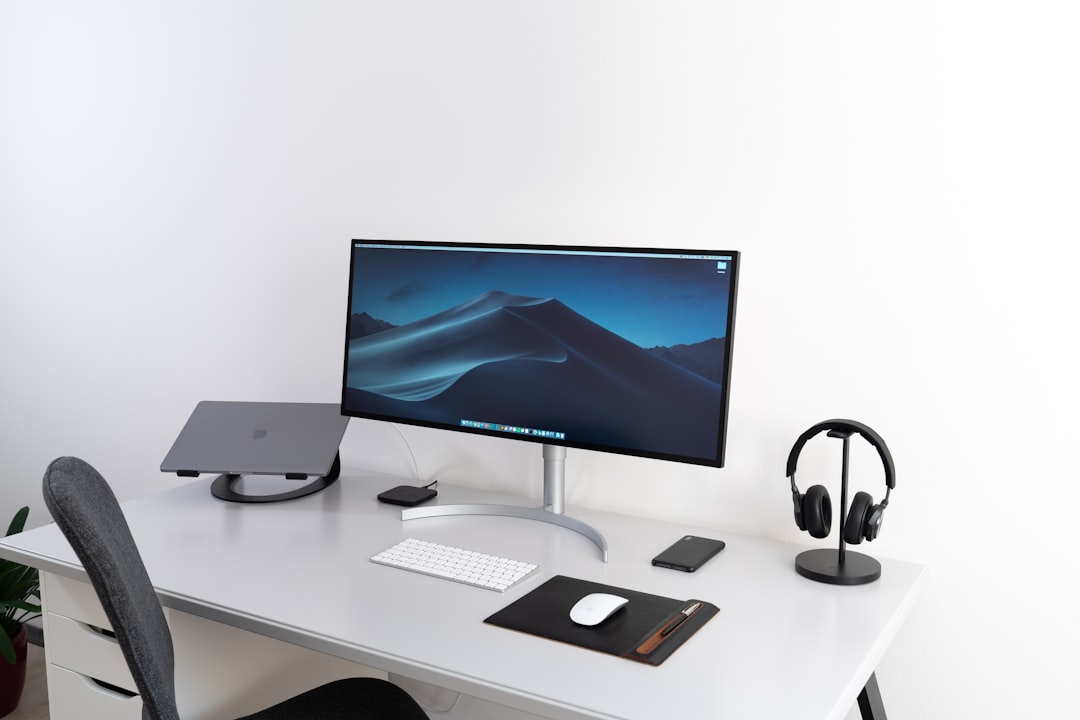
The ErGear Single Monitor Arm supports screens up to 34 inches and offers full adjustability without the wobble that plagues cheaper arms. For more robust setups, the HUANUO FlowLift Pro handles screens up to 32 inches with a premium spring mechanism. For a more budget-friendly option, the HUANUO Single Monitor Mount handles most standard monitors and fits smaller desks. Any of these will dramatically improve your daily comfort compared to stock stands.
Docking Stations and Connectivity
Running cables directly to your monitor works fine for single-device setups. But if you’re connecting a laptop, tablet, and multiple peripherals, a proper docking station eliminates the daily plug-in dance. After my audit of charging gear, I’ve come to appreciate docks that consolidate power and data into one connection.
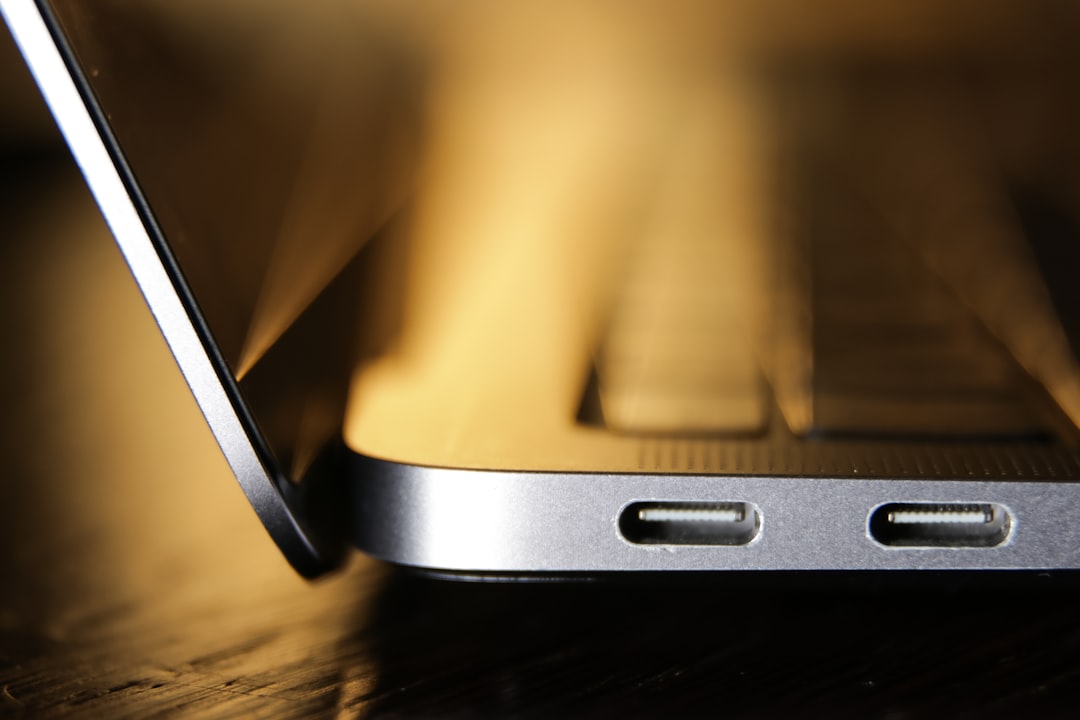
The UGREEN 7-in-1 Docking Station handles dual 4K at 60Hz via HDMI and DisplayPort, plus 10Gbps data ports and 100W power delivery — the all-in-one connection most laptop users want. If you need more display variety, the Anker Laptop Docking Station offers dual HDMI output and solid build quality, though at a higher price point.
Cables That Actually Support Your Specs
Buying a 4K 144Hz monitor and connecting it with a cheap cable is like putting regular tires on a sports car. DisplayPort 1.4 or HDMI 2.1 is required for 4K above 60Hz, and not all cables are created equal. I’ve tested budget cables that couldn’t maintain 144Hz at 1440p despite claiming certification.
The Silkland DisplayPort 2.1 Cable is VESA-certified and supports up to 8K at 240Hz — overkill for most users, but that’s the point. You buy capacity once and never think about it again. For even more bandwidth, the IVANKY 8K DisplayPort Cable delivers VESA-certified 1.4 performance with braided construction. The UGREEN 16K DisplayPort Cable is another premium option with strong certification. For ultrawide or multi-monitor setups, don’t skimp here.
Lighting and Eye Comfort
After testing six monitor light bars in-depth, I can tell you that the difference between a properly lit screen and a bare panel is the difference between a comfortable evening session and eye strain. Screen lighting reduces contrast strain and creates a more comfortable viewing environment.
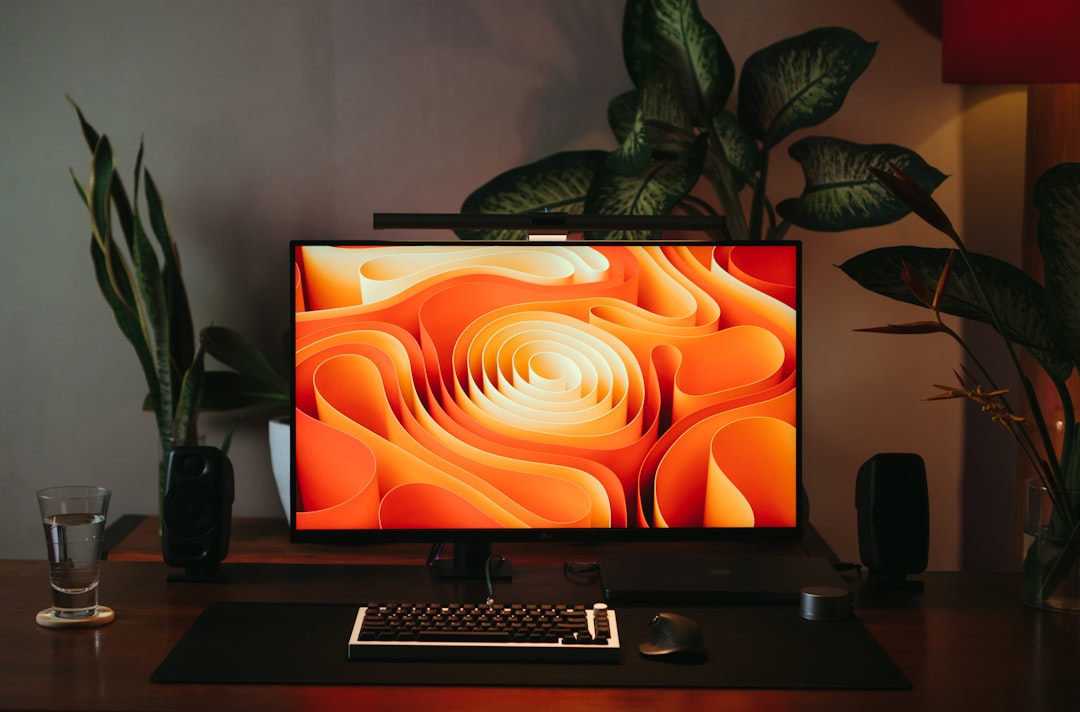
The Quntis Computer Monitor Lamp offers auto-dimming and adjustable color temperature — the features that actually matter for long-term comfort. For curved monitors, the Quntis Monitor Light Bar PRO+ includes a remote control and better curvature matching. The Samphon Monitor Light Bar is an ultrawide option that works well with larger displays. My full roundup covers more options, but if you want a single recommendation that works for most setups, start there.
The Picks I’d Make Today at Different Budgets
If you’re building a setup from scratch and want specific recommendations, here’s where I’d put my money at three price points:
Under $400: A quality 27-inch 1440p IPS monitor like the Sceptre Prime 4K, paired with a HUANUO monitor arm and a decent DisplayPort cable. Skip 4K at this budget — you’ll get better panel quality and features at 1440p.
$400-$800: A 27-inch 4K IPS panel (LG or Dell depending on sales), ErGear monitor arm, Quntis light bar, and a premium DisplayPort cable. This is the sweet spot where you’re getting genuine visual quality improvements without paying diminishing-returns premiums.
Over $800: Either a premium 4K 120Hz panel or a quality 34-inch ultrawide, plus a top-tier monitor arm, proper docking station if you’re using a laptop, and all the connectivity accessories. At this level, you’re paying for specific capabilities — know what they are before you spend.
What I’d Do Differently Starting Over
If I could restart my monitor journey with the framework I use now, I’d have skipped two generations of upgrades and saved hundreds of dollars. I would have bought one good 27-inch 1440p IPS monitor, a quality stand, and called it done for years. Instead, I cycled through cheap panels that disappointed, premium panels I didn’t fully utilize, and resolutions I couldn’t actually appreciate.
The monitor that earns permanent space on your desk isn’t the one with the best specs on paper. It’s the one that matches your actual usage, fits your workspace ergonomically, and doesn’t make you think about it every time you sit down. That’s the framework that finally worked for me. And as always, I’ve done the testing so you don’t have to.

One thought on “How to Choose a Monitor in 2026: The Framework I Wish I’d Started With”