The AI Workstation I’d Actually Build in 2026: Three Real Setups at Three Price Points
I’ve been running local language models since the days when that meant chaining together multiple RTX 3090s and praying the thermal paste held. The hardware landscape has shifted dramatically since those early experiments, and 2026 is the year local AI stopped being a hobbyist pursuit and became genuinely practical. But here’s the problem: most build guides you’ll find are either theoretical wishlists or single-product reviews disguised as system advice. They don’t tell you what I’d actually buy with my own money.
After testing dozens of configurations over the past two years — from janky multi-GPU rigs to sleek Mac Studios — I’ve settled on three distinct builds that represent three different budgets and use cases. These aren’t hypothetical spec sheets. Every component choice below is something I’ve either tested extensively or would purchase for my own lab. Let’s break down what I’d actually build in 2026 if I were starting from scratch.
Why Build Instead of Buy?
Before we dive into specs, let’s address the obvious question: why not just buy a prebuilt workstation? The answer comes down to two factors: upgradability and value. Prebuilts like the Corsair AI Workstation 300 I reviewed recently are excellent if you want something that works out of the box, but you’re paying a premium for convenience and you’re locked into specific upgrade paths. Building your own gives you control over component selection, thermal design, and future expansion.
That said, 2026 is also the year when prebuilt options finally got compelling. I’ll cover both approaches below because I know not everyone wants to spend a weekend wrestling with cable management. The key is understanding what you’re trading off either way.
The Entry-Level Build: ~$1,200
This configuration is for people who want to dip their toes into local AI without spending RTX 5090 money. It won’t run 70B models at interactive speeds, but it’ll handle 8B-14B parameter models perfectly fine for coding assistance, document analysis, and light image generation. Think of it as the “get started and see if you actually use it” build.
CPU: AMD Ryzen 7 7700X — You’re not paying extra for integrated graphics you won’t use, and the single-thread performance is excellent for the pre-processing work that happens before model inference kicks in.
GPU: RTX 4060 Ti 16GB — This is the minimum viable GPU for local AI in 2026. The 16GB VRAM lets you run quantized 13B models with reasonable context windows, and CUDA support means you’re not fighting framework compatibility issues. You can find these for around $450 if you shop smart.
RAM: 32GB DDR5-6000 (2x16GB) — Don’t cheap out here. Faster memory with tighter timings genuinely helps with model loading times, and 32GB gives you headroom for the OS, applications, and model swapping without hitting swap.
Storage: 1TB NVMe SSD (PCIe 4.0) — Model files are large, and you want fast storage for loading them. Samsung 990 Pro or WD Black SN850X are reliable choices that won’t throttle during sustained transfers.
Cooling: Noctua NH-D15 or similar air cooler — I’ve learned the hard way that thermal throttling kills AI performance faster than any other factor. A quality air cooler is quieter and more reliable than liquid cooling for this power envelope.
Case: Fractal Design North or Lianson Lancool 205 Mesh — Front mesh intake is non-negotiable for AI workloads. You need airflow, and cases with solid front panels will cook your GPU during extended inference runs.
Power Supply: 650W 80+ Gold — Seasonic Focus or Corsair RMx. Don’t cheap out on the PSU. Stable power delivery matters for long inference sessions, and you want headroom for future GPU upgrades.
Total: ~$1,200
This build won’t set speed records, but it’s a genuinely capable starter machine. You’ll run Llama 3 8B at 25-30 tokens per second in Q4 quantization, which is comfortable for interactive coding assistance. It’s not meant for 70B models — you’ll want a bigger GPU for that — but it’s perfect for figuring out whether local AI fits your workflow before committing to serious hardware.
The Sweet Spot Build: ~$2,500
This is where things get interesting. The $2,500 price point hits the sweet spot for serious local AI work in 2026. You can run 70B models in usable quantizations, handle image generation without frustration, and have enough headroom for multi-model workflows. This is the build I’d recommend for anyone who knows they’ll use local AI regularly.
CPU: AMD Ryzen 9 7950X or Intel i7-14700K — At this price point, you’re choosing between team red and team blue. AMD offers better multi-threaded performance for pre-processing, while Intel’s chips sometimes play nicer with certain AI frameworks. I lean AMD for value, but either works.
GPU: RTX 4080 Super 16GB or RTX 5070 Ti 16GB — This is your most critical component. You want at least 16GB VRAM, and you want CUDA support. The 4080 Super is widely available and proven, while the 5070 Ti offers better efficiency if you can find it at MSRP. Either gives you enough VRAM for 70B models in Q4 quantization with reasonable context windows.
RAM: 64GB DDR5-6000 (2x32GB) — At this tier, 64GB RAM is the minimum. You want enough system memory to hold your operating system, applications, and model files without the system paging to disk. DDR5-6000 offers the best price-to-performance ratio right now.
Storage: 2TB NVMe SSD (PCIe 4.0) — Model libraries keep growing, and 2TB gives you breathing room for multiple model families without constantly deleting and redownloading.
Cooling: 360mm AIO or high-end air cooler — We’re getting into territory where sustained heat output becomes a real concern. A quality 360mm AIO from Arctic, be quiet!, or Corsair will keep your GPU from thermal throttling during those hour-long code generation sessions.
Case: Fractal Design Torrent or Lianson O11 Dynamic — You want a case with excellent airflow and room for thick GPU heatsinks. The Torrent is particularly good because its airflow design keeps GPU temperatures lower than most competitors.
Power Supply: 850W 80+ Gold — Corsair RMx or Seasonic Focus. You want headroom for future GPU upgrades, and 850W gives you that without paying the premium for 1000W+ units.
Total: ~$2,500
This configuration runs Llama 3 70B at 8-12 tokens per second in Q4_K_M quantization, which is comfortable for reading along. You can run DeepSeek Coder V2 for programming assistance, SDXL for image generation, and even dabble with FLUX models if you’re patient. It’s the first build where local AI feels like a primary tool rather than a compromise.
The No-Compromises Build: ~$5,000+
This is for people who want local AI to replace cloud APIs entirely. You’re running 70B models at full precision, you’re generating images quickly, and you’re possibly juggling multiple models simultaneously. This is the build I’d use if I were running a serious AI lab at home.
CPU: AMD Ryzen 9 7950X3D or Intel i9-14900K — At this price point, you’re looking at the halo products. AMD’s 3D V-Cache offers genuine benefits for certain AI workloads, particularly around memory latency. Intel’s 14900K is a beast for pre-processing and data preparation. Choose based on which ecosystem you prefer.
GPU: RTX 5090 24GB or dual RTX 4080 Super 16GB — Here’s where things get interesting. You can either go with a single flagship GPU or run dual mid-tier GPUs with NVLink. The single RTX 5090 offers simplicity and 24GB VRAM, which is enough for most 70B models in better quantizations. Dual 4080 Supers give you 32GB combined VRAM and better parallel processing for certain workloads, at the cost of complexity and power draw. I lean single GPU for simplicity, but dual GPU has its place.
Alternative: If you’re curious about unified memory approaches, AMD’s Strix Halo platform with 128GB unified memory offers a compelling alternative at this price point. You trade some framework compatibility for massive memory capacity and lower power draw.
RAM: 128GB DDR5-6000 (4x32GB) — Yes, you read that right. 128GB RAM means you can keep multiple large models loaded simultaneously without swapping. If you’re running a coding model and a chat model at the same time, this is the difference between a smooth workflow and constant reloading.
Storage: 4TB NVMe SSD (PCIe 4.0) — At this tier, you’re building a model library, not just running one or two favorites. 4TB gives you room for Llama, Qwen, Mixtral, and image generation models without storage anxiety.
Cooling: Custom water cooling or premium 360mm AIO + case airflow — We’re in territory where heat becomes a serious design constraint. Custom water loops offer the best thermal performance but require maintenance. A premium 360mm AIO in a case like the Fractal Design Torrent can handle this workload if you’re not comfortable with custom cooling.
Case: Fractal Design Torrent XL or Lianson O11 Dynamic XL — You want room for thick radiators, multiple fans, and future GPU upgrades. The Torrent XL is my top pick because its airflow design is unmatched for GPU-heavy workloads.
Power Supply: 1000W+ 80+ Platinum — Corsair HX or Seasonic Prime. You’re pushing serious power here, and you want a PSU that can deliver it efficiently and reliably. 1000W gives you headroom for GPU upgrades and ensures your system stays stable during those marathon training sessions.
Total: ~$5,000+
This configuration runs Llama 3 70B at 15-20 tokens per second in Q4_K_M quantization, which feels genuinely snappy. You can run 70B models in Q8 quantization for better quality, and you have enough VRAM to experiment with emerging architectures that might require more memory. It’s the first build where local AI feels faster than cloud APIs for most tasks.
Component Deep Dives: What Actually Matters
Now that we’ve covered the three builds, let’s talk about what actually matters for AI workloads and what’s marketing fluff. I’ve spent enough money on snake oil over the years that I’ve learned to spot the difference.
GPU: VRAM is King
If you take away nothing else from this guide, remember this: VRAM capacity matters more than raw compute for most local AI workloads. A 16GB RTX 4060 Ti will run models that a 12GB RTX 4080 simply cannot load. The performance difference between GPU tiers is smaller than you’d expect once you’re in the same VRAM class, so prioritize capacity over raw speed unless you’re doing training workloads.
CUDA support also matters. NVIDIA’s ecosystem is simply more mature than AMD’s ROCm for most AI frameworks. If your workflow depends on specific PyTorch optimizations or cutting-edge models, NVIDIA is the safer bet. That’s changing, but slowly.
RAM: Speed and Capacity Both Matter
Faster DDR5 memory with tight timings genuinely helps with model loading times and pre-processing tasks. You’re not just buying capacity — you’re buying bandwidth. That said, don’t go crazy paying for bleeding-edge kits. DDR5-6000 with CL30 timings is the sweet spot right now. Faster kits exist, but the performance gains don’t justify the price premium for most users.
Capacity matters too. 64GB is the minimum for serious AI work because you want enough system memory to hold your OS, applications, and model files without paging. If you’re running multiple models simultaneously, 128GB RAM becomes genuinely useful.
Cooling: Thermal Throttling is the Enemy
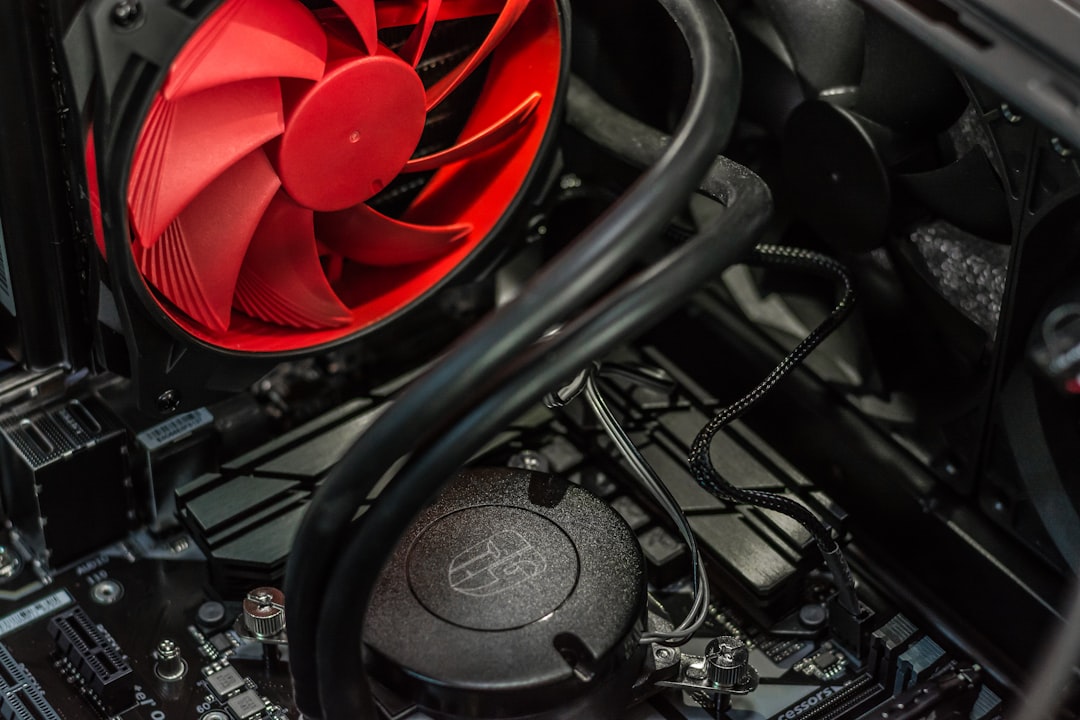
I’ve written before about how heat kills AI performance, and it’s worth repeating: thermal throttling is the silent killer of local AI workstations. GPUs are designed to boost until they hit thermal limits, then throttle back. During sustained inference runs, that means your performance drops off a cliff as components heat up.
Good case airflow with front mesh intake is non-negotiable. Solid front panel cases might look sleek, but they’ll cook your GPU during extended AI workloads. You also want a CPU cooler that can handle sustained heat output without sounding like a jet engine. Noctua air coolers and premium AIOs are worth the money here.
Storage: PCIe 4.0 is Enough
Don’t fall for the PCIe 5.0 hype for AI workloads. Model loading is bound by sequential read speeds, and even mid-range PCIe 4.0 drives can saturate that. You’re better off buying a larger, more reliable PCIe 4.0 drive than a smaller, hotter-running PCIe 5.0 unit. Samsung 990 Pro and WD Black SN850X are proven choices that won’t throttle during sustained transfers.
Prebuilt vs DIY: The Real Tradeoffs
I mentioned earlier that 2026 is the year when prebuilt options got compelling. Let’s break down when to buy prebuilt and when to build your own.
When Prebuilt Makes Sense
If you’re in the entry-level tier and don’t want to touch a screwdriver, prebuilts from reputable manufacturers offer genuine value. Dell’s Precision series, HP’s Z workstations, and Lenovo’s ThinkStation towers all come with decent cooling and warranty support. You’ll pay a premium, but you’re buying peace of mind.
The sweet spot for prebuilts is the mid-range tier. Systems like the Corsair AI Workstation 300 I reviewed recently offer excellent performance with minimal assembly required. You’re paying maybe $200-300 over DIY pricing, but you get a professionally assembled system with cable management already handled and warranty support if something goes wrong.
When DIY Makes Sense
If you’re in the high-end tier, DIY is almost always the better choice. Prebuilts at the $5,000+ price point often carry massive premiums, and component selection is tailored for general workloads rather than AI specifically. Building your own lets you choose exactly the right GPU, RAM configuration, and cooling solution for your needs.
DIY also matters if you care about upgradability. Prebuilts often use proprietary motherboards or cases that limit future GPU upgrades. When you build your own, you choose standard components that can be swapped out as new hardware arrives.

The Question I Get Asked Most: Is It Worth It?
After spending thousands on local AI hardware over the years, the question I hear most often is whether it’s actually worth the money. My answer has changed over time, but in 2026 it’s an unambiguous yes for the right user.
Local AI makes sense if you’re doing any of the following:
- Programming assistance: Running DeepSeek Coder or CodeLlama locally is faster and cheaper than API calls for active development work. It’s also genuinely private — your code never leaves your machine.
- Document analysis: Feeding research papers, technical documentation, or meeting transcripts into local models is transformative. No API costs, no rate limits, no concerns about proprietary data leaving your control.
- Image generation: Running SDXL or FLUX locally gives you unlimited iterations without worrying about credits or queue times. Once you’ve experienced generating hundreds of images to find the right one, you’ll never go back to cloud services.
- Privacy-sensitive work: If you’re handling sensitive data — medical records, financial information, legal documents — local AI isn’t just convenient, it’s mandatory.
Local AI doesn’t make sense if you’re just experimenting casually. Cloud APIs are cheaper for occasional use, and they’re faster for one-off tasks. The economics flip once you’re running models regularly, but that threshold is higher than most people realize.
My Honest Recommendation for 2026
If you’re just getting started, begin with the entry-level build and see whether local AI fits your workflow. You can always upgrade the GPU later, and the rest of the components scale up gracefully. There’s no shame in starting small — I ran local models on hardware that would make most people laugh today, and that experimentation taught me more than any spec sheet could.
If you know you’ll use local AI regularly, skip straight to the mid-range build. The RTX 4080 Super / RTX 5070 Ti tier is where local AI feels like a primary tool rather than a compromise. You’ll run 70B models comfortably, generate images without frustration, and have enough headroom for multi-model workflows.
If budget allows and you’re serious about replacing cloud APIs entirely, the high-end build delivers experiences that simply aren’t possible with lesser hardware. Running 70B models at full precision, juggling multiple models simultaneously, and iterating on image generation without queue times is transformative.
One final thought: power protection matters for AI workstations. These machines draw serious power, especially during sustained inference runs. A quality UPS isn’t optional — it’s insurance against the moment your GPU is mid-inference and the grid flickers. I learned that the hard way, and I’d rather you don’t have to.
Local AI in 2026 is genuinely practical, and the hardware finally matches the hype. The builds I’ve outlined here represent three different budgets and use cases, but they share one thing in common: they’re all configurations I’d run myself. That’s the highest recommendation I can offer.