I spent six years hunched over a 13-inch laptop screen, telling myself it was fine. My neck said otherwise. My productivity said otherwise. And my optometrist — after I showed up with tension headaches I’d been dismissing as “just stress” — really said otherwise. The monitor upgrade I’d been putting off turned out to be the single biggest improvement I’ve ever made to my workspace, and I’ve tested hundreds of pieces of gear over the past twenty-five years. Here’s what I learned the hard way so you don’t have to.
Why Your Monitor Matters More Than Your Laptop
We tend to obsess over processors, RAM, and storage when we think about productivity. I get it — specs are tangible, benchmarkable, and fun to compare. But after testing dozens of setups, I can tell you that the screen you stare at for eight to twelve hours a day has a more direct impact on how you work than almost anything else in your tech stack. A great monitor reduces eye strain, lets you see more of your work at once, and — this sounds silly until you experience it — just makes you want to sit down and get things done.
The research backs this up. Studies have consistently shown that larger, higher-resolution displays measurably improve task completion times and reduce errors, particularly for knowledge workers juggling multiple windows, spreadsheets, or documents. When you can see your code editor alongside your browser alongside your chat window without alt-tabbing every ten seconds, you stay in flow longer. Flow is where the real work happens.

The Three Questions That Actually Matter
Walk into any electronics store or scroll through monitor listings online and you’ll drown in specs: refresh rates, response times, panel types, HDR certifications, color gamut percentages. Most of that noise doesn’t matter for productivity. After years of testing, I’ve boiled it down to three questions:
First: How much screen real estate do you actually need? If your work involves multiple applications open simultaneously — and let’s be honest, whose doesn’t? — a 27-inch 4K display is the sweet spot for most people. It’s sharp enough that text looks crisp at normal viewing distances, and large enough to comfortably tile two windows side by side. If you’re a power user who lives in spreadsheets, timelines, or code, a 34-inch ultrawide might be worth the investment. I ran one for a year and the horizontal space is addictive once you get used to it.
Second: What panel technology fits your environment? IPS panels offer the best color accuracy and viewing angles for office work. VA panels give you deeper blacks, which is great if you work in a dimmer room. OLED is stunning — I tested one for a month and the contrast is unreal — but it’s still pricey for pure productivity, and burn-in remains a legitimate concern if you’re displaying static UI elements for eight hours a day. For most people, a quality IPS display hits the right balance of performance, longevity, and price.
Third: How will it connect to your setup? This is where people get tripped up. USB-C with power delivery is the single most convenient connectivity option available right now. One cable from your laptop to the monitor handles display, data, and charging. If your laptop supports Thunderbolt or USB-C DisplayPort Alt Mode, look for a monitor with USB-C PD — it’ll simplify your desk dramatically.

The Upgrade That Changed Everything for Me
After years of bouncing between review units, I finally settled on a 27-inch 4K IPS display as my daily driver, and the difference was immediate. Text that looked acceptable on my laptop screen suddenly looked laser-printed. Photos I was editing had detail I’d been missing. And the simple act of having two full-size windows visible at once — not cramped, not overlapping — made me noticeably faster at everything from writing to research to managing my inbox.
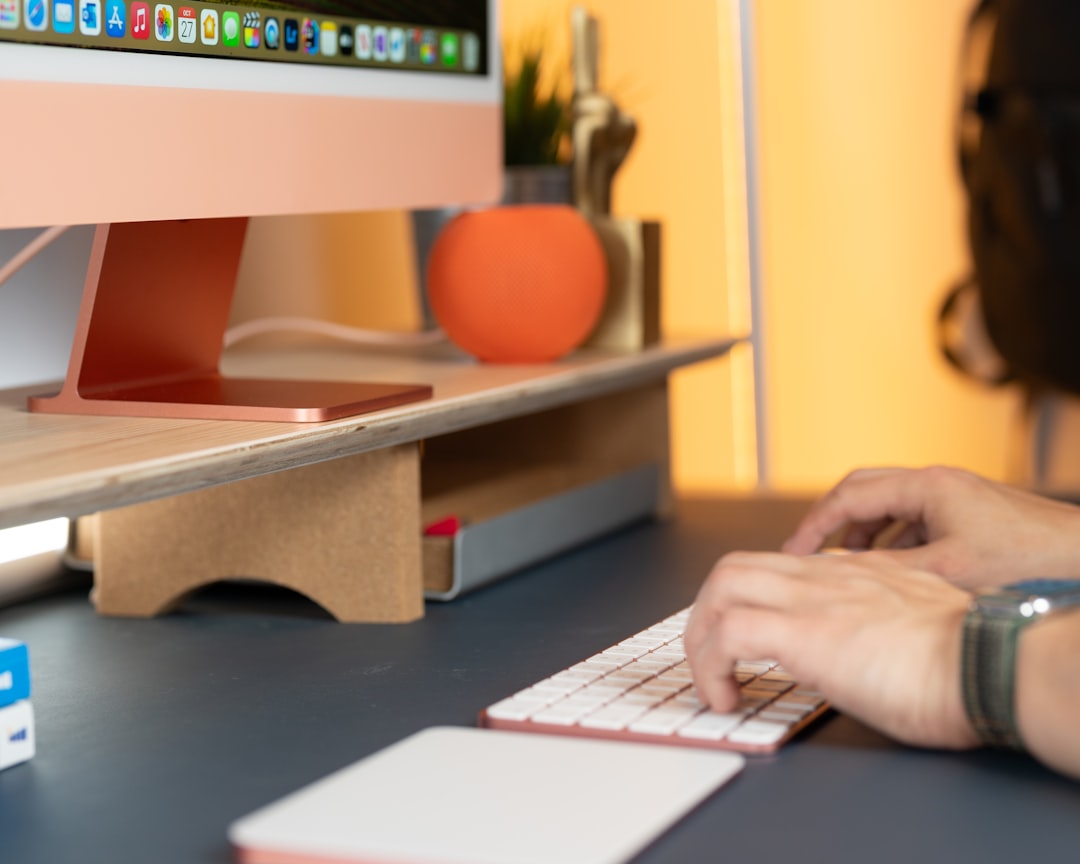
I paired it with a gas-spring monitor arm, which is one of those accessories that doesn’t seem important until you use one. Being able to adjust height, tilt, and distance on the fly means I can find the perfect ergonomic position for any task — leaning in for detailed photo work, pulling back for long writing sessions, or swiveling to show something to someone sitting nearby. If you haven’t read my piece on the best monitor arms I’ve tested, that’s a good place to start.
Ultrawide vs. Dual: The Debate I’ve Settled (For Myself)
This is one of the most common questions I get, and the honest answer is: it depends on how you work. I’ve done both extensively, and each has real strengths.
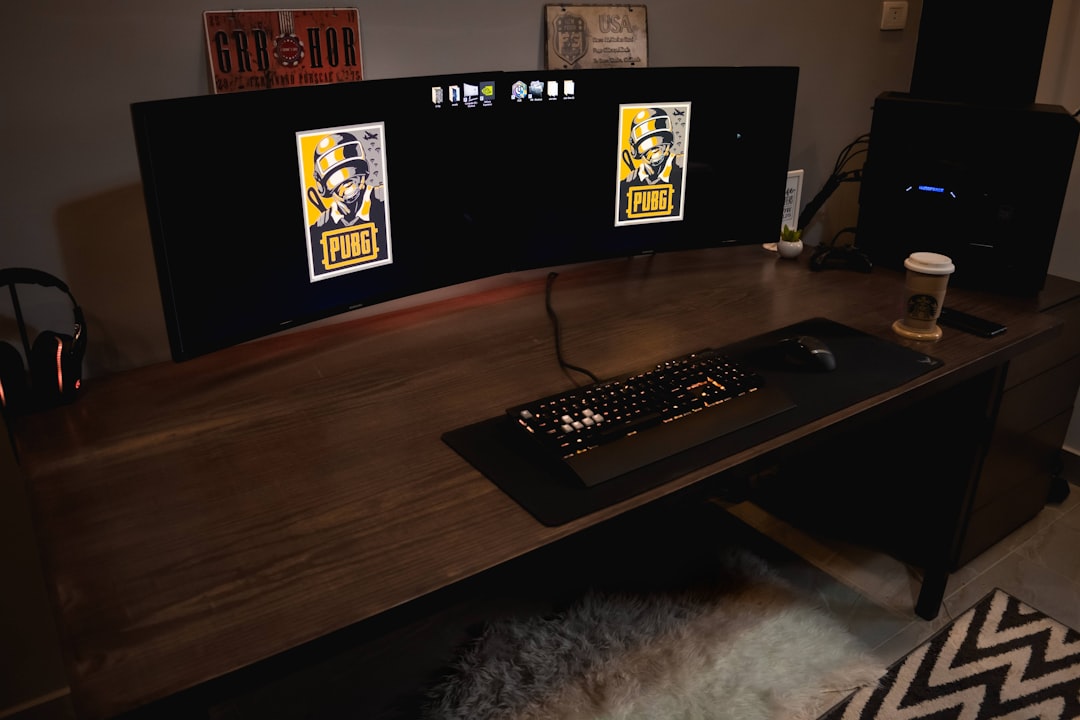
An ultrawide monitor — typically 34 or 35 inches at 3440×1440 or 5120×2160 — gives you one continuous, seamless workspace. No bezels breaking up your view, no mismatched color between two panels, no window management quirks. It’s fantastic for timeline-based work (video editing, project management), wide spreadsheets, and anyone who just loves having everything in one panoramic view. I found a good ultrawide in the $500–$800 range delivers excellent value for this use case.
Dual monitors — two 27-inch screens side by side — give you a clear physical separation between workspaces. I liked having email and Slack on one screen and my actual work on the other. The mental boundary is surprisingly helpful. It’s also easier to find matching monitors at lower price points. Two solid 27-inch 4K IPS displays can be had for less than many ultrawides, and you get more total pixels.
My verdict? If you work with one primary application and reference material, go ultrawide. If you juggle distinct workflows that benefit from clear visual separation, go dual. Neither is wrong.

Don’t Forget About Ergonomics
Here’s the thing nobody tells you when you’re shopping for a monitor: the panel is only half the equation. Where and how you position it matters just as much. The top of your screen should be at or slightly below eye level. The center of the screen should be about an arm’s length away. If you’re craning your neck up or down, you’re doing long-term damage that you won’t notice until it’s too late.
A monitor arm or adjustable stand is non-negotiable in my book. The stands that come with most monitors offer limited height adjustment and eat up desk space. A good arm frees up surface area, gives you full range of motion, and looks cleaner. If you want to go deeper on ergonomics, my guide to laptop stands for home office productivity covers the same principles.
Cables, Docks, and the Connectivity Tangle
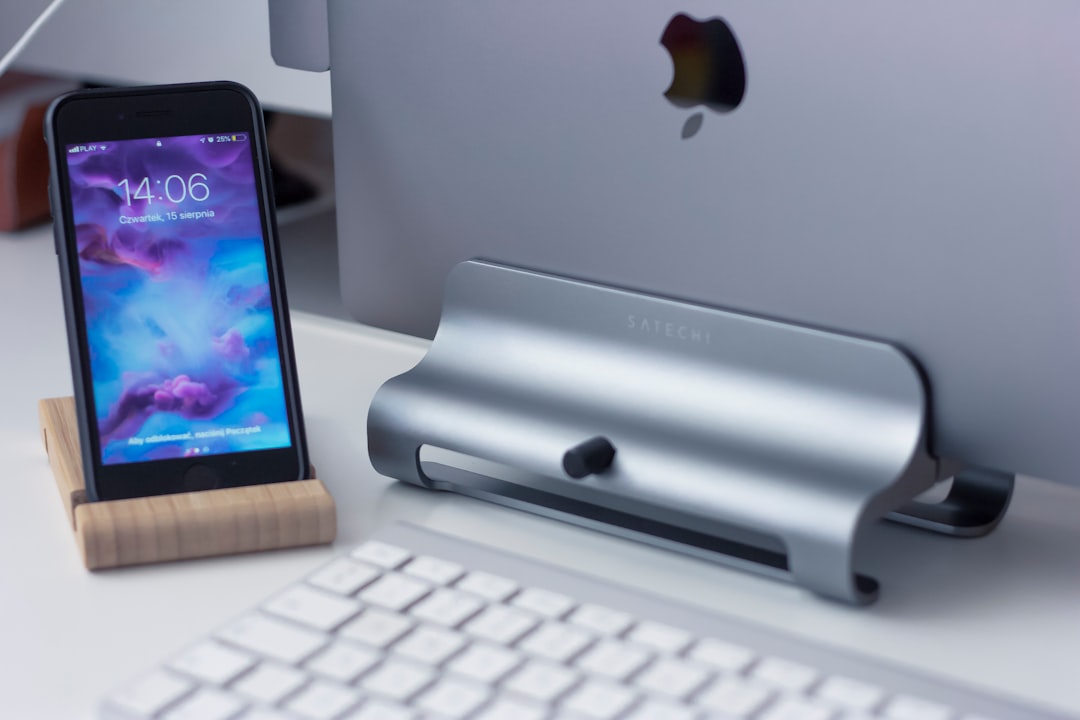
Once you upgrade your monitor, you’ll likely discover that your laptop’s port situation isn’t ideal. This is where a good dock or hub saves the day. I’ve tested a pile of these, and the ones worth buying share a few traits: they support at least 85W power delivery passthrough, they offer dual display output, and they don’t thermal-throttle after an hour of use. A solid USB-C docking station will run you $100–$200 and eliminates the cable spaghetti that turns a nice desk into a mess.
If you’re running a single monitor with USB-C, you might not even need a dock — many 4K monitors now include a built-in USB hub, passing through USB-A ports, ethernet, and sometimes even audio. I tested one from Dell that essentially replaced my standalone hub entirely. It’s an underrated feature worth looking for when you’re comparing models.

Eye Strain Is Real — Here’s What Helped Me
After my optometrist gently suggested I stop abusing my eyes, I started paying attention to blue light, brightness levels, and flicker. Most modern monitors include a low-blue-light mode, and I’d recommend turning it on if you work late like I do. It’s not magic, but it does take the edge off during evening sessions. I also picked up a pair of blue-light filtering glasses — whether it’s placebo or not, my end-of-day eye fatigue dropped noticeably.
The bigger win was learning to actually calibrate my display. Out of the box, most monitors are cranked to retina-searing brightness to look good under fluorescent showroom lights. In a home office, that’s way too much. Dropping brightness to around 120–140 nits and using a warmer color temperature made a huge difference in comfort during long sessions. If color accuracy matters for your work, a basic display calibration tool is worth the $150 investment.
What I’d Buy Right Now
After everything I’ve tested, here’s what I’d tell a friend who’s ready to upgrade. If you want the no-brainer pick: a 27-inch 4K IPS monitor with USB-C connectivity in the $350–$500 range. Dell, LG, and ASUS all make excellent options in this tier. Look for USB-C with at least 65W power delivery, an adjustable stand (or buy a separate arm), and an IPS panel with 99% sRGB coverage.
If you want to go ultrawide and have the budget, a 34-inch 3440×1440 ultrawide is the productivity sweet spot. Curved or flat is personal preference — I’ve used both and adapted to either within a day.
If you’re on a tight budget, a quality 27-inch 1440p display is still a massive upgrade over a laptop screen and can be found for under $200. The resolution isn’t quite as crisp as 4K, but the screen real estate is identical, and text is still perfectly readable.
The Bottom Line
Your monitor is the one piece of tech you interact with more than anything else in your workspace. Not your keyboard, not your mouse, not even your computer — you’re always looking at the screen. After years of testing and more than a few mistakes along the way, I’m convinced this is the upgrade that pays for itself in comfort, productivity, and plain enjoyment faster than anything else you can buy. Your neck will thank you. Your eyes will thank you. And you’ll wonder why you waited as long as I did.
If you’re still working on a laptop screen and telling yourself it’s fine — yeah, I said that too. Trust me on this one.