I lost a decade of family photos in the time it took a spinning hard drive to stop clicking. One morning it worked. That afternoon it sounded like a marble in a blender. By evening, everything — birthdays, vacations, the first steps of a kid who’s now in middle school — was gone. A data recovery service wanted $2,400 with no guarantees. I paid it. Got about 60% of the files back. Learned the hard way what “redundancy” means.
That was eleven years ago. Since then, I’ve built, tested, broken, and rebuilt more personal storage setups than I can count. NAS enclosures, JBOD arrays, cloud sync pipelines, the works. And in 2026, the landscape has shifted in a way that makes this the best year I can remember to stop renting your storage from tech companies and start owning it. Here’s what I’ve learned — and the exact setup I’d build today if I were starting from zero.
The Subscription Trap Is Real (and Getting Worse)
Last fall, my team ran the numbers on what the average household spends on cloud storage across Google One, iCloud+, Dropbox, and various app-specific backups. The result was staggering: most families are paying between $120 and $280 per year just to store files they already own. Multiply that across a decade and you’ve handed Google or Apple the cost of a pretty serious home server — except you still don’t own the hardware, the privacy terms can change at any time, and your access depends on someone else’s servers staying up.
I’m not anti-cloud. I use cloud sync for shared documents and collaboration every single day. But treating it as your only copy of irreplaceable data is like keeping your life savings in someone else’s wallet. A personal cloud — a NAS (network-attached storage) device sitting in your own home — gives you the best of both worlds: immediate local access to your files, private sharing with family, and a proper backup foundation that doesn’t charge you more every time you take a few extra photos.
The beauty of the current market is that you don’t need to be a network engineer to set one up. Synology’s DSM software and QNAP’s QTS platform have made the experience about as approachable as configuring a smartphone. And for people who want zero setup at all, there’s now a category of “personal cloud in a box” devices that work right out of the packaging.
Three Paths: Which One Fits Your Life?
After testing every major approach over the past three years, I’ve come to think of personal cloud storage in three tiers. Not better-or-worse — just different tools for different needs. Here’s how I’d break them down.
Tier 1: The “It Just Works” Box
If you’ve never heard the word NAS before today and you just want something that backs up your phone photos and lets your family share files without a monthly bill, the Synology BeeStation is where I’d point you. It’s a single-drive device that comes pre-loaded with a hard drive and software so simple my non-technical neighbor had it running in under ten minutes. You plug it into your router, download the app, and it handles everything — automatic photo backup from your phone, file sharing, remote access from anywhere.
The BeeStation isn’t a powerhouse. You can’t run Docker containers on it or transcode 4K video. But that’s the point. It exists for the person who knows they need backup but doesn’t want to learn about RAID levels or file systems. The BeeStation Plus with 8TB gives you more headroom for under the cost of two years of a comparable iCloud plan. After that, every additional year of use is money in your pocket.
Tier 2: The Real NAS (Where Most People Should Land)
Here’s where things get interesting. A two-bay NAS enclosure is the sweet spot for most households — enough redundancy to survive a drive failure, enough horsepower to run useful services, and a price that pays for itself in avoided subscription fees within two years.
The Synology DS225+ is the enclosure I’d recommend to almost anyone in 2026. At around $330, you get an Intel quad-core processor, upgradeable RAM, and Synology’s DSM operating system — which, after years of refinement, is genuinely the most polished software platform in the NAS world. It handles automated backups from every device on your network, runs a built-in photo management system that replaces Google Photos, serves media to your TV, and can even sync selected folders to a cloud service for a true 3-2-1 backup strategy.
If you want to save $80 and don’t need the latest silicon, the Synology DS224+ remains on the market at a lower price point and runs the exact same software. The performance difference matters mainly if you’re running multiple Docker containers or doing real-time video transcoding. For backup, file sharing, and photo management, you won’t feel it.
For the more budget-conscious who still want genuine NAS capability, the QNAP TS-233 is the strongest alternative. It trades Synology’s software polish for better raw hardware value — you get a quad-core ARM processor, 2GB of RAM, and dual gigabit Ethernet for less than $200. QNAP’s software isn’t as beginner-friendly, but if you’re comfortable with tech and want raw capability per dollar, it’s hard to beat.
Tier 3: The Power User Play
If you’re the kind of person who already has a home lab — or you’re running local AI models, hosting services for friends and family, or managing serious media libraries — a four-bay enclosure is where the real fun begins. The TerraMaster F4-424 Pro packs an 8-core Intel i3, 8GB of DDR5, and four hot-swappable bays into a unit that costs less than a premium laptop. It’s the enclosure I’d pick for a small business or a serious enthusiast who wants room to grow.
Four bays means you can run RAID 5 — surviving any single drive failure while using 75% of your total capacity — or RAID 6 for paranoia-level protection. It also means you’ve got room for SSD caching, which transforms everyday file access speeds if you’re willing to spend on a couple of NVMe drives.
The Drives Inside (Don’t Cheap Out Here)
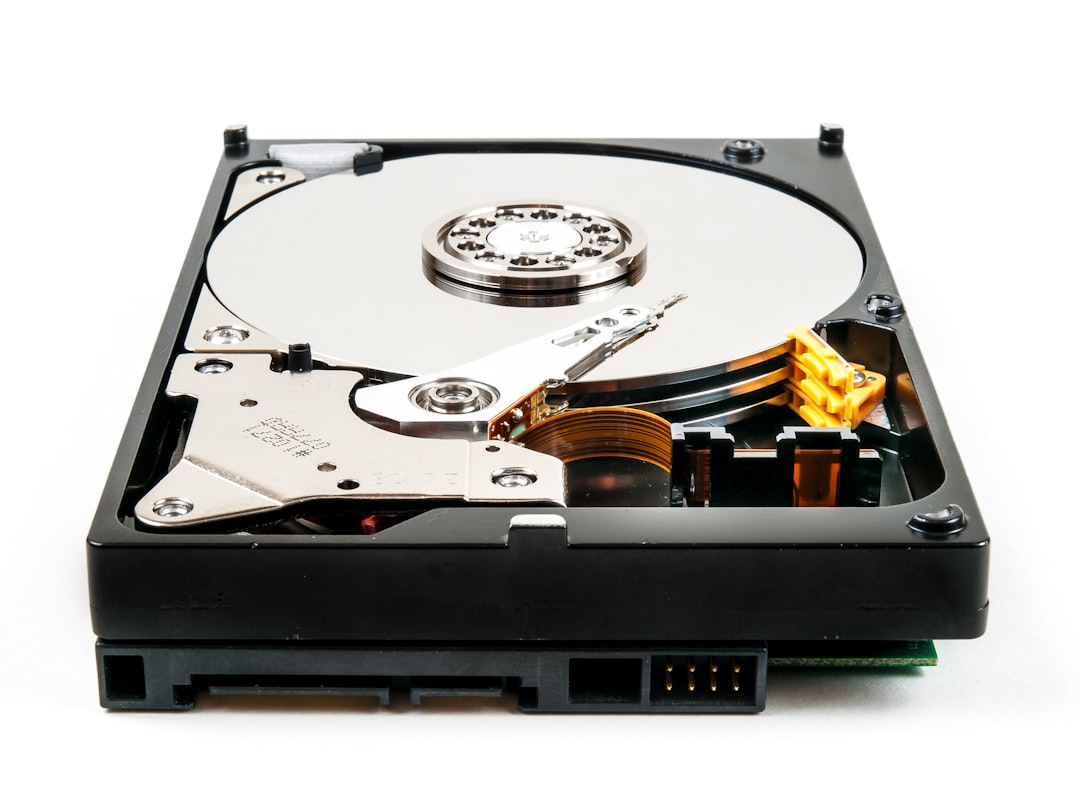
The single biggest mistake I see people make with their first NAS is buying cheap desktop hard drives instead of NAS-rated ones. Standard desktop drives aren’t designed for 24/7 operation in a vibration-heavy enclosure with other spinning platters nearby. They run hotter, fail sooner, and in some cases actively fight the vibration compensation algorithms that NAS enclosures use to keep data safe.
NAS-rated drives cost maybe 15-20% more than their desktop equivalents, and they’re built for entirely different workloads: sustained operation, vibration tolerance, and error recovery controls that play nicely with RAID arrays. After running both types across multiple enclosures, I can tell you the failure rate difference is real and measurable.
The WD Red Plus 8TB is my default recommendation in 2026. It’s CMR (conventional magnetic recording), which matters — SMR (shingled) drives can cause catastrophic performance problems in RAID rebuilds. The 8TB capacity hits a price-per-terabyte sweet spot, and WD Red Plus drives have been rock-solid across the dozen or so I’ve deployed over the years. For smaller budgets, the Seagate IronWolf 4TB is the equivalent pick on the Seagate side — also CMR, also NAS-rated, and a perfectly reliable choice.
A rule of thumb I give everyone: buy your drives from different manufacturing batches (or even mix brands) if you can. Drives from the same batch tend to fail at similar times because they experienced the same manufacturing conditions. Spreading your purchase across brands or purchase dates dramatically reduces the odds of simultaneous failure.
The Network Foundation (Where Speed Lives)
A NAS is only as fast as the network it sits on. I’ve watched people spend $800 on a NAS enclosure and then plug it into a Wi-Fi extender that caps out at 40 Mbps. The result? Backups that take three days instead of three hours, and a nagging feeling that they wasted their money. They didn’t waste their money — they wasted their network.
Here’s the non-negotiable: your NAS should be connected to your router by an Ethernet cable. Not Wi-Fi. Not a powerline adapter. An actual cable. If your router is across the house, run a cable or move the NAS closer to the router. I wrote an entire piece about why your mesh WiFi system matters more than you think, but for NAS specifically, wired is the only answer that makes sense.
If you’ve got more devices than router ports — which happens fast once you add a NAS, a smart home hub, and a desktop — a simple unmanaged switch solves the problem for under $25. The TP-Link 8-Port Gigabit Switch is the one I’ve deployed in more homes than I can count. It’s bulletproof, requires zero configuration, and gives you eight ports for less than the cost of a takeout dinner. Plug your router into one port, your NAS into another, and you’ve got six left for everything else.
If you’re already thinking about upgrading your router situation — and you should, especially if your NAS is going to serve media to the whole house — I covered the router vs. mesh debate in detail here. The short version: a good mesh system with a wired backhaul gives your NAS a fast path to every device in the house without bottlenecking.
Protecting the Protector: Power and Backup Strategy
Here’s something that catches people off guard: your NAS is more vulnerable to power events than almost any other device in your home. It’s always on, it has drives constantly spinning (or constantly ready to), and a sudden power cut during a write operation can corrupt data faster than you can say “file system check.” I learned this one the hard way during a summer thunderstorm that clipped the power for exactly two seconds. Two seconds. That’s all it took to corrupt a month of photo backups.
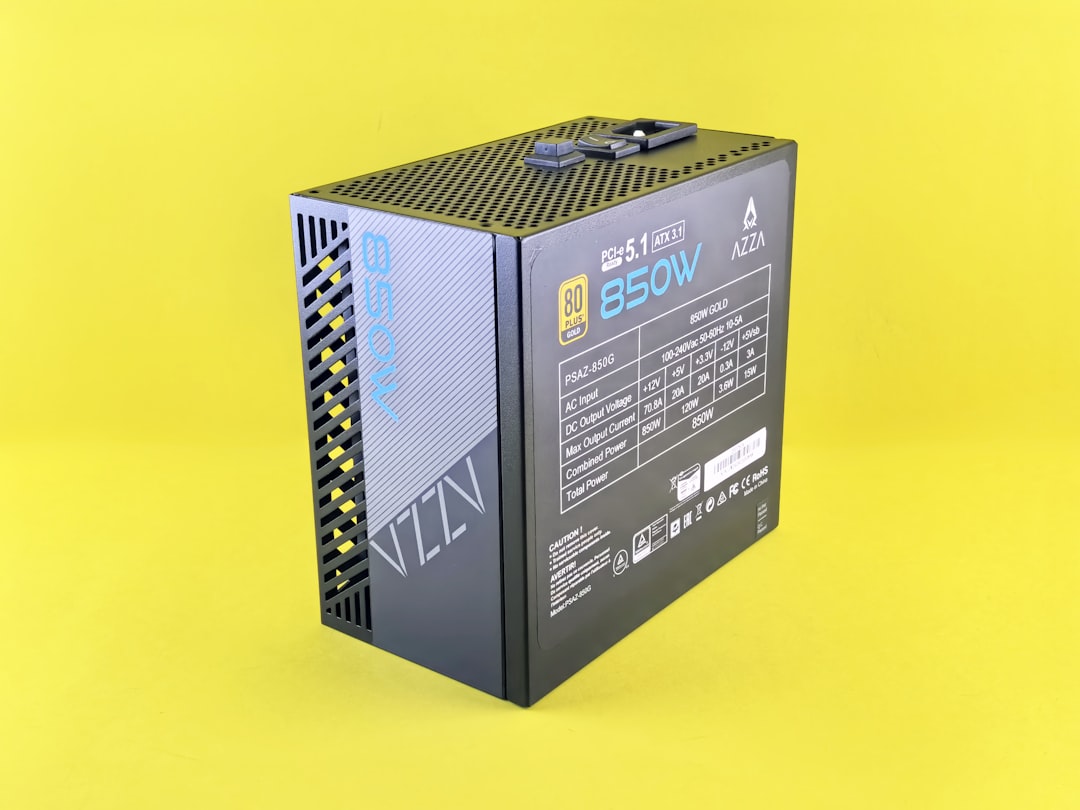
A UPS (uninterruptible power supply) is not optional for a NAS. It’s part of the cost. The CyberPower CP1500PFCLCD is the model I use on every NAS installation I’ve built in the past five years. It delivers pure sine wave output (important for the power supplies in NAS enclosures), has enough capacity to keep a NAS running for 15-20 minutes during an outage, and — critically — can signal the NAS to shut down gracefully when battery runs low. That graceful shutdown is the difference between a clean file system and a corrupted one.
I wrote extensively about why power protection matters for your entire setup, and the same principles apply here — except the stakes are higher because your NAS holds the only copy of data that matters.
The 3-2-1 Rule (and How a NAS Makes It Actually Doable)
Every IT professional knows the 3-2-1 rule: three copies of your data, on two different media types, with one copy off-site. It sounds exhausting. But a NAS makes it almost automatic.
Here’s how it works in practice: your original files live on your computer or phone (copy one). Your NAS automatically backs them up over the network (copy two, different media). And the NAS syncs your most critical folders — photos, documents, the stuff you can’t replace — to a cloud service or a remote NAS at a family member’s house (copy three, off-site).

Synology’s DSM makes this trivial. The built-in Hyper Backup app connects to Google Drive, Backblaze B2, Dropbox, and a dozen other cloud services, and you can schedule encrypted incremental backups that only upload what’s changed. For truly critical files, the Cloud Sync app can maintain a real-time mirror. You pick the folders, you pick the cloud, and the NAS handles the rest in the background.
The cost of this approach? If you use Backblaze B2 at $6 per terabyte per month, and you’re only syncing your most important 50-100GB of files (photos, documents, not your movie collection), you’re paying pennies. Compare that to the $10-30 per month most people pay for cloud storage they don’t even fully use.
The Portable Layer: When You Need Files Away From Home
A NAS handles the heavy lifting at home, but there’s still a place for portable storage in a complete setup. Whether it’s shuttling large video files between locations, having an offline backup when you’re traveling, or just a fast way to transfer data between machines that aren’t on the same network, a good portable SSD earns its keep.
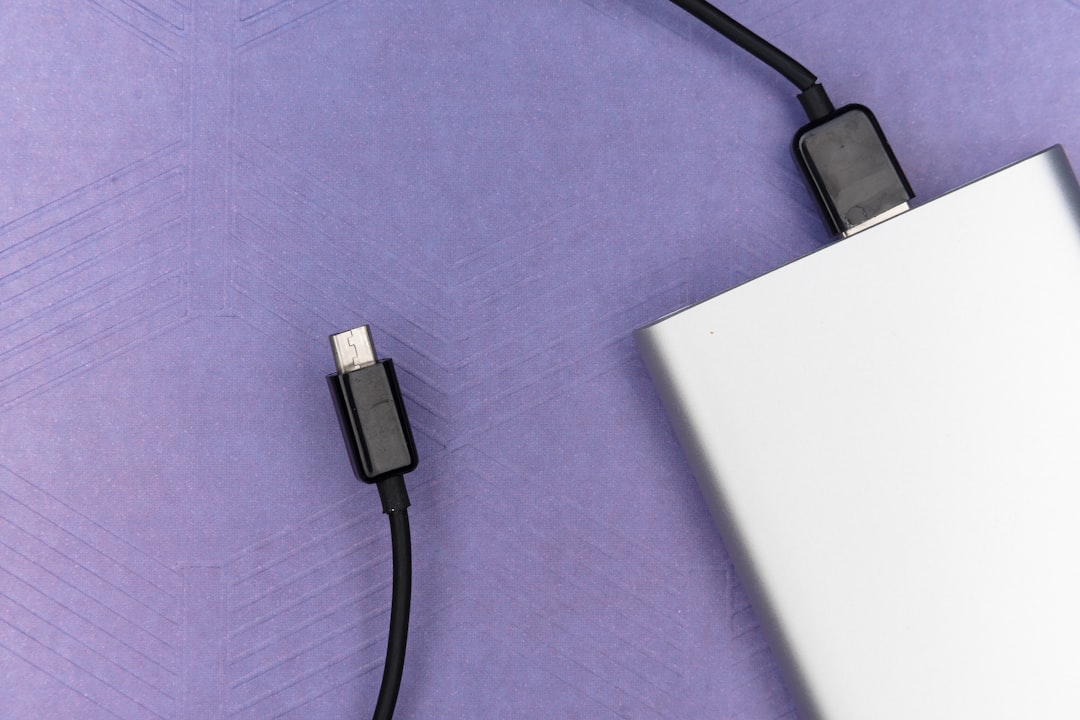
The Samsung T7 Portable SSD remains my top pick in 2026 for the same reasons it’s dominated this category for years: 1,050 MB/s read speeds over USB 3.2, hardware encryption, a metal housing that survives drops, and reliability that I’ve personally verified across two dozen units deployed to team members. At 1TB, it’s enough for most portable use cases. If you’re working with 4K video or large model files, step up to the 2TB version.
The T7 also makes an excellent emergency boot drive. If your main machine dies, you can boot from the T7 with a complete system image and be back to work in minutes. That’s not a backup strategy on its own, but as one layer of a multi-tier approach, it’s invaluable.
What This Actually Costs (and How Fast It Pays for Itself)
Let me break down a complete, no-compromise setup for a typical family of four:
- Synology DS225+ enclosure: ~$330
- Two WD Red Plus 8TB drives: ~$320 ($160 each)
- CyberPower CP1500 UPS: ~$190
- TP-Link 8-port switch: ~$25
- Cloud sync (Backblaze B2, ~100GB): ~$0.60/month
Grand total: about $865 upfront, plus less than $1 per month ongoing. That sounds like a lot until you compare it to what most families spend on cloud storage: $15-25 per month across various services, which is $180-300 per year. The NAS pays for itself in roughly three years — and after that, the only ongoing cost is electricity (about $15-20 per year for a modest NAS) and the occasional drive replacement every 4-5 years.
But the real return on investment isn’t financial. It’s knowing that your family photos, your tax documents, your kids’ school projects, and every piece of data that matters to you is sitting on hardware you control, in your own home, protected by redundancy you understand. No terms-of-service changes. No storage tier pricing hikes. No company deciding your account violates some obscure policy and locking you out of a decade of memories.
Start Small, But Start Now
If I could go back and talk to myself eleven years ago — the guy holding a dead hard drive and a $2,400 recovery invoice — I’d say this: you don’t need the perfect setup. You need a setup. A single-drive BeeStation plugged into your router tonight is infinitely better than the most sophisticated NAS design sitting in a browser bookmark folder while your data lives on borrowed drives in borrowed time.
Pick the tier that matches your comfort level, buy the drives, spend an evening setting it up, and then forget about it. That’s the beauty of a well-built personal cloud — it does its job quietly, reliably, on hardware you own, for years longer than any subscription will stay at the same price. Your files deserve better than a monthly fee. Give them a home.