Every November my inbox fills with the same question in different words: “Is this monitor deal real?” This year the question has more weight than usual. Black Friday lands on November 27, the early sales are already live, and memory and storage are still priced like it’s a shortage, because it is. Laptops, prebuilt towers and SSDs have been creeping up all fall. Monitors have not. A 27-inch screen doesn’t care what a 32GB DDR5 kit costs, so it’s one of the few big tech purchases where the Black Friday sticker can mean something.
The trouble is the box. Monitor spec sheets are the most creative writing in consumer electronics. “1ms.” “HDR.” “200Hz.” Every one of those numbers is technically true, and a good share of them are useless for telling you how the screen will look on your desk. I’ve spent the last three weeks running a stack of sub-$300 panels side by side on my test bench, mostly 27-inch 1440p models because that’s where the sweet spot is this year. Here’s what the spec sheets hide, what to check before you click, and the short list I’d actually buy.
The Short Answer
- Best all-rounder for most desks: ASUS TUF Gaming VG27AQ3A. A 27-inch 1440p Fast IPS panel at 180Hz with ELMB Sync and good out-of-box color, usually around $180.
- Fastest for the least money: Acer Nitro XV272U. 240Hz at 1440p over DisplayPort, recently seen at $170.
- The one that does real HDR: KTC M27T6S Mini-LED. Local dimming is the difference between “HDR” on the box and HDR on the screen, and this one has been down to $250.
- Best for spreadsheets and documents: Samsung ViewFinity S6 27-inch QHD. Calm, sharp, no gamer styling, and under $180 this week.
- Best for a PS5 or Xbox: Dell 27 Plus 4K S2725QS. A 27-inch 4K IPS panel at 120Hz with two full HDMI 2.1 ports, so a console gets 4K at 120Hz. It’s $279.99 at Amazon right now and has been down near $218.
If your current screen is a 24-inch 1080p panel and you mostly read email, you can skip this whole sale. Spend twenty dollars on a better stand or a light bar instead and you’ll feel more difference than you will from more pixels. Everyone else, read on, because the money is in the details.
Why Monitors Are the Safe Buy This Black Friday
I’ve spent most of this fall telling people to be careful. Laptop prices moved before the sales did because of the memory squeeze, and I wrote about the ten-minute price check I run on every Black Friday tech deal precisely because so many “discounts” this year are just a return to last summer’s normal price.
Monitors are different for a boring reason. A display panel is glass, liquid crystal, a backlight and a controller board. There’s no pile of DRAM inside, so the AI-driven memory crunch hasn’t touched the bill of materials. Panel makers have also been overbuilding 27-inch 1440p high-refresh glass for two years, which is why a 180Hz IPS screen that would have cost $400 in 2022 now sits under $200 on an ordinary Tuesday. That’s the market telling you the price is real.
That said, “the category is healthy” isn’t the same as “every deal is good.” Monitor prices bounce around more than most people realize. The Dell S2725QS dipped to about $218 at Amazon this summer and lists at $279.99 now. If you buy at $269 and call it a Black Friday win, you’ve been played. Pull the price history before you check out, every time.

Spec-Sheet Lie No. 1: “1ms Response Time”
Almost every gaming monitor under $300 claims 1ms, 0.5ms or even 0.3ms. Here’s what the fine print usually means. That figure is a best-case gray-to-gray transition, measured with the overdrive set to its most aggressive mode. In that mode, most budget panels overshoot. You get a bright or dark halo trailing behind moving objects, which reviewers call inverse ghosting. It looks worse than the blur it was meant to fix.
In real use, you’ll run the overdrive at its middle setting, and a good Fast IPS panel then lands somewhere around 4 to 6 milliseconds of actual transition time. That’s fine. It’s fast enough for 180Hz to look clean. What you want to know isn’t the number on the box but whether the panel looks clean at the overdrive setting you’ll actually use. The ASUS VG27AQ3A is good here: its middle overdrive step is the one to use, and it doesn’t smear or halo at 180Hz. A few cheaper no-name 200Hz panels I tried only looked sharp in the one overdrive mode that also added visible halos.
Also be careful with “MPRT 1ms.” That’s a different measurement that relies on backlight strobing, which usually dims the screen, flickers at lower refresh rates and turns off adaptive sync. It’s a real feature, but it isn’t the same thing as a fast panel.

Spec-Sheet Lie No. 2: The HDR Sticker
If you remember one paragraph from this article, make it this one. “HDR10 support” on a monitor means the screen accepts an HDR signal. It doesn’t mean the screen can show it. “DisplayHDR 400” means the panel hits about 400 nits and covers a decent color gamut, but it says nothing about contrast. Without local dimming, the whole backlight brightens at once, so the bright parts of the image get brighter and the black parts turn gray right along with them. Most people switch HDR on, think the picture looks washed out, and switch it back off. They’re right.
Real HDR at this price needs a backlight that can dim in zones, and that means mini-LED. The AOC Q27G3XMN started this trend a couple of years ago with a VA panel and a few hundred dimming zones, and it still shows up under $300 whenever it’s in stock. The KTC M27T6S does the same job with an IPS panel, more brightness and 200Hz, and at $250 it’s the most impressive screen I’ve seen at this price. Highlights pop, the night sky in a game is actually dark, and photos look more like they do on a good phone.
Mini-LED has trade-offs. You’ll see faint blooming around a white mouse cursor on a black background, and the dimming algorithm sometimes lags behind fast motion. For movies, photos and most single-player games I’ll take that every time over a flat gray “HDR400” panel. For spreadsheets, it doesn’t matter at all, and you should buy something cheaper.
Spec-Sheet Lie No. 3: Panel Type Is Treated Like a Footnote
Retail listings bury the panel type halfway down the page, but it changes the experience more than refresh rate does. Here’s the quick version from my bench.
IPS gives you the best colors and viewing angles, and the fastest transitions at this price. The weakness is contrast, around 1,000:1, and a soft “IPS glow” in the corners when you’re in a dark room. For mixed work and play, IPS is the default I recommend.
VA has roughly three to five times the native contrast, so blacks look deeper and movies look richer without any HDR tricks. The weakness is dark-scene smearing. When a dark object moves across a dark background, VA pixels respond slowly and leave a purple-ish trail. Budget curved VA monitors are the usual offenders. If you play dark, fast shooters, avoid them. If you watch films on your monitor more than you play, VA is great value.
OLED is the real upgrade on contrast and motion, but a 27-inch OLED still sits well above $300 outside of fleeting doorbusters. If you see one under $300, check whether it’s refurbished, an older model or a smaller size, and read the burn-in warranty before you get excited. I’d rather own a good mini-LED panel at $250 than a mystery OLED at $299 with a 90-day warranty.
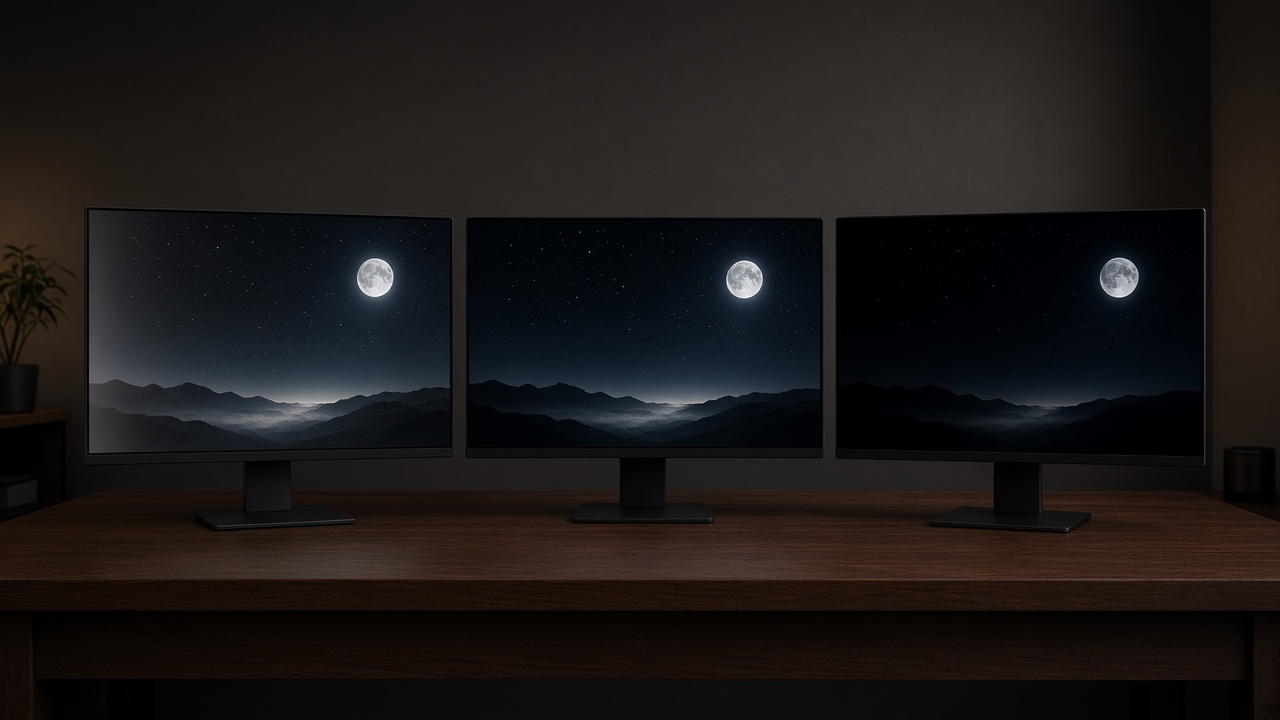
You don’t need a lab to see the difference. Put three panels side by side on the same moonlit night scene and the black levels split right away: one screen looks gray and lifted, one is deeper, and the best one is close to ink.
Spec-Sheet Lie No. 4: The Refresh Rate Your Port Can’t Carry
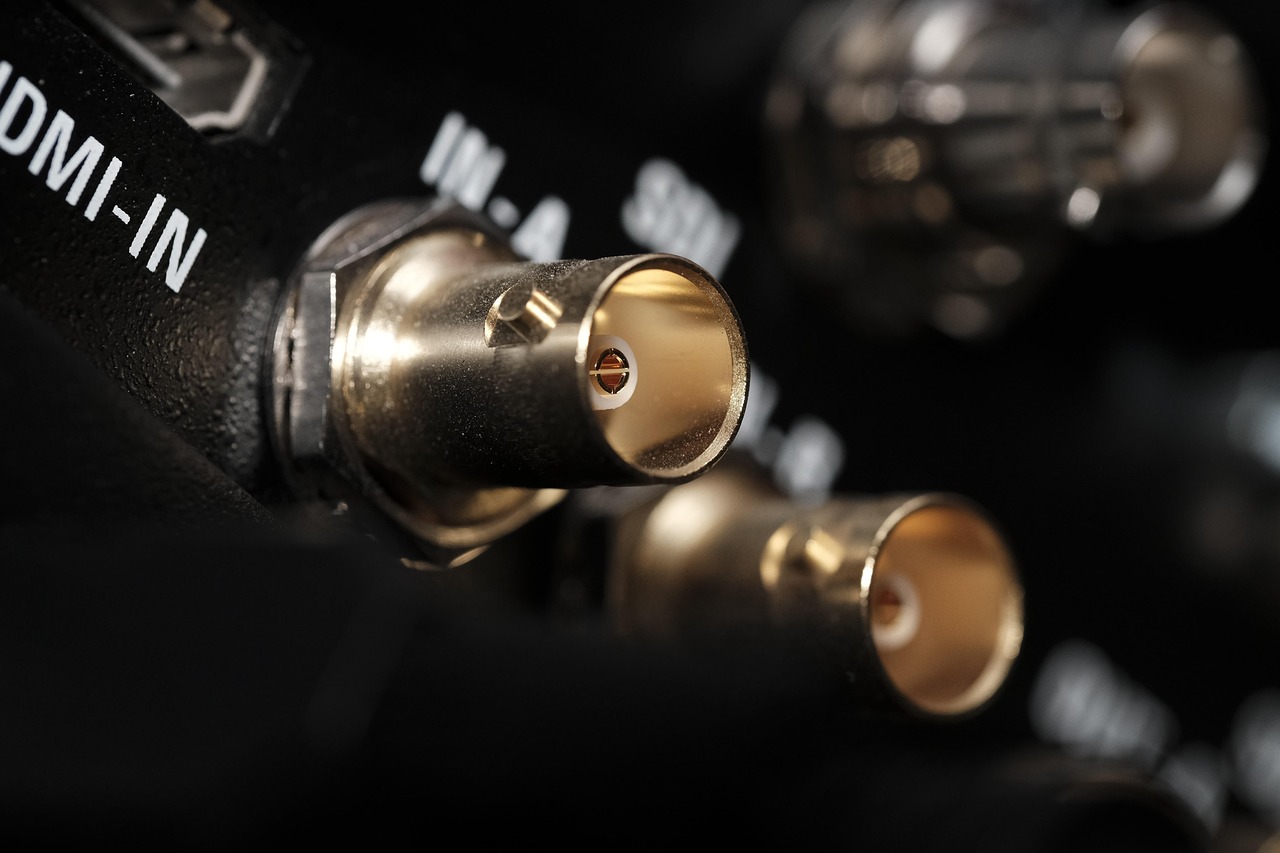
A 240Hz badge only matters if the cable and port can deliver it. On most budget monitors, the full refresh rate only works over DisplayPort. HDMI is often HDMI 2.0, which tops out at 144Hz at 1440p. The Acer XV272U is a good example: 240Hz over DisplayPort, 144Hz over HDMI. That’s perfectly fine for a PC, but a lot of people plug the HDMI cable that came in the box into a laptop and never find out they’re running at 60Hz.
Two things to check. First, Windows and macOS both let you pick the refresh rate in display settings, and they don’t always choose the highest one automatically. Look as soon as you plug the monitor in. Second, use a certified cable. The cables bundled with budget monitors are hit or miss, and a VESA-certified DisplayPort 1.4 cable costs less than lunch and removes a whole category of flicker and blackout problems.
Consoles are their own case, and the box can mislead you in both directions. A PS5 or Xbox Series X can run 1440p at 120Hz over plain HDMI 2.0, as long as the monitor accepts 120Hz on its HDMI input, so check the manual, because some budget panels cap HDMI lower. 4K at 120Hz is the mode that needs real HDMI 2.1 bandwidth. Watch for “HDMI 2.1 (TMDS)” on spec sheets, too: that’s HDMI 2.0-class bandwidth with a newer label. That’s why the Dell S2725QS earns a spot on my list. Its two HDMI ports are full HDMI 2.1 with FRL, so a console gets 4K at 120Hz, and very few 4K 120Hz screens come in under $300.
Watch for “OC” as well. A “200Hz (OC)” or “255Hz (OC)” badge means the panel’s rated refresh is lower and the extra headroom comes from an overclock setting in the menu. It usually works, but it often has to be enabled manually, and response times sometimes get worse at the overclocked rate. Judge the monitor by the rate without the overclock.
Spec-Sheet Lie No. 5: Size and Resolution Sold Separately
Retailers love to put a 27-inch 1080p monitor next to a 27-inch 1440p one with a $40 gap and let you assume they’re close. They’re not. At 27 inches, 1080p works out to about 81 pixels per inch, and you can see the grain in text from a normal sitting distance. 1440p at 27 inches is about 109 pixels per inch, which is the point where text looks crisp without any scaling. In 2026, 1080p only makes sense at 24 inches or smaller.
If you live in documents, code or spreadsheets, consider going up instead of out. The Samsung ViewFinity S7 32-inch 4K has been $249.99 in early sales, and a 32-inch 4K panel at 125 percent scaling gives you the working space of a 1440p screen with noticeably sharper text. It’s a 60Hz panel, so it isn’t a gaming monitor, but for eight hours of reading it’s the most comfortable screen on this list. The ViewFinity S6 is the 27-inch version of the same idea at 1440p and a lower price.
If you’re tempted by something bigger still, read my notes on the first 36-inch monitor first. Size is wonderful until you realize your desk is only 24 inches deep and you’re turning your head to read the clock.

Spec-Sheet Lie No. 6: “USB-C” Without the Watts
A USB-C port on a monitor can mean three very different things. Sometimes it’s a data-only port for a keyboard. Sometimes it carries video but can’t charge your laptop. And sometimes it carries video, charges your laptop and runs a little USB hub, all over one cable. That last one is the dream setup, and it’s still rare under $300. When you do find it, check the wattage. A monitor that delivers 15 or 45 watts will slowly drain a 14-inch laptop that wants 65 or more during a busy day.
If you have a laptop and want one-cable docking, don’t overpay for a USB-C monitor at this price. Buy the better panel, then add a dock later. The panel is the part you’re stuck with for five years; the dock is a $60 swap.
Spec-Sheet Lie No. 7: The Stand Nobody Photographs
Product photos always show the monitor from the front, perfectly level, floating at eye height. Many sub-$200 monitors ship with a tilt-only stand that puts the center of the screen far too low for most people. If the listing doesn’t mention height adjustment, assume there isn’t any. The Acer XV272U ships with a fully adjustable stand, which is one reason it made my list. Check the stand specs on every listing, including my other picks, before you assume.
If you fall in love with a panel that has a bad stand, check for VESA 100 mounting holes on the back and budget for an arm. A basic Amazon Basics Single Monitor Arm fixes height, depth and tilt for less than the price difference between two monitors, and it frees up half your desk. I made that case in detail in my monitor arm experiment, and nothing about it has changed.
While you’re at it, light the desk instead of cranking the brightness. A Quntis Monitor Light Bar clips onto the top of the screen and lights the desk without any glare on the panel, and it did more for my evening eye strain than any “eye care” mode built into a monitor. I covered the rest of that fight in what actually fixed my screen fatigue.
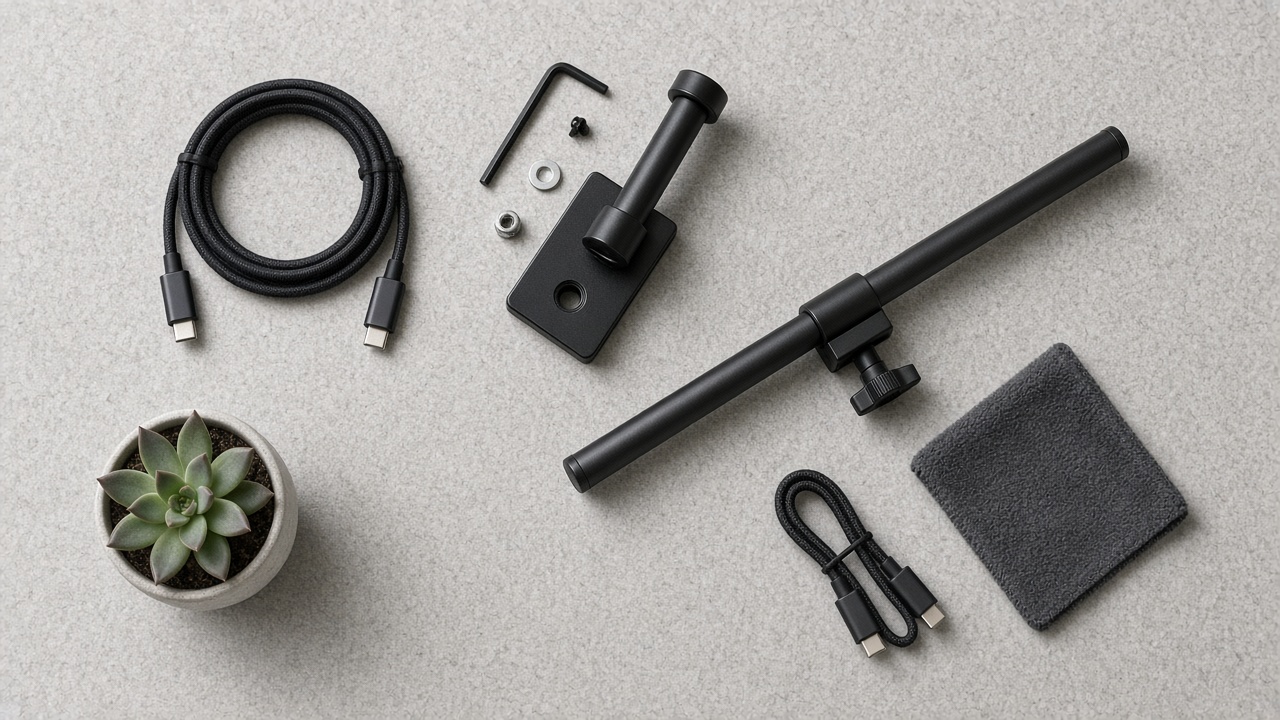
The add-on kit is small. Lay it out before you start and you’ll see a mount plate with its post, an Allen key and a few washers and screws, a slim bar with a mounting knob, a couple of braided USB-C cables and a microfiber cloth for the screen. None of it is exciting, and all of it changes how the monitor feels to use.
My Target Prices for Black Friday Week
These are the prices I’d be happy to pay, based on what I’ve tracked through the fall. If the listing is above the target, wait. If it’s at or below and the price history agrees, buy it and move on with your life.
| Monitor | Typical price this fall | Buy at or below |
|---|---|---|
| ASUS TUF Gaming VG27AQ3A (27″, 1440p, 180Hz IPS) | $179 to $199 | $170 |
| Acer Nitro XV272U (27″, 1440p, 240Hz IPS) | $170 to $200 | $170 |
| KTC M27T6S (27″, 1440p, 200Hz mini-LED IPS) | $250 to $330 | $250 |
| AOC Q27G3XMN (27″, 1440p, 180Hz mini-LED VA) | Varies with stock | $250 |
| Samsung ViewFinity S6 (27″, 1440p) | $178 to $230 | $180 |
| Samsung ViewFinity S7 (32″, 4K) | $250 to $300 | $250 |
| Dell 27 Plus S2725QS (27″, 4K, 120Hz IPS, HDMI 2.1) | $218 to $280 | $230 |
One warning about the targets: monitor deals at this price often sell out in hours and come back a few days later. If a pick hits its target on Tuesday and disappears, don’t panic-buy the next model up. It’ll probably be back before Cyber Monday on November 30.
The Five-Minute Listing Check
Before I buy any monitor in a sale, I run through the same quick list on the product page. It takes five minutes and has saved me from at least three bad purchases.
- Match the full model number. Retailers sometimes swap an older variant into the same listing. A missing letter at the end of a model number can mean a different panel or an older stand.
- Find the panel type. IPS, VA or OLED. If the listing won’t say, the manufacturer’s spec page will. If neither says, walk away.
- Read the HDR line carefully. “HDR10” or “DisplayHDR 400” without “mini-LED” or “local dimming” means no real HDR.
- Check the port versions. DisplayPort 1.4 for full refresh on a PC, HDMI 2.1 with FRL for a console at 4K 120Hz (1440p at 120Hz works over HDMI 2.0 if the monitor accepts it), USB-C with a stated wattage if you want laptop charging.
- Look for height adjustment and VESA holes. Without either, budget for an arm.
- Check the return window and dead-pixel policy. Holiday return windows are usually extended. Use them. Turn the monitor on the day it arrives and look at a full white and full black screen.
What I’d Actually Buy
If a friend asked me today, I’d tell them the ASUS VG27AQ3A for almost everyone, the KTC M27T6S if they care about movies or HDR games, and the 32-inch ViewFinity S7 if their monitor is mostly a work tool. The Dell S2725QS is the pick if a console is attached, and the Acer only if you play fast competitive games on a PC that can actually push 240 frames.
The bigger point is that this is the rare Black Friday where the category itself is on your side. Monitor prices haven’t been inflated by the memory crunch, the panels are better than they’ve ever been at this price, and the gap between a $180 screen and a $400 screen has never been smaller. Ignore the stickers, read the spec sheet backwards, check the price history, and you can buy a monitor this month that you’ll still be happy with in 2031.