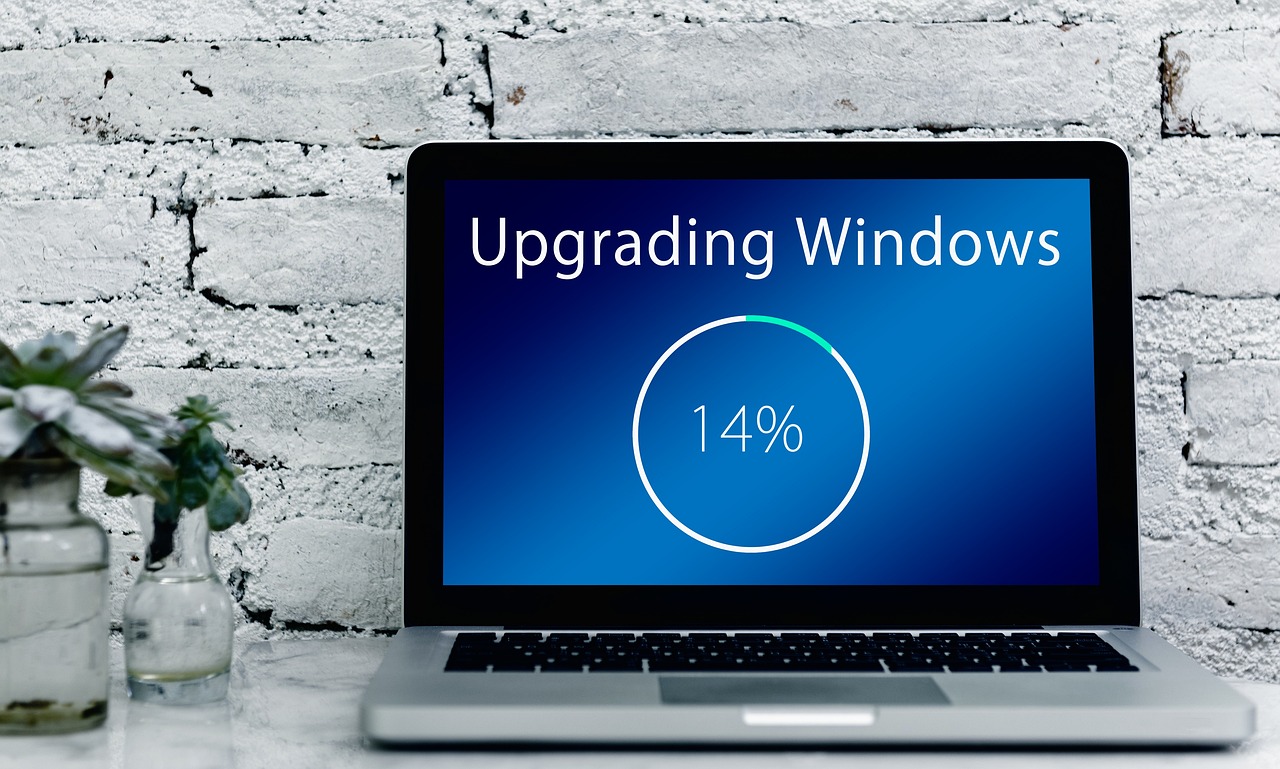
Most of the East Coast woke up this morning with a free hour, thanks to the clocks falling back. I spent mine doing something that sounds boring and turned out to be the most useful thing I did all week: I moved the last three Windows machines in my house off Windows 11 24H2.
Here is why that matters to you. If your PC runs Windows 11 Home or Pro and is still on version 24H2, it stopped getting security updates on October 13, 2026. The October Patch Tuesday release (KB5127648) was the final one. No banner pops up to tell you. The PC keeps working exactly as before, and that is the problem. Every security hole found since then stays open on your machine.
The fix is not a reinstall. For most people it is a download that takes a few minutes and one restart. My team and I ran it on a mix of hardware this weekend, from a six-year-old ultrabook to a gaming desktop, and I want to walk you through what we learned, including the setting that finally lets you turn that Copilot key into something useful.
What Actually Changed on October 13
Microsoft supports each yearly Windows 11 release for a fixed window. For Home and Pro editions that window is 24 months. Version 24H2 arrived in the fall of 2024, so its clock ran out last month. Here is where every current version stands:
- 24H2 Home and Pro: out of support since October 13, 2026.
- 24H2 Enterprise and Education: supported until October 12, 2027, because business editions get 36 months.
- 25H2: supported until October 12, 2027.
- 26H2: released September 29, 2026 (build 26300) and supported for Home and Pro until October 10, 2028.
If you manage a small office, one more date matters: 23H2 Enterprise and Education run out on November 10, 2026, which is nine days from today.
There is also a version called 26H1. You can ignore it. It ships only on certain new devices built around newer chips, and Microsoft does not offer it as an upgrade to existing PCs. For anyone with a PC they already own, the target is 26H2.
Find Out What You Are Running in Thirty Seconds
Press the Windows key, type winver, and hit Enter. A small window shows your version and build number. Builds that start with 26100 are 24H2, 26200 is 25H2, and 26300 is 26H2.
When my team checked every machine in the house, two laptops were still on 24H2. One belongs to a family member who “never touches that stuff,” and the other was a spare that had sat in a drawer since summer. Neither had complained. That is the quiet danger of end-of-support. Nothing breaks, so nobody looks.
Before You Click Anything: The Backup I Insist On
The 26H2 jump is about as low-risk as Windows updates get. It is still a change to the operating system, though, and I do not touch an OS without a fresh copy of the files I care about. It takes ten minutes and it has saved me more than once.
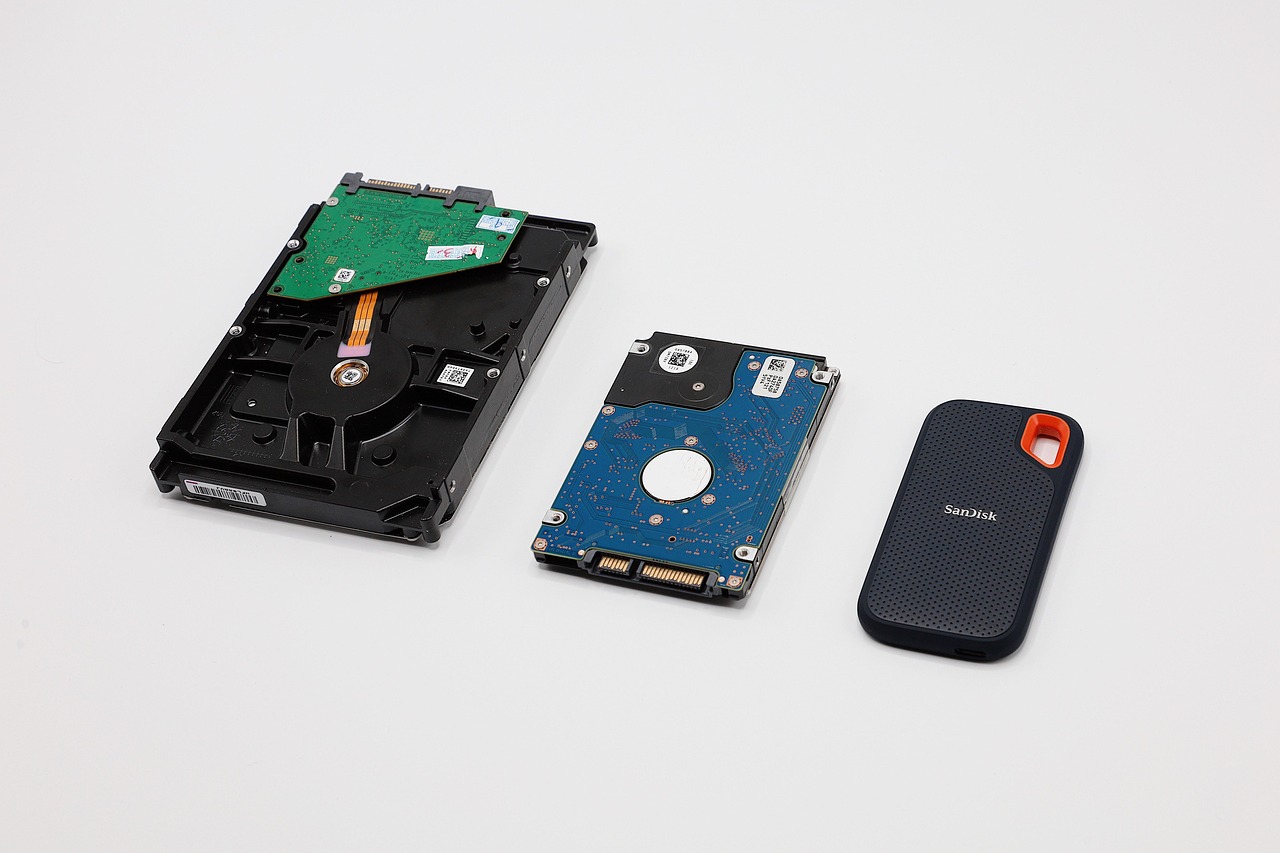
For speed, nothing beats a portable SSD. I keep a SanDisk 2TB Extreme Portable SSD on my desk for exactly this. A full copy of my Documents and Pictures folders takes a few minutes instead of an hour. The Samsung T7 Shield 2TB Portable SSD is the one I hand to family members because its rubber shell survives being knocked off a table. I made the full case for these drives in my piece on the portable SSD upgrade you keep putting off.
If you want a whole-system image rather than a folder copy, capacity matters more than speed. A WD 5TB My Passport External Hard Drive holds several full images for a fraction of the price per terabyte. Storage prices have been strange this year, which I covered in my field guide to the great storage squeeze, but spinning drives remain the cheapest way to store a lot.
Windows has a built-in tool for this now. Open the Windows Backup app to sync your folders and settings to your Microsoft account. Note that the newest update removed the older PC-to-PC migration feature in favor of Windows Backup, so this is the tool Microsoft wants you to use going forward. I still keep a local copy, because a backup that depends on your internet connection is only half a backup.
Make a Recovery Drive While You Are At It
This is the step almost everybody skips. A recovery drive is a USB stick that can boot your PC and repair or reset Windows if the machine will not start. You make it once and hope you never need it.
Type “recovery drive” into the Start menu, plug in a USB stick of at least 32GB, and follow the prompts. I use a Samsung BAR Plus 64GB USB Flash Drive because the metal body clips onto a keyring and does not snap off. Label it with the PC’s name. Recovery drives work best on the machine that made them.
One nice change worth knowing about: recent builds add a “cloud rebuild” option to the recovery menu that can reinstall Windows straight from Windows Update with no USB stick. It is rolling out gradually, and I would not bet a dead PC on a feature that is still arriving. Make the stick.
The Twenty-Minute Move, Step by Step
If you are on 24H2 or 25H2, the move to 26H2 is an “enablement package.” The new features already sit dormant on your PC, and the package switches them on. Microsoft lists it as KB5121794. It needs the September 22 preview update (KB5124010) or anything newer to be installed first, which most PCs that update normally already have.

- Plug in power. Laptops on battery sometimes pause big updates. A desk outlet removes the guesswork.
- Go wired if you can. More on that below.
- Open Settings, then Windows Update, then click Check for updates. Install anything pending first, including the October cumulative update, and restart if asked.
- Look for “Windows 11, version 26H2 is available.” Click Download and install.
- Restart once. That is it. On our machines the restart took between four and nine minutes.
Run winver again afterward. You should see a build starting with 26300.
Microsoft’s staged rollout reached full availability in October, so 24H2 and 25H2 machines should now all see the offer. If yours does not, skip ahead to the troubleshooting section.
Why I Go Wired for Big Updates
Wi-Fi is fine for most things. It is not fine when a several-hundred-megabyte download gets interrupted halfway because the microwave kicked on. Every stalled update my team has dealt with this year happened on wireless.
Thin laptops rarely have an Ethernet port anymore, which is why an Anker USB-C to Ethernet Adapter lives in my bag. It is plug-and-play on Windows with no driver hunt. Pair it with a Cable Matters Cat 6 Ethernet Cable long enough to reach from your router to wherever you sit.
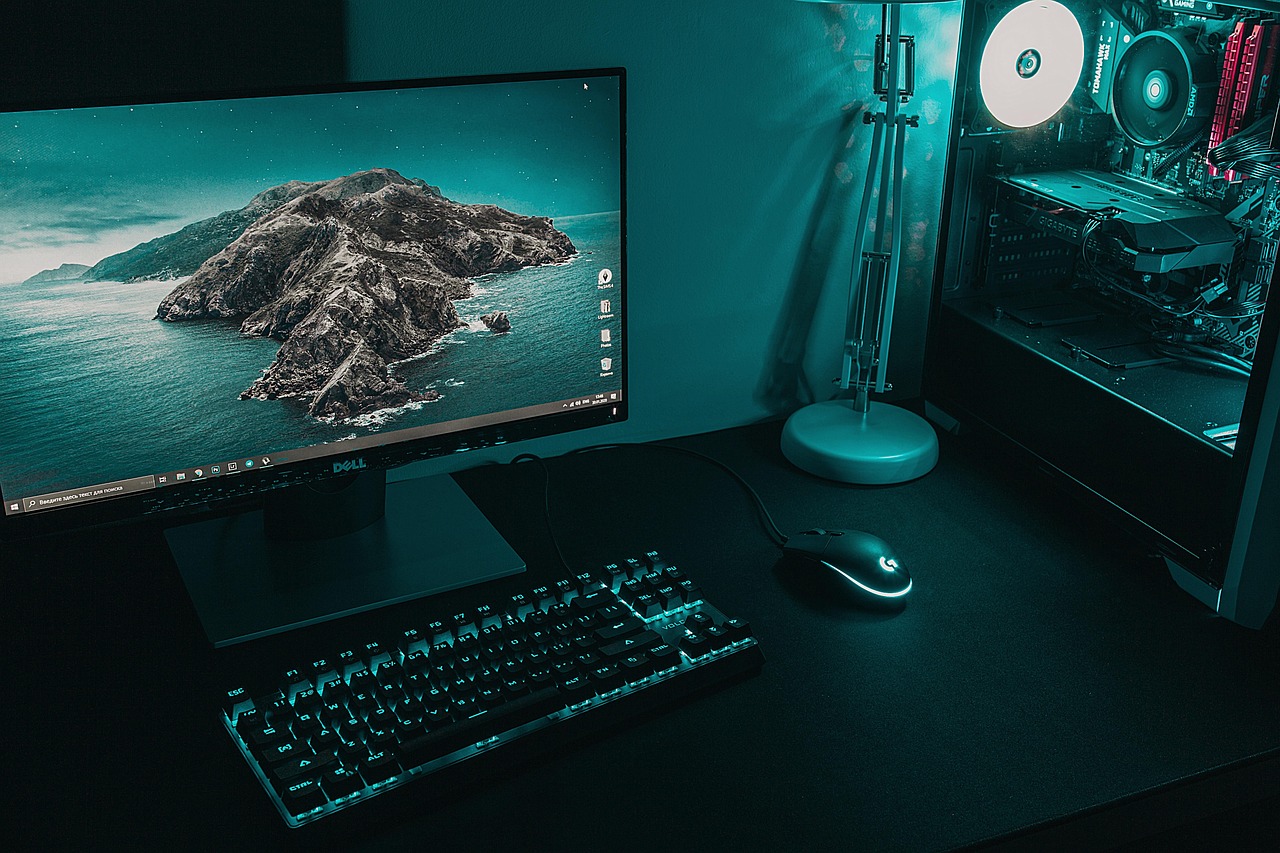
For desktops, one more piece of insurance is worth the money. A power flicker in the middle of an OS update is the one scenario that can leave a PC unbootable. A small battery backup such as the APC Back-UPS 600VA keeps a desktop and monitor alive long enough to finish the job or shut down cleanly. I put one under every desktop I set up, and this fall it has already covered two brief outages at my place.
If 26H2 Does Not Show Up
On one of our three machines, the offer simply did not appear. Here is the checklist we worked through, in order:
Install the prerequisite first. The enablement package will not be offered until KB5124010 or a later cumulative update is installed. Check for updates, install everything, restart, then check again. That fixed our stubborn laptop on the second pass.
Check your free space. The package itself is small, but the cumulative updates that come before it need room to unpack. If your drive has less than about 20GB free, clear out the Downloads folder and run Disk Cleanup. On older laptops with tiny drives, the real fix is more space. A Crucial P3 Plus 1TB NVMe SSD is one of the cheapest ways to give an aging machine breathing room and a speed boost. I explained why keeping an older laptop going makes sense this year in why your old laptop is the bargain.
Watch for known issues. Microsoft is tracking a problem where some older USB audio devices that use the USB Audio Class 1.0 standard show error Code 10 and produce no sound after the upgrade. It is listed as mitigated, but if you rely on an older USB headset or audio interface for work, check Microsoft’s Windows release health page before you update. A Remote Desktop error that hit some users after the upgrade was fixed by the late-October optional update, KB5127936.
The Secure Boot Check Nobody Mentions
While you are in a maintenance mood, look at one more setting. The original Secure Boot certificates that shipped on most PCs, dating from 2011, began expiring this past June. Microsoft has been pushing replacement 2023 certificates out through Windows Update, and most machines have taken them quietly.

Open Windows Security, go to Device security, and look at the Secure Boot status. If it reports a problem or mentions a firmware limitation, visit your PC maker’s support site and install the latest BIOS or UEFI update. Whatever you do, do not turn Secure Boot off to make a warning go away. A machine with old certificates still boots normally, but it stops receiving new boot-level protections, and those protect you against some of the nastiest malware out there.
If security is on your mind, a hardware key is the other cheap upgrade I recommend to everyone. A Yubico YubiKey 5C NFC works with Windows Hello, your Microsoft account and most major services. I wrote a whole piece on the hardware key phishers cannot pick if you want the details.
Taking Back the Copilot Key
Now for the part that made my team cheer. If your laptop is from the last two years, it probably has a Copilot key where the right Ctrl key used to be. For many of us, including everyone who uses Ctrl shortcuts with the right hand, that key has been a constant annoyance.
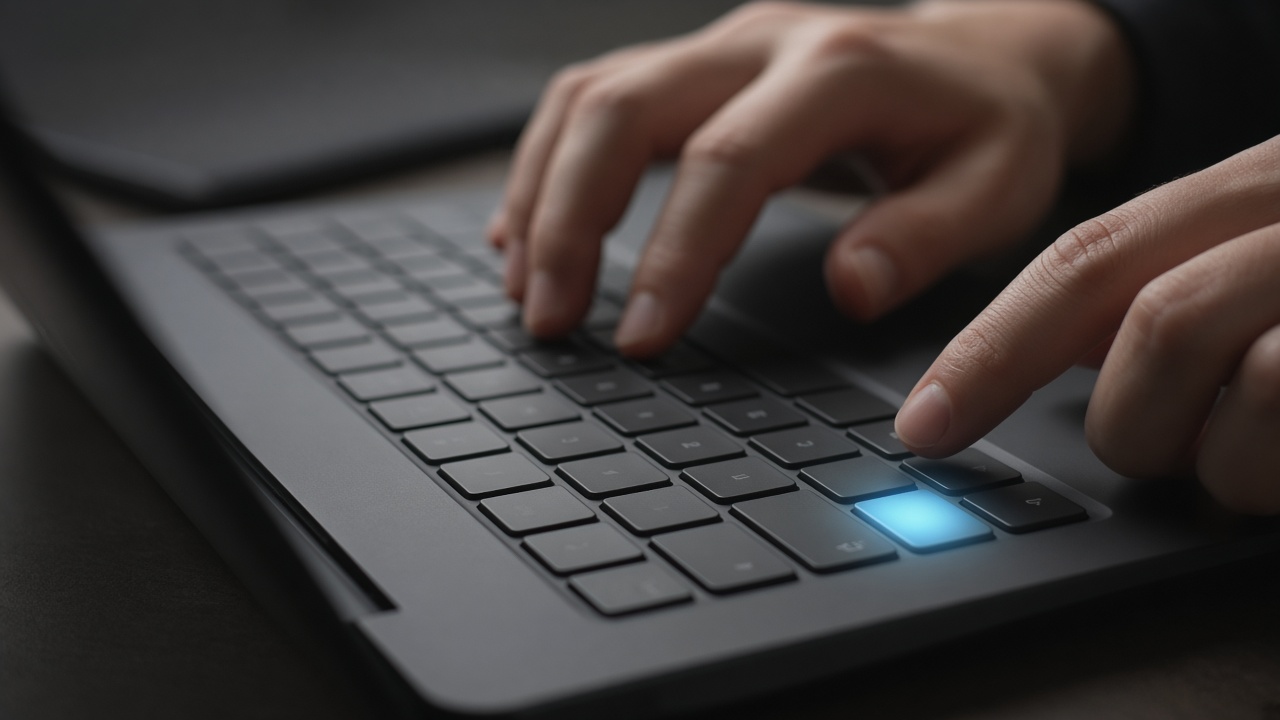
The October update added a built-in fix. Go to Settings, then Bluetooth and devices, then Keyboard, and look for the Copilot key option. You can set it to act as Right Ctrl or as the Context Menu key. The setting is rolling out gradually, so if you do not see it yet, it should arrive soon on a 25H2 or 26H2 machine with the latest updates.
Two catches we found in testing. First, after remapping to Right Ctrl, combinations like Right Ctrl plus the Windows key or Right Ctrl plus Shift do not behave normally. Use the left Ctrl key for those. Second, many laptop makers ship their own key-remapping utility. Pick one method, either the Windows setting or the manufacturer’s tool, and turn the other off. Running both produced unpredictable results on one of our test laptops.
If you want the key to do something else entirely, such as launch a specific app, Microsoft’s free PowerToys utility has a Keyboard Manager that can map it to almost anything.
When Remapping Is Not Enough
Some people at my desk decided the real fix was a better keyboard. If you use a laptop docked at a desk most of the day, an external keyboard sidesteps the layout question entirely. The Logitech MX Keys S Keyboard is the one I type on daily. It switches between three devices, and its own software lets you program shortcut keys without touching the Windows registry.

For people who live in shortcuts, a programmable button deck is the next level. An Elgato Stream Deck MK.2 gives you fifteen customizable keys for launching apps, opening folders or running whole sequences. It is not just for streamers. I use mine to start my writing setup with one press.
What You Actually Get Once You Land
Beyond security patches, a few improvements make the move worth it on their own:
File Explorer previews for downloaded PDFs are back. A security change last year had blocked them, and this update restores them while keeping protections in place. Bluetooth audio got a round of reliability fixes. And the late-October optional update starts rolling out a customizable right-click menu, a dark mode for the old Folder Options window, and a handy trick: type a tilde (~) into the File Explorer address bar to jump straight to your user folder.
None of these are dramatic. Together, they make the machine feel a little more polished, and the version you land on is supported into late 2028. That is two years of not thinking about this again.
The Short Answer
Check winver. If it says 24H2 and you run Home or Pro, you are unprotected right now. Back up, plug in, and run Windows Update until 26H2 appears. Here is the kit that made the process painless for us:
- SanDisk 2TB Extreme Portable SSD for a fast pre-update backup.
- Samsung T7 Shield 2TB Portable SSD for a backup drive that survives drops.
- WD 5TB My Passport External Hard Drive for full system images.
- Samsung BAR Plus 64GB USB Flash Drive for a recovery drive.
- Anker USB-C to Ethernet Adapter and a Cable Matters Cat 6 Ethernet Cable for a download that does not drop.
- APC Back-UPS 600VA to protect desktops from a mid-update power flicker.
- Crucial P3 Plus 1TB NVMe SSD for older laptops that keep running out of room.
- Yubico YubiKey 5C NFC for phishing-proof sign-ins.
- Logitech MX Keys S Keyboard or an Elgato Stream Deck MK.2 if the Copilot key remap is not enough.
Who can skip all this? If your PC already shows a 26300 build, or you are on an Enterprise or Education edition of 24H2 managed by an IT department, you have time. Everyone else should do it this week.
My advice is to treat it like any other end-of-day chore. Start the update while you clean up the kitchen, and let the restart happen while you wind down. Our sister health site has a lovely piece on what a bakery owner can teach us about ending the day right, and a five-minute Windows update fits that kind of closing routine perfectly. You will wake up to a patched machine, a Copilot key that does what you want, and one less thing to worry about until 2028.