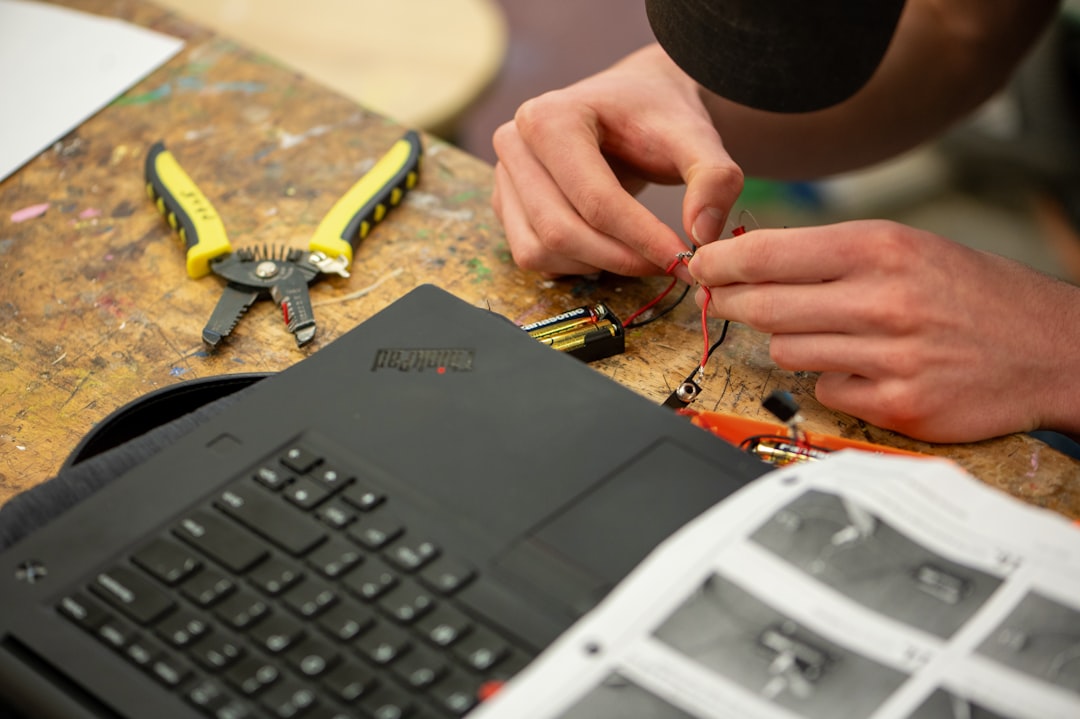
Every tech writer has a drawer of shame. Mine holds four laptops that were “too slow to use, too good to toss.” Last month my nephew needed a machine for his first semester of computer science, and instead of pointing him at a $900 new laptop in the middle of the worst memory pricing cycle I’ve seen in a decade, I pulled a 2019 dell out of that drawer and gave it a weekend. Total spend: about $120 in parts. The result boots faster than some 2024 machines I’ve tested, and it’s still going strong as his daily driver.
I’m writing this because the economics of computing flipped in 2026. The RAM price spike — the one the industry half-jokingly calls RAMageddon — has pushed new laptop prices up across the board, and suddenly the boring old advice about upgrading what you own is the smart advice again. But there’s a right order to do it in, a couple of traps that waste money, and a few tools that make the whole thing genuinely pleasant instead of terrifying. Here’s the full playbook, the same one my team and I have now run on eleven machines this year.
First, Decide If Your Laptop Deserves the Surgery
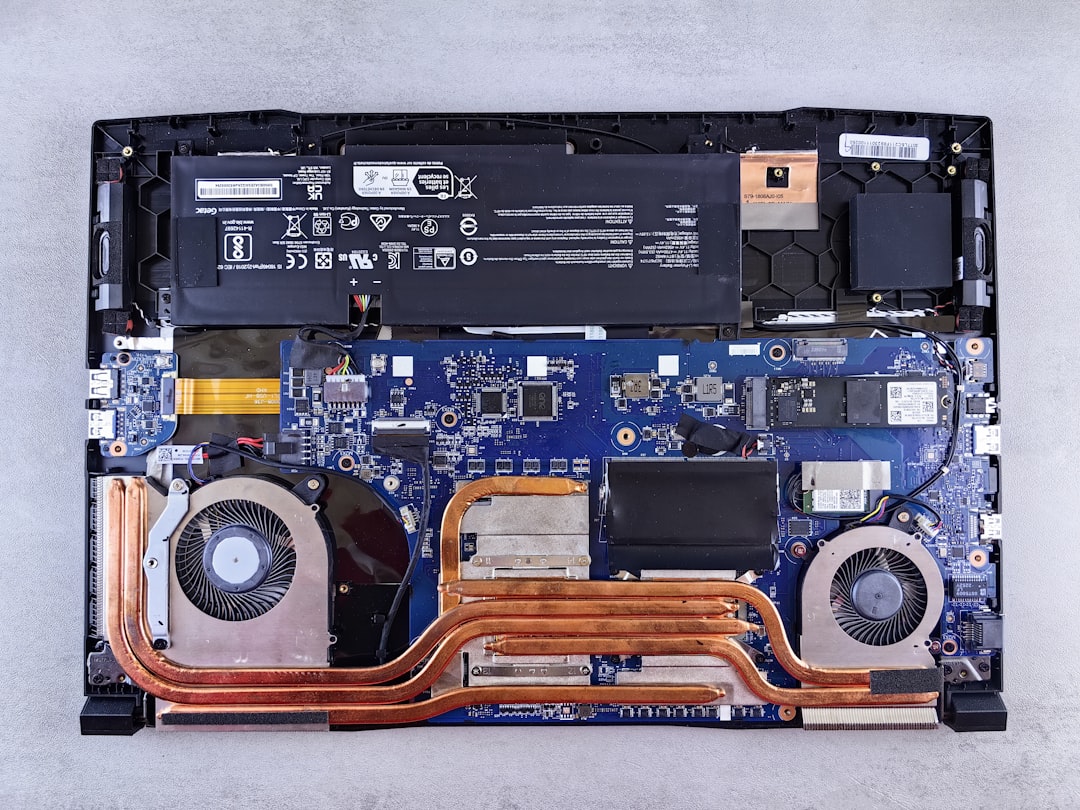
Not every old machine earns a second life. Before you spend a dollar, open the maintenance panel or pull the bottom cover and look for two things: an accessible M.2 or 2.5-inch drive bay, and either SODIMM RAM slots or a spare slot. If your laptop soldered everything to the board at the factory — looking at you, ultra-thin premiums from 2020 onward — the honest answer is a portable drive and a new machine, not surgery.
The sweet spot is business-class hardware from roughly 2016 to 2021. Think Dell Latitude, Lenovo ThinkPad, HP EliteBook, and the occasional ASUS or Acer workhorse. These were built to be opened. Bottom covers come off with ten Phillips screws, the parts are documented, and replacement batteries are cheap. A quad-core eighth-gen Intel or a Ryzen 4000 chip with fresh storage and memory still handles browsing, Office, code editors, and even light photo work without breaking a sweat.
One more gate: run a battery report before you commit. On Windows, powercfg /batteryreport gives you the design capacity versus full charge capacity. If the battery is below about 60 percent health, budget $35 to $45 for a replacement, because a fast laptop you can’t unplug is a desktop with worse ergonomics.
The Toolkit That Makes This a Saturday Job, Not a Saga
The number one reason people abandon laptop upgrades halfway through is a stripped screw. Laptop manufacturers use tiny Torx, Phillips, and occasionally hostile Tri-point fasteners, and a driver that almost fits will round them out and ruin your afternoon. My bench kit of choice is the STREBITO 142-piece precision set — it has held up through hundreds of teardowns in our shop and costs less than a pizza delivery.
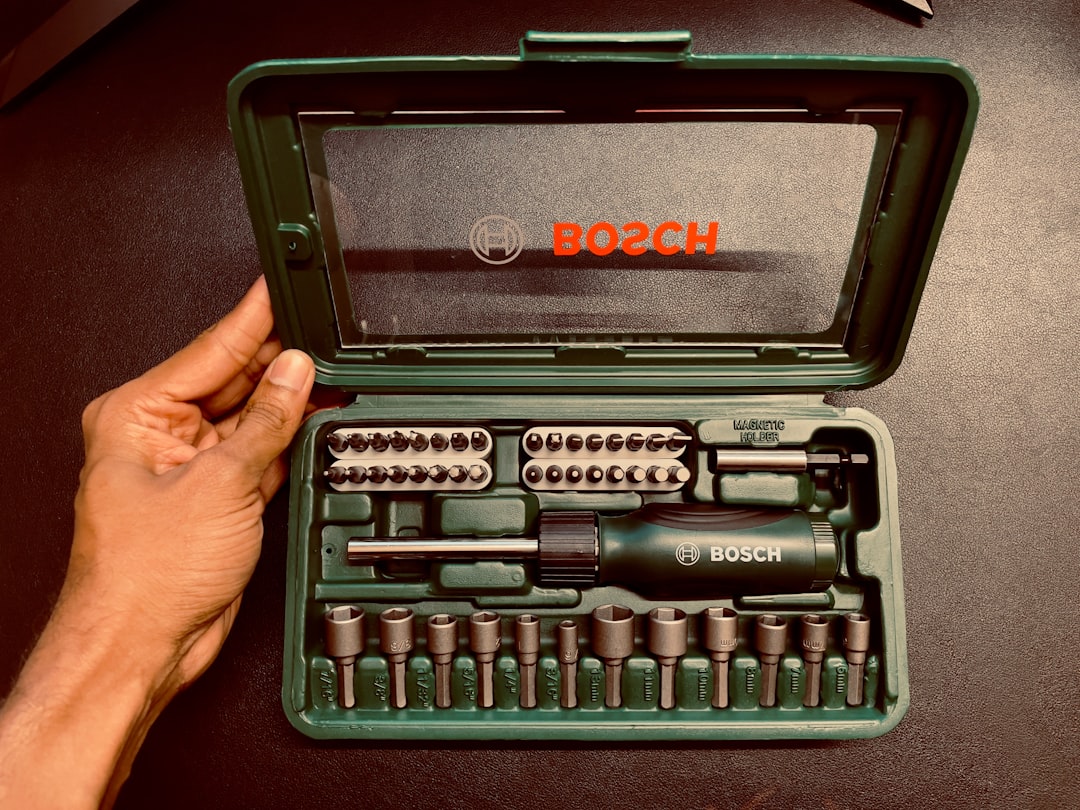
Three additions worth making: a plastic spudger or an old gift card for prying clips without gouging plastic, a small magnetic project mat so screws go back where they came from, and good lighting. That’s it. No heat guns, no microscope, no specialized jigs. If you can assemble IKEA furniture without leftover parts, you can do this.
Upgrade One: The Drive Swap That Changes Everything
If a laptop feels dead, the cause is almost always the storage. A spinning hard drive — still shockingly common in machines from that era — or an early budget SATA SSD turns boot-ups and app launches into small vigils. Swapping to a modern NVMe drive is the single most transformative upgrade in computing, and I will die on that hill.
For value, the Kingston NV3 1TB is my default recommendation. PCIe 4.0 speeds up to 6,000 MB/s, around sixty bucks in normal times, and it’s a drop-in fit for any M.2 2280 slot. If the machine lives in a ThinkPad that travels, I’ll spend a little more on the Samsung 990 PRO for its endurance rating and consistent write speeds — my daily carry ThinkPad has run one for two years without a hiccup.
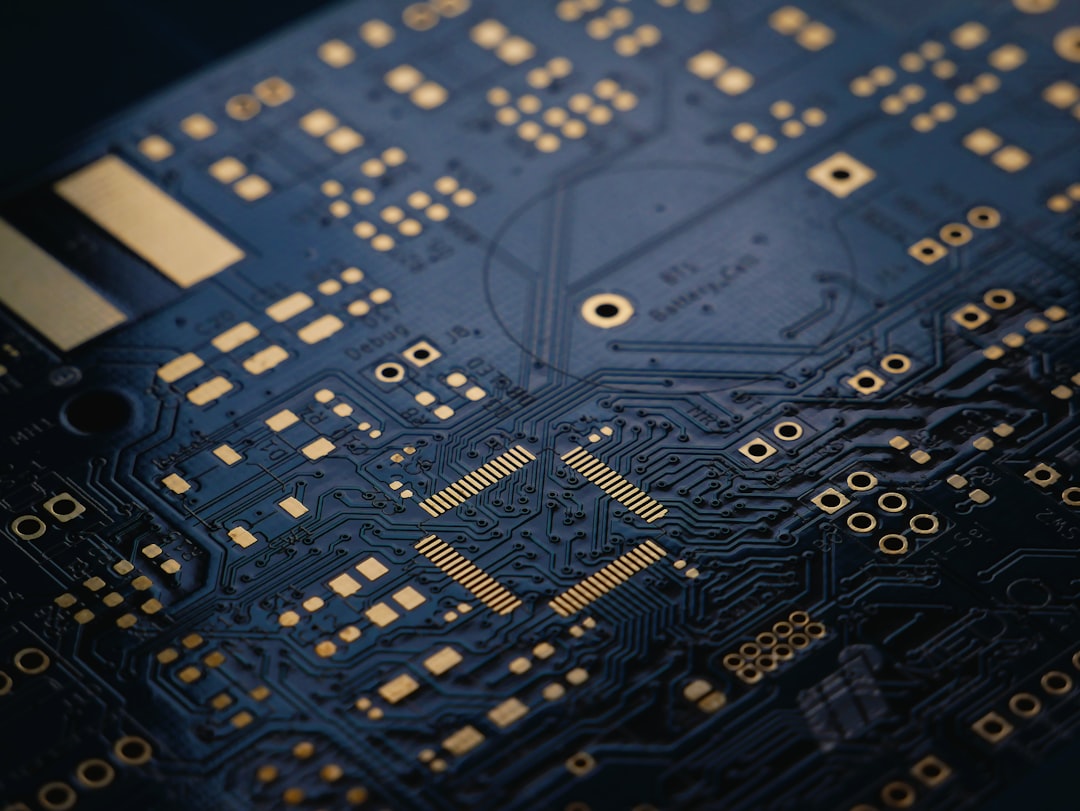
Two cautions from the field. First, know your slot: if the laptop only has a SATA M.2 slot, a PCIe drive won’t work, so check the service manual — every major manufacturer posts them free. Second, clone before you swap. Macrium Reflect Free or the drive maker’s own tool will copy your existing install to the new drive overnight, so the machine wakes up exactly as you left it, just faster.
Upgrade Two: RAM — The Part RAMageddon Made Complicated
Here’s where 2026 economics demand honesty. Memory prices have roughly tripled since last fall, and that changes the calculus. New RAM is no longer an impulse buy. But there’s a nuance most coverage misses: SODIMM DDR4 is the last cheap memory generation, and it’s exactly what those 2016-2021 laptops take. Prices on modules actually softened slightly this spring as builders fled to DDR5. The upgrade window is open, but it won’t stay open forever.
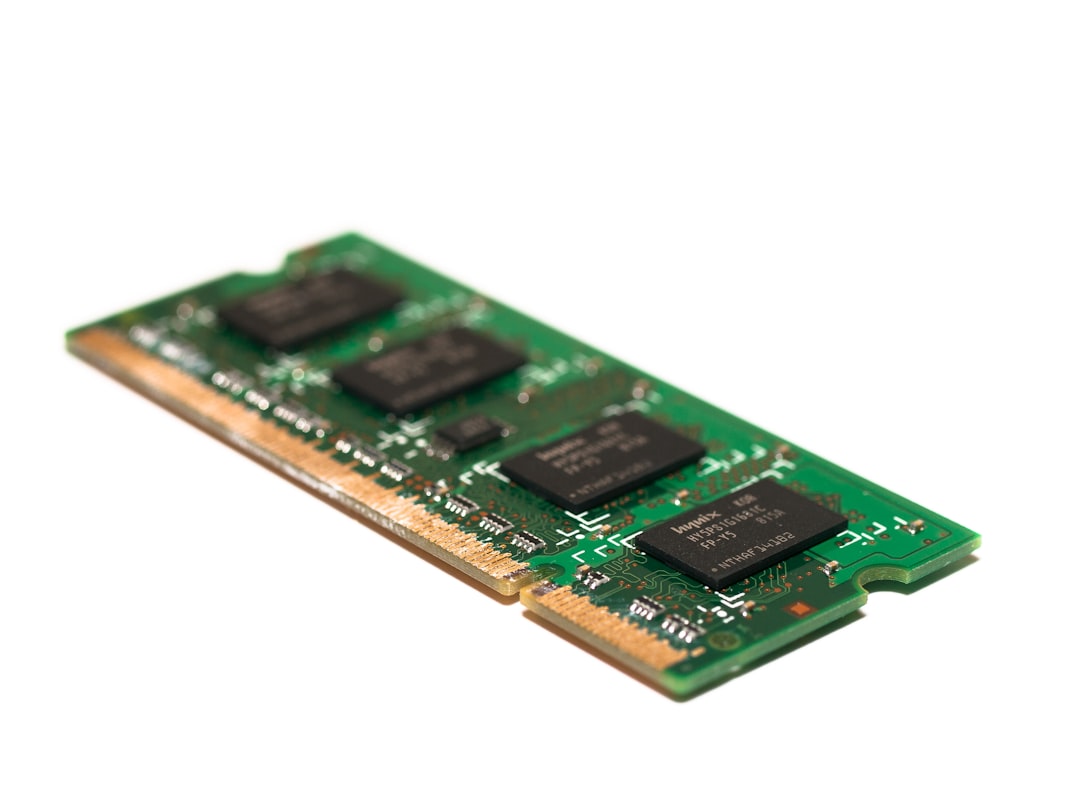
The rule I use after testing dozens of these machines: 8GB is the floor, 16GB is the target, and 32GB is for people who know why they need it. A single Crucial 16GB DDR4-3200 SODIMM paired with the existing 8GB stick gets most laptops comfortably past the limit. If both slots are empty or you’re starting from 4GB, the Crucial 32GB kit (2x16GB) future-proofs for years of browser-tab abuse, and budget shoppers can usually save a few dollars on the equivalent Timetec 16GB module, which has been reliable in our test fleet.
Match the spec sheet exactly — DDR4, SODIMM, 3200MHz, non-ECC — and buy from sellers with real return policies. Counterfeit memory still circulates on sketchy marketplaces, and it’s the one part of this job where a bad purchase means random crashes you’ll chase for weeks.
Upgrade Three: The Twenty-Minute Thermal Refresh Nobody Does
This is my favorite, because it costs almost nothing and it fixes the most misdiagnosed problem in laptops: thermal throttling. When the factory thermal paste dries out after four or five years, the CPU hits its temperature ceiling in seconds and quietly clocks itself down to protect the silicon. The symptom feels exactly like “this laptop got slow with age,” and no amount of RAM or storage fixes it.
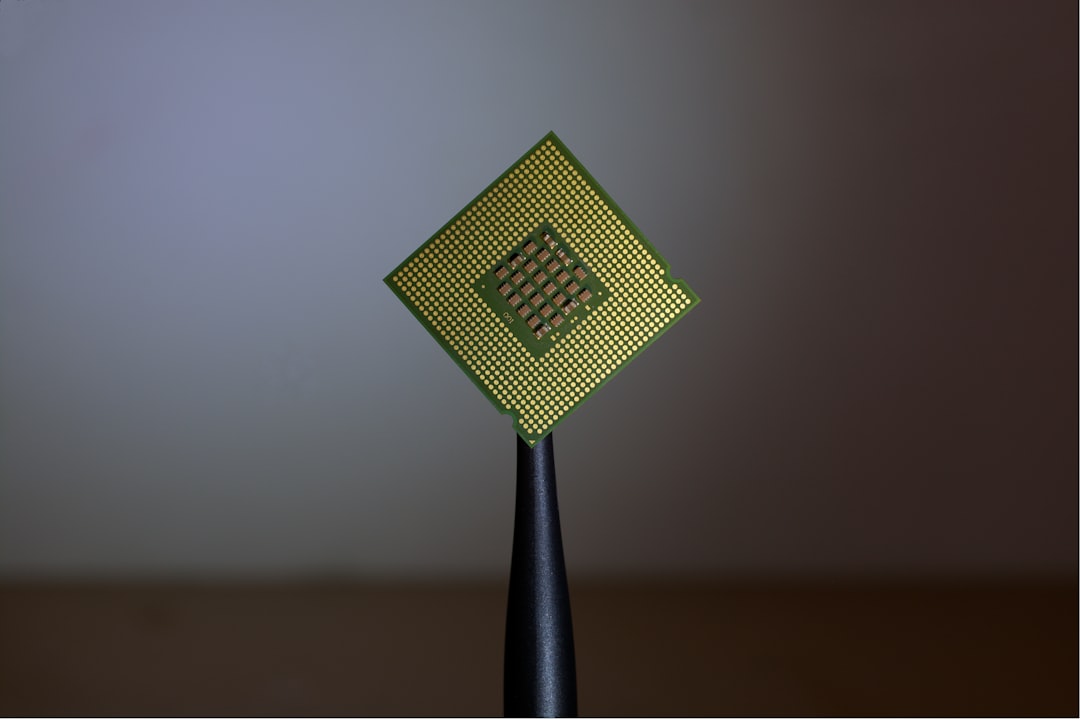
While you’re already inside for the drive and RAM, remove the heatsink, clean both surfaces with isopropyl alcohol, and apply fresh compound. A tube of ARCTIC MX-4 costs under ten dollars and covers six or seven laptops. On my nephew’s Dell, this single step dropped peak CPU temperatures by fourteen degrees and lifted a sustained benchmark score by nearly 20 percent. Twenty minutes, ten bucks, one-fifth of the performance back.
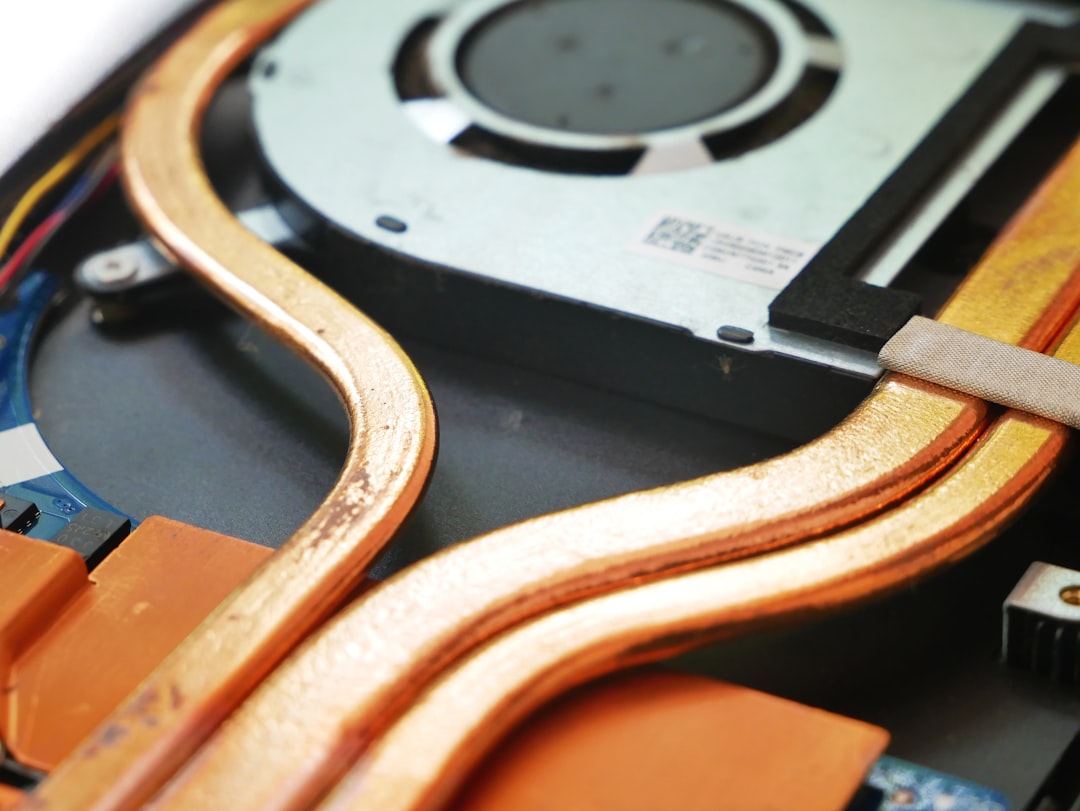
Do the fans and vents at the same time. Five years of household dust packs into heatsink fins like felt. A few blasts of canned air clear it in two minutes. Hold the fan still while you blow so it doesn’t overspin, and do this outside — you will be surprised, and possibly embarrassed, by what comes out.
What To Do With the Old Drive: The Encore Nobody Expects
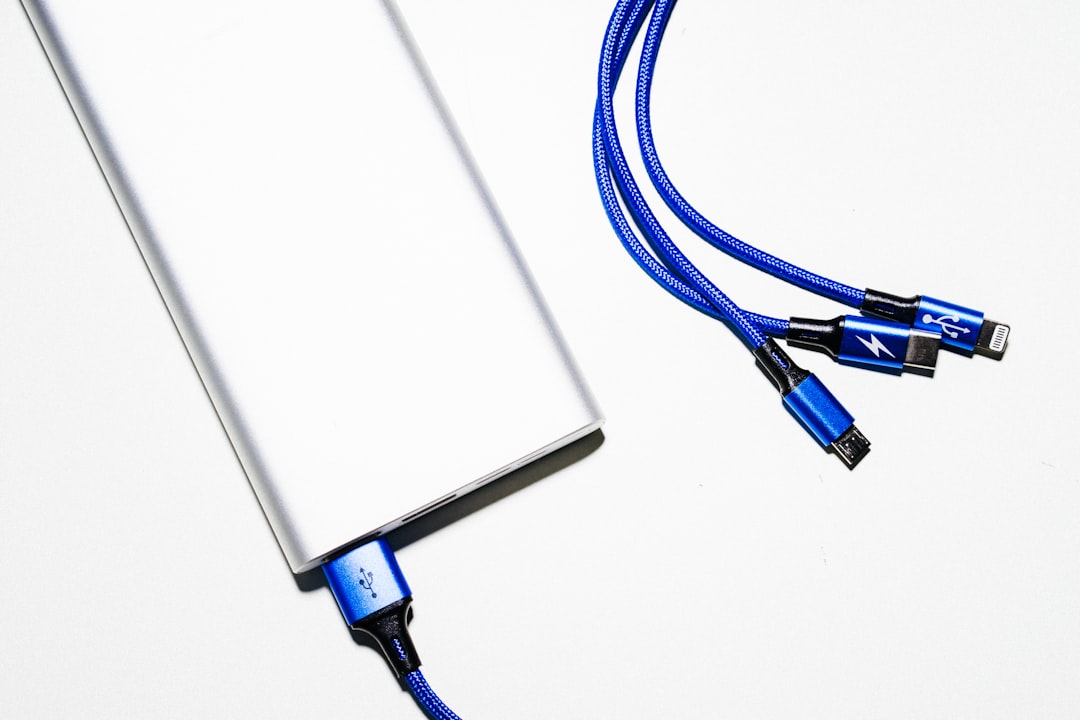
The drive you pull out still has life in it. Instead of a drawer, give it a job: drop it into a USB-C enclosure and you’ve built yourself a fast external SSD for backups, media libraries, or shuttle duty. I use the UGREEN tool-free NVMe enclosure — ten-gigabit USB, no screws, takes thirty seconds to assemble. Even an aging 500GB SATA drive becomes a perfectly capable Time Machine or File History target.
This pairs beautifully with a real backup strategy. If you’ve never set one up, my guide to building a personal cloud that actually pays for itself walks through the whole approach, and a revived old drive is the cheapest way to start.
The Honest Limits of a Revival
A rebuilt 2019 laptop is not a 2026 laptop. The Wi-Fi card may top out before your internet connection does. The screen will be dimmer and lower-resolution than anything current. The battery, even when replaced, won’t match modern efficiency. And if your workload leans on local AI models or heavy video encoding, no amount of DDR4 will conjure the neural engines in new silicon — for that, my piece on the AI desk upgrades worth making is the better starting point.
But for students, writers, coders, spreadsheet warriors, and anyone whose computing life lives in a browser, a well-executed revival covers 95 percent of the experience at 15 percent of the price. My nephew’s $120 Dell — 1TB NVMe, 16GB, fresh paste, new battery — boots in eleven seconds and compiles his coursework without complaint. His classmates assumed it was new.
Keeping It Fast: A Five-Minute Monthly Routine
Once the machine is rebuilt, protect the investment. Blow the vents out monthly — heat is what ages laptops. Keep the OS updated but skip driver-updater utilities, which are mostly adware with a logo. If you use the machine on soft surfaces, a slim cooling pad keeps the intake clear and the fans quiet. And if you travel with it, the lessons from my laptop power bank testing apply to old batteries twice over: charge gently, avoid heat, and don’t sweat every cycle.
The bigger picture is that we’ve spent a decade trained to replace electronics on a schedule. Between the price spikes and the genuinely excellent used hardware sitting idle in closets, 2026 is the year to unlearn that reflex. Open the drawer. Count the screws. The second life of that laptop is one Saturday away — and if you hit a wall, a spare port situation, or a mystery part, my USB-C hub field notes cover the accessories that patch over whatever your revived machine is missing.
Twenty-five years of doing this, and the most satisfying machines on my bench still aren’t the flagships. They’re the ones everyone else gave up on.