
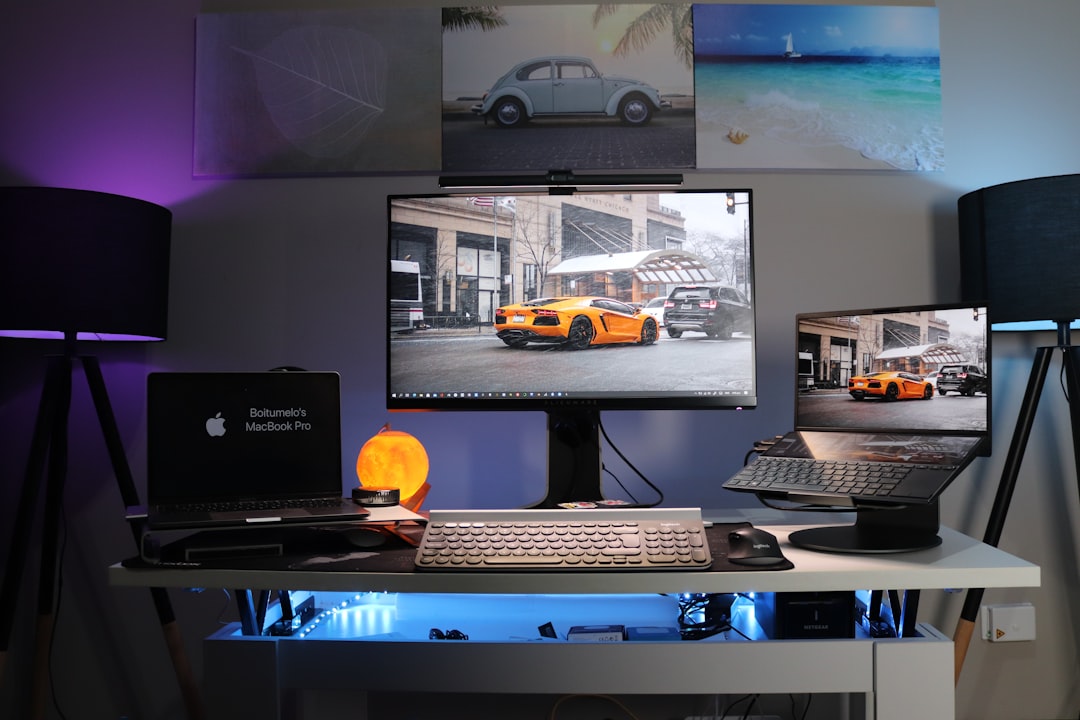
The Real Deal on Ultrawide vs Dual Monitors: I Tested Both for 30 Days Each
Last month, I found myself staring at my trusty dual-monitor setup—two 24-inch IPS panels I’ve been using since 2019—and wondering if I was missing out on something bigger. Literally bigger. Everyone’s talking about ultrawide monitors these days, and as someone who lives and dies by screen real estate, I needed to know: is the ultrawide revolution worth the hype, or are dual monitors still the productivity king?
So I did what any rational tech reviewer would do. I picked up a 34-inch ultrawide monitor, rotated it into my setup for 30 days, then switched back to dual monitors for another 30 days. I tracked my workflow, measured my productivity, and noted every frustration and triumph along the way. Here’s what I learned—and which setup actually earns a permanent spot on my desk.
The TL;DR upfront: Both setups absolutely crush working on a single monitor. But choosing between them comes down to your specific workflow, desk space, and budget. Neither is universally “better”—they’re just different tools for different jobs, and understanding those differences will save you from dropping hundreds on the wrong configuration.
The Ultrawide Experience: Seamless Space, Fewer Cables
Unboxing the 34-inch panel with its 21:9 aspect ratio dominates your field of view in the best way possible. No bezel break in the middle, no color mismatch between panels, no cable clutter from multiple displays. Just one gorgeous, continuous canvas stretching from edge to edge. It’s the kind of setup that makes you feel like you’re working in a sci-fi movie command center.
The first week was magical. I tiled my browser, code editor, and terminal side-by-side with room to spare. Spreadsheets expanded to reveal columns I’d been scrolling past for years. Video calls felt immersive without feeling cramped. The seamless experience is genuinely transformative for certain workflows—especially anything that benefits from seeing content across a continuous plane. When you’re working on a project that spans multiple applications—say, researching in a browser while writing in a word processor and referencing data in a spreadsheet—that continuous space feels less like multitasking and more like having a single, expansive workspace.

But reality set in during week two. The ultrawide is physically massive. It consumes your desk like a black hole. I had to reorganize my entire workspace just to fit it, and finding a comfortable viewing distance required some ergonomic experimentation. The curved screen helps, but it’s still a lot of monitor to absorb at once. I found myself constantly swiveling my head to take in information at the edges, which wasn’t just annoying—it was fatiguing during long work sessions.
The other surprise? Window management became trickier than I expected. Operating systems are getting better at handling ultrawide resolutions, but I still spent way too much time resizing and repositioning windows. Windows 11’s Snap Layouts help, as do third-party tools like PowerToys, but there’s a learning curve. With dual monitors, the boundaries are clear—this window goes here, that one goes there. With an ultrawide, you have to mentally partition the space, and that overhead adds up over time.
The Dual Monitor Setup: Flexibility Wins
Switching back to my dual 24-inch IPS monitors felt like coming home, but with fresh eyes. The flexibility immediately struck me—I could rotate one monitor vertically for coding or reading long documents, angle them independently for glare reduction, and push them apart when I needed physical space for notes or a coffee mug. That physical adaptability is something ultrawide users sacrifice, and it matters more than you’d think.

Multitasking feels more natural on dual monitors, plain and simple. Having separate screens creates mental separation between tasks. Email lives on the left, work on the right. Reference material in one window, active work in the other. It’s subtle, but that physical separation helps my brain compartmentalize workflows in a way that a single ultrawide never could. When I’m deep in a coding session and need to reference documentation, I glance at my second monitor without breaking flow. When I’m writing and need to fact-check, my browser lives on the other screen without encroaching on my document space.
The bezel gap? I stopped noticing it after day three. Modern thin-bezel monitors minimize the disruption, and honestly, that tiny break can be useful—like a visual bookmark between different contexts. I even found myself appreciating the bezel as a way to visually separate distinct workspaces. It’s like having physical dividers on a desk—sometimes boundaries are helpful.
The real revelation was how dual handles collaboration. When screen-sharing during video calls, I can share my primary monitor while keeping notes, controls, or private work on my secondary screen. Try that with an ultrawide and you’re either sharing everything (awkward) or constantly rearranging windows before every meeting. For anyone who collaborates regularly—and that’s most of us in remote or hybrid work—dual monitors offer practical advantages that go beyond pure screen real estate.
Technical Deep Dive: Resolution and Pixel Density
Let’s talk specs, because this is where marketing fluff meets reality. Most 34-inch ultrawides run at 3440×1440 resolution, which gives you roughly the same pixel density as a 27-inch 1440p monitor. It’s sharp—plenty for text work and content creation. But step up to the premium ultrawides at 38 or 49 inches, and you’re paying a serious premium for resolution that only certain workflows actually need. A 38-inch ultrawide at 3840×1600? Beautiful, but you’re dropping $1,200+ for what amounts to slightly more horizontal space.

Dual monitor setups offer more flexibility here. You can run two 27-inch 1440p monitors for about the same price as one premium ultrawide, and you’ll actually get more total pixels. Or go budget with two 24-inch 1080p panels for under $400 total—sure, the resolution isn’t as crisp, but for many productivity tasks, you honestly won’t notice the difference. The modular nature of dual monitors means you can upgrade one display at a time, mix and match resolutions based on your needs, and repurpose old monitors when you eventually upgrade.
Refresh rate is another factor that gets overlooked. Most ultrawides top out at 60Hz, though gaming-focused ultrawides push to 120Hz or higher. With dual monitors, you can pair a high-refresh primary monitor for gaming or creative work with a cheaper secondary for reference material. Why pay for 144Hz on a screen that’s mostly displaying Slack and Spotify? Dual setups let you allocate your budget where it actually matters for your workflow.
Desk Space and Ergonomics: The Hidden Factor
This is where most comparison articles miss the mark. Your physical workspace matters enormously. After spending weeks testing ergonomic chairs and standing desk converters, I’ve learned that monitor choice is just one piece of the ergonomics puzzle. Ultrawides demand depth—you need to sit far enough back to take in the whole screen without constantly swiveling your head. If you have a shallow desk or sit close to your displays, an ultrawide might literally be a pain in the neck. I measured my viewing distance during testing: about 26 inches for dual monitors, but I needed 30+ inches of depth for the ultrawide to feel comfortable. That four-inch difference might not sound like much, but in a cramped home office, it’s the difference between “fits perfectly” and “doesn’t fit at all.”
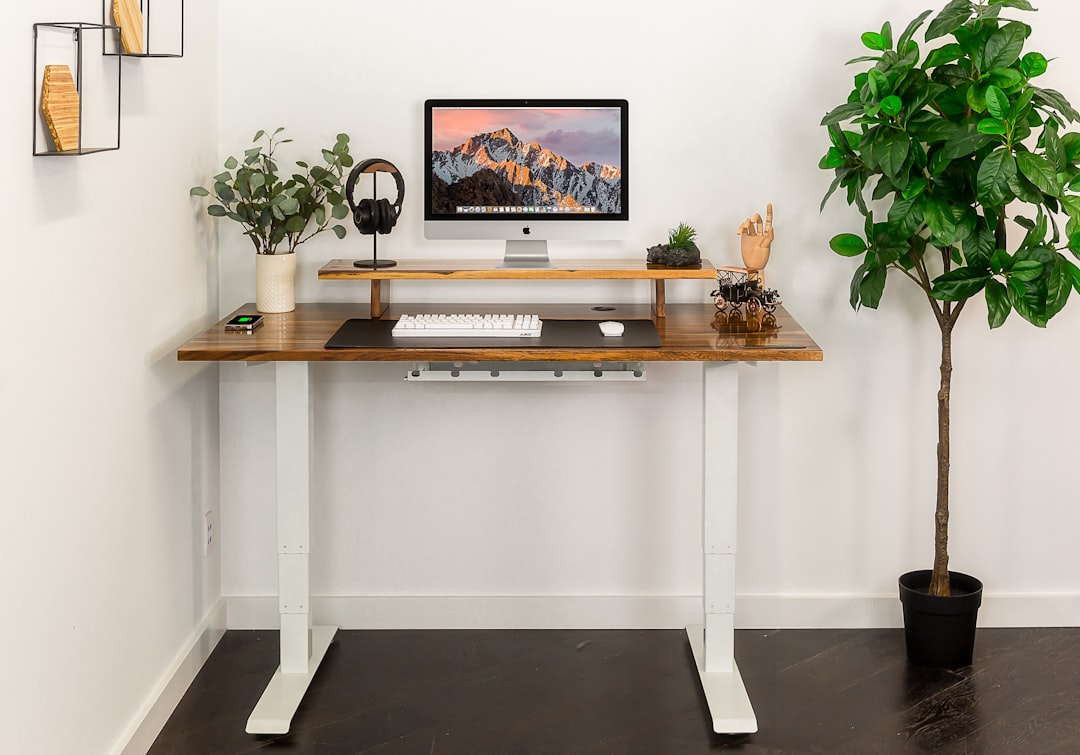
Dual monitors are more forgiving. You can push them closer or farther apart, angle them to match your viewing distance, and configure them around whatever else lives on your desk. My setup actually felt more ergonomic with dual monitors because I could position each screen optimally for my eyes, especially with quality monitor arms. The ability to angle displays independently is huge—I could reduce glare by adjusting each screen separately, something you simply can’t do with a single ultrawide panel.
That said, ultrawides win on cable management. One power cable, one DisplayPort cable, one USB-C upstream if you’re lucky. Compare that to the octopus of cables required for dual monitors, and the clean setup undeniably appeals to the neat freak in me. If your desk faces into the room or you’re in a shared space, the streamlined ultrawide setup looks more professional and less like a hacker’s cave. For cable management enthusiasts, the single-display setup is undeniably appealing.
Price Analysis: The Value Equation Changes in 2026
Here’s something that surprised me: the price gap isn’t as dramatic as it used to be. A quality 34-inch ultrawide with decent color accuracy and refresh rate runs $600-$900. Meanwhile, two good 24-27 inch IPS monitors will cost $400-$700 total. You’re looking at a $200-$300 premium for the ultrawide experience—not insignificant, but not bank-breaking either. And that premium buys you something genuinely different: the seamless experience that ultrawide enthusiasts rave about.
However, premium ultrawides climb steeply above 34 inches. That 49-inch super-ultrawide everyone covets? You’re dropping $1,500-$2,000 for a quality panel. At that point, you could build a three-monitor setup that offers more flexibility and comparable screen area. I’ve seen colleagues running three 27-inch monitors in a curved array, and for many workflows, that actually outperforms a single super-ultrawide. You get the continuous feel plus the flexibility to use each screen independently when needed.
The sweet spot for most people is that 34-inch ultrawide category. It’s large enough to feel transformative but not so expensive that it requires serious justification. And honestly, if you’re already running dual monitors and considering an upgrade, the jump to ultrawide might cost less than buying two new high-quality panels. I priced it out: replacing my aging dual 24-inch monitors with equivalent modern models would cost about $550. A solid 34-inch ultrawide? Around $700. That $150 premium isn’t nothing, but it’s not budget-breaking for a setup you’ll use eight hours a day.
Budget buyers should note that the cheap end of ultrawides has gotten much better. You can find 34-inch models under $400 that are perfectly adequate for productivity. They won’t have the color accuracy or refresh rate of premium models, but if you’re mostly doing office work, web browsing, and light creative tasks, they’re totally fine. The same can’t be said for budget dual monitors—cheap panels often suffer from color mismatch, brightness inconsistency, and poor stands that wobble. A single budget ultrawide avoids those issues by virtue of being one panel, which is worth considering if you’re pinching pennies.
Workflow-Specific Recommendations
After 60 days of testing, here’s what actually matters: your specific work determines which setup wins. Let me break it down by profession and task type, because that’s how you should actually make this decision.
Software developers and engineers: This one’s complicated. If you’re doing front-end work with browser previews, code editors, and design tools all open simultaneously, an ultrawide is fantastic. You can see your code, preview, and documentation without alt-tabbing constantly. But if you’re doing backend work with lots of terminal windows, log monitoring, and documentation, dual monitors might actually serve you better. The ability to have your IDE on one screen and a full terminal stack on the other is hard to beat. Personally, I found dual monitors slightly better for my development workflow—but I know developers who swear by ultrawides. It comes down to how you work.
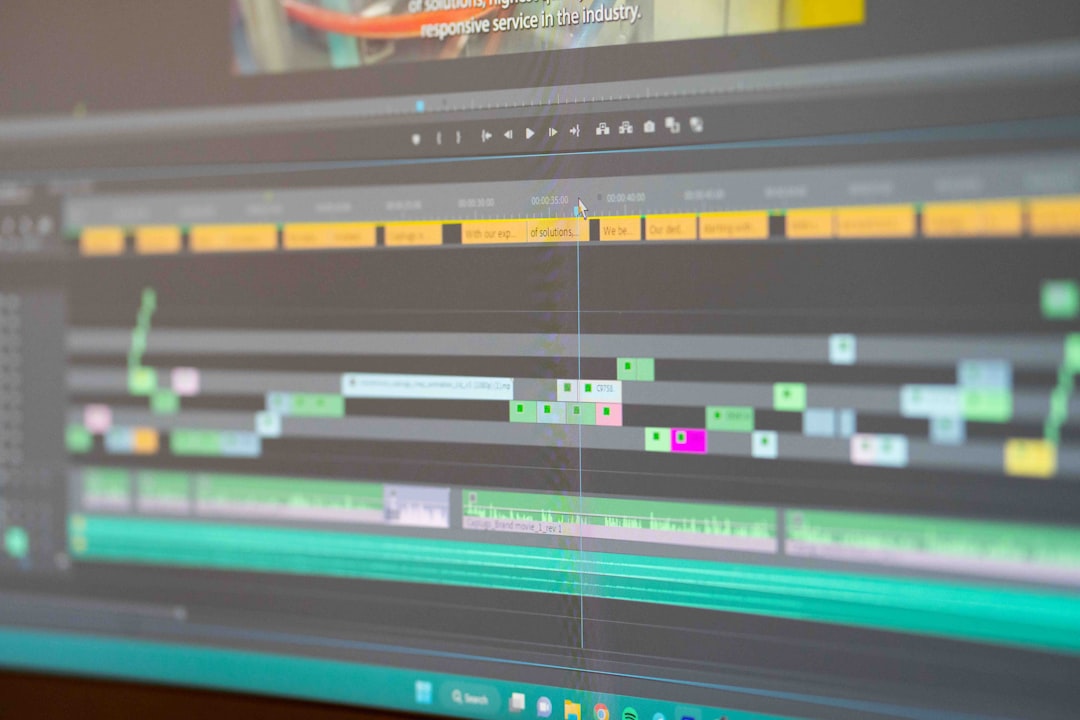
Creative professionals: Video editors, audio producers, and graphic designers will almost certainly prefer ultrawides for creative work. That continuous timeline is genuinely transformative—I’ve never edited video as efficiently as I did on the ultrawide. Audio production benefits from seeing more tracks at once without scrolling. Graphic designers get more canvas space for tool palettes and preview windows. If your creative work involves timelines or horizontal workflows, the ultrawide is a no-brainer.
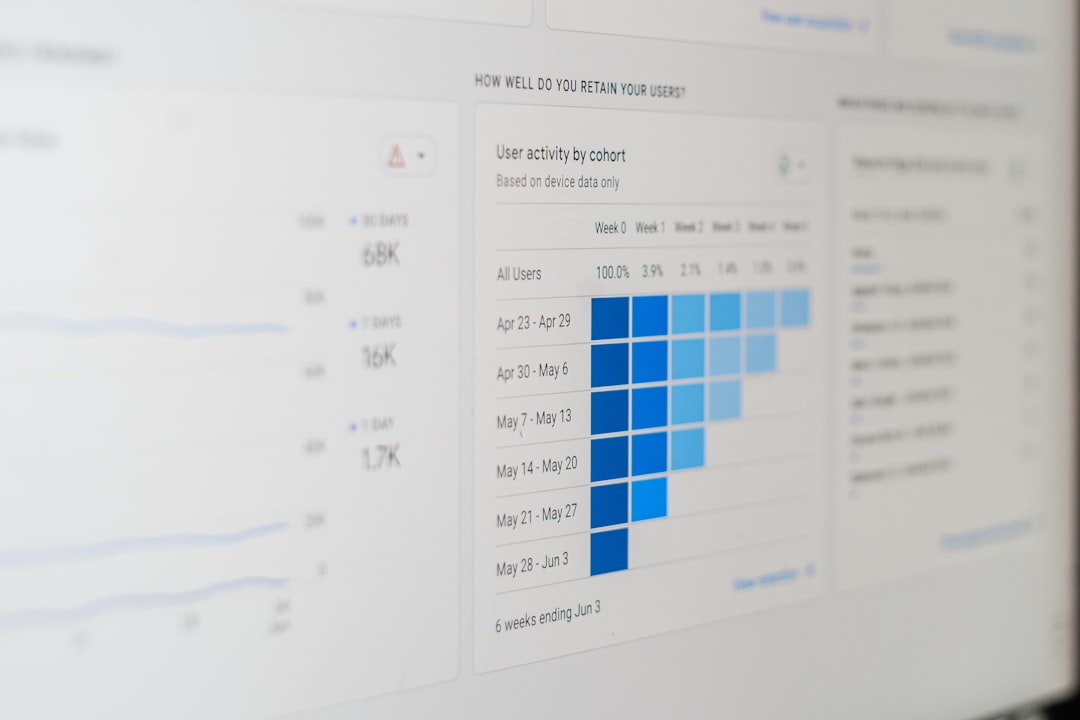
Data analysts and spreadsheet warriors: Y’all need ultrawides. Full stop. Being able to see 20+ columns of a spreadsheet without horizontal scrolling is life-changing. Financial models, large datasets, and complex dashboards all benefit enormously from the extra horizontal space. I tested a personal finance project on both setups, and what took me two hours on dual monitors took about 90 minutes on the ultrawide. That’s a 25% productivity boost purely from screen real estate.
Writers and researchers: Honestly, either setup works. I spent a decade writing on dual monitors and never felt limited. The ultrawide is nice for having reference material side-by-side with my document, but I don’t miss it when I’m back to dual monitors. If you do a lot of research with many sources open simultaneously, the ultrawide’s continuous space might help. But for straight writing? Split the difference based on your budget and desk space.
Customer support and account managers: Dual monitors all the way. You need your ticketing system on one screen and your documentation, CRM, or communication tools on the other. The physical separation helps with context switching, and when you’re screen-sharing with customers, having a dedicated secondary screen for notes and controls is invaluable. I can’t count how many times I’ve accidentally shared my internal notes during a screen share—dual monitors eliminate that awkwardness entirely.
Project managers and generalists: You’re the wildcard. If you live in communication tools, project management apps, and spreadsheets, think about how many applications you typically have open simultaneously. If it’s 3-4 apps at once, dual monitors give you natural separation. If you’re constantly toggling between many smaller windows, the ultrawide’s tiling capabilities might win. For me, project management felt slightly better on dual monitors—I could keep my project board visible while working through tasks on my primary screen.
Gaming and Entertainment: The Bonus Category
Let’s address the elephant in the room: gaming. If you play games on your work setup (and let’s be honest, many of us do), ultrawides offer an undeniably more immersive gaming experience. Racing games, flight sims, and immersive RPGs are transformed by that expanded field of view. Competitive FPS games are more complicated—some players prefer the focused view of a standard monitor, and many competitive titles don’t support ultrawide resolutions. But for single-player, story-driven games? The ultrawide is magical.

Movie and TV watching also favors the ultrawide. Most modern content is formatted for wider aspect ratios, and an ultrawide monitor displays that content with less letterboxing than a standard 16:9 display. I watched several films during my testing period, and the cinematic feel was noticeably better on the ultrawide.
That said, dual monitors have their gaming advantages too. You can game on your primary gaming monitor while keeping Discord, guides, or system monitoring tools on your secondary screen. For streamers, content creators, or anyone who multitasks while gaming, dual setups are more practical. And if you’re a competitive player who cares about refresh rates above all else, you can buy one ultra-high-refresh monitor for gaming and pair it with a cheaper secondary—something that’s harder to justify with an ultrawide budget.
Future-Proofing and Upgrade Paths
Here’s a consideration most buyers overlook: what happens three years from now? Monitor technology keeps advancing—higher refresh rates, better panels, new connectivity standards. With dual monitors, you can upgrade one display at a time, spreading out costs and always having something serviceable. When I eventually replace my current dual setup, I might buy one high-end monitor now and upgrade the second one a year later.
Ultrawides are all-or-nothing. When you want to upgrade, you’re replacing the entire display. And if you decide ultrawides aren’t for you after a year, you can’t repurpose one half of an ultrawide monitor—you’re starting from scratch. That’s a legitimate consideration if you’re the type who likes to tinker and upgrade frequently.
On the flip side, ultrawides are becoming more standard, which means better support from operating systems and applications. Windows 11, macOS, and Linux have all improved their ultrawide handling in recent updates. More applications are designing with ultrawide resolutions in mind. Five years from now, ultrawides might be as standard as 16:9 monitors are today. Buying into the ecosystem early means you’re ready as software support improves.
The Verdict: Choose Based on Your Actual Workflow
After two months of testing, I made my choice. And it might surprise you.
I went back to dual monitors—but I completely understand why someone would choose differently. The ultrawide is magical for certain tasks, and if I did more video editing or spreadsheet work, I’d switch in a heartbeat. I genuinely miss that continuous canvas when I’m working in Excel or editing video. But for my mix of writing, research, development, and the endless context switching that defines modern knowledge work, the flexibility of dual monitors just works better for my brain.
Here’s the thing: my wife tried the ultrawide during my testing period and absolutely refused to let me return it. She’s a data analyst who lives in spreadsheets and analytics dashboards, and for her workflow, the ultrawide was a revelation. She’s more productive, less fatigued, and genuinely enjoys her work more with the ultrawide setup. Same hardware, different person, completely different conclusion.
That’s the lesson. Don’t choose based on hype, aesthetics, or what tech reviewers say. Don’t choose based on what looks coolest on Instagram or what your coworkers have. Think about how you actually work. Do you value seamless space or physical separation? Do you need flexibility or minimalism? Is your desk deep enough for an ultrawide, or would dual monitors fit better? What does your typical workday look like, application by application?
Both setups will dramatically improve your productivity over a single monitor. The differences between them are subtle and personal, and those differences matter. Test both if you can—many retailers have generous return policies, and some manufacturers offer 30-day risk-free trials. If you can’t test, use the workflow guidelines above and choose with confidence. Either way, you’re upgrading your daily computing experience in a meaningful way.
And if you’re still running a single monitor? Stop reading this and go buy whatever second display fits your budget. Seriously. The jump from one to two screens (or one ultrawide) is the single most impactful productivity upgrade you can make for your home office. Everything else is just optimizing around that core improvement. Get a second monitor, any second monitor, and thank me later.

One thought on “Ultrawide vs Dual Monitors: Which Setup Actually Boosts Your Productivity in 2026?”