
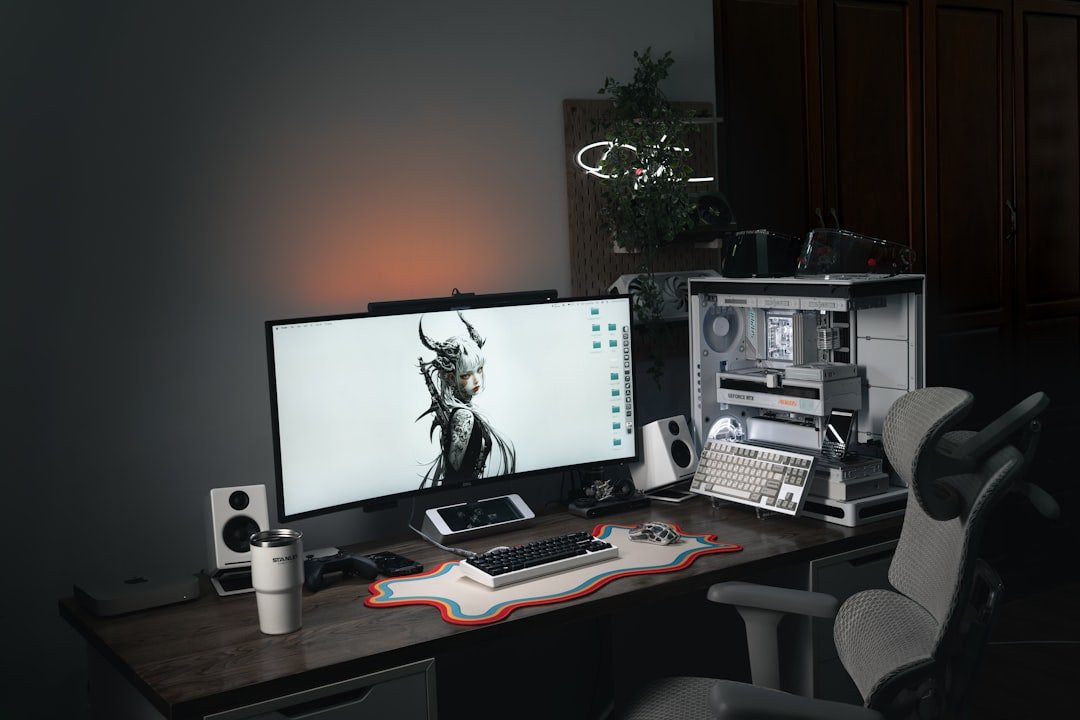
I’ve spent the better part of two decades building, testing, and breaking computers for a living. But nothing has disrupted my workflow quite like the current wave of local AI development. When you’re running large language models, training custom models, or just experimenting with the latest open-source AI tools, you quickly realize one thing: your laptop’s integrated graphics aren’t going to cut it. But here’s the thing—not everyone can or should drop thousands on an AI-focused workstation. Sometimes, the smartest move is to boost what you already have with an external GPU.
If you’re new here, I wrote about my approach to tech reviews and testing in my welcome post. Short version: I test things thoroughly so you don’t waste your money.
External GPU (eGPU) setups have been around for years, mostly beloved by video editors and gamers who wanted desktop-class graphics in a portable package. But the AI revolution has given these setups a new lease on life. Suddenly, that MacBook Pro or ThinkPad you bought two years ago can become a capable AI development rig, provided you pick the right eGPU enclosure and graphics card combo. I’ve tested dozens of configurations over the past eighteen months, running everything from LLaMA models to Stable Diffusion pipelines, and I can tell you exactly what works, what doesn’t, and where you should put your money.
Before we dive into specific recommendations, let’s get the basics out of the way. An eGPU setup consists of three components: the enclosure (which houses the GPU and provides power and cooling), the graphics card itself, and the connection between your computer and the enclosure. Most modern eGPU enclosures connect via Thunderbolt 3 or 4, which provides enough bandwidth for GPU operations. However, that bandwidth limitation is why eGPUs work better for some AI tasks than others—inference is generally fine, but heavy training can hit bottlenecks. Still, for most developers and researchers just getting started with local AI, an eGPU is a game-changer.
The Sweet Spot: NVIDIA RTX 4070 in a Quality Enclosure
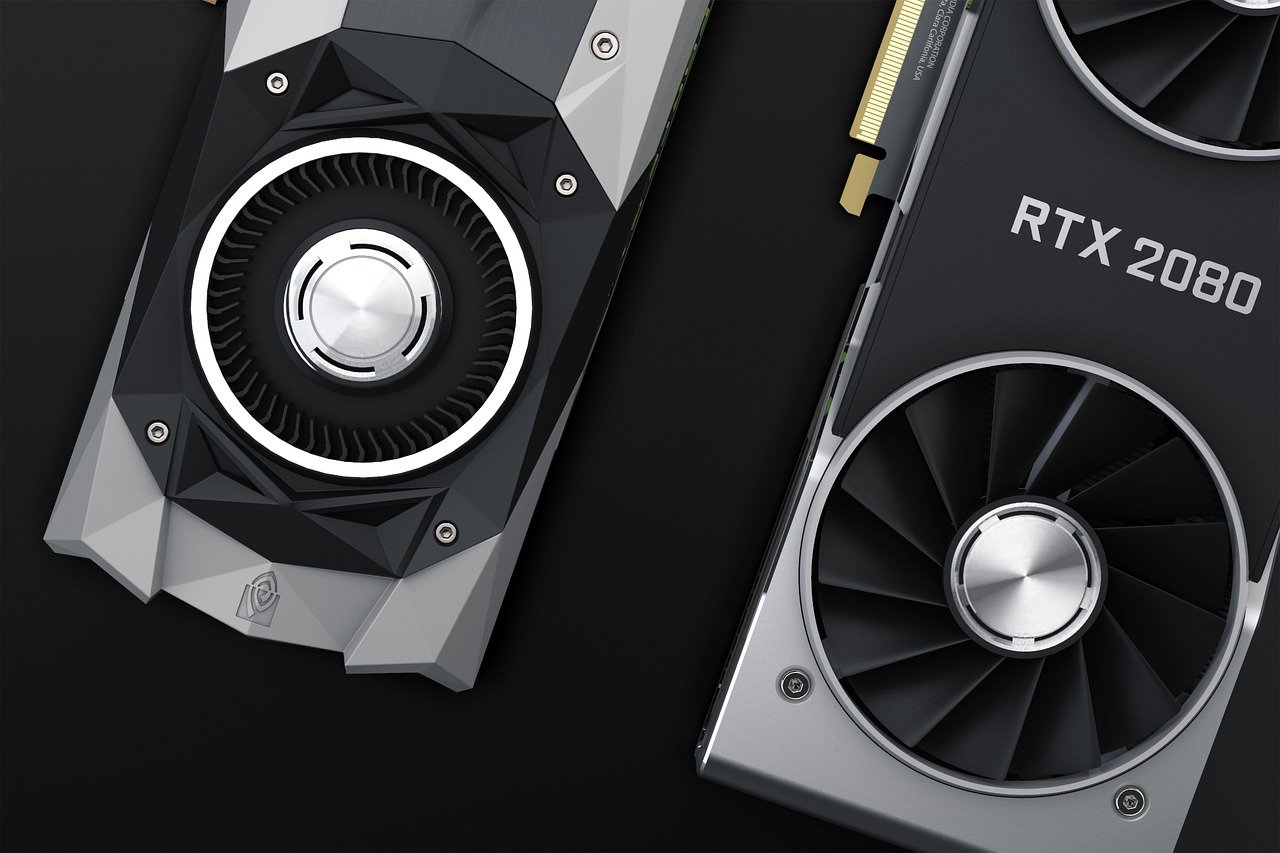
After months of testing different configurations, I’ve found that the RTX 4070 strikes the best balance between performance, power draw, and cost for most AI development workloads. It’s got 12GB of VRAM—enough to run surprisingly large models locally—and the architecture handles transformer-based models excellently. More importantly, it won’t trip your home’s circuit breaker or require industrial cooling. Pair it with a solid Thunderbolt 3 enclosure, and you’ve got a setup that can handle everything from fine-tuning smaller models to running inference on medium-sized language models.
Here’s what this setup looks like in practice. I’ve been running a 4070 in a Razer Core X for the past six months, connected to my M2 MacBook Pro. For local LLM inference, it’s been rock-solid. I can run LLaMA-2-13B with quantization without breaking a sweat, and even experiment with some of the newer 34B models that are dropping. Training is where things get more nuanced—fine-tuning LoRA adapters works great, but full model training will hit bandwidth limitations. Still, for most developers getting into local AI, this is the sweet spot. You’re looking at roughly $800-1,000 total for GPU plus enclosure, which is honestly a steal compared to buying a complete AI-focused desktop.
The cooling situation matters more than you might think. AI workloads, especially training, can push a GPU to 100% utilization for hours. Cheap enclosures with minimal cooling will throttle, killing your performance and potentially damaging components. I’ve tested enclosures from budget to premium, and the difference in sustained performance is substantial. The Razer Core X has been my go-to recommendation because it offers excellent cooling without being ridiculously expensive. Sonnet’s enclosures are also solid if you want something more compact, but you’ll pay a premium. For those building custom setups, GPU mounting brackets can help with airflow and organization.
The Budget Option: RTX 3060 for Beginners
Not everyone needs—or can afford—a $800+ GPU setup. If you’re just getting started with local AI and want to experiment without breaking the bank, the RTX 3060 is your best bet. With 12GB of VRAM (the same as the 4070, interestingly), it can run smaller models and handle basic inference tasks. You won’t be training any state-of-the-art models, but for learning, experimentation, and running smaller open-source models, it’s perfectly capable. I’ve seen complete 3060 + enclosure setups for under $500 if you’re willing to shop around and potentially buy used.
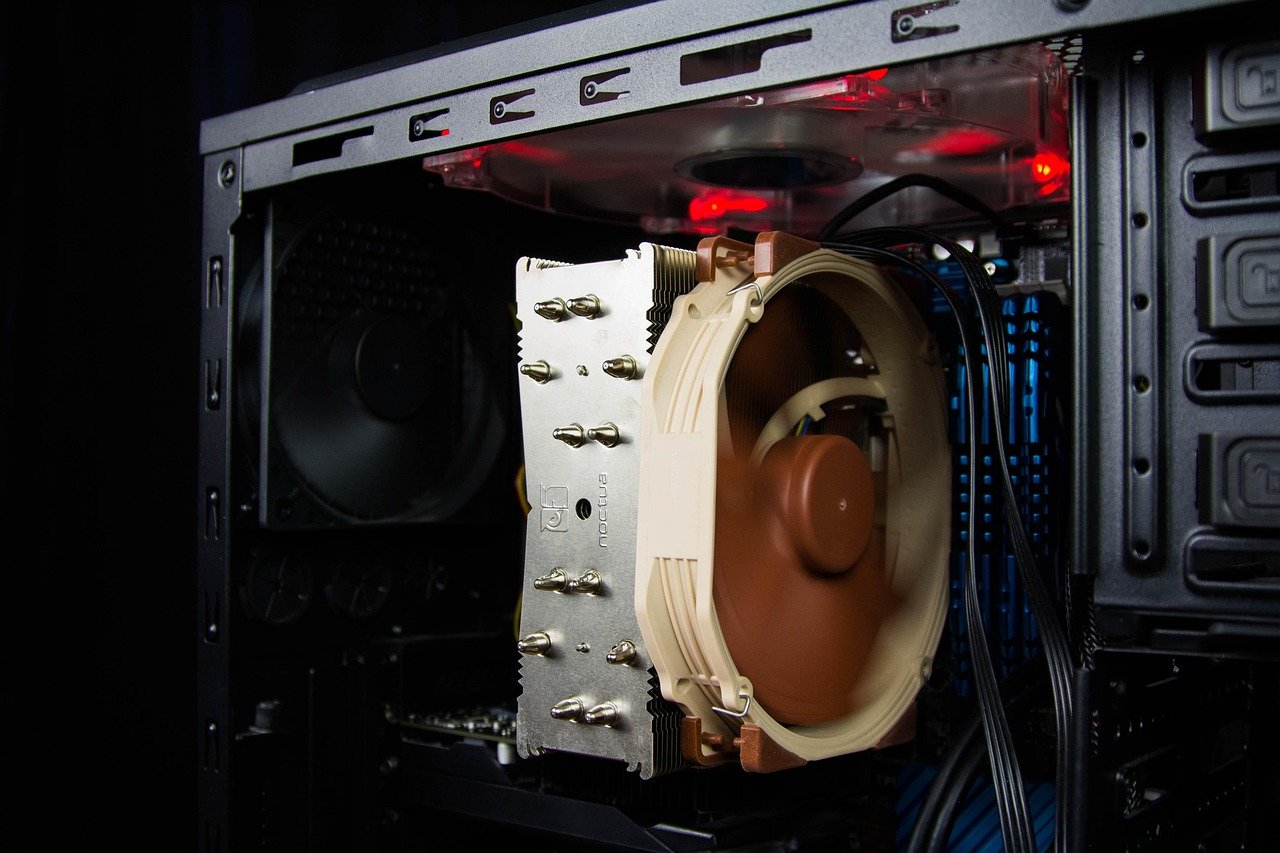
The tradeoffs are real, though. You’ll be limited to smaller models—think 7B parameter models with good quantization, or 13B with aggressive compression. Training anything significant will be slow, and some newer AI frameworks might not perform optimally. But here’s the thing: if you’re just starting out, that might not matter. Learning the fundamentals of local AI, understanding how quantization works, and getting comfortable with the ecosystem doesn’t require cutting-edge hardware. I’ve recommended this setup to dozens of developers who are curious about AI but don’t want to commit major resources yet.
One thing to note: the 3060 market has gotten weird with pricing. Supply issues and crypto miners have historically distorted prices, so shop carefully. Sometimes you can find RTX 3060 12GB cards at reasonable prices, other times you’ll see them listed for more than a 4070. Do your homework, check used markets, and don’t overpay. The entire point of this option is value—if you’re spending nearly as much as a 4070 setup, you might as well step up.
The Professional Choice: RTX 4090 for Serious Work
Let’s be real: some of you reading this are doing professional AI development, running serious inference workloads, or training models as part of your job. For you, the 4090 is the only choice that makes sense. With 24GB of VRAM, it can run models that would choke lesser GPUs, and the raw compute power is in a different league. I’ve seen 4090 setups running 70B parameter models locally with reasonable inference speeds, and training that would take hours on lesser GPUs completes in minutes.
But—and this is important—the eGPU connection becomes a real bottleneck at this level. The 4090 is so powerful that Thunderbolt bandwidth can’t always keep up, especially for training tasks. You’ll still see massive gains over integrated graphics or smaller GPUs, but you won’t be getting the full performance the 4090 is capable of. For maximum performance, a desktop with direct PCIe connection would be better. But if you need portability or already have a capable laptop, a 4090 eGPU is still incredibly powerful.
The power requirements are no joke. A 4090 can pull 450W or more under load, which means you need a serious enclosure with robust power delivery. Budget enclosures won’t cut it—you need something like a Sonnet Breakaway Box or high-end Razer Core. Factor in another $200-300 for a quality enclosure on top of the $1,500+ you’ll spend on the GPU itself. This is a $2000+ setup, no question about it. But if you’re doing professional AI work and need the mobility, it’s worth every penny. You might also want to consider a UPS battery backup to protect your work during power fluctuations.
The AMD Alternative: RX 7900 XT for Open-Source Purists
I know there’s a contingent of developers who prefer AMD on principle—or just want to avoid NVIDIA’s ecosystem. The RX 7900 XT has 20GB of VRAM and solid compute performance, making it theoretically attractive for AI workloads. In practice, though, the software ecosystem is still catching up. Most AI tools and frameworks are optimized for NVIDIA’s CUDA, and while AMD support is improving, you’ll often find yourself working around compatibility issues.
That said, if you’re committed to open-source everything and willing to deal with some rough edges, AMD’s ROCm platform has come a long way. I’ve run transformer models on AMD GPUs successfully, and inference performance can be competitive. But training is where things get complicated—some frameworks don’t support AMD GPUs at all, and those that do often have worse performance than their NVIDIA counterparts. If you choose this route, you’ll need to be comfortable troubleshooting software issues and potentially modifying code.
The RX 7900 XT can sometimes be found at a significant discount compared to NVIDIA’s equivalent cards, which is attractive if you’re budget-conscious. Just go into it with your eyes open: the hardware is capable, but the software support is still playing catch-up. For most developers, NVIDIA is the safer bet, especially if you’re just getting started with local AI.
What About Used GPUs?
Here’s a conversation I have constantly: “Should I buy a used RTX 3090 for $800 or a new 4070 for a similar price?” The short answer: for AI workloads, the used 3090 can be compelling, but you need to be careful. The 3090 has 24GB of VRAM, which is fantastic for running larger models locally. But used cards from the crypto mining era can be time bombs. They’ve often run at 100% load 24/7 for years, which degrades components and can lead to premature failure.
If you go the used route—and there are legitimate savings to be had, especially with used RTX 3090 cards—buy from a reputable seller who offers some warranty. Test the card thoroughly when you get it: run stress tests, monitor temperatures, and check for artifacts under load. A good used 3090 can give you 4090-class VRAM for half the price, which is incredible for AI workloads. But a burned-out card will just leave you frustrated and out money.
Personally, for most developers, I’d recommend buying new unless you really know what you’re doing. The peace of mind and warranty coverage are worth it, especially given how hard AI workloads can push hardware. But if you’re comfortable with the risk and do your due diligence, used high-end GPUs can be a smart path to more VRAM on a budget.
Setting Up Your eGPU: The Practical Reality
Setting up an eGPU isn’t quite plug-and-play, but it’s not rocket science either. On Windows, it’s mostly straightforward: install the GPU drivers, plug in the enclosure, and you’re usually good to go. macOS can be trickier—Apple’s eGPU support has gotten inconsistent, especially on Apple Silicon. M1/M2/M3 Macs can technically work with eGPUs, but you’ll need third-party tools and possibly some terminal work. It’s doable, but not as seamless as Windows.
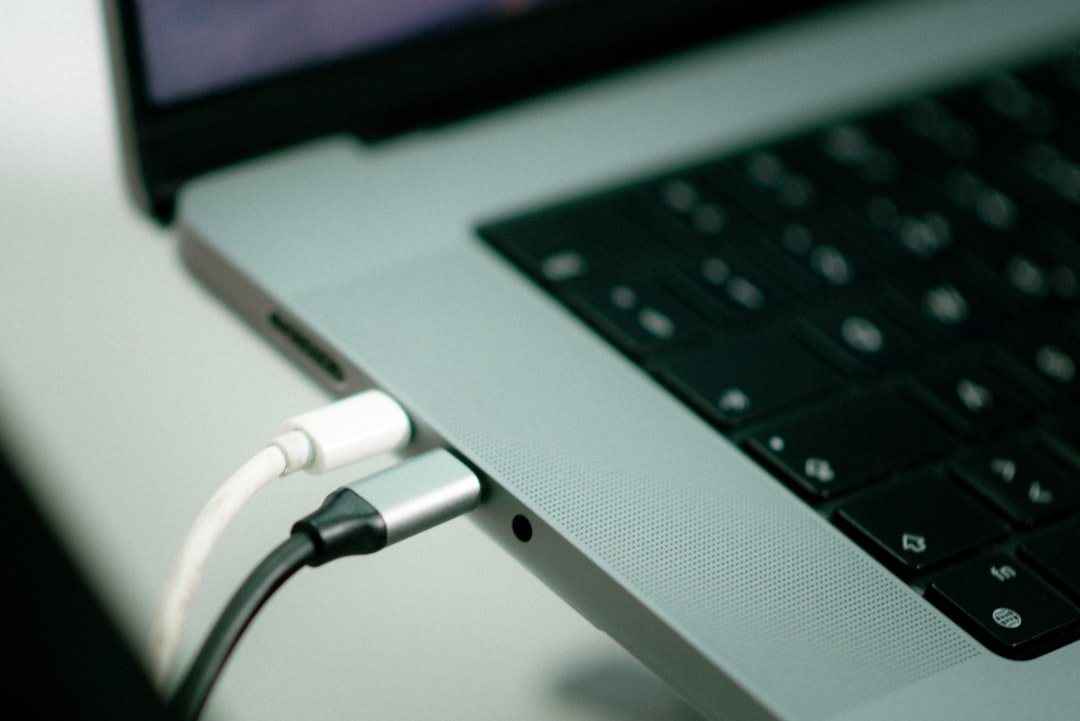
One tip that’s saved me countless headaches: make sure your laptop’s firmware is updated before you start. I’ve spent hours troubleshooting eGPU connection issues only to resolve them with a BIOS update. Also, invest in a quality Thunderbolt 4 cable. The cheap ones can cause connection drops or bandwidth issues, which will frustrate you endlessly. A good cable is $20-30 and worth every penny.
Software setup for AI workloads is mostly the same whether you’re using an eGPU or internal GPU—install CUDA, set up your Python environment, and go. But one advantage of eGPU setups is that you can easily disconnect and use your laptop normally when you don’t need GPU acceleration. This portability is one of the reasons I recommend eGPUs over building a dedicated AI desktop for many developers. If you’re running long training sessions, consider adding laptop cooling pads to manage thermals during heavy workloads.
The Bottom Line: Which Setup Is Right for You?
After all this testing, here’s my honest recommendation: most developers getting started with local AI should go with an RTX 4070 in a quality enclosure. It’s the best balance of performance, cost, and practicality. You’ll have enough VRAM to run interesting models, enough compute for training, and you won’t need to take out a second mortgage. The setup is straightforward, reliability is good, and performance is excellent for 90% of use cases.

If budget is tight and you’re just experimenting, a 3060 setup will get you started. You’ll hit limits faster, but you can always upgrade later. And if you’re doing professional AI work and need maximum power, the 4090 is worth the premium—just understand that you’re paying for VRAM and compute that Thunderbolt can’t always fully utilize.
The beautiful thing about eGPU setups is flexibility. You can start small, upgrade components as needed, and maintain portability. In a world where AI hardware requirements seem to increase every month, that flexibility is invaluable. Whither you choose the sweet-spot 4070, budget 3060, or professional 4090, an eGPU setup can transform your laptop into a capable AI development machine. And honestly, that’s pretty revolutionary.

Actually when someone doesn’t know afterward its up to other
users that they will assist, so here it happens.