The Hidden Cost of Running Local AI: Why Your Workstation Needs Better Cooling Than You Think
Three months into building my local AI setup, I noticed something concerning. My RTX 3090 wasn’t just running hot during inference—it was throttling. The token generation I’d optimized for weeks suddenly slowed to a crawl, and the reason wasn’t the model or my code. It was thermal throttling, plain and simple.
Running large language models locally puts a sustained thermal load on your hardware that gaming simply doesn’t match. When you’re training a fine-tune or running batch inference for hours, your GPU hits 100% utilization and stays there. That’s when cooling stops being a nice-to-have and starts becoming the bottleneck that kills your performance.
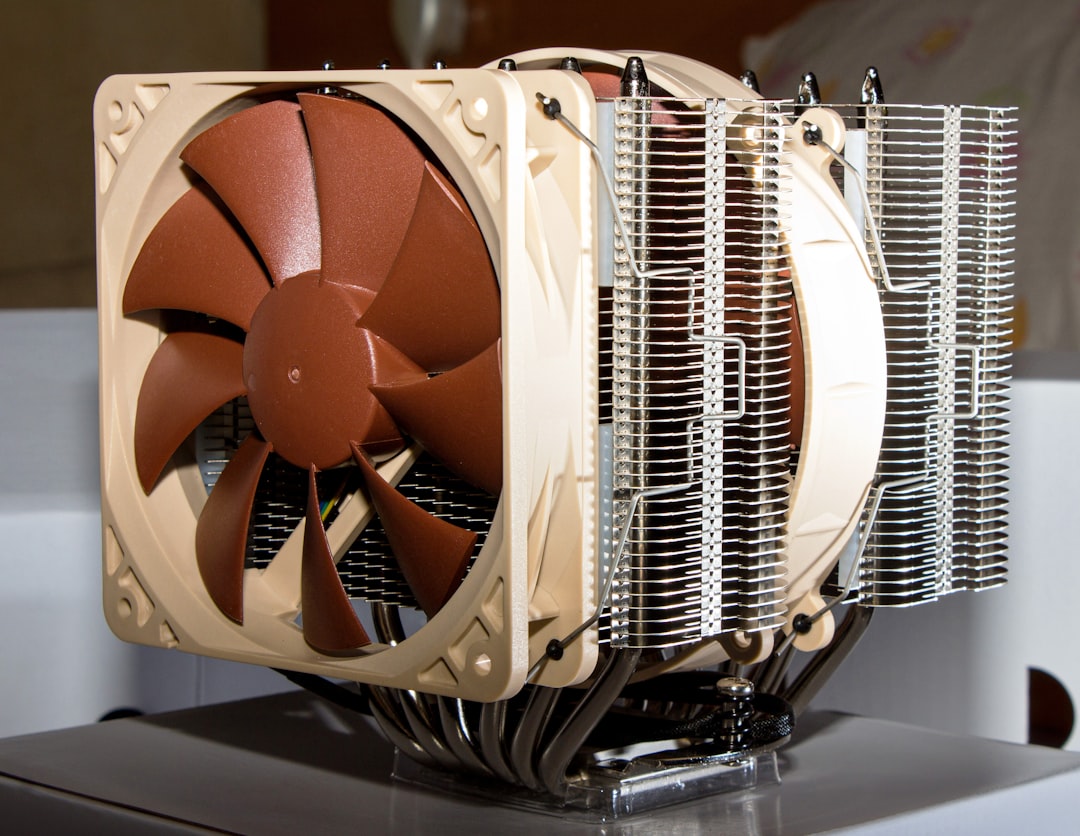
I’ve spent the last six weeks redesigning my workstation’s cooling system, testing everything from upgraded case fans to liquid AIO coolers and thermal pad replacements. What I learned surprised me—most AI workstations are dramatically under-cooled, and the fixes range from twenty-dollar tweaks to complete system rebuilds. Let me walk you through what actually works.
Understanding the Thermal Profile of AI Workloads
First, a quick reality check about what AI workloads actually do to your hardware. Unlike gaming, where GPU utilization fluctuates based on scene complexity, LLM inference runs at near-100% utilization continuously. Training workloads are even more demanding, often pushing both GPU and VRAM to their thermal limits for hours or days.
The problem compounds with modern high-VRAM cards like the RTX 3090 and RTX 4090. These cards pack enormous memory bandwidth but generate significant heat, especially when you’re running models that fully utilize their 24GB+ of VRAM. The thermal design of many reference cards simply can’t dissipate that heat efficiently under sustained loads.
What does this look like in practice? You’ll see GPU temperatures creep into the 80-85°C range during inference, potentially hitting 90°C+ during training. At these temperatures, most GPUs start throttling—reducing clock speeds to protect themselves. That throttling doesn’t just slow down your current run; it introduces unpredictable performance that makes benchmarking and optimization nearly impossible.
The CPU isn’t off the hook either. While GPU does the heavy lifting for inference, your CPU handles data preprocessing, prompt engineering, and orchestration. Multi-threaded operations like tokenization and batch preparation can spike CPU temperatures, especially if you’re running a smaller model on CPU while your GPU handles another task.
The Foundation: Case Airflow and Fan Configuration
Before spending hundreds on liquid cooling or thermal pads, start with the basics. Most PC cases ship with mediocre airflow, and the default fan configuration is rarely optimal for sustained high-load workloads like AI inference.
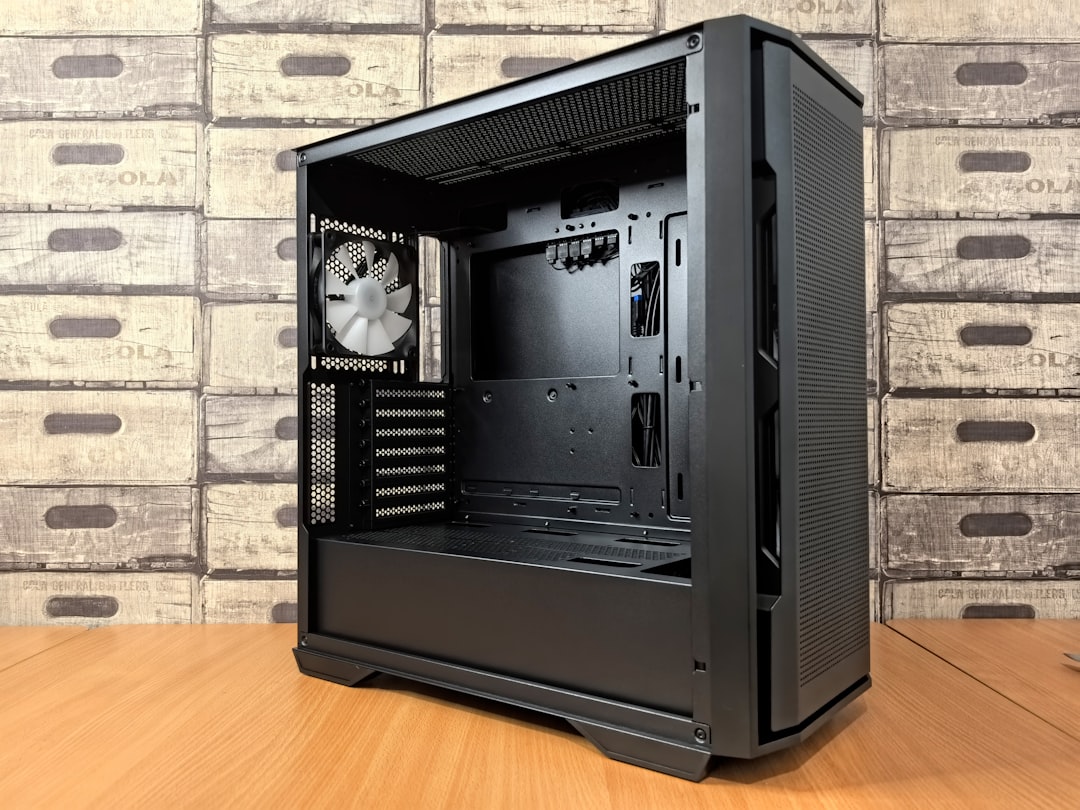
My first upgrade was replacing the stock case fans with high-static-pressure models. I used Noctua’s industrial PPC fans, which move more air at lower RPMs than typical case fans. The difference wasn’t dramatic—maybe 2-3°C under load—but it was consistent and silent. For AI workstations that run overnight, noise reduction matters as much as cooling.
More important than fan quality is fan placement. The optimal configuration for AI workloads is positive pressure: more intake fans than exhaust. This forces air through every part of the case, preventing hot spots around the GPU and VRM. I added two 140mm intake fans to the front of my case and upgraded the rear exhaust to a 120mm high-static-pressure model. The result? A 5-7°C reduction in GPU temperature under sustained load.
One often-overlooked factor is cable management. Messy cables block airflow and create turbulence that reduces cooling efficiency. I spent an afternoon rerouting cables and using velcro cable ties to bundle them away from the GPU intake area. It’s not a glamorous upgrade, but proper cable management alone dropped my GPU temps by another 2°C.
Liquid Cooling: When Air Isn’t Enough
For high-end GPUs running sustained AI workloads, liquid cooling is often the difference between throttling and stable performance. I resisted it for years—worried about leaks and complexity—but after watching my RTX 3090 throttle at 84°C during a long fine-tuning run, I finally made the switch.
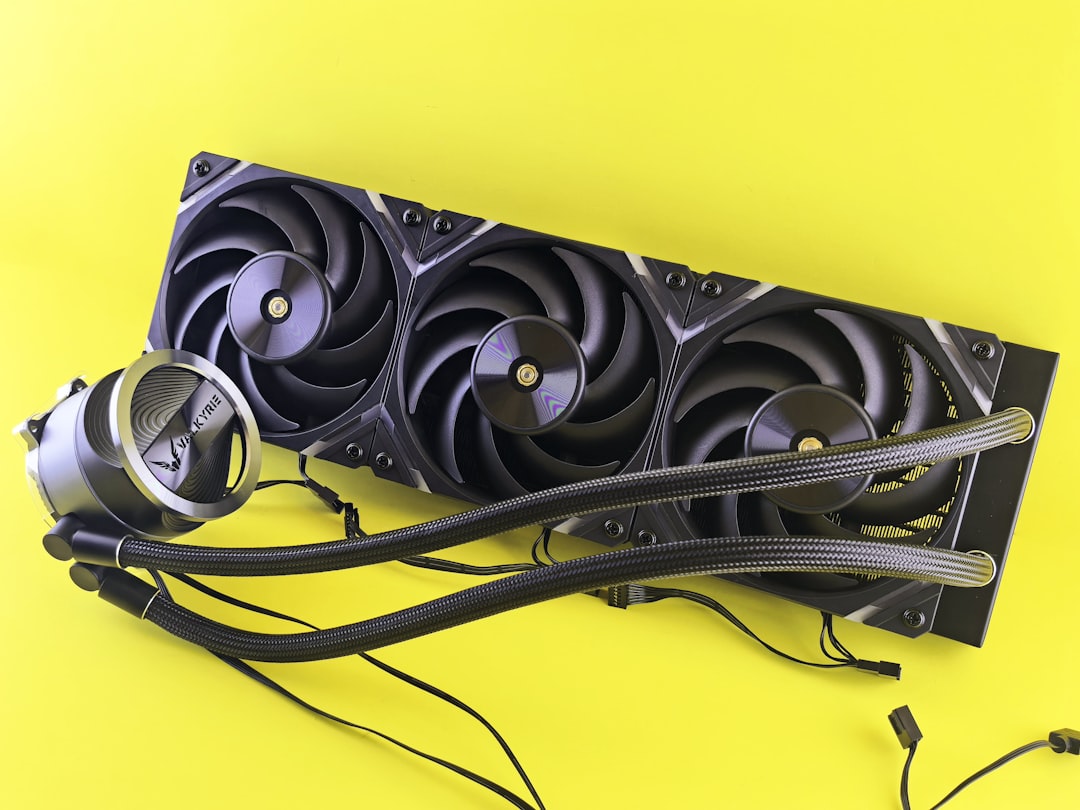
I installed a 360mm AIO cooler for my CPU and upgraded my GPU to a hybrid liquid-air cooler. The results were immediate: CPU temperatures dropped from 75°C to 55°C under load, and GPU temps stabilized around 70°C even during extended training runs. More importantly, temperatures stayed consistent hour after hour, eliminating the thermal throttling that had been plaguing my workflow.
The upgrade isn’t cheap—expect to spend $200-400 for a quality AIO cooler and GPU water block—but it pays dividends in stability. If you’re running inference daily or training models regularly, liquid cooling isn’t a luxury; it’s insurance against the performance degradation that heat causes.
For those intimidated by custom loops, AIO coolers are the sweet spot. They’re sealed, pre-filled, and require minimal maintenance. I’ve been running my 360mm AIO for six months without issue, and the only maintenance required is dusting the radiator fins occasionally. If you want the cooling performance of liquid without the complexity of custom loops, AIOs are the answer.
Thermal Interface: Pads, Paste, and Contact Frames
Even with excellent airflow and liquid cooling, your components are only as cool as the thermal interface between them and their coolers. Most manufacturers use cheap thermal paste and minimal thermal pads from the factory. Replacing both can yield dramatic temperature improvements.
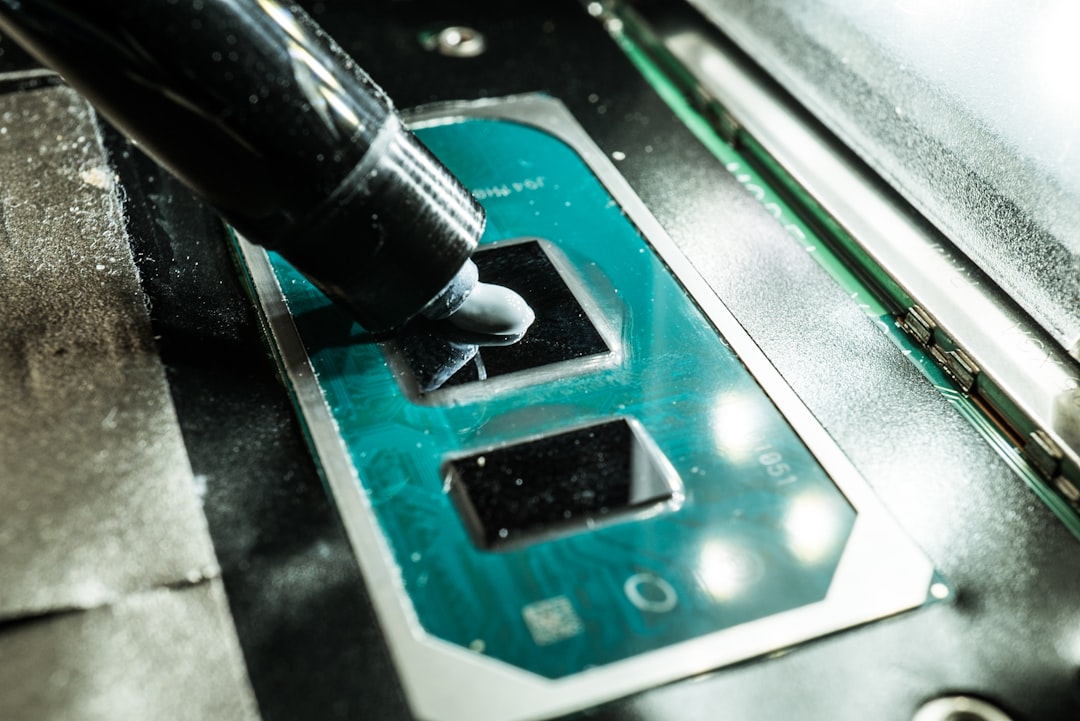
I upgraded my CPU thermal paste to Arctic MX-6, a premium compound that outperforms stock paste by 3-5°C. The application process is straightforward—clean the old paste with isopropyl alcohol, apply a pea-sized amount of new paste, and mount the cooler. Just don’t overdo it; too much paste can actually hinder heat transfer.
For GPUs, thermal pads are often more important than paste. Modern GPUs have memory modules (VRAM) and voltage regulators (VRMs) that make direct contact with the cooler via thermal pads. Stock pads are often too thin or made of mediocre material. Upgrading to 1.5mm or 2mm thermal pads made of graphite or high-performance silicone can reduce VRAM temperatures by 10-15°C, preventing memory throttling during high-bandwidth inference operations.
One advanced upgrade I recommend for RTX 3090 owners is a GPU contact frame. The stock cooler mounting system can have uneven pressure across the GPU die, especially after years of thermal cycling. A contact frame replaces the stock mounting bracket with a more rigid design that ensures even pressure. It’s a $20 upgrade that dropped my GPU temps by another 3°C.
GPU-Specific Cooling: Thermal Pads and Aftermarket Coolers
If you’re running a high-end GPU like the RTX 3090 or RTX 4090 for AI workloads, the stock cooler is often the bottleneck. These cards are designed for gaming bursts, not sustained 100% utilization. Upgrading the GPU cooler can yield the biggest temperature gains of any single upgrade.
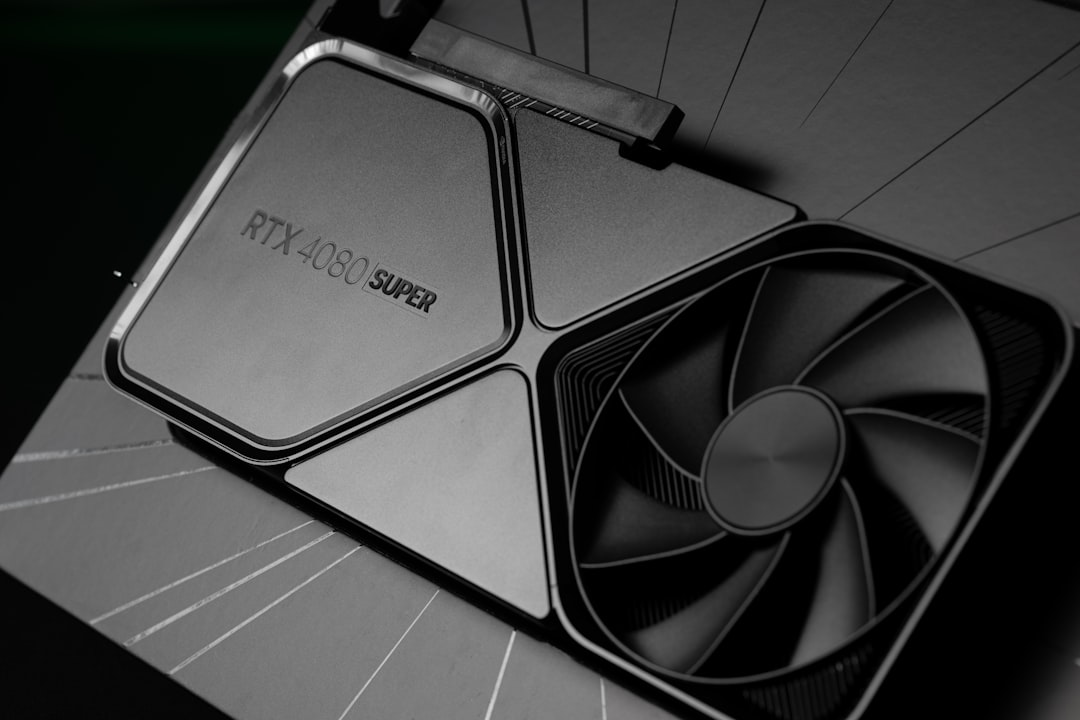
For air-cooled GPUs, the first step is upgrading thermal pads on memory modules and VRMs. Most manufacturers use thin, low-quality pads that don’t transfer heat efficiently. Replacing them with 1.5mm graphite thermal pads can reduce VRAM temperatures by 10-15°C, which directly impacts stability during memory-bound operations like large batch inference.
For more dramatic improvements, consider an aftermarket GPU cooler. Brands like Arctic and Raijintek offer large triple-fan coolers that outperform stock NVIDIA coolers by 5-10°C. The installation process involves removing the stock cooler (which voids your warranty) and mounting the new cooler with thermal paste and pads. It’s not for beginners, but for AI workstations running sustained loads, it’s often worth it.
The ultimate solution is a water-cooled GPU block. Brands like EKWB and Corsair make full-coverage blocks that cool the GPU core, VRAM, and VRM simultaneously. Paired with a radiator, this setup can keep a high-end GPU below 60°C even under 100% load. It’s expensive and complex to install, but for training rigs running 24/7, it’s the gold standard.
Ambient Environment: Room Temperature and Placement
One factor many builders overlook is the ambient temperature of the room housing your workstation. Your cooling system can only cool as effectively as the air it’s drawing in. If your office is 80°F (27°C), your PC will struggle to stay cool regardless of how many fans you have.

I learned this the hard way during a summer heatwave. My typically stable 70°C GPU temps spiked to 85°C when my office reached 85°F. The solution wasn’t better cooling—it was lowering the ambient temperature. A simple portable air conditioner targeted at my office dropped room temps to 72°F, and my GPU temps immediately returned to normal.
Workstation placement also matters. Avoid enclosing your PC in a desk cabinet or placing it in a corner with poor airflow. Give it at least six inches of clearance on all sides, and ideally place it where cool air can easily reach the intake fans. If you must place it in a confined space, consider adding exhaust fans to actively move hot air away from the case.
Monitoring and Automation: Keeping Temperatures in Check
Once you’ve upgraded your cooling system, monitoring tools help ensure everything is working correctly. I use HWInfo to track GPU and CPU temperatures in real-time, setting up alerts when temps exceed 80°C. This lets me catch cooling issues—like a failing fan or clogged radiator—before they cause throttling or damage.
For more advanced monitoring, tools like Afterburner let you create custom fan curves that ramp up cooling based on temperature thresholds. I set my GPU fans to stay silent below 60°C, then gradually increase to 100% at 75°C. This keeps the system quiet during light work but ensures maximum cooling during sustained inference runs.
If you’re running your workstation unattended for long training runs, consider automated shutdown scripts that monitor temperatures and halt the system if they exceed safe thresholds. It’s better to interrupt a training run than to risk permanent hardware damage from overheating.
When to Rebuild: Recognizing Fundamental Cooling Limits
Sometimes, no amount of upgrading fans or adding thermal pads will fix a fundamentally flawed cooling design. If you’ve exhausted the upgrades above and still see thermal throttling, it might be time to rebuild.
Signs you need a rebuild include: sustained temperatures above 85°C regardless of upgrades, dramatic temperature spikes during specific workloads, and visible hot spots on your GPU or CPU backplates. These symptoms indicate that your case, cooler, or component selection isn’t suited to sustained high-load workloads.
For my workstation, the tipping point was realizing that my mATX case simply couldn’t fit a 360mm radiator or larger GPU cooler. Rebuilding into a full-tower case with better airflow support was the only way to get the cooling headroom I needed for sustained AI workloads. It was a weekend project, but the 10-15°C temperature improvement made it worth the effort.
The Bottom Line: Cooling Is Performance
After six weeks of upgrades and testing, my workstation runs 15-20°C cooler under load than it did before. More importantly, temperatures stay consistent during long runs, eliminating the throttling that used to kill my performance. Token generation is faster, training runs complete without interruption, and I no longer worry about heat-induced stability issues.
The upgrades cost me about $500 total—roughly the price of a mid-range GPU. But for an AI workstation that I use daily, the investment has paid for itself in reliability and performance alone. If you’re serious about running local AI, don’t treat cooling as an afterthought. It’s as critical as your GPU, your RAM, or your storage.
If you’re just getting started with local AI hardware, check out my guide on NPU+GPU hybrid setups for component recommendations. And if you’re looking to build a complete workstation from scratch, my AI hardware for creative professionals guide covers cooling considerations in detail.
Running AI locally is incredibly rewarding, but it demands more from your hardware than typical workloads. Invest in proper cooling upfront, and you’ll save yourself the frustration of throttling, instability, and premature hardware wear. Your GPU—and your inference speeds—will thank you.