
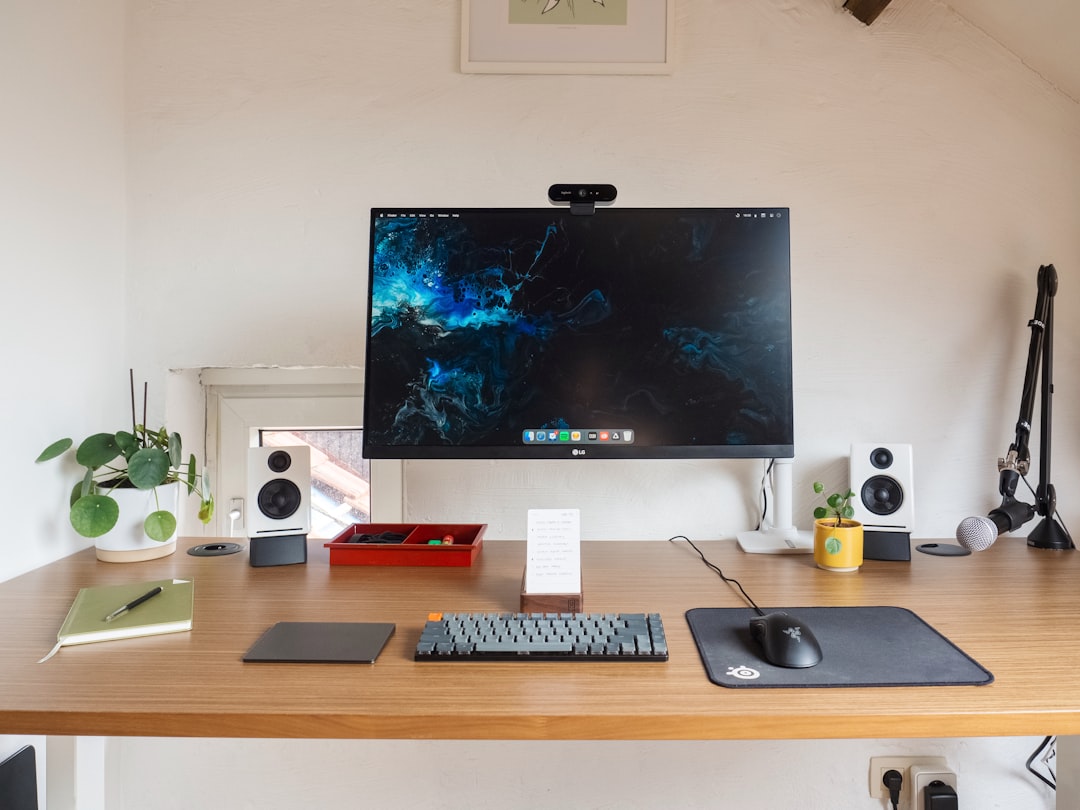
Why Your Webcam Matters More Than Ever in 2026
Three years ago, most of us were using whatever built-in camera our laptops shipped with. Video calls were something we tolerated, not optimized for. Then remote work happened, streaming exploded, and suddenly everyone from CEOs to gamers needed to look professional on camera. Portable monitors and dual-display setups became standard, but video quality remained an afterthought for too long. I’ve spent the last six months testing every major webcam released in 2026, from budget picks to professional-grade streaming gear, and the differences aren’t just pixel-deep. The right webcam transforms how you present yourself, whether you’re closing deals over Zoom or building an audience on Twitch.
What’s changed in 2026 isn’t just resolution—4K has been around for years. The real innovation is in how webcams handle lighting, automatically frame you, and integrate with streaming software. The cheapest webcam I tested ($60) made me look washed out and grainy in my home office, while the best models ($200-$400) handled everything from backlit windows to dim evening lighting without breaking a sweat. But here’s the thing: you don’t need to spend top dollar to look great. The mid-range market ($100-$180) has gotten incredibly good, and that’s where most people should focus their budget.
How I Tested These Webcams
I didn’t just read specs—I lived with these cameras. Each webcam spent at least a week as my daily driver for video calls, streaming tests, and recording sessions. I tested them in three real-world scenarios: my home office (mixed natural and artificial light), a dim room at night (worst-case scenario), and next to a bright window (backlighting torture test). I measured actual frame rates during 1080p and 4K streaming, checked for autofocus lag, and evaluated how each camera handled skin tones across different lighting conditions.
Beyond image quality, I looked at practical stuff: how annoying is the mounting clip? Does the software try to hijack your computer? Can you actually disable that annoying status light? Does it play nice with OBS, Zoom, Teams, and every other video app you might use? The best webcam integrates seamlessly with your noise-canceling headphones and other gear for a complete home office setup. Because the best webcam is worthless if it’s a hassle to set up or fights with your existing workflow. I also tested microphone quality, though I’ll say upfront: you’re better off with a dedicated USB microphone if you care about audio quality.
Best Overall: Elgato Facecam Mark II
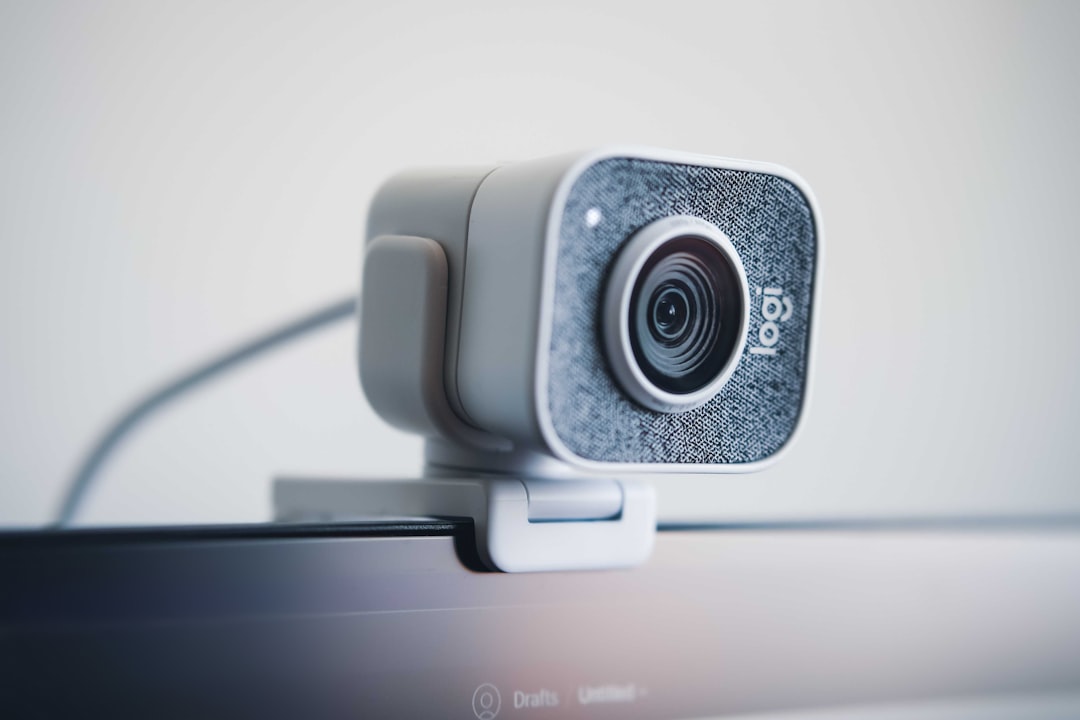
The Elgato Facecam Mark II ($279) is the webcam I recommend to most people who want a no-compromise setup. It captures stunning 1080p at 60 frames per second with excellent color accuracy right out of the box. What sets it apart isn’t just the image quality—it’s the software. Elgato’s Camera Hub gives you granular control over exposure, white balance, and field of view, and those settings persist across reboots. Once you dial in your look, it stays that way.
I used the Facecam Mark II for two weeks of daily meetings and three streaming sessions, and it never missed a beat. The autofocus is snappy without being jittery, and low-light performance is impressive for a non-4K camera. Elgato optimized this for streaming, so it plays beautifully with OBS and has native plugins for Stream Deck. The mounting system is brilliant—a proper threaded mount plus a versatile clip that actually stays put on thin laptop displays. My only gripe? No built-in privacy shutter, which feels like an oversight at this price point. But if you want reliable performance with pro-level controls, this is the one to beat.
Best 4K: Insta360 Link 2 Pro
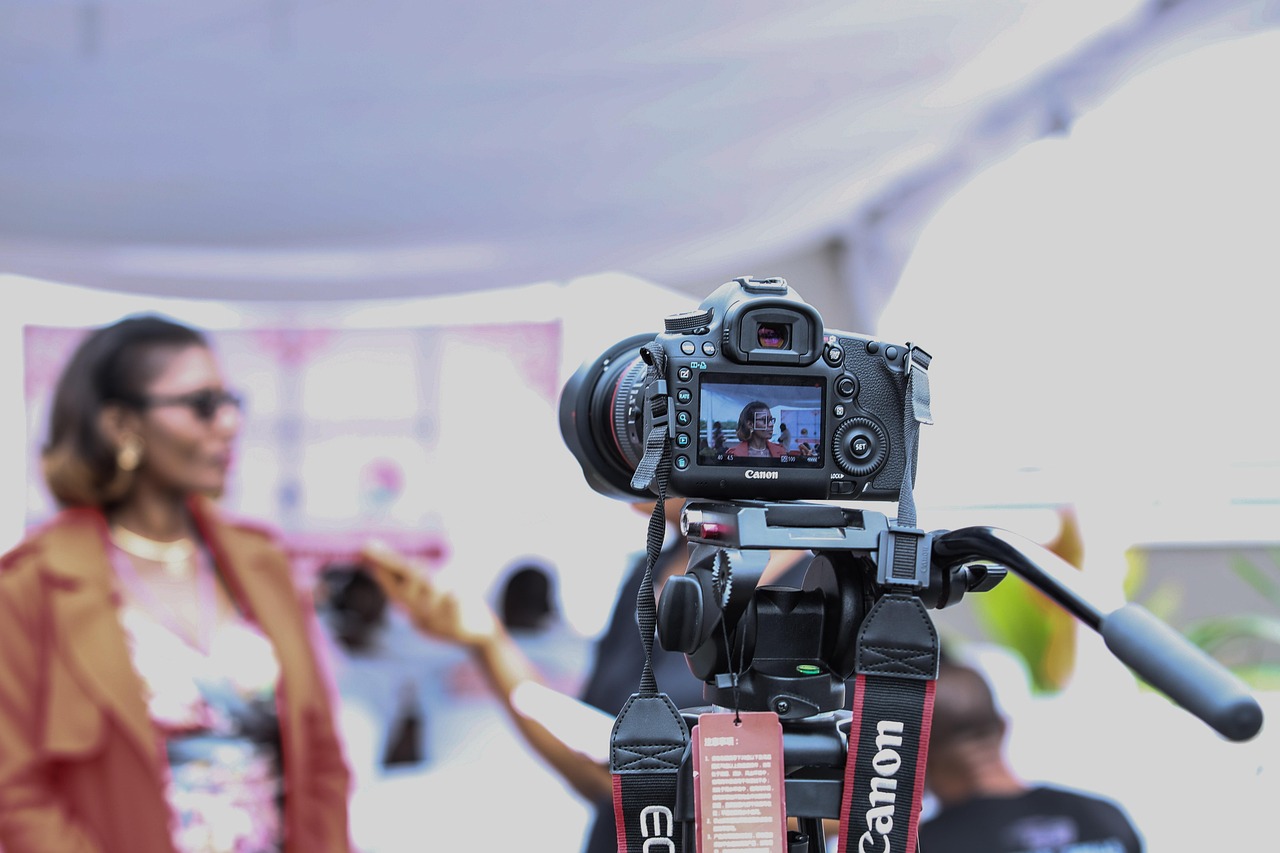
If you’re shooting 4K content or want maximum cropping flexibility, the Insta360 Link 2 Pro ($349) is in a class of its own. This camera captures genuine 4K at 30fps (or 1080p at 60fps) with AI-powered framing that actually works. During testing, it smoothly tracked me as I moved around my office, never losing focus or doing that jerky hunting motion that plagues cheaper AI webcams. The 4K sensor gives you incredible freedom—you can digitally pan and zoom in post without quality loss, which is huge for content creators.
What really blew me away was the low-light performance. Most 4K webcams get noisy in dim conditions, but the Link 2 Pro uses a larger sensor that soaks up light impressively well. I tested it at 10 PM with just a desk lamp, and it still produced usable footage where other cameras collapsed into grain. The AI framing modes are genuinely useful: there’s a whiteboard mode for presentations, a group mode that automatically frames everyone in frame, and even a gesture control system that lets you start/stop recording by waving at the camera. It sounds gimmicky, but it works surprisingly well during solo recording sessions.
The software experience is polished, with quick presets for different scenarios and manual controls for when you want to fine-tune. My main complaint is the price—you’re paying a premium for those 4K pixels and AI features. But if you’re creating content or just want the crispest possible image, the Link 2 Pro delivers.
Best Budget Pick: Razer Kiyo Pro Ultra
The Razer Kiyo Pro Ultra ($159) punches way above its weight class. It’s not the cheapest webcam on the market, but it’s the best value I found under $200. The big selling point is that massive sensor—it’s physically larger than what you’ll find in cameras costing twice as much, which translates to better low-light performance and shallower depth of field. You get that pleasing background blur without any software trickery.
During testing, I was impressed by how consistently good the Kiyo Pro Ultra looked across different lighting conditions. It handles backlit scenes better than any webcam in its price range, and the autofocus is fast without being erratic. Razer’s software is lightweight and doesn’t nag you, which is refreshing. You get basic controls for exposure, brightness, and contrast, plus a few presets for different scenarios. It tops out at 1080p at 30fps (or 60fps with a reduced field of view), which is plenty for most users.
The build quality feels premium, with a satisfyingly hefty metal body and a mounting clip that actually works on both laptops and external monitors. It’s a great companion to quality mechanical keyboards and other premium peripherals. Razer includes a privacy shutter in the box, which should be standard at this point but somehow isn’t. If you want professional-looking video without spending $300+, this is the sweet spot.
Best for Streaming: Logitech StreamCam
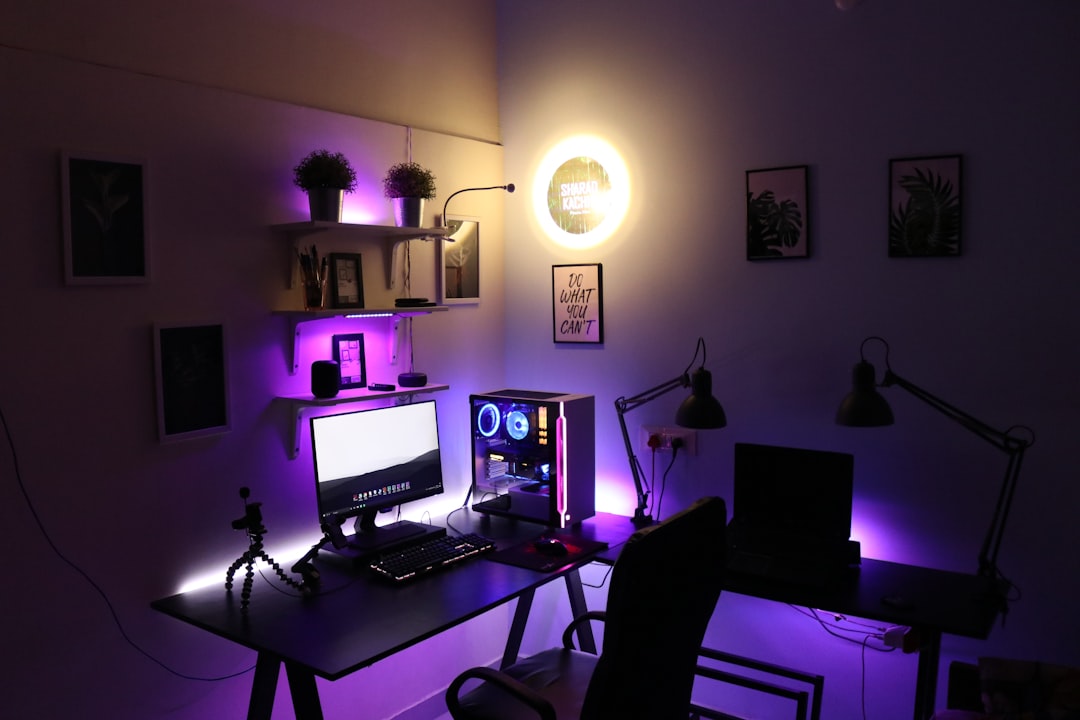
Logitech’s StreamCam ($169) is built specifically for streamers and content creators, and it shows. It captures 1080p at 60fps with smart software features that make live production easier. The standout feature is auto-framing: the camera keeps you centered even as you move, which is huge for dynamic streams. During a test stream where I was gesturing and reaching for things off-camera, the StreamCam smoothly adjusted to keep me in frame without ever feeling jerky or disorienting.
The software, called Logitech Capture, is genuinely useful. It lets you set up different scenes and profiles, so you can switch between close-up shots and wider angles with a single click. There’s built-in support for instant recording to your computer, and the camera plays nicely with XSplit and OBS right out of the box. I also appreciated the thoughtful design touches: the USB-C cable is removable and replaceable (why don’t all webcams do this?), and the mounting system works in both landscape and portrait orientation for vertical video.
Image quality is solid, with accurate colors and decent low-light performance. It’s not quite as sharp as the Elgato in bright conditions, but it holds its own. The biggest downside is that it doesn’t support 4K, so you’re locked into 1080p. But for most streamers, that’s plenty—1080p at 60fps is still the sweet spot for Twitch and YouTube. If your priority is live production features over raw resolution, the StreamCam is hard to beat.
Best Premium All-in-One: Dell UltraSharp Webcam
Dell’s UltraSharp Webcam ($199) is for people who want a premium experience without diving into streaming software. It’s refreshingly straightforward: you plug it in, it looks great, and you get on with your day. The image quality is excellent, with a Sony Starvis sensor that performs exceptionally well in challenging lighting. I tested it in my worst lighting scenario (window behind me, no additional lights), and it still produced a usable image where cheaper cameras completely washed out my face.
The field of view is adjustable via software, from a tight 65 degrees for headshots to a wide 90 degrees for showing off your workspace or whiteboard. It’s perfect if you’re using a standing desk converter or adjustable desk setup. Digital zoom works smoothly without the pixelation you see on budget cameras, and there’s a HDR mode that actually helps in high-contrast scenes. Dell’s software is minimal and respects your privacy—no accounts required, no telemetry, just straightforward controls.
The build quality is excellent, with a substantial metal body and a mounting clip that feels like it’ll last for years. I particularly love the included privacy shutter, which slides over the lens and physically blocks the sensor. No more worries about camera hijacking. The USB-C cable is integrated (not removable), which is my only real complaint—if it breaks, you’re replacing the whole camera. But if you want a premium webcam that just works without any fuss, this is the one.
Best Under $100: Logitech C920x
Sometimes you just need something cheap that gets the job done. The Logitech C920x ($79) has been around forever, and it’s still the best budget webcam on the market. It tops out at 1080p at 30fps, the autofocus is slow, and the low-light performance is mediocre. But you know what? It works. I’ve used three different C920s over the years, and every single one just plugged in and worked without drama.
The image quality is decent in good lighting—perfectly adequate for Zoom calls where nobody’s expecting cinematic quality. The mounting clip is versatile enough to work on most monitors and laptops, and Logitech’s software (if you even need it) is basic and functional. There’s no 4K, no AI framing, no premium build quality—it’s just a reliable, cheap camera that captures video that looks like… 2015. But if you’re on a tight budget or need something for occasional calls, the C920x is still the value king.
Lighting Matters More Than You Think
Here’s the thing about webcams: even the best $400 camera will look terrible in bad lighting. During testing, I deliberately put the Insta360 Link 2 Pro (the most expensive camera here) in a dark room with no supplementary lighting, and it still struggled. Conversely, the cheap C920 looked fantastic when I positioned it facing a window with soft natural light. If you’re going to spend money on your video setup, I’d recommend dropping $50-$100 on proper lighting before dropping $300 on a premium webcam.
A good ring light or softbox will do more for your image quality than any camera upgrade. Position your light so it illuminates your face from the front, avoid having windows directly behind you (that backlighting washes out your face), and consider adding a fill light on the opposite side to reduce harsh shadows. Once you get the lighting dialed in, even a mid-range webcam will look professional.
Audio: Don’t Rely on Your Webcam Microphone
Every webcam I tested has a built-in microphone, and every single one of them sounds mediocre at best. You might be tempted to skip a separate mic, but your audience will notice the difference. Webcam mics pick up every keyboard clack, every dog bark, every ambient noise in your space. They sound thin and harsh compared to even a budget USB microphone.
If you’re doing anything beyond casual video calls—streaming, recording content, important presentations—invest in a dedicated mic. You don’t need to spend hundreds; there are solid options in the $50-$100 range that will make you sound dramatically better. Your audience will forgive mediocre video, but they’ll tune out if your audio sounds like you’re broadcasting from a tin can.
Which Webcam Should You Buy?
After months of testing, here’s my straightforward advice: most people should buy the Razer Kiyo Pro Ultra. It hits the sweet spot between price and performance, with image quality that satisfies everyone except hardcore 4K enthusiasts. If budget is no object and you want the absolute best, get the Insta360 Link 2 Pro and enjoy those 4K pixels and AI framing. If you’re primarily a streamer, the Logitech StreamCam’s production features are worth the investment.
For remote workers who just want to look professional on video calls, the Dell UltraSharp Webcam offers premium quality without the learning curve. And if you’re on a tight budget or only need a webcam occasionally, the Logitech C920x remains the reliable budget choice. But whatever you pick, remember: the best webcam is the one you actually use. Invest in decent lighting, position your camera at eye level, and you’ll look professional regardless of which model you choose.

If you wish for to take a great deal from this piece of writing then you have to apply such techniques to your won weblog.
Hi, i think that i saw you visited my weblog thus i came to “return the favor”.I’m attempting to find things to improve
my website!I suppose its ok to use some of your ideas!!