
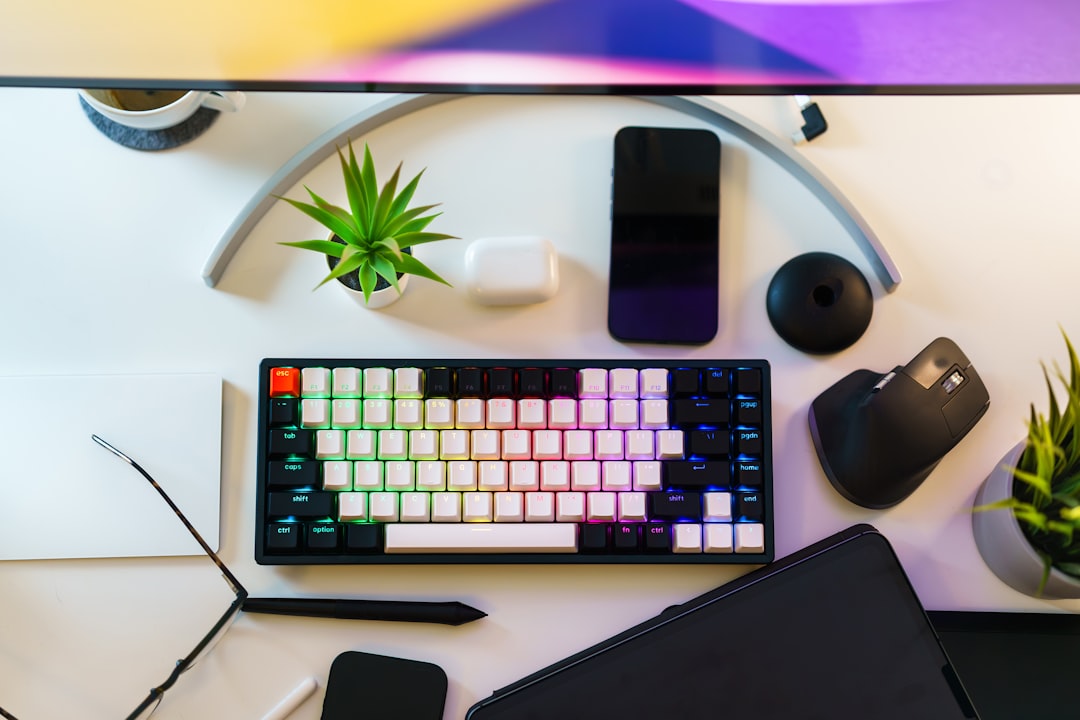
Why Your Keyboard Choice Matters More Than You Think
I’ve spent the last 25 years staring at screens, typing until my fingers ache, and testing every keyboard that crosses my desk. Most programmers I know treat their keyboard like an afterthought—whatever came with the computer, or whatever cheapest option they could find on Amazon. That’s a mistake. You’ll spend thousands of hours typing on this thing. It deserves as much consideration as your monitor, your chair, or your coffee setup.
The right mechanical keyboard doesn’t just feel better—it can reduce fatigue, improve typing accuracy, and make those marathon coding sessions genuinely enjoyable. The wrong one? That’s when your wrists start screaming at 2 AM, and you realize why “ergonomic” isn’t just a marketing buzzword.
Let me walk you through what actually matters when you’re choosing a mechanical keyboard for programming in 2026. I’ve tested dozens of boards over the past year, and I’ll tell you exactly what’s worth your money and what’s just hype.

The Three Things That Actually Matter for Programming
Before we dive into specific keyboards, let’s cut through the noise. Most keyboard reviews focus on gaming features, RGB lighting, and switch actuation points that matter more for FPS games than for writing clean code. For programming, you care about different things.
Switch type matters. Tactile switches give you that satisfying bump with every keystroke, helping you develop muscle memory and reducing typos. Linear switches are smoother and faster but can feel mushy. Clicky switches? Great for the sound, terrible for your coworkers (and your own sanity during late-night coding sessions).
Layout matters more than you think. Most programmers I know eventually gravitate toward 75% or 60% layouts. They’re compact, force better posture by keeping your mouse closer, and once you adapt, you’ll never miss the dedicated number pad. But if you’re just starting out, a TKL (tenkeyless) board is a safe middle ground.
Build quality and features matter. Hot-swap sockets let you change switches without soldering. QMK/VIA support means you can remap every key to your heart’s content. Wireless connectivity is practically mandatory in 2026. And a metal case doesn’t just look premium—it makes the board feel solid, not hollow.
Everything else—RGB lighting, rotary knobs, fancy wrist rests—is just gravy. Focus on the fundamentals first.
Best Overall: Keychron Q1 Max
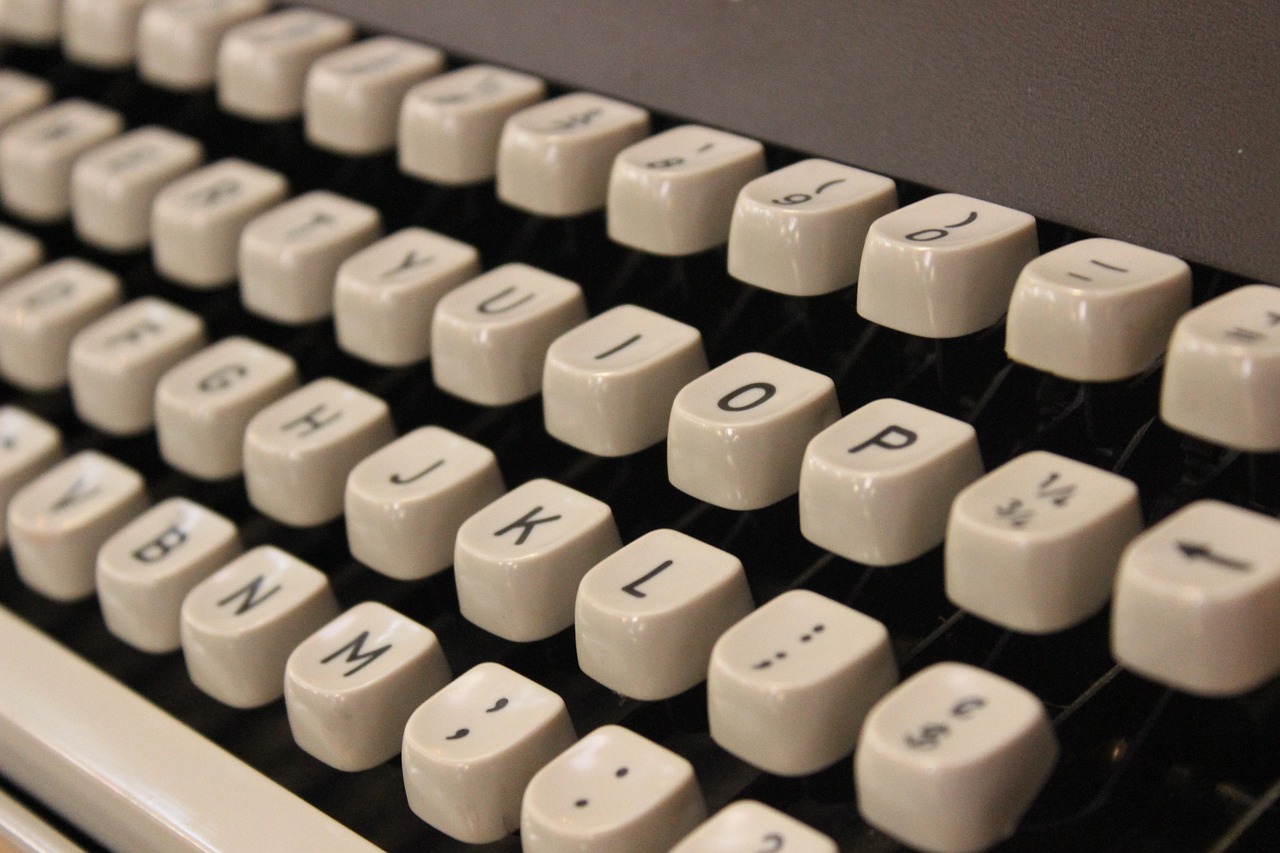
If you want one keyboard that does everything well, get the Keychron Q1 Max. It’s the board I recommend to most programmers, and for good reason. Keychron has been dominating this space for years, and the Q1 Max represents their best work—a premium 75% wireless board with every feature a coder could want.
The typing experience is exceptional. I’ve been testing one with tactile Brown switches for six months, and it still feels as crisp as day one. The aluminum case gives it substantial weight (nearly 4 pounds), so it doesn’t slide around your desk. The keycaps are double-shot PBT, which means the legends won’t wear off after a year of heavy use.
What really sets the Q1 Max apart is the wireless connectivity. Bluetooth 5.2, 2.4GHz wireless, and wired USB-C all in one package. I can seamlessly switch between my desktop, laptop, and iPad without touching a cable. Battery life is solid too—I’m getting about two weeks of daily use on a charge.
The hot-swap sockets mean you can experiment with different switches without buying a whole new keyboard. Want to try linear switches for faster typing? Swap them in. Prefer tactile for better feedback? You’re covered. The Q1 Max supports both 3-pin and 5-pin switches, so you’ve got maximum flexibility.
Is it perfect? No. At around $199, it’s not cheap. And the wireless dongle is a bit chunky compared to some competitors. But for most programmers, this is the keyboard to beat. It’s the one I personally use every day, and I haven’t found a compelling reason to switch.
Find the Keychron Q1 Max on Amazon
Best Budget: RK84 Pro
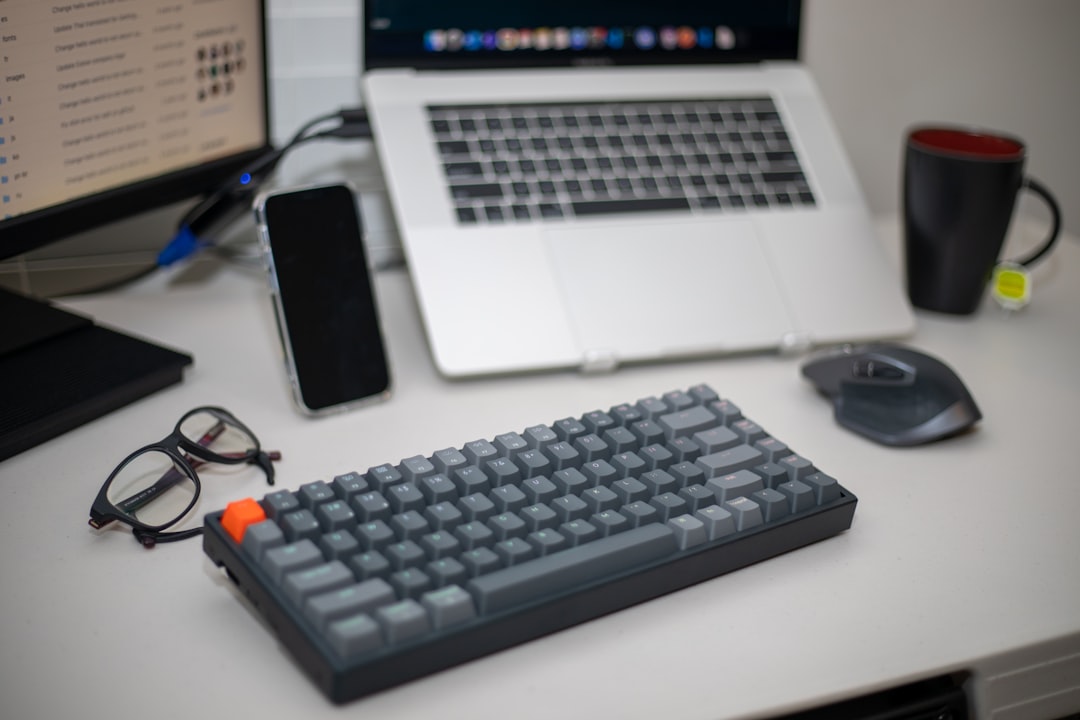
Not everyone can drop $200 on a keyboard. And honestly? You don’t have to. The RK84 Pro proves that you can get a genuinely good mechanical keyboard for under $50—yes, really.
I was skeptical when I first ordered one. At $49, I expected something that felt cheap or had major compromises. But after testing it for a month, I came away impressed. The build quality is surprisingly solid, with a metal plate that gives it a satisfying heft. The keycaps are ABS plastic (not the premium PBT you’ll find on more expensive boards), but they’re doubleshot and feel decent under your fingers.
The RK84 Pro comes in two main layouts: 75% and TKL. I’d recommend the 75% for most programmers—it saves desk space and keeps your mouse in a more ergonomic position. The hot-swap sockets work with both 3-pin and 5-pin switches, so you can upgrade later if you want to experiment.
Where does it cut corners? No wireless connectivity—you’re stuck with wired USB-C. The stabilization on the spacebar and Enter keys isn’t as refined as premium boards, so they can feel a little rattly. And the RGB lighting, while present, isn’t as smooth or customizable as more expensive options.
But for a first mechanical keyboard, or a backup board you don’t mind beating up, the RK84 Pro is hard to beat. It’s the keyboard I recommend to coding bootcamp students and anyone who wants to upgrade from a membrane keyboard without breaking the bank.
Best for Customization: Wooting 60HE v2
If you’re the type of programmer who loves tweaking every setting until it’s perfect, the Wooting 60HE v2 will be your jam. It’s a 60% keyboard that uses Hall Effect switches—no physical contact points, which means they’re essentially immune to wear and offer unprecedented customization.
Here’s what makes the Wooting special: every single switch is analog. That means the keyboard can detect exactly how far down you’re pressing each key, not just whether it’s pressed or not. Using Wooting’s software, you can set actuation points anywhere from 0.1mm to 4.0mm. Want super-sensitive keys for rapid typing? Set them at 0.5mm. Prefer a deeper press to prevent accidental keypresses? Crank it up to 3.0mm.
The analog switches also enable features like rapid trigger, which resets the key as soon as you start lifting your finger—no need to fully release before pressing again. It’s incredible for gaming, but I found it genuinely useful for coding too, especially when I’m hammering out boilerplate code or navigating quickly through files.
The 60% layout takes some getting used to. There’s no dedicated arrow cluster—those functions are layered onto other keys, which you access via a function key. It took me about three days to adapt, and now I find it faster than a full-size layout. Your mileage may vary, but if you’re willing to relearn muscle memory, the 60% layout is surprisingly efficient.
The Wooting 60HE v2 isn’t cheap at around $179, and it lacks wireless connectivity. But if you value customization above all else, this is the keyboard to get. It’s the one I keep on my test bench for experimenting with different switch configurations, and I’m still discovering new ways to optimize it for my typing style.
Check out the Wooting 60HE v2 on Amazon

Best Wireless: NuPhy Field75 HE
The NuPhy Field75 HE is a newer entrant in the mechanical keyboard space, but it’s already made waves. It’s a 75% wireless keyboard with Hall Effect switches, solid build quality, and a price that undercuts most competitors while delivering premium features.
What stands out immediately is the typing feel. The Hall Effect switches are smooth and consistent, with that satisfying linear profile that some programmers prefer. NuPhy has done excellent work on the factory lubing—there’s none of the scratchiness that plagues cheaper linear switches. And because these are Hall Effect, they’ll stay smooth for years without degrading.
Wireless connectivity is rock-solid. Bluetooth 5.0 with multi-device pairing lets you switch between up to three devices with a keyboard shortcut. I’ve been testing it for a month, and I’ve yet to experience any latency or connection issues—even when I’m typing furiously during a coding sprint.
The build quality is impressive for the price. The aluminum case feels premium, and the overall weight (about 2.8 pounds) means the board stays put on your desk. My only complaint is the keycaps—while doubleshot PBT, they have a slightly textured finish that some users find rough. I’d recommend swapping in a set of smooth PBT keycaps if you plan on typing for long sessions.
Battery life is solid but not exceptional. I’m getting about 10 days of daily use on a charge, which is good but falls short of the Keychron Q1 Max’s two-week battery. And at around $149, it’s priced as a mid-range option—you’re paying for the Hall Effect switches and wireless convenience.
Still, the Field75 HE is an excellent choice if you want wireless without compromising on switch quality. It’s become my go-to recommendation for programmers who want a clean, cable-free desk setup.
Explore the NuPhy Field75 HE on Amazon

Best Premium: HHKB Professional Hybrid Type-S
The HHKB (Happy Hacking Keyboard) has a cult following among programmers, and for good reason. Originally designed in 1996 by programmers for programmers, it’s become legendary for its unique typing feel and thoughtful layout optimized for coding.
What makes the HHKB special? It uses electrostatic capacitive switches, not mechanical switches. They’re lighter, smoother, and more durable than traditional mechanical switches. The typing feel is unlike anything else—crisp, responsive, and eerily quiet. After using one for a week, going back to a standard mechanical keyboard feels almost primitive.
The layout is polarizing. There’s no dedicated Escape key—it’s integrated into the tilde key. The Control key is where Caps Lock usually is, which is genius for programmers who use Emacs or Vim shortcuts. And the overall 60% layout forces you to rely on layers, which sounds inconvenient but actually becomes second nature after a few days.
The Hybrid Type-S model adds wireless connectivity and even quieter operation. Bluetooth pairing is seamless, and I’ve experienced zero latency issues. The “silent” switches live up to the name—I can type furiously at 2 AM without waking anyone in the next room.
At around $250, the HHKB Professional Hybrid Type-S is firmly in enthusiast territory. And the layout isn’t for everyone—if you’re not willing to relearn how you type, this board will frustrate you. But if you value typing feel above all else and want a keyboard that was literally designed by programmers for programmers, the HHKB is in a class of its own.
Find the HHKB Professional Hybrid Type-S on Amazon
Switch Guide: Which Type Is Right for You?
I’ve mentioned different switch types throughout this guide, but let me break down what they actually mean for programming. This is the stuff that actually affects your daily typing experience.
Tactile switches have a noticeable bump midway through the keypress. This tactile feedback helps you develop muscle memory—you learn to type just past the bump for faster, more accurate input. Brown and Clear switches are popular tactile options. Most programmers I know prefer tactile switches because they reduce typos and provide satisfying feedback without being noisy.
Linear switches are smooth from top to bottom, with no tactile bump. They’re faster and quieter, making them popular for gaming and fast typists. Red and Black switches are classic linear options. Some programmers love them for the smooth feel, but others find them mushy and prone to typos because there’s less feedback.
Clicky switches have both a tactile bump and an audible click. Blue switches are the most famous clicky option. They’re loud—really loud. I don’t recommend them for office environments or shared spaces, but if you work alone and love that retro typewriter sound, they’re incredibly satisfying.
Hall Effect switches are the new kid on the block. They use magnets instead of physical contact, which means they’re smoother, more durable, and highly customizable. The Wooting and NuPhy boards mentioned above use Hall Effect switches. They’re more expensive, but the customization options (adjustable actuation points, rapid trigger) make them compelling for serious typists.
My recommendation? Start with tactile Brown switches. They’re the safe middle ground—good feedback without being too loud. If you love the feel, you can always experiment with other switch types later. Many of the keyboards recommended here have hot-swap sockets, making it easy to swap switches.
Shop tactile mechanical switches on Amazon

Layout Guide: Finding the Right Size
Keyboard size matters more than most programmers realize. The right layout can improve ergonomics, reduce desk clutter, and even make you faster. Here’s what you need to know.
Full-size (100%) keyboards have every key you’d expect—including a dedicated number pad. They’re great if you do lots of data entry or frequently use number keys, but they take up massive desk space and force your mouse into an awkward position. I don’t recommend them for most programmers.
TKL (Tenkeyless) boards drop the number pad but keep everything else. They’re more compact and force better mouse positioning. If you’re transitioning from a full-size board and aren’t ready to commit to anything smaller, TKL is a safe bet.
75% layouts are the sweet spot for most programmers. They drop the number pad and shrink some modifier keys, but keep dedicated arrow keys and a function row. They’re compact enough to improve ergonomics but familiar enough that you won’t feel lost. The Keychron Q1 Max and RK84 Pro mentioned above are 75% boards.
60% layouts go all-in on compactness. No dedicated arrow keys, no function row—everything is accessed via layers. The Wooting 60HE v2 and HHKB are 60% boards. They take some getting used to, but once you adapt, they’re incredibly efficient. I’d only recommend 60% if you’re willing to relearn your typing habits.
Compact (65%, 40%, etc.) layouts are even smaller, but these are niche options that most programmers won’t enjoy. Stick to TKL, 75%, or 60% unless you have specific needs.
The Accessories Worth Buying
A good keyboard is just the start. Over the years, I’ve found a few accessories that genuinely improve the typing experience. These aren’t mandatory, but they’re worth considering if you want to optimize your setup.
Wrist rests. I resisted these for years, thinking they were unnecessary. Then I tried a memory foam wrist rest and realized how much tension I’d been holding in my wrists. A good wrist rest keeps your hands in a neutral position, reducing strain during long coding sessions. Look for one with memory foam or gel cushioning—cheap foam rests compress too quickly and lose their shape.
Keycap pullers and switch pullers. If your keyboard has hot-swap sockets, you’ll want a switch puller for easy experimenting. A keycap puller makes cleaning and customization easier. Both are cheap (under $10) and genuinely useful.
Desk mats. Instead of a tiny mouse pad, consider a large desk mat that covers your keyboard area too. It provides a consistent surface, reduces noise from keyboard movement, and looks cleaner than a patchwork of small pads.
Coiled cables. If you prefer wired keyboards (or need to charge wirelessly), a coiled USB-C cable adds a retro aesthetic while keeping your desk tidier than a straight cable that gets tangled in everything.
Shop keyboard accessories on Amazon

Fake Keyboard Specs to Ignore
The keyboard market is full of marketing fluff. Here are the specs that sound impressive but don’t actually matter for programming.
RGB lighting. Don’t get me wrong—I love a pretty desk setup. But RGB lighting doesn’t make you type faster or write cleaner code. It’s purely aesthetic. If you care about looks, go for it. If you’re on a budget, skip it and put that money toward better switches.
Poling rate. Gaming keyboards brag about 8000Hz polling rates, meaning they report input 8000 times per second. For competitive gaming, this matters. For programming? You’re not going to notice the difference between 1000Hz and 8000Hz when you’re typing code. It’s pure marketing.
Anti-ghosting and NKRO. These features ensure that every keypress registers, even when you’re pressing multiple keys simultaneously. They matter for gaming, but for typing, you’re rarely pressing more than 3-4 keys at a time. Any decent mechanical keyboard handles this without issue.
Macro keys. Some keyboards include extra programmable keys for macros. They can be useful for some workflows, but most programmers I know rarely use them. Your IDE’s code snippets are usually more efficient than hardware macros.
Focus on what actually matters: switch type, layout, build quality, and wireless connectivity. The rest is just noise.
Final Thoughts: Choosing the Right Board for You
After testing dozens of mechanical keyboards, here’s my honest advice: buy the Keychron Q1 Max if you want the best all-around experience, the RK84 Pro if you’re on a budget, the Wooting 60HE v2 if you love customization, the NuPhy Field75 HE if you want wireless with premium switches, or the HHKB Professional Hybrid Type-S if you want the ultimate typing feel.
But here’s the thing that most reviews don’t tell you: the best keyboard is the one that feels right for you. Switch feel is deeply personal. Layout preference varies. Some programmers swear by 60% boards, while others can’t live without dedicated arrow keys.
My recommendation? Start with a mid-range option like the Keychron Q1 Max or RK84 Pro. Use it for a month. Pay attention to what you love and what drives you crazy. Then you’ll know what to look for in your next upgrade.
The mechanical keyboard hobby can become a rabbit hole—trust me, I’ve been down it. But unlike some tech purchases, a good keyboard genuinely improves your daily life. You’ll use it every single day, for hours at a time. It’s worth getting it right.
Got questions? Drop a comment below. I’ve probably tested the keyboard you’re considering, and I’m happy to share more details from my testing.
More Keyboard Options on Amazon
Looking for more choices? Browse these curated searches on Amazon:
- Budget mechanical keyboard under 50
- Wireless mechanical keyboard bluetooth
- Ergonomic keyboard accessories
- Mechanical keyboard for programmers
- PBT keycaps mechanical keyboard
Related Reading
Once you’ve upgraded your keyboard, you might want to optimize the rest of your workspace. Check out my guide on Spring Tech Refresh: Productivity Tools Worth Your Money in 2026 for more gear recommendations.
If you’re diving deeper into hardware for local development, my comparison of NPU vs GPU: Which Wins for Local AI in 2026? might help you decide on the right compute gear for your projects.

I’m curious to find out what blog platform you have been utilizing?
I’m having some small security issues with my latest site
and I’d like to find something more risk-free. Do
you have any solutions?
WordPress