
# The Ultimate Guide to Home Office Monitors: What Actually Matters for Productivity in 2026
After spending the better part of two decades testing and living with countless monitors, I can tell you that the right display isn’t just a nice-to-have—it’s the single most important upgrade you can make to your home office setup. I’ve seen the evolution from bulky CRTs to today’s ultrawide powerhouses, and I’ve learned what truly separates a monitor that enhances productivity from one that merely displays content. If you’re interested in my experience with screen upgrades, check out my article on the screen upgrade I wish I’d made years ago.
## Why Your Monitor Matters More Than You Think
Let’s be honest: most of us spend 8+ hours a day staring at our screens. The difference between a mediocre monitor and a great one isn’t just about pretty colors or sharp text—it’s about reducing eye strain, improving focus, and making your workflow more efficient. I’ve tested dozens of monitors over the years, and the ones that consistently deliver the best experience share three key characteristics: excellent ergonomics, reliable color accuracy, and thoughtful productivity features.
## The Three Monitor Types You Need to Know About
### Ultrawide Monitors: The Productivity Powerhouse
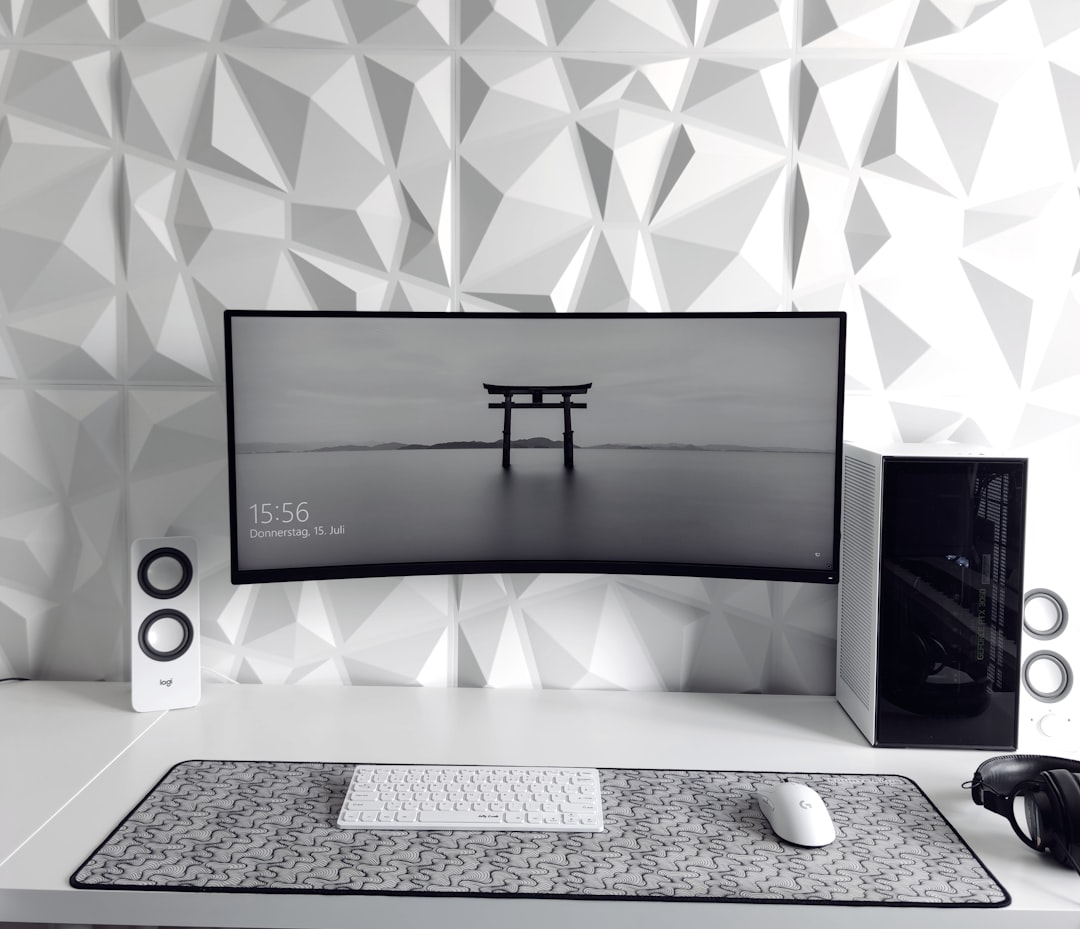
If you’re serious about maximizing screen real estate, ultrawide monitors are where it’s at. I’ve been using a 34-inch ultrawide for the past year, and the productivity gains are undeniable. The extra horizontal space means I can have my code editor, browser, and documentation open side by side without constantly switching tabs.
The key is getting the right aspect ratio. I recommend sticking with 3440×1440 (UWQHD) rather than going all the way to 5K. The 5K models look stunning, but they’re overkill for most productivity tasks and significantly more expensive. My current favorite is the Dell UltraSharp U3423WE, which delivers excellent color accuracy and a comfortable 21:9 aspect ratio that feels natural for extended use.
Shop Dell UltraSharp U3423WE on Amazon
### Dual Monitor Setups: The Traditional Workhorse
Don’t underestimate the power of a well-executed dual monitor setup. While ultrawides offer seamless integration, dual monitors provide distinct workspaces that can be psychologically beneficial. I’ve found that having one screen dedicated to my primary task and another for reference materials or communication tools creates a clear mental separation that improves focus.
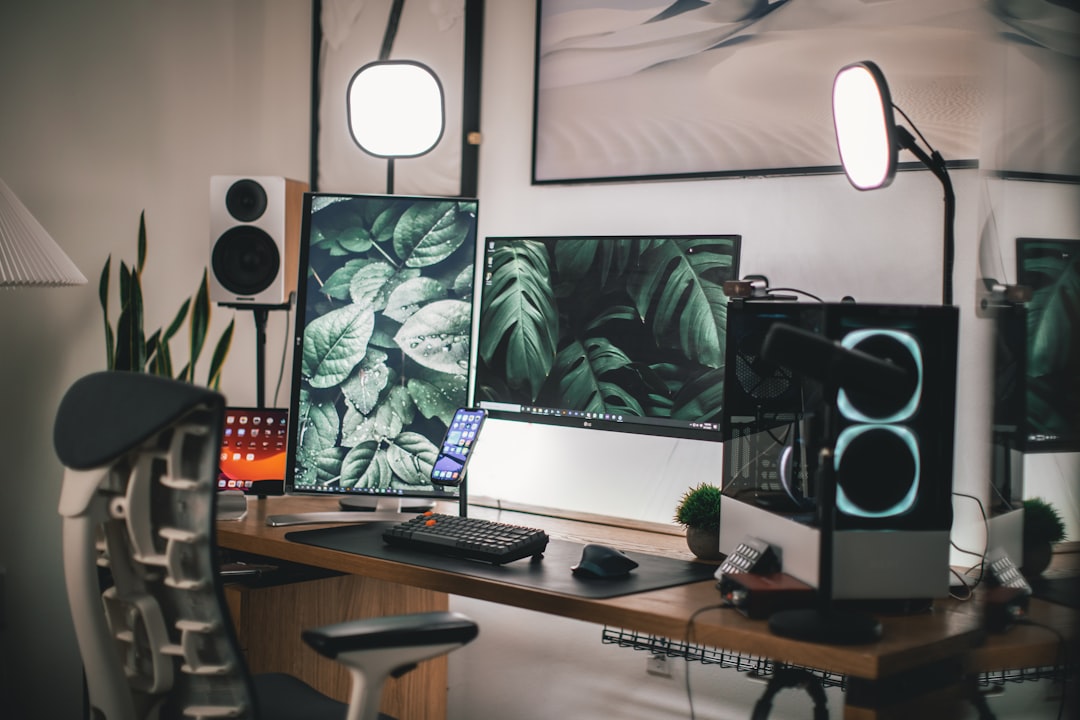
The trick is choosing monitors with matching specifications. I made the mistake early on of pairing a 4K monitor with a 1080p display, and the experience was jarring. Now I run two identical 27-inch 1440p monitors, and the consistency makes a huge difference in my daily workflow.
Shop ASUS ProArt PA279CV on Amazon
### Standard 27-Inch Monitors: The Balanced Choice
For most people, a high-quality 27-inch 1440p monitor strikes the perfect balance between size, resolution, and affordability. This is where I started my testing, and it remains my recommendation for anyone on a budget or with limited desk space.
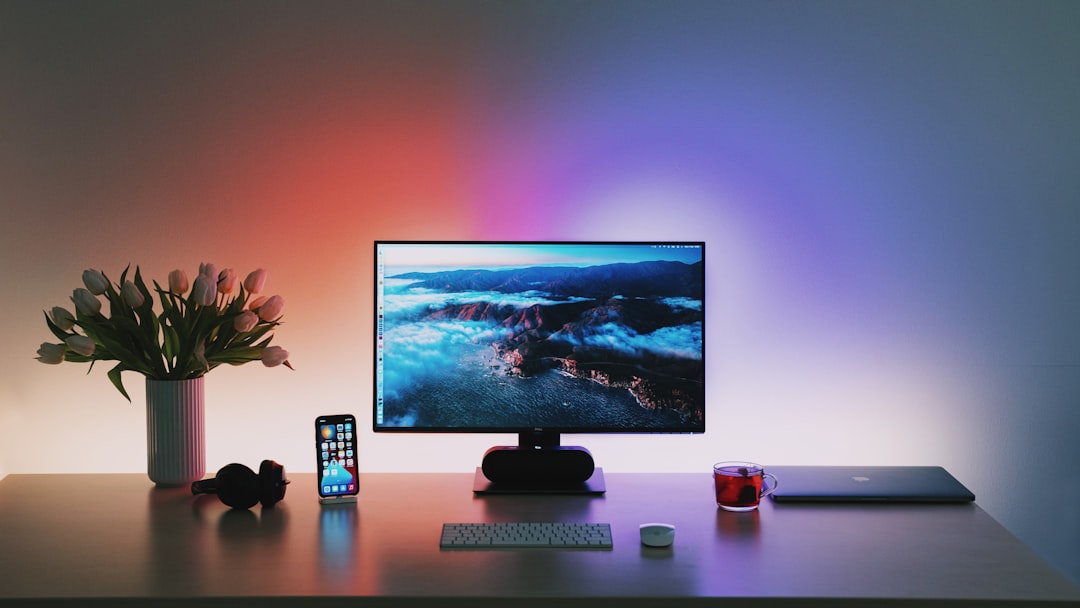
The sweet spot is 2560×1440 resolution at 27 inches. It provides enough screen real estate for multitasking without the pixel density issues of 4K at this size. My top pick in this category is the ASUS ProArt Display PA279CV, which offers excellent color accuracy and a comfortable viewing experience for long work sessions.
Shop 27-inch 1440p monitors on Amazon
## Key Features That Actually Improve Productivity
### Ergonomics: Don’t Underestimate Comfort
I can’t stress this enough: ergonomics matter. A monitor that doesn’t adjust properly will lead to neck and eye strain, regardless of how pretty the display is. Look for models with:
Shop ergonomic monitor stands on Amazon
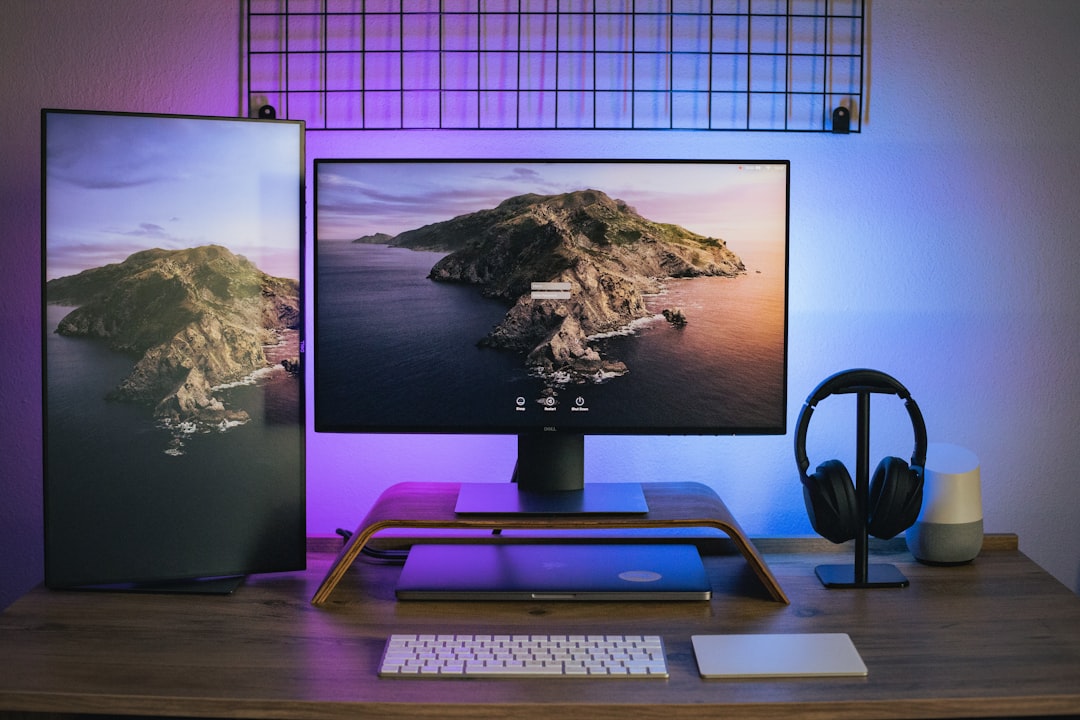
– Height adjustment (at least 100mm of vertical travel)
– Tilt and swivel capabilities
– VESA mount compatibility for third-party arms
I learned this the hard way when I spent six months with a monitor that only tilted. The constant neck strain eventually forced me to upgrade, and the difference was night and day. For more on monitor arms, read my article on the best monitor arms I’ve tested.
### Color Accuracy: Beyond the Marketing Hype
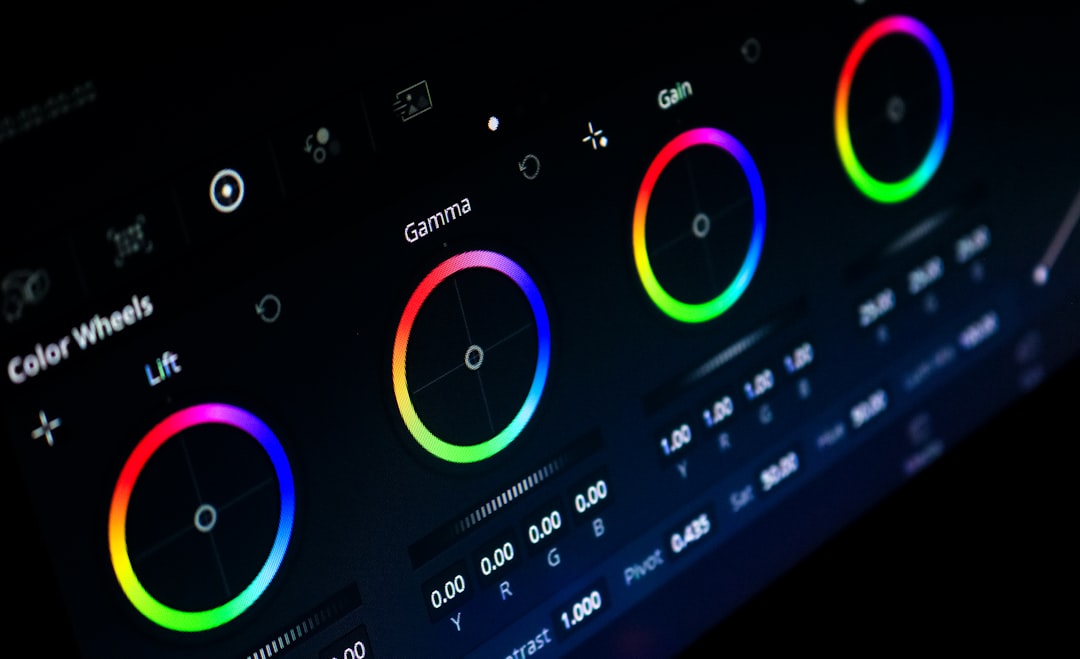
For most productivity tasks, you don’t need professional-grade color accuracy. However, consistent color reproduction is crucial for reducing eye fatigue. Look for monitors with:
Shop color accurate monitors on Amazon
– sRGB coverage of at least 99%
– Delta E less than 2 (lower is better)
– Hardware calibration capabilities
The ASUS ProArt series and Dell UltraSharp line consistently deliver on these fronts without the premium pricing of specialized color-accurate displays.
Shop Dell UltraSharp monitors on Amazon
### Refresh Rate and Response Time: The Hidden Productivity Boosters
While 144Hz refresh rates are overkill for office work, a 75Hz or 90Hz monitor makes a noticeable difference in scrolling and cursor movement. The smoother experience reduces eye strain and makes long work sessions more comfortable.
Response time is less critical for productivity tasks, but I recommend staying under 5ms to avoid ghosting in fast-moving content like video calls or data visualizations.
## My Top Picks for 2026
### Best Overall: Dell UltraSharp U3423WE
This 34-inch ultrawide delivers exceptional color accuracy, comfortable ergonomics, and a beautiful 5K resolution. The USB-C connectivity and built-in KVM switch make it perfect for multi-device setups. At around $1,200, it’s an investment, but the productivity gains justify the price for serious remote workers.
### Best Value: ASUS ProArt PA279CV
For under $600, this 27-inch 1440p monitor delivers professional-grade color accuracy and excellent build quality. The USB-C connectivity and wide color gamut make it a versatile choice for both work and creative tasks. It’s the monitor I recommend to friends and family who want quality without breaking the bank.
Shop best monitors for home office on Amazon
### Best for Multitaskers: Samsung Odyssey G9
If you’re a power user who lives in their browser, the 49-inch curved ultrawide is unmatched. The 5120×1440 resolution provides an incredible amount of screen real estate, and the 240Hz refresh rate makes everything feel buttery smooth. Just be prepared for the desk space it requires and the premium price tag.
## Setting Up Your New Monitor for Maximum Productivity
### Positioning Matters
The ideal monitor position is eye level, about an arm’s length away. I recommend using a monitor arm for maximum flexibility—you’ll thank yourself when you need to adjust throughout the day.
### Calibration is Key
Even the best monitors benefit from calibration. I use the built-in Windows calibration tools for basic adjustments, but for critical color work, I invest in a hardware calibrator like the X-Rite i1Display Pro. The difference is noticeable and worth the effort.
### Cable Management
Nothing ruins a beautiful setup like a mess of cables. Look for monitors with USB-C connectivity, which reduces cable clutter significantly. I also recommend investing in cable management solutions—your future self will thank you.
Shop cable management solutions on Amazon
## Final Thoughts: Invest in Your View
After decades of testing monitors, I’ve learned that the right display is an investment in your productivity and well-being. Don’t settle for the cheapest option—choose a monitor that will serve you well for years to come.
The monitor you choose today will be with you through countless projects, video calls, and late-night coding sessions. Make it count. Choose wisely, and your future self will thank you. For more tech productivity tips, explore my guide to perfecting your desk setup.

2 thoughts on “The Ultimate Guide to Home Office Monitors: What Actually Matters for Productivity in 2026”