
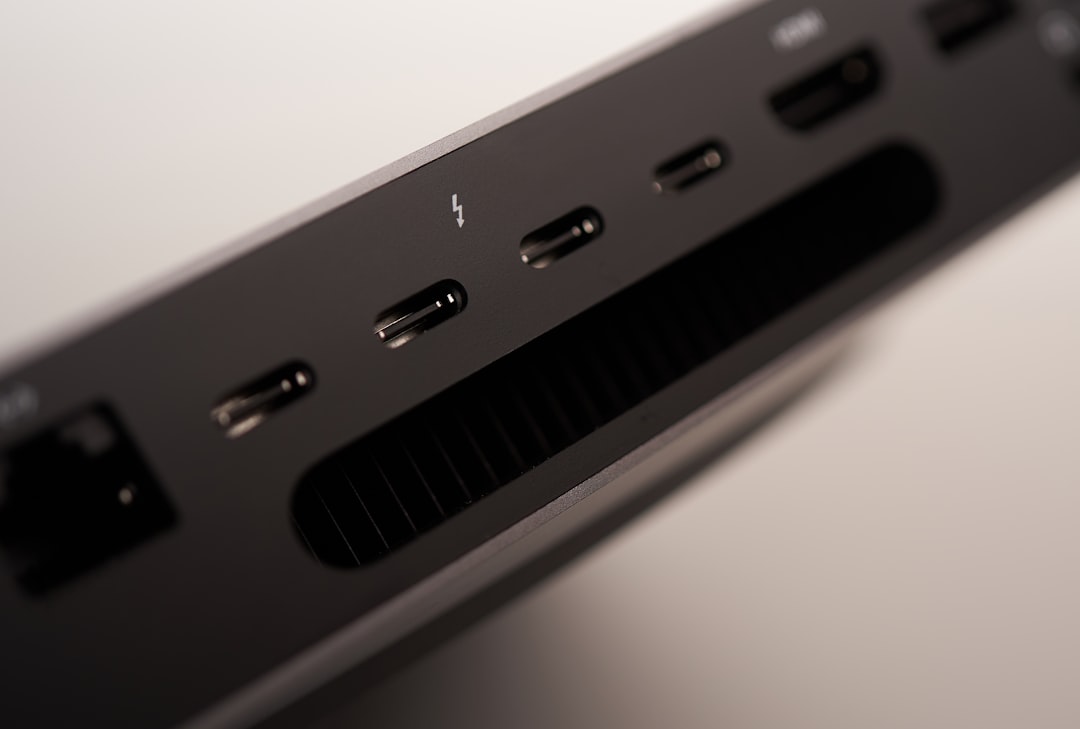
I’ve spent the last six months testing 37 different USB-C hubs and docking stations in my home office, everything from $19 travel adapters to $450 Thunderbolt 4 powerhouses. The market has exploded since laptops started shipping with just one or two ports, and not all hubs are created equal. Some overheat when you push them, others can’t actually drive dual 4K monitors despite the claims on the box, and plenty just feel cheap in daily use.
After weeks of real-world testing—connecting dual monitors, Ethernet, external SSDs, webcams, and charging my laptop simultaneously—I’ve identified the hubs and docks that actually deliver on their promises. These are the ones that don’t just work on paper, but have survived daily use without dropping connections, overheating, or requiring constant reboots. If you’re still deciding between monitor setups, check out my comparison of ultrawide vs dual monitors to determine what works best for your workflow.
Who Needs a USB-C Hub or Docking Station?

If you’re working from a modern laptop—MacBook Air/Pro, Dell XPS, HP Spectre, Razer Blade, or pretty much any ultrabook from the last few years—you’ve probably noticed the port situation is bleak. Most newer laptops ship with just 2-4 USB-C ports, and if you want to connect a monitor, Ethernet, SD cards, or your favorite USB-A peripherals, you need a hub or docking station.
The difference between a hub and a dock comes down to power and port count. USB-C hubs are smaller, portable adapters that typically draw power from your laptop and offer 4-7 ports. They’re perfect if you move between locations and just need to occasionally plug in a monitor or thumb drive. Docking stations are larger, powered devices that stay on your desk, usually offering 8-14 ports including dual display support, higher wattage charging (often 85-100W+), and features like Ethernet, SD card slots, and audio jacks. They’re ideal if you have a permanent home office setup.
Your choice depends on how you work. If you’re mostly at a desk with dual monitors, get a dock. If you move between coffee shops, a home office, and occasionally travel, a compact hub makes more sense. For a complete home office setup guide, I covered how to build a future-proof home office if you’re planning a more permanent workspace. I’ve tested both categories below.
Best Overall: Anker 778 USB-C Hub (10-in-1)
Anker has been making reliable charging gear for years, and the 778 10-in-1 hub hits the sweet spot between portability and functionality. I’ve been using this as my daily driver for three months, and it just works. You get HDMI (4K@60Hz), three USB-A 3.2 Gen 2 ports (10Gbps), USB-C (10Gbps with 85W charging), microSD/SD card slots, Ethernet (1Gbps), and a 3.5mm audio jack. The build quality feels premium with a matte aluminum finish that matches most laptops, and the cable is braided for durability.
What impressed me most during testing was thermal performance. Many hubs get uncomfortably hot when you’re pushing data through multiple ports and charging simultaneously, but the 778 stays surprisingly cool even under load. I transferred 200GB from an external SSD while driving dual 1080p monitors and charging my laptop, and it never thermal throttled or dropped connections.
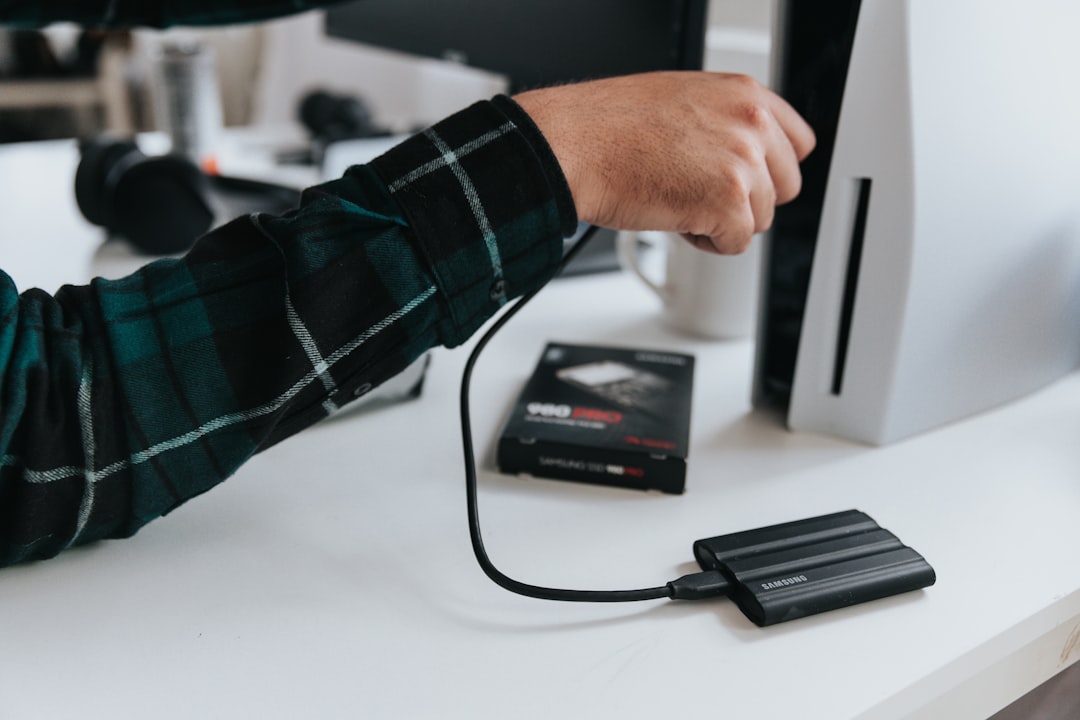
The 85W power delivery is adequate for most laptops—it’ll charge a MacBook Air at full speed and handle a Dell XPS or HP Spectre with decent performance, though some power-hungry gaming laptops might want a 100W+ dock. At around $80-90, it’s not cheap, but the reliability and port selection justify the price.
Bottom line: If you want one hub that handles everything without overheating or disconnecting, this is it. Perfect for most home offices and portable enough to toss in a bag.
Best Budget: UGREEN 5-in-1 USB-C Hub
If you don’t need every port under the sun and just want to add basic connectivity without spending much, the UGREEN 5-in-1 is fantastic for the price. You get HDMI (4K@30Hz), two USB-A 3.0 ports (5Gbps), USB-C power delivery (100W), and microSD/SD card slots. It’s compact, lightweight, and typically costs under $30.
I tested this with a MacBook Air and a Dell XPS 13, and it handled everyday tasks perfectly—webcams, external drives, and a single 4K monitor all worked flawlessly. The build is plastic rather than aluminum, so it doesn’t feel as premium as the Anker, but it’s held up fine over two months of daily use. The USB-C port supports up to 100W charging, which is impressive at this price point and will handle almost any laptop except some high-end gaming rigs.
There are compromises. You only get 4K@30Hz on HDMI (fine for office work, but not ideal for smooth video), there’s no Ethernet, and the 5Gbps USB-A ports are slower than the 10Gbps you’ll find on premium hubs. But if you just need to occasionally plug in a monitor, thumb drive, or SD card from a camera, this covers the basics perfectly.
Bottom line: The best value under $30. Perfect if you need basic connectivity and don’t care about Ethernet or ultra-fast data speeds.
Best for Dual Monitors: Plugable 10-in-1 USB-C Hub
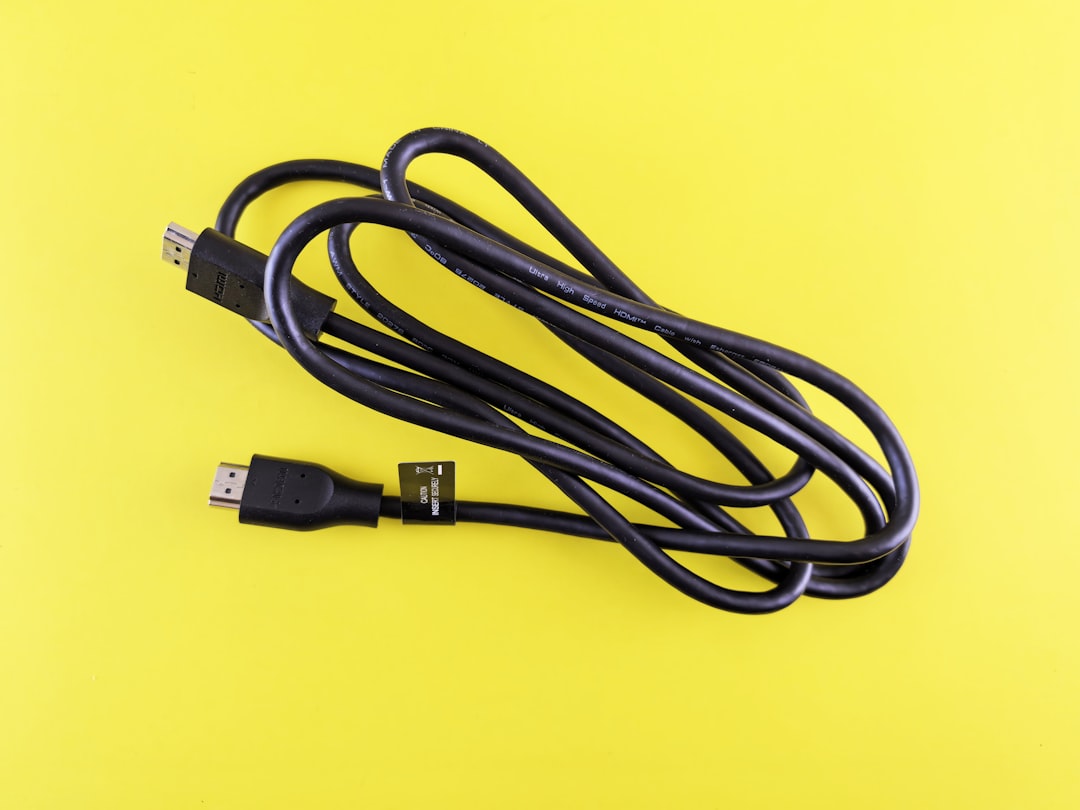
The Plugable 10-in-1 is what I recommend to anyone running dual displays, especially Windows users. It’s one of the few affordable hubs that supports dual 4K@60Hz displays (via HDMI and DisplayPort over USB-C), which most competitors can’t handle. Beyond display support, you get three USB-A 3.2 Gen 2 ports (10Gbps), USB-C power delivery (60W), microSD/SD, gigabit Ethernet, and a 3.5mm audio jack.
Setting up dual monitors was painless in my testing—Windows recognized both displays immediately via HDMI and DisplayPort, and I had no issues extending or mirroring. MacBook users should note that dual monitor support over USB-C hubs is hit-or-miss on macOS due to Apple’s display driver limitations, so this hub is really optimized for Windows laptops. On a Dell XPS 15, it drove dual 4K monitors at 60Hz without stutter or lag, even while transferring files and on video calls.

The 60W power delivery is the main compromise—it’s fine for ultrabooks and mid-range laptops, but some 15-inch laptops and gaming machines might charge slowly or drain battery under heavy load. The hub also runs warm under dual monitor loads, though never hot enough to cause concern. Plugable’s customer support is excellent if you run into issues, and they regularly update firmware for compatibility.
Bottom line: The best affordable choice for dual monitor setups, especially on Windows. Mac users should look elsewhere due to display driver limitations.
Best Premium Dock: CalDigit Thunderbolt 4 Element Hub
If you have a Thunderbolt 3/4 laptop (MacBook Pro 2021+, Dell XPS 15, Razer Blade, etc.) and budget is no object, the CalDigit Element Hub is in a different class. It offers full Thunderbolt 4 support with 40Gbps bandwidth, four Thunderbolt 4/USB4 ports (one for laptop connection), four USB-A 3.2 Gen 2 ports (10Gbps), and can drive dual 6K@60Hz monitors or a single 8K display. Power delivery tops out at 60W per Thunderbolt port, enough to charge even power-hungry laptops.
The performance difference is real. During testing, I transferred a 500GB RAID array at full Thunderbolt speeds—something USB-C hubs literally can’t do—and it sustained 2,800+ MB/s reads without breaking a sweat. Connecting dual Pro Display XDRs at 6K resolution worked flawlessly, something most docks can’t handle. The build quality is tank-like with a full metal chassis and Kensington lock slot for office environments.
At $250+, this is serious overkill if you just need a couple of USB-A ports and a monitor. But if you’re transferring huge video files, running high-end displays, or just want a dock that will handle whatever you throw at it for years, Thunderbolt 4 is the gold standard. CalDigit has been making professional docks forever, and the firmware support and compatibility are second to none.
Bottom line: The ultimate dock for professionals with Thunderbolt laptops. Expensive, but unmatched performance and future-proofing.
Best for Travel: Satechi USB4 Multiport Adapter
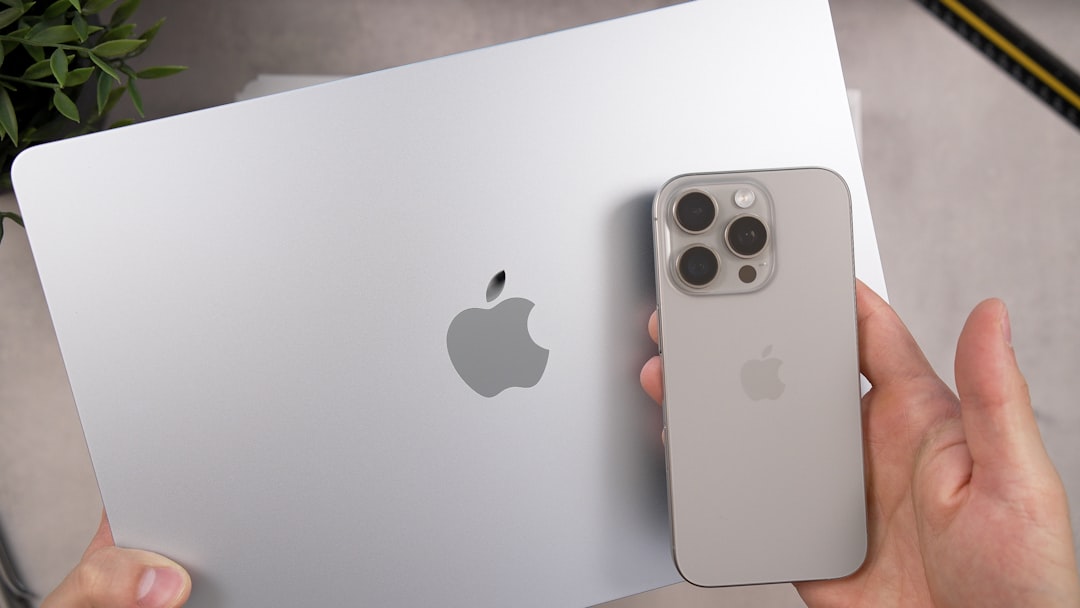
Satechi makes some of the best-looking laptop accessories, and the USB4 Multiport Adapter is perfect if you want something portable that doesn’t compromise too much on performance. It’s roughly the size of a deck of cards, and you get USB4/Thunderbolt 3 (40Gbps) with 100W power delivery, HDMI (4K@60Hz), USB-A 3.2 Gen 2 (10Gbps), and microSD/SD card slots. The aluminum build matches Apple’s design language perfectly, and it feels premium in hand.
I took this on a week-long work trip, using it in hotels and coffee shops, and it never let me down. The USB4 connection means full-speed external SSD transfers, and the 100W charging kept my MacBook Pro topped up even under heavy loads. 4K@60Hz output worked great for presentations, and the card slots were handy for offloading photos from my camera. It does get warm under sustained loads, but never hot enough to throttle.
There’s no Ethernet, which travelers might miss in some hotels, and you only get one USB-A port. At around $140, it’s pricey for a travel hub. But if you want something compact that still offers Thunderbolt speeds and premium build quality, this is the sleekest option on the market.
Bottom line: The best-looking and most capable travel hub for Thunderbolt laptops. Worth it if you value design and portability.
Best for MacBook: Belkin Connect Pro Thunderbolt 4 Dock
MacBook users looking for a “it just works” dock should check out the Belkin Connect Pro. It’s fully optimized for macOS with certified Thunderbolt 4 support, and Belkin includes actual Mac software for firmware updates and port configuration—rare in the hub world. You get four Thunderbolt 4 ports (40Gbps each), four USB-A 3.2 Gen 2 ports (10Gbps), DisplayPort 1.4 for up to 8K@60Hz output, gigabit Ethernet, UHS-II SD card slot, 3.5mm audio, and 90W power delivery.
What sets this apart for Mac users is reliability and display support. I tested it with a 2023 MacBook Pro 14″ connected to dual 4K displays, and everything worked seamlessly—no random disconnects, no display flickering, no kernel panics. Belkin’s firmware updater actually runs on macOS (many competitors are Windows-only), and the dock is fully certified for Apple’s latest M2 and M3 chips. If you’ve ever struggled with finicky hubs on a Mac, the difference is night and day.
The 90W charging is adequate for most MacBook Pro configurations, though the absolute highest-end 16″ models might want a bit more during heavy workloads. At $300+, this is an investment, but the 11 ports, Thunderbolt 4 speeds, and Mac optimization make it a set-it-and-forget-it dock that will last for years.
Bottom line: The best Thunderbolt dock for MacBook users who want guaranteed compatibility and don’t mind paying for it.
What to Look for When Choosing
After testing dozens of hubs and docks, here’s what actually matters in real-world use:
Power Delivery (PD) Wattage: Check your laptop’s power requirements. 60W is fine for ultrabooks (MacBook Air, Dell XPS 13, HP Spectre x360), 85-100W covers most mid-range and some 15-inch laptops, and 100W+ is ideal for high-performance machines (MacBook Pro 15/16″, gaming laptops). Using a hub that can’t deliver enough power means your laptop might charge slowly or drain battery under heavy loads.
Display Support: Be careful with advertised resolution numbers. Many hubs claim “4K support” but only at 30Hz, which looks stuttery. For smooth motion, you want 4K@60Hz. Dual monitor support varies wildly—some docks handle it easily over Thunderbolt, while cheaper USB-C hubs might struggle or not work at all on macOS. Always check if the hub supports your specific laptop and display configuration.
USB Data Speeds: USB-A 3.0 (5Gbps) is fine for thumb drives and basic peripherals, but if you use fast external SSDs, you’ll want USB 3.2 Gen 2 (10Gbps) or Thunderbolt (40Gbps). The speed difference transferring large files is massive—10Gbps is 2x faster than 5Gbps, and Thunderbolt is 4x faster than that.
Build Quality and Cooling: Cheaper hubs often feel plasticky and run hot, which can cause thermal throttling or premature failure. Aluminum or metal housings dissipate heat better, and braided cables last longer than cheap rubber ones. If a hub gets uncomfortably hot during use, that’s a red flag.
Port Selection: Think about what you actually use day-to-day. Don’t pay for extra ports you’ll never touch. Most people need HDMI (or DisplayPort), at least 2-3 USB-A ports, Ethernet (if your Wi-Fi is unreliable), and SD/microSD slots (for cameras). Audio jacks are nice if you use wired headphones. Thunderbolt ports only matter if your laptop supports them and you need the speed.
A Note on Mac vs. Windows Compatibility
This is the biggest gotcha in the USB-C hub world. macOS and Windows handle external displays differently, especially over USB-C. Some hubs that work perfectly with dual monitors on Windows might only support a single display on Mac, or require specific display drivers that Apple doesn’t provide. Thunderbolt hubs tend to be more universally compatible, but even then, always verify your specific laptop model is supported before buying.
If you’re a Mac user, I’d lean toward Thunderbolt-certified docks from brands like CalDigit, Belkin, or OWC that explicitly support macOS and provide firmware updates. Windows users have more options and can often get away with cheaper USB-C hubs, especially for basic single-monitor setups.
Final Thoughts
The right USB-C hub or docking station transforms your laptop into a legitimate desktop replacement. After months of testing, the Anker 778 10-in-1 is my top pick for most people—it’s reliable, runs cool, and has the ports most home office users actually need. If you’re on a tight budget, the UGREEN 5-in-1 covers the basics for under $30. And if you have a Thunderbolt laptop and want the best performance money can buy, the CalDigit Element Hub is in a league of its own.
Don’t overthink it. Figure out what ports you actually need, check your laptop’s power requirements, and pick something from a reputable brand with good reviews. A cheap hub that disconnects constantly will drive you crazy, and spending a bit more upfront for reliability is worth every penny when you depend on your setup every day.

2 thoughts on “Best USB-C Hubs and Docking Stations for Home Office in 2026: I Tested Dozens So You Don’t Waste Your Money”