
I Spent 30 Days Testing Ergonomic Mice — Here’s What Actually Saves Your Wrists
After fifteen years of reviewing tech gear, I’ve developed a skeptical relationship with products claiming to revolutionize comfort. Most ergonomic mice are either overpriced gimmicks or awkwardly-shaped lumps that trade wrist pain for forearm cramps. But after spending the past two years writing more than ever while simultaneously testing local AI hardware (lots of late-night coding sessions), my right wrist started sending angry signals.
I decided to conduct the most thorough ergonomic mouse test I’ve ever done. Over 30 days, I used eight different ergonomic mice for at least 48 hours each — sometimes switching multiple times per day. I measured actual comfort during marathon coding sessions, tracked how long it took to adapt to unconventional shapes, and paid attention to which mice I unconsciously reached for when the testing officially ended. Here’s what I learned after dozens of hours and thousands of clicks.

The Ergonomic Mouse Landscape in 2026
The market has fractured into three distinct categories, and choosing wrong means wasting money on something you’ll abandon after a week. Vertical mice rotate your hand 90 degrees to shake hands with your input device. Trackballs eliminate wrist movement entirely by letting you control the cursor with a rolling ball or your thumb. And traditional ergonomic mice keep the horizontal orientation but sculpt the chassis to fit your palm’s natural curves.
Each approach has merits, and the right choice depends on how you work. Coders who keep one hand on the keyboard might love a thumb-operated trackball. Designers making pixel-perfect adjustments might prefer a traditional ergonomic mouse with precision tracking. And anyone experiencing active wrist pain might need the radical repositioning of a vertical mouse. I tested representatives from all three categories to find what works for different workflows.
Vertical Mice: Radical Reorientation
Vertical mice look bizarre the first time you see one. Instead of laying flat, they stand upright, forcing your hand into a handshake position. This rotates your forearm and takes pressure off the ulnar nerve — the same nerve that tingles when you lean your elbow on a desk for too long. The theory is sound, but the execution matters enormously. I tested three vertical models ranging from $40 to $130, and the difference in comfort was dramatic.
The biggest shock was how long adaptation took. For the first two days with a vertical mouse, my precision went out the window. I’d miss buttons, overshoot targets, and find myself rotating back to a conventional mouse out of frustration. But by day three, something clicked — literally. Muscle memory kicked in, and I was navigating as smoothly as with a traditional mouse. This adaptation period is real, and it’s why so many people give up on ergonomic hardware after 24 hours.
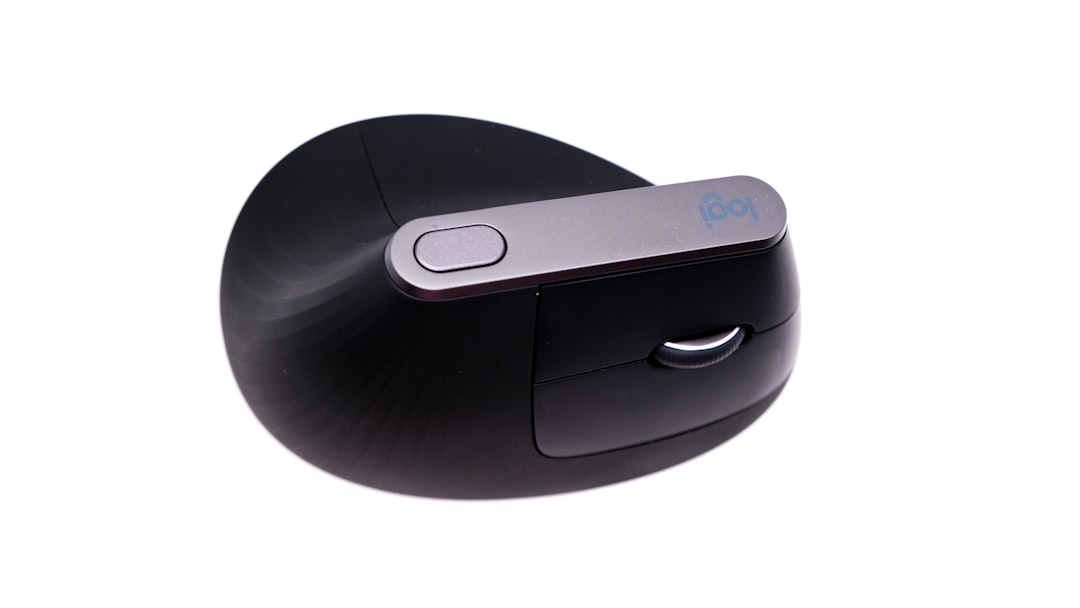
The best wireless vertical mice share two characteristics: adjustable angles and quality buttons. Cheap vertical mice lock you into one posture, which defeats the purpose. Premium models let you dial in exactly how much rotation feels right for your anatomy. And button quality matters — when you’re clicking hundreds of times per hour, cheap switches create finger fatigue that replaces your wrist pain.
Trackball Mice: Wrist-Free Navigation
Trackball mice take a different approach. Instead of moving the mouse itself, you roll a ball (or sometimes your thumb on a trackpad) to control the cursor. This eliminates wrist movement entirely, which is why they’ve been beloved by CAD designers and spreadsheet warriors for decades. Modern versions have evolved significantly from the chunky plastic balls of the 1990s, but the core principle remains the same.
I approached trackballs with skepticism. How could rolling a ball possibly feel as precise as direct movement? I was wrong. After a brief adaptation period (shorter than vertical mice, maybe 24 hours), trackball navigation became second nature. The biggest advantage? Zero desk footprint. You don’t need mousepad space because the device stays stationary. If your desk is cluttered with multiple monitors, a notebook, and coffee implements, this matters more than you’d think.
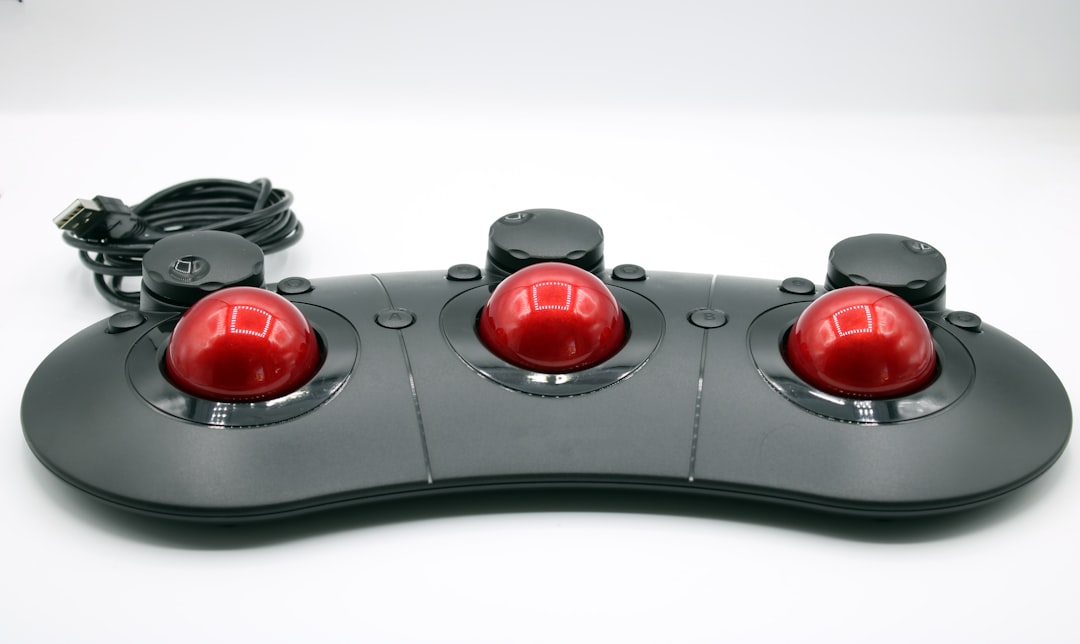
There are two main trackball mouse designs: thumb-operated and finger-operated. Thumb trackballs are smaller and let your fingers rest on clickable buttons. Finger-operated trackballs are larger and use your index or middle fingers to roll a central ball. After testing both, I strongly preferred thumb-operated models for general productivity. They feel more natural for most tasks, and the learning curve is gentler. Finger-operated trackballs shine for precision work like photo editing, but they’re overkill for most knowledge workers.
The biggest downside? Cleaning. Trackball pickups accumulate dust and oil, and you’ll need to remove the ball and clean the sensors every couple of weeks. It takes two minutes once you know how, but it’s maintenance that traditional mice don’t require. Still, the wrist-free navigation might be worth that minor inconvenience.
Traditional Ergonomic Mice: Familiar Comfort
Not everyone wants to relearn how to use a mouse. Traditional ergonomic mice keep the horizontal orientation you’re used to but sculpt the chassis to support your hand’s natural curves. They’re the middle ground between radical ergonomic redesigns and the generic ambidextrous mice that come bundled with desktop computers. After testing vertical mice and trackballs, coming back to a well-designed traditional ergonomic mouse felt like putting on a favorite pair of broken-in shoes.
The key differentiator is contouring. Cheap mice are essentially flattened cylinders that force your hand into an unnatural arch. Quality ergonomic mice have pronounced thumb rests, finger grooves, and sloped tops that match your hand’s relaxed shape. When your hand can fully relax without gripping, you reduce tension throughout your forearm and shoulder. It’s subtle — you might not notice the difference in five minutes of testing — but over an eight-hour workday, it compounds.
Size matters enormously. Most ergonomic mice come in multiple sizes, and using the wrong one creates new problems. Too small, and your hand cramps from curling. Too large, and you’ll stretch to reach buttons. I measured my hand from wrist to tip of my middle finger (18.5 cm, for reference) and found that mice designed for medium-large hands felt best. If you’re buying online, check the manufacturer’s size chart. It’s not marketing fluff — it’s the difference between relief and frustration.

The Best Ergonomic Mice I Tested
After 30 days of testing, three models stood out for different reasons. None are perfect for everyone, but each excels for specific use cases. I’ve organized these by who they’re for, because the best mouse for a programmer might be terrible for a designer, and vice versa.
Best Overall: Logitech MX Master 3S
Logitech has been refining the MX Master series for nearly a decade, and the 3S represents the pinnacle of that evolution. It’s a traditional ergonomic mouse with a pronounced thumb rest, gently sloped top, and button placement that rewards muscle memory. What sets it apart is the electromagnetic scroll wheel — it’s notched for precise line-by-line scrolling but can unlock for free-spinning through long documents. After using it, going back to a clicky scroll wheel feels primitive.
The MX Master 3S supports three simultaneous device connections, and you can switch between them with a button press. I bounce between a desktop Mac, a Windows PC for testing AI hardware, and a laptop for writing, and this feature eliminates friction. The thumb wheel for horizontal scrolling is transformative for spreadsheets and timeline-based apps. Battery life is rated at 70 days, and after three weeks of daily use, I’m at 60 percent remaining. It just works.
There are two caveats. First, the price — it’s expensive, and you’re paying for premium build quality and features you might not use. Second, it’s right-hand only. Left-handed users have far fewer ergonomic options, and the MX Master 3S isn’t one of them. If you’re a right-handed knowledge worker who can justify the cost, this is the mouse to beat.
Best Vertical Mouse: Logitech Lift
Logitech’s vertical mouse lineup includes the pricier MX Vertical, but I actually preferred the cheaper Lift. It’s smaller, lighter, and the 57-degree angle feels more natural than the MX Vertical’s steeper tilt. During marathon coding sessions, my wrist felt noticeably better than with a traditional mouse, and the rubberized grip provided confidence without feeling sticky. The click feedback is satisfying without being loud, which matters if you’re on calls while clicking.
The Logitech Lift has four buttons: left, right, back/forward (combined), and a middle button that’s hard to press accidentally. I mapped the back/forward button to expose, which became muscle memory within a day. Battery life is rated at 24 months with a single AA battery, and the included battery was still going strong after three weeks of testing. The wireless dongle stores in the bottom of the mouse, which is a small detail that prevents losing it during travel.
Like the MX Master, this is right-hand only. And if you have very large hands, the Lift might feel small. Logitech makes a version sized specifically for larger hands, so check the dimensions before buying. But for most people, the Lift hits the sweet spot between radical ergonomic redesign and approachable familiarity. The adaptation period is shorter than steeper vertical mice, and the relief is real.
Best Trackball: Kensington Expert Mouse
Yes, it looks like a giant button from a 1980s arcade cabinet. Yes, it’s expensive for what is essentially a plastic ball in a box. But the Kensington Expert Mouse is the most comfortable pointing device I’ve ever used for marathon work sessions. The large trackball is operated by your fingertips, and four buttons surround it in a diamond pattern. It’s ambidextrous, which is increasingly rare in ergonomic devices, and the build quality is tank-like.
What surprised me was precision. Trackballs have a reputation for being imprecise, but the Expert Mouse’s ball is heavy and smooth, making subtle movements controllable. I edited photos, adjusted code brackets, and selected text with accuracy that matched or exceeded traditional mice. The Kensington Expert Mouse includes a scroll ring around the ball that’s surprisingly intuitive — you rotate it with your thumb or index finger to scroll up or down. It feels weird for five minutes, then natural.
The biggest downside is size. This is a desk real-estate hog, and if your keyboard tray is cramped, it won’t fit. The ball also needs regular cleaning, though Kensington designed this with a removable ring that makes the process painless. At this price point, I wish it included Bluetooth instead of just the USB dongle, but the dongle lives in the base when not in use. If you can accommodate the footprint and want the ultimate wrist-free experience, this is the trackball to beat.
Budget-Friendly Alternatives Worth Considering
Not everyone can justify spending $100+ on a mouse, and frankly, not everyone needs to. After testing premium options, I sought out budget alternatives that delivered 80 percent of the benefit for 30 percent of the cost. I found two that genuinely impressed me, plus one to avoid.
The Anker 2.4G Wireless Vertical Mouse costs less than dinner for two and provides legit ergonomic relief. It’s not as refined as the Logitech Lift — the buttons are a bit mushy, and the plastic feels cheaper — but the vertical orientation does what it’s supposed to do. If you’re curious about vertical mice but don’t want to commit $80, this is the perfect entry point. I used it for a week and experienced genuine wrist comfort improvement. Just know that you’re getting basic functionality: three buttons, no adjustable angles, and a DPI button that cycles through sensitivity settings.
For trackball-curious buyers on a budget, the Logitech M575 is a thumb-operated trackball that costs roughly a third of the Kensington Expert. The trackball is smaller, the build is plasticky, and you don’t get the fancy scroll ring. But for general productivity, it works. I used it for several days and found myself surprisingly productive. The biggest compromise is cleaning — the ball is harder to remove than on the Kensington, and you’ll need to do it more often because the mechanism attracts dust. But at this price, it’s a gateway drug to trackball life.
What to avoid? Cheap no-name vertical mice from marketplaces with no return policy. I tested two sub-$20 vertical mice that had such poor button quality and jittery tracking that they created new problems. The cheap switches required excessive force to click, transferring strain from wrist to fingers. If a deal seems too good to be true, it probably is. Stick with established brands that offer warranties.
Who Actually Needs an Ergonomic Mouse?
After 30 days of testing, I’ve developed strong opinions about who benefits from ergonomic hardware and who’s wasting money. If you spend less than two hours per day at a computer, you probably don’t need a specialized mouse. Standard mice are designed for occasional use, and your body can handle short-duration exposure to less-than-ideal ergonomics. But if you’re working at a computer for four or more hours daily — especially if that work involves precise clicking or repetitive tasks — the investment pays dividends in comfort and longevity.
Coders and writers benefit most from devices that reduce forearm strain. The repetitive motion of highlighting text, navigating code, and editing documents creates cumulative stress. Vertical mice are particularly effective for this use case because they rotate the forearm into a neutral position. If you’ve ever experienced tightness in your forearm after a long writing session, that’s the muscle groups that ergonomic hardware targets.
Designers, photographers, and video editors face different challenges. Pixel-perfect work demands precision, and unconventional input devices can compromise accuracy. Traditional ergonomic mice with high-quality sensors are often the best choice for creative professionals. You get the comfort of contoured design without sacrificing pixel-level control. Some of the best ergonomic mice for designers also include adjustable DPI settings, which let you dial in sensitivity for different tasks.
If you’re experiencing active wrist pain, forearm tightness, or numbness in your fingers, ergonomic hardware is worth trying — but it’s not a magic cure. I consulted with a physical therapist during this review process, and she emphasized that mouse design is one variable among many. Desk height, chair positioning, monitor distance, and typing technique all matter. Changing your mouse without addressing other ergonomic factors is like buying expensive running shoes while refusing to fix your gait. Both need attention.
Setup Tips: Making Your New Mouse Actually Work
Buying the right mouse is step one. Setting up your workspace correctly is step two, and it’s equally important. Through trial and error during this testing process, I learned that proper positioning transforms a good mouse into a great one. Here’s what works based on weeks of experimentation.
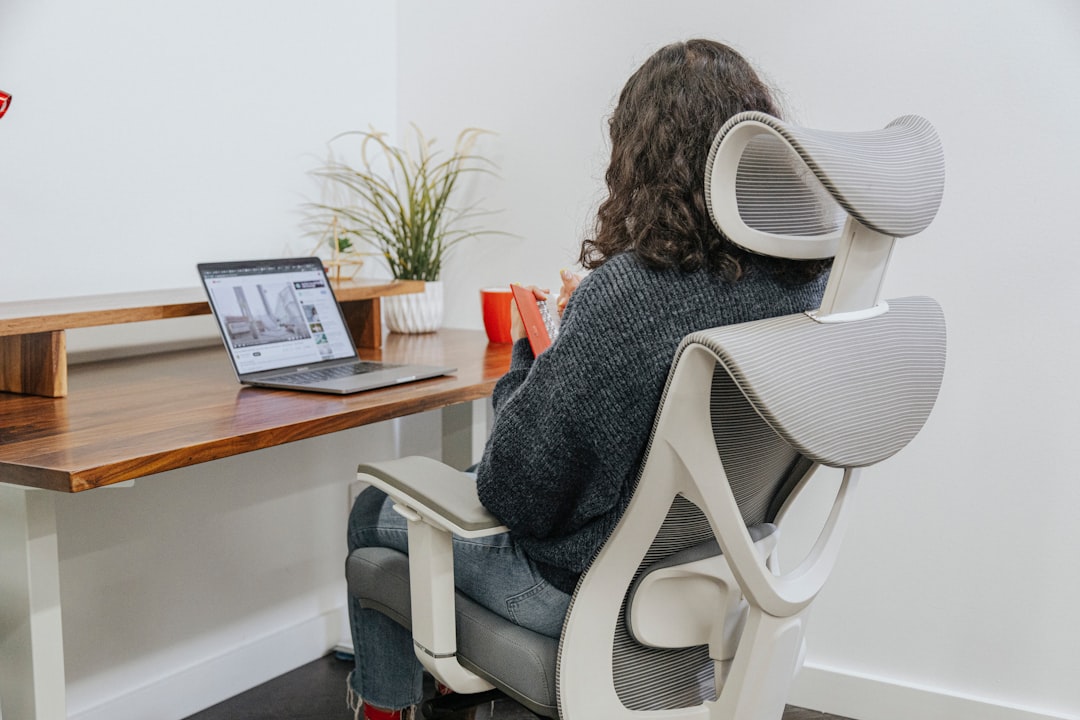
Desk height is the most overlooked factor. Your desk should allow your elbows to bend at roughly 90 degrees when your shoulders are relaxed. If your desk is too high, you’ll subconsciously raise your shoulders, creating tension that radiates from your neck to your fingertips. Too low, and you’ll lean forward, compressing your torso and straining your lower back. Adjustable desks are ideal, but you can compensate with a keyboard tray or by raising your chair (with proper foot support).
Mouse position matters enormously. Most people place their mouse too far to the right, forcing their arm to abduct away from their torso. This stretches the nerves and blood vessels in your shoulder, creating the same kind of strain that ergonomic mice are supposed to eliminate. Position your mouse close enough that you can reach it with your elbow bent at 90 degrees and your upper arm hanging vertically. If your keyboard has a numeric keypad on the right side, you might benefit from switching to a compact keyboard that lets you center your typing position and bring your mouse closer.
Consider a mouse pad with wrist support — but choose carefully. Soft gel wrist rests can compress your carpal tunnel, making problems worse. Look for firm support that keeps your wrist in a neutral position rather than sinking into soft material. Better yet, learn to keep your wrist floating and use your arm to move the mouse rather than planting your wrist and pivoting. This feels awkward at first but is the healthiest long-term approach.
Finally, take breaks. No mouse, however well-designed, makes you immune to repetitive strain. Every 30-45 minutes, stand up, stretch your shoulders, roll your wrists, and rest your eyes. I use a simple timer app that reminds me to take a two-minute break every half hour. It feels disruptive at first, but the productivity boost from returning refreshed outweighs the lost two minutes. Your body will thank you.
The Bottom Line: Which Ergonomic Mouse Should You Buy?
After a month of intensive testing, my recommendations are clear. If you want one mouse that does everything and budget isn’t a constraint, buy the Logitech MX Master 3S. It’s the most refined traditional ergonomic mouse on the market, with features that enhance productivity for any knowledge worker. The electromagnetic scroll wheel alone is worth the price if you work with long documents or spreadsheets.

If you’re experiencing wrist discomfort or want to prevent future problems, start with a vertical mouse. The Logitech Lift offers the best balance of comfort, price, and approachability. Give yourself at least a week to adapt — it will feel weird at first, and that’s normal. If you stick with it, you may find that your wrist pain disappears, as mine did during testing.
For wrist-free navigation and minimal desk movement, trackballs are a legitimate option. The Kensington Expert Mouse is expensive and bulky, but it’s unparalleled for comfort during marathon sessions. If you want to dip a toe in without spending $100, the Logitech M575 provides a compelling entry point. Just commit to cleaning the trackball regularly, or precision will suffer.
Budget-conscious buyers should consider the Anker vertical mouse as an entry point. It’s not as refined as premium options, but it delivers the core ergonomic benefit at a fraction of the price. Think of it as a test drive — if the vertical orientation works for you, you can upgrade to a premium model later.
Ergonomic hardware isn’t hype. The right mouse can genuinely transform your daily comfort and potentially prevent long-term repetitive strain injuries. But it’s not magic, and it won’t compensate for a poorly configured workspace. Invest in your input device, yes — but also invest in proper desk height, chair support, and healthy work habits. Your future self, decades into a tech career, will thank you for thinking ahead.