
For the better part of two years, my workday ended the same way: on my hands and knees under the desk, swapping one USB-C cable between my work laptop and my personal desktop, fishing the keyboard dongle out of the back of the monitor, and mashing the input button until the right machine showed up. Ninety seconds, twice a day, sometimes three. My team ribbed me about it on video calls — they could always tell when I’d just flipped machines because I’d spend the first thirty seconds of the meeting re-pairing my headset.
Turns out there’s a box for this. It’s called a KVM switch, the technology is older than most of the people reading this, and it took me an embarrassingly long time to realize I needed one. This is the guide I wish somebody had handed me before I wore out a perfectly good USB-C port.
Keyboard, Video, Mouse: The Thirty-Second Version
KVM stands for Keyboard, Video, Mouse, and the concept comes straight out of the server rooms of the nineties, when one admin needed to control a rack full of machines from a single desk. Both computers stay physically connected to the switch at all times. Your monitor, keyboard, and mouse plug into the switch too. Press a button — or tap a hotkey combo — and everything reroutes to the other machine in a second or two.
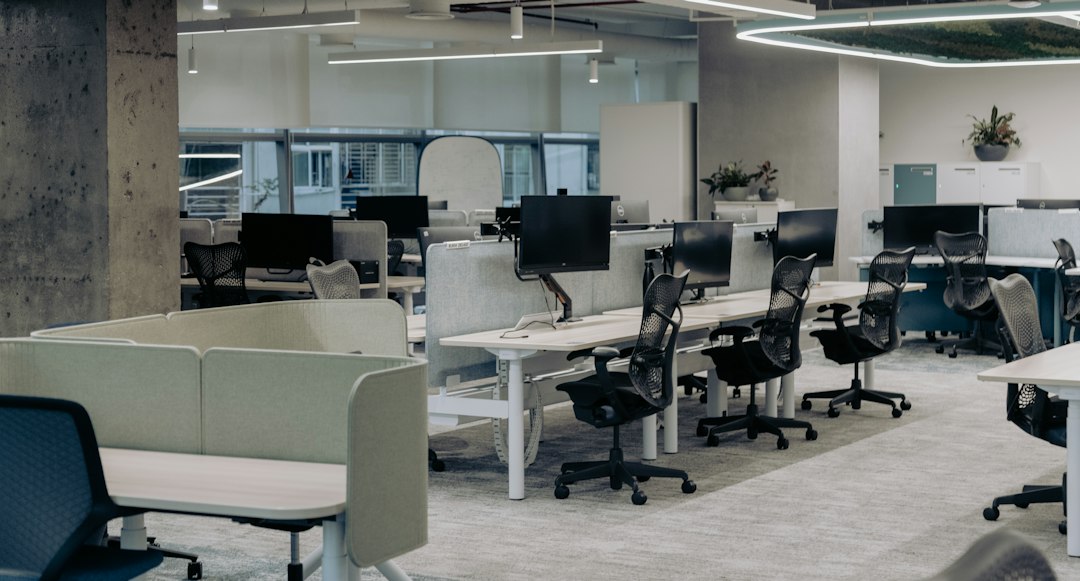
No cable swapping, no re-pairing, no re-arranging windows after your monitor forgets it has two inputs. The modern versions have grown USB hubs, audio jacks, and 4K support, but the core promise is the same one server admins got three decades ago: one desk, many machines, zero crawling around on the floor.
The other thing worth knowing up front: both machines stay fully powered and fully awake through the flip. Nothing sleeps, nothing disconnects, nothing reboots. Your downloads keep downloading, your compile keeps compiling, and your chat notifications keep piling up politely on whichever box you’ve walked away from. It’s less like unplugging a computer and more like turning your head.
Before You Spend a Dime: The Free Route
If you’re only hopping between machines a couple of times a week, you might not need hardware at all. Logitech’s Flow feature lets a mouse like the MX Master 3S glide between two computers as if they were one — you literally push the cursor against the edge of one screen and it appears on the other, with the keyboard following along. Pair that with your monitor’s built-in input switch and a second video cable, and you’ve got a poor man’s KVM for the cost of nothing extra.

The free route has real limits, though. Flow only carries the mouse and keyboard — your webcam, headset, and card reader stay stuck to whichever machine they were paired to. Audio routing is its own comedy. And the monitor input button gets old fast, especially on displays where the OSD takes four clicks to change sources. I ran this setup for a summer. It works, right up until the day you’re screensharing on the wrong machine and your webcam light never comes on.
The Entry-Level Box: Forty Bucks of Sanity
The cheapest real KVMs are the cable-style units — a short integrated harness that straddles two computers and gives you a hotkey combo or a wired remote button to flip between them. IOGEAR basically owns this category; their 2-port USB HDMI cable KVM is the one I’d hand a family member. It’s not glamorous, tops out around 1080p, and switches exactly two USB devices. That’s the whole feature list, and for a lot of home desks, that’s enough.

If your monitor is 4K and you’d like to keep it that way, TP-Link’s 4K HDMI KVM covers the same two-computer job at full resolution for not much more. One caution about this whole tier: read the fine print on USB version. Some budget units switch USB 1.1 ports, which is fine for a keyboard and disastrous for a flash drive. If the listing doesn’t brag about USB 3.0, assume it isn’t.
The Workhorse: What I Actually Use Every Day
After testing a shelf of these things, the unit that earned permanent desk duty is UGREEN’s 4K KVM with four USB 3.0 ports. Both machines get a full-speed HDMI and USB connection, my keyboard, mouse, webcam, and a spare port for whatever I’m reviewing this week all hang off the switch, and a palm-sized wired remote sits next to my keyboard. Two taps and I’ve gone from the work laptop to the desktop running my local models.
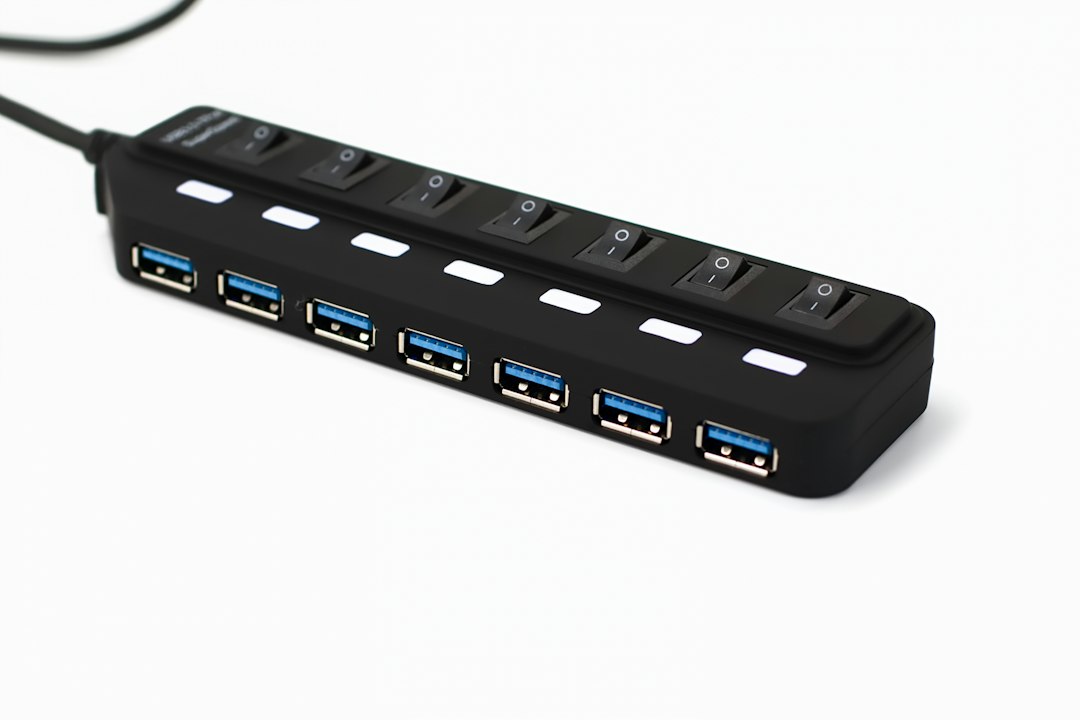
The details that separate a workhorse from a paperweight are boring and decisive. USB 3.0, because 5Gbps matters when you’re moving photos off a card reader through the switch. A wired remote, because reaching behind your monitor for a recessed button is the exact problem you’re trying to solve. And a metal case with real ventilation, because these little boxes run warmer than anyone expects. If you want a deeper dive into the docking-station side of this equation, my six-month USB-C hub odyssey covers what lives on my desk year-round.
Two Screens, Two Machines
Everything gets more complicated — and more expensive — the moment you add a second monitor, because the switch now has to carry two video streams per machine and keep them from tripping over each other. UGREEN’s dual-monitor KVM handles the classic two-screen, two-computer layout at 4K60 on both panels, and it’s the configuration I’d recommend to anyone whose employer issued them a laptop and whose conscience issued them a gaming PC.
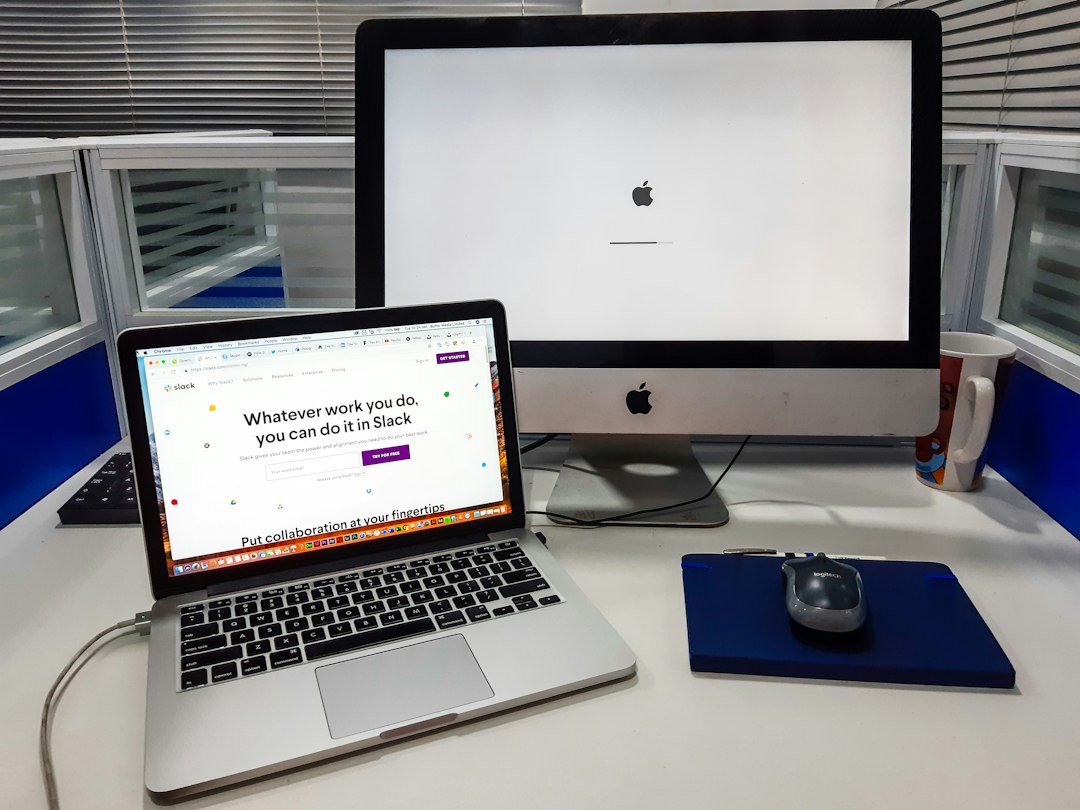
The sleeper pick in this tier is TESmart. Their 4K KVM with dedicated audio and mic channels solved a problem nobody talks about: what happens to your headset when you flip machines. On cheap switches, audio either stays on the wrong computer or crackles through a dodgy analog mux. TESmart treats the mic and headphone lines as first-class citizens, which matters enormously if you spend your day on calls. My team’s daily standup lives on whichever machine I’m not looking at — I stopped being the guy with the dead-air problem the week this box showed up.
One honest note on the dual-monitor tier: wiring the thing is the price of admission. You’re running two video cables per machine, which means four cables behind the desk instead of two, and the first afternoon of setup involves a labeling session I’d compare favorably to doing your taxes. Velcro and a cable management tray are not optional accessories here. Once it’s laced up, though, you never think about it again — which is the entire point of this category.
The Ceiling: 8K, Three Panels, and Diminishing Returns
At the top of the stack sits gear like UGREEN’s 8K KVM with triple-monitor support, which stitches HDMI and DisplayPort streams into a three-panel wall for two machines. It exists, it works, and I promise almost nobody reading this needs it. The honest use cases are high-refresh gaming rigs that share a desk with a work machine, and triple-monitor traders or developers who refuse to unplug anything ever again. For everyone else, the money is better spent on the monitor itself — my home office monitor guide has strong opinions about that.
The Gotchas Nobody Prints on the Box
Every KVM review should come with a warning label, so here’s mine. First: EDID handling. When you flip away from a machine, a good switch keeps pretending the monitor is still there so your windows don’t collapse into a pile. Cheap switches don’t, and you’ll spend your life re-arranging a desktop that re-flows itself every time you answer a chat on the other computer. Look for the phrase “EDID emulation” and treat its absence as a disqualifier.
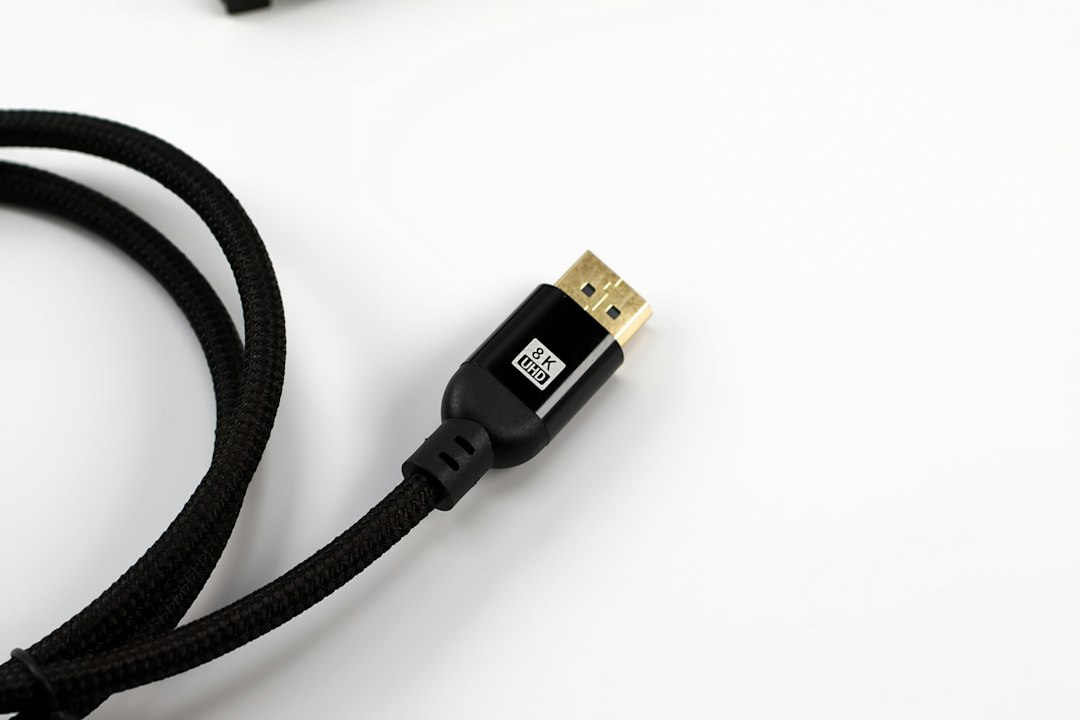
Second: cables. Almost no KVM ships with the video cables you need for both machines, and the ones in your junk drawer are probably why your 4K60 runs at 30Hz. Budget for real ones — I keep certified 48Gbps HDMI 2.1 cables in a drawer because I got tired of diagnosing other people’s “broken” switches that were actually bent on bandwidth. If one of your machines connects over USB-C, a proper 100W USB-C cable is non-negotiable; a charging-rated cable will negotiate your monitor down to something sad. Third: refresh rate math. An 8K switch running one 4K120 monitor may cap you at 60Hz — check the per-mode table, not the headline number. Gamers, this is the gotcha that will ruin your week.
Who Should Skip a KVM Entirely
Straight talk: not every desk needs one. If you’re a one-laptop person whose dock does everything, a KVM is a solution hunting for a problem — a good Thunderbolt dock is your tool, and I’ve already written that story. If you touch the second machine once a week, the free Flow-and-input-button route is genuinely fine. And if both machines are USB-C laptops, a simple Thunderbolt dock swap gets you there with one cable move instead of five. The KVM earns its spot only when two fully-powered machines share one desk and you cross between them every single day.

For me, the math finally clicked when I added it up: ninety seconds of swapping, two or three times a day, is on the far side of twenty hours a year spent under a desk. The box that bought every one of those hours back cost less than a dinner out. My ports have stopped wobbling, my headset always lands on the right machine, and my team has stopped guessing which computer I’m on by the quality of my audio. Twenty-five years in this business, and the upgrades that matter most are still the ones that delete a small, stupid, daily friction. This one deletes it completely.