

Three years ago, I looked at my desk and felt a kind of existential dread that I usually reserve for tax season. Cables spilled off the edges like ivy overtaking a ruin. My laptop sat flat on the surface, cooking itself into early retirement. There was a tangle of chargers, dongles, and mystery cords I couldn’t identify without tracing each one to its source like some kind of detective working the world’s least interesting case. Something had to change.
I didn’t set out to become a desk setup evangelist. It happened the way most obsessions do — slowly, then all at once. A monitor arm here, a better keyboard there, and suddenly I’m the person who spends Saturday mornings rearranging cable routing and measuring the exact distance between my trackpad and my coffee mug. But here’s what I’ve learned after pouring more time (and money) into this than I care to admit: the right accessories don’t just make your desk look good. They change the way you work. Your shoulders stop aching. Your workflow stops feeling like an obstacle course. And you stop dreading the moment you sit down to get something done.
So here it is — the short list. These are the only desk accessories that survived my three-year cycle of buying, testing, and brutally culling anything that didn’t earn its keep.
The Charging Hub That Replaced Eight Wall Warts
I used to have a power strip dedicated entirely to chargers. Phone, tablet, laptop, earbuds, portable battery, wireless keyboard, trackpad, and whatever random device I was reviewing that week — each one needed its own brick, its own cable, and its own slice of precious outlet real estate. It was chaos. The final straw came when I tripped over the power strip and yanked three devices off my desk in one spectacular cascade of plastic and regret.
Now I use a single USB-C charging hub with enough ports to handle everything. Specifically, a high-wattage USB-C hub with six or more ports sits in the corner of my desk, and every device I own plugs into it. The good ones deliver 100W on at least one port (enough to fast-charge a laptop) and distribute power intelligently across the rest. No more fighting over who gets the fast charger. No more wall warts tumbling out of overloaded strips.
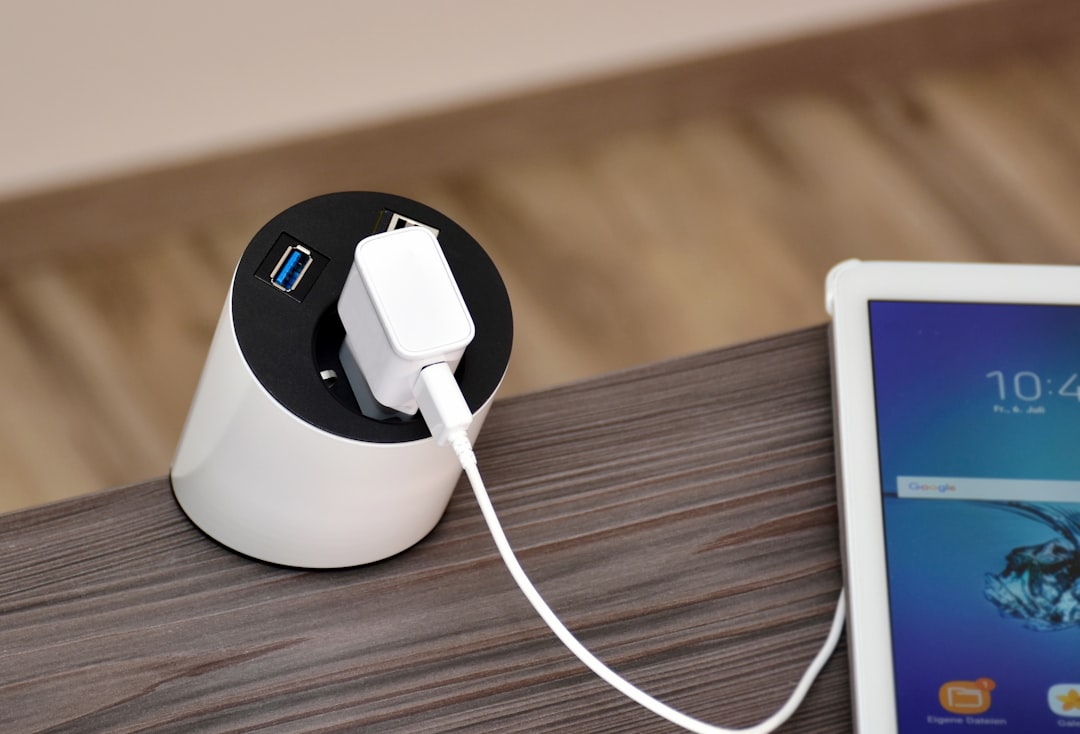
What I’ve found after testing at least a dozen of these is that the cheap ones — the $15 no-name hubs — will let you down. They overheat, they deliver inconsistent power, and they have a frustrating habit of dropping connections when you plug in something power-hungry. Spend $40-60 on a reputable brand and you’ll never think about charging again. That’s the goal, right? Technology that disappears into the background and just works.
Wireless Charging: The Small Luxury You Won’t Regret
I was a wireless charging skeptic for years. “It’s slower,” I’d say, with the confidence of someone who had never actually timed the difference. “And you can’t use your phone while it’s charging.” Both technically true, and both completely missing the point. The real value of a wireless charging pad on your desk isn’t speed — it’s friction. You set your phone down, it charges. You pick it up, it stops. No cable to plug in, no cable to unplug, no cable dangling off the edge of your desk like a sad electronic tentacle.

I keep a Qi-compatible pad right next to my keyboard, and my phone lives there when I’m working. It’s always charged when I need to leave, and I never have to think about battery percentage during the workday. If you’re the kind of person who’s constantly plugging and unplugging your phone to check notifications, a wireless charging stand (the angled kind that props your phone up) is even better — you can see the screen at a glance without picking it up.
The Keyboard That Made Me Enjoy Typing Again
For over a decade, I typed on whatever keyboard came with whatever computer I was using. Laptop keyboards, bundled membrane boards, that weird chiclet thing Apple did for a while. I didn’t think about keyboards because I didn’t know there was anything to think about. Then, on a whim, I bought a mechanical keyboard, and it was like the first time I heard music through decent headphones after a lifetime of earbuds. Everything was different.

The right mechanical keyboard turns typing from a chore into something satisfying. The tactile feedback, the consistent actuation point, the sound (or lack of it, if you go with silent switches) — it all adds up to an experience that makes you want to keep working. I’ve tested dozens over the past three years, and I wrote about my favorites in detail in my mechanical keyboard roundup. But if you want the short version: find one with hot-swappable switches so you can experiment with different feels without buying a whole new board. Start with something like a compact 75% layout with hot-swap switches — you get all the important keys without the number pad eating desk space.
My current daily driver is a 75% board with tactile brown switches, and it’s been rock-solid for over a year of heavy use. I type faster, my wrists hurt less, and I actually enjoy the physical act of writing, which matters more than you’d think when your job involves producing thousands of words a week.
Raising the Bar: Monitor Arms and Why You Need One
Monitor stands are, almost universally, terrible. They’re too low, too bulky, and they eat up desk space that could be used for literally anything else. For years, I stacked books under my monitor stand like some kind of academic Jenga tower, trying to get the screen to eye level. Then I discovered monitor arms, and I’m not exaggerating when I say it transformed my entire workspace.
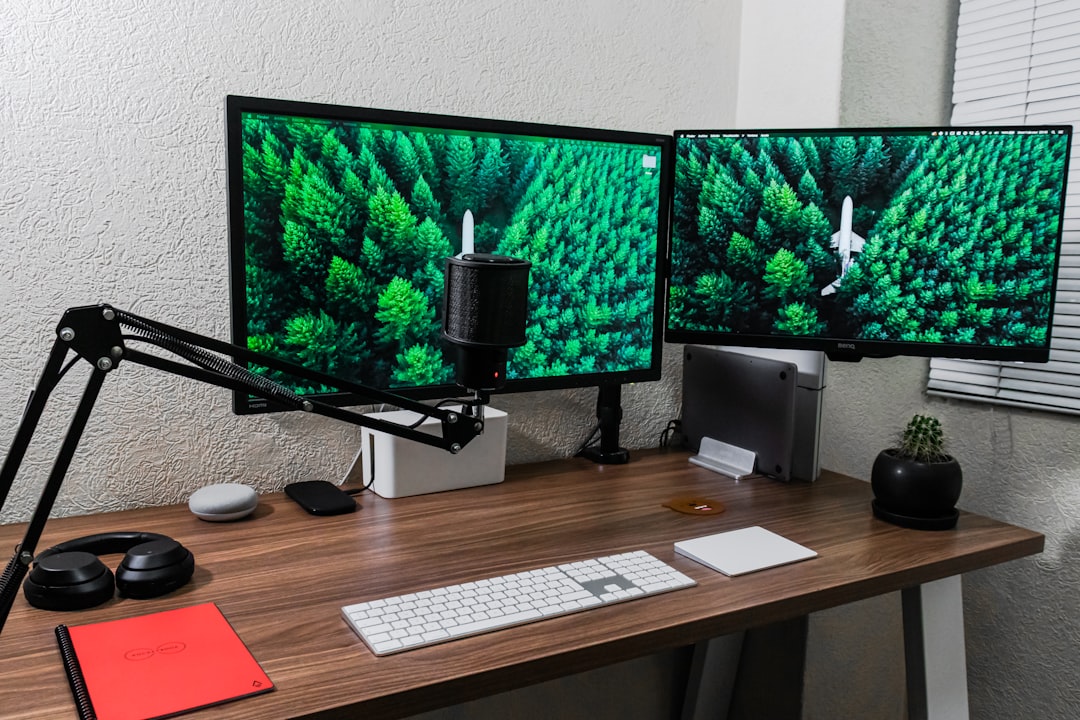
A good articulating monitor arm lets you position your screen at exactly the right height, angle, and distance. It clamps to the edge of your desk and frees up all the space underneath where the stand used to be. I went into serious depth on this in my monitor arm review, but the takeaway is simple: if you’re still using the stand that came with your monitor, you’re missing out on both comfort and desk real estate.
The sweet spot is around $30-50 for a solid single-monitor arm. Dual setups run a bit more. Look for gas-spring mechanisms (they adjust smoothly and hold their position), standard VESA mounting compatibility, and integrated cable management. Your neck will thank you within a week.
The Desk Mat: Function Meets Identity
This is the accessory I didn’t know I needed and now can’t imagine working without. A desk mat — that large, flat pad that covers a significant portion of your desk surface — serves multiple purposes that sound minor in isolation but add up to a surprisingly different working experience. It provides a consistent, smooth surface for your mouse. It dampens the sound of typing. It protects your desk from scratches, spills, and the general wear of daily use. And, let’s be honest, it ties the whole visual aesthetic together in a way that makes your workspace feel intentional rather than assembled.
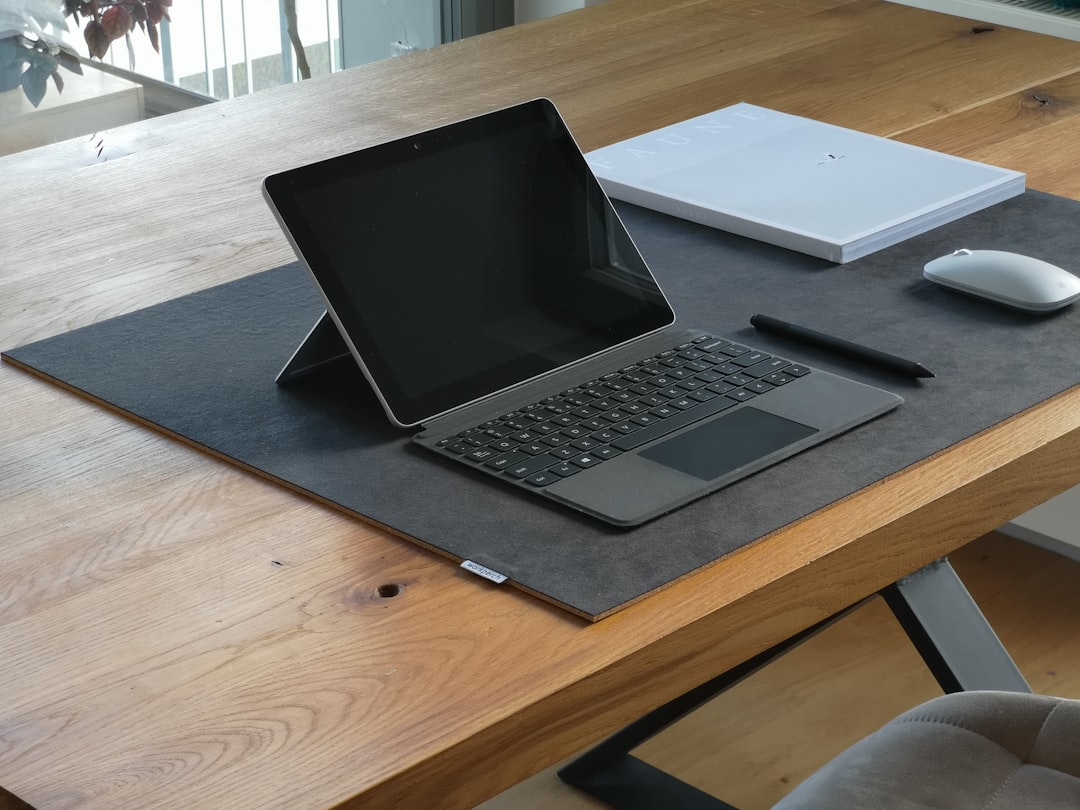
I’ve used cork, felt, rubber, and various synthetic materials, but I keep coming back to full-size leather desk mats. They develop character over time, they’re easy to wipe clean, and they feel substantial under your hands in a way that thin plastic mouse pads never will. Look for one that’s at least 35 inches wide — you want it to span from your keyboard to your mouse area without leaving gaps. The investment is modest (usually $25-45), and it’s the single thing that made my desk feel “finished.”
Laptop Stands: Stop Cooking Your Computer
If you work on a laptop and it’s sitting flat on your desk right now, I need you to do something for me: put your hand on the chassis after your next long work session. Feel that? That’s thermal throttling in action, and it’s slowly cooking your computer’s internals while simultaneously wrecking your posture because you’re hunching over a screen that’s eight inches too low. A proper laptop stand solves both problems at once.
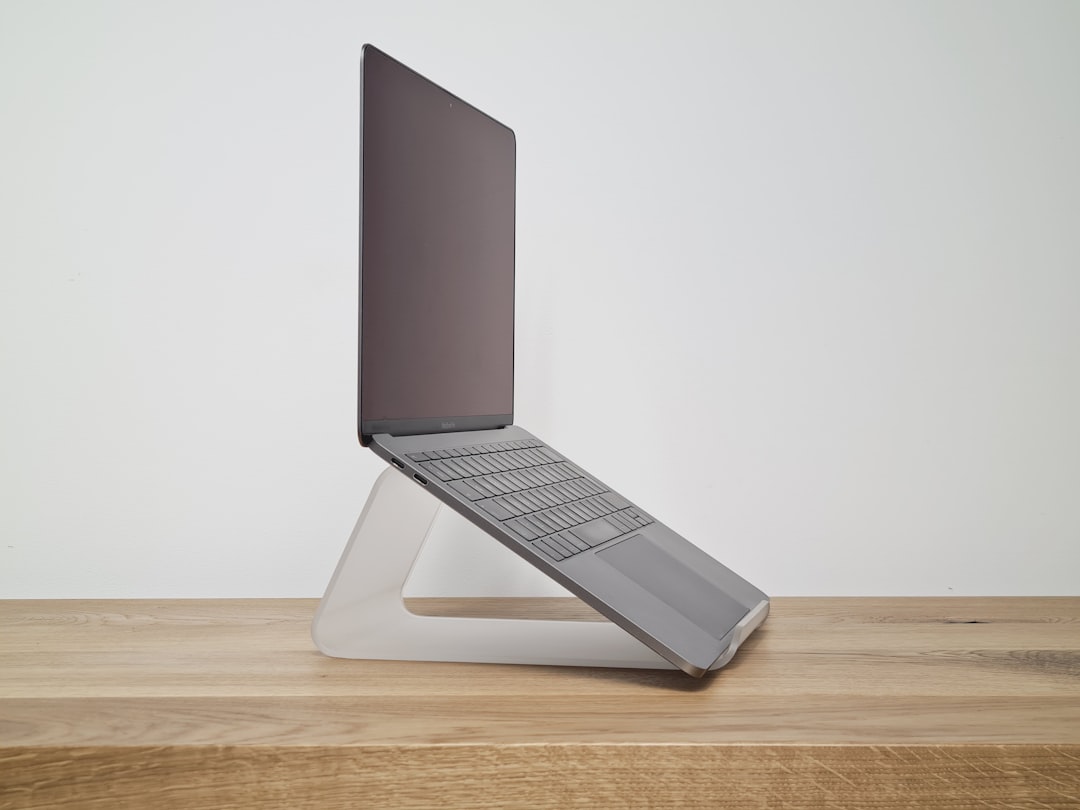
I covered this in more detail in my laptop stand guide, but the basic idea is this: raise the screen to eye level, let air circulate underneath, and either use an external keyboard and mouse or accept that you’ll need to reach up to type. The ideal setup is laptop on a stand, external keyboard and mouse on the desk, and the laptop screen serving as either your primary or secondary display. It’s the single most effective ergonomic upgrade you can make for under $40.
The Mouse You’ve Been Overlooking
I went through a phase where I bought a new mouse every few months, chasing the perfect combination of comfort, precision, and features. What I eventually realized is that the “right” mouse is highly personal — it depends on your hand size, your grip style, and the kind of work you do. But there are a few universal truths. First, the mouse that came with your computer (if one even came with it) is almost certainly not great. Second, ergonomics matter more than you think when you’re gripping something for eight hours a day.

My recommendation after extensive testing: if you do a lot of precise work like photo editing or CAD, look at a vertical ergonomic mouse. The handshake position takes pressure off your wrist in a way that feels weird for about two days and then feels completely natural. For general productivity, a multi-device wireless mouse that can switch between your laptop, desktop, and tablet with a single button press is a productivity revelation. And if you spend a lot of time in spreadsheets or scrolling through long documents, something with a free-spinning scroll wheel will spoil you for anything else.
The Intangible Upgrade: Cable Management
None of the accessories above reach their full potential if your desk still looks like a plate of electronic spaghetti. Cable management is the unglamorous foundation that makes everything else work. It’s not exciting. Nobody walks into your office and says “wow, great cable routing.” But you’ll notice it every single time you sit down, and more importantly, you’ll notice the absence of frustration that comes from cables snagging, tangling, and falling behind your desk.
The toolkit is simple and cheap. Adhesive cable clips stick to the underside of your desk and route individual cables along clean paths. An under-desk cable tray catches the power strip and excess cable length, keeping them completely out of sight. And a pack of reusable Velcro ties will handle the rest. Total cost: maybe $25. Total impact: the difference between a desk that looks like a storm hit it and one that looks like it belongs in a magazine spread.
What I’d Tell Myself Three Years Ago
If I could go back to that moment of desk-induced despair and give myself one piece of advice, it would be this: stop buying things randomly and start thinking about your workspace as a system. Every accessory should serve a purpose, work well with the others, and earn its place on your desk. The items on this list all passed that test — some immediately, some after I’d already wasted money on inferior alternatives. As I wrote in my piece on rebuilding my desk from scratch, the best setup isn’t the one with the most gadgets. It’s the one where everything works together so seamlessly that you stop thinking about your desk entirely and just get to work.
Your desk is where you spend a huge portion of your waking hours. Treat it like it matters. Because it does.

One thought on “I Spent Three Years Perfecting My Desk Setup — These Are the Only Accessories That Survived”