
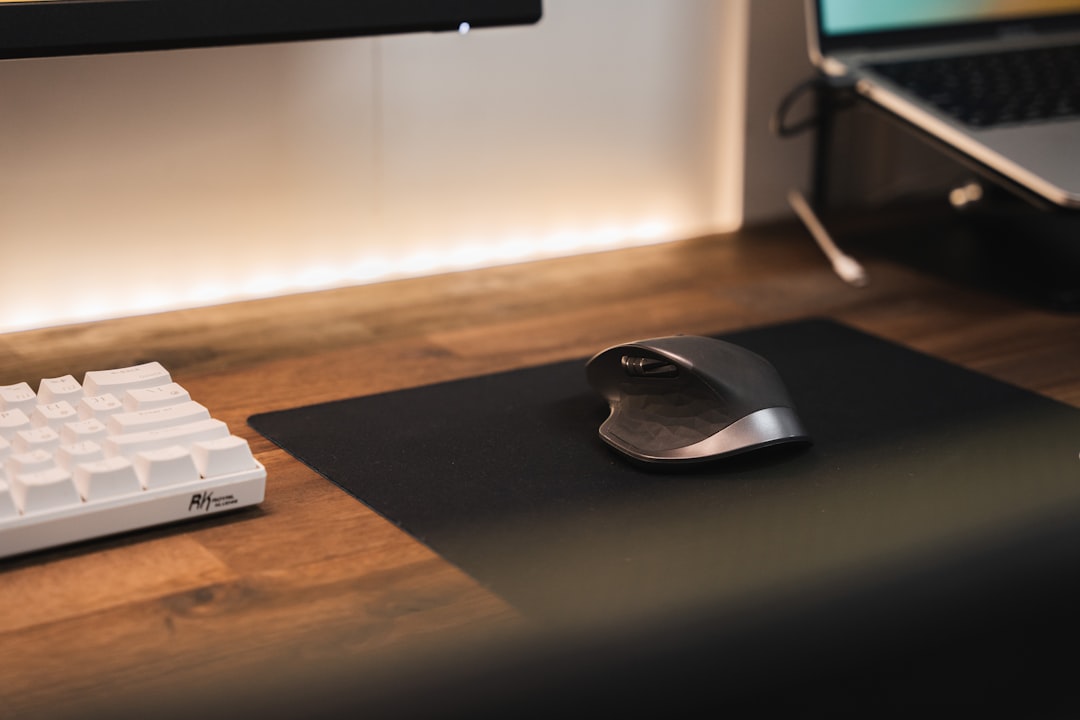
Why Your Keyboard Matters More Than You Think
I’ve spent the last three months living with eight different mechanical keyboards, typing everything from this article to complex code on each of them. Why? Because the keyboard is the one peripheral you touch more than any other, and the difference between a mediocre typing experience and a great one isn’t just comfort—it’s about staying in the flow state longer and typing faster with less fatigue.
Most people stick with the cheap membrane keyboard that came with their desktop or the low-profile scissor switch on their laptop. But if you’re spending 8+ hours a day typing, investing in the right mechanical keyboard can genuinely transform your daily work experience. The tactile feedback, the sound (or lack thereof), and the ergonomic design all contribute to how quickly and comfortably you can work. A quality mechanical keyboard isn’t just an upgrade—it’s a revelation.
After extensive testing, I’ve identified the keyboards that actually deliver on productivity promises—not just the ones with the flashiest RGB lighting or the most enthusiast hype. Here’s what I found.
What Makes a Keyboard Productive?

Before diving into specific models, let’s establish what actually matters for productivity. It’s not about macro keys or OLED displays. It comes down to four things: switch feel and sound, layout efficiency, build quality, and wireless reliability.
The best switches for productivity strike a balance between tactile feedback and noise. You want enough resistance to prevent accidental keypresses but not so much that your fingers fatigue. For shared workspaces, silent switches are non-negotiable—I’ll explain why in the recommendations below. Layout is equally important: compact 75% boards save desk space and reduce mouse distance, while full-size layouts with dedicated navigation keys suit those who never learned keyboard shortcuts.
Build quality isn’t just about aesthetics. A heavy keyboard with a solid metal case doesn’t just feel premium—it stays planted during aggressive typing sessions and provides a stable platform that doesn’t flex or creak. Wireless connectivity has finally matured to the point where Bluetooth latency is imperceptible for typing, but only the best boards maintain rock-solid connections across multiple devices.
Best Overall: Keychron Q5 Max

The Keychron Q5 Max is everything I want in a productivity keyboard. It’s a wireless 96% layout that gives you nearly all the functionality of a full-size board in a compact form factor. The all-aluminum case weighs in at nearly four pounds, and that heft translates to zero flex during typing. But what really sets it apart is the out-of-box typing experience—no modding, no switch swapping required.
I tested the Q5 Max with Keychron’s proprietary K Pro Brown switches, which strike an excellent balance for office use. They’re tactile enough to provide satisfying feedback without being loud enough to bother coworkers. The factory-lubed stabs are surprisingly smooth, with none of the rattle that plagues cheaper boards. Gasket mount construction gives each keypress a subtly cushioned feel that reduces finger fatigue during long writing sessions. The Keychron Q5 Max represents the pinnacle of what a modern productivity keyboard should be.
Battery life is stellar—I got roughly six weeks of daily use on a single charge with RGB turned off. The Bluetooth 5.2 connection never dropped once during testing, and switching between my MacBook, iPad, and Windows PC was seamless via the physical toggle. If you want one keyboard that does everything well and looks professional doing it, this is the one to buy.
Best Budget Option: Keychron V3 Max
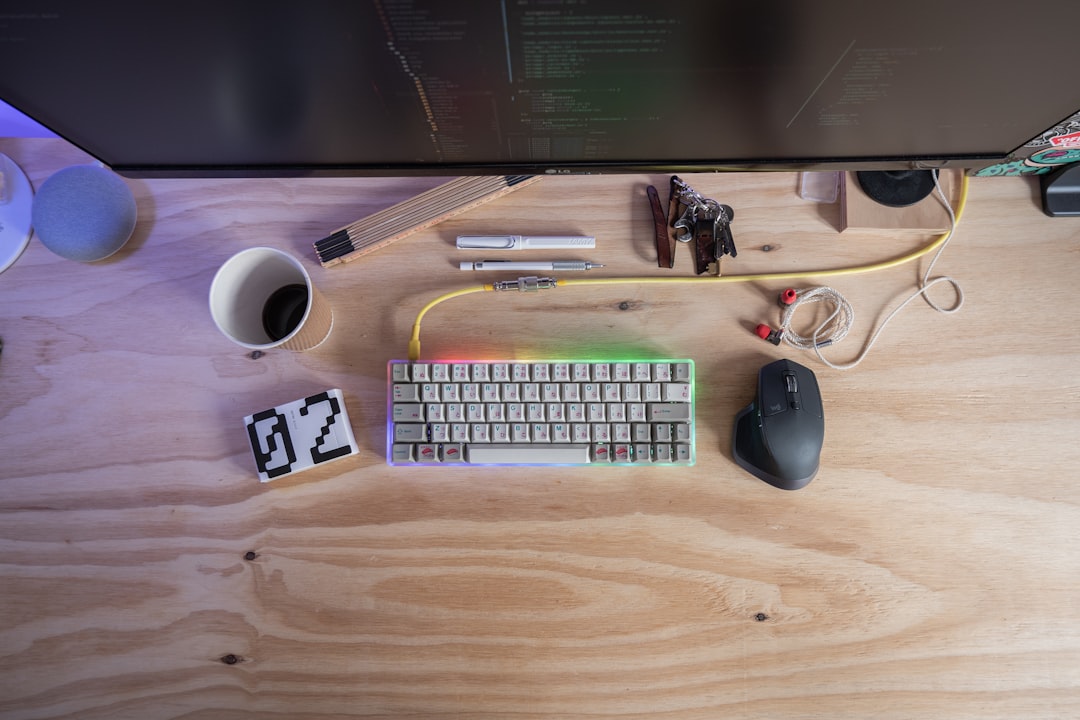
Not everyone wants to drop $200+ on a keyboard, and that’s where the Keychron V3 Max comes in. At roughly half the price of the Q5 Max, you get most of the same functionality in a slightly less refined package. The V3 Max uses a plastic case instead of aluminum, which saves weight but loses some of that premium solidity.
What you don’t lose is the core typing experience. The same K Pro Brown switches feel just as consistent here, and the gasket mount still provides that cushioned landing that makes long typing sessions more comfortable. The 75% layout is arguably more practical for most people than the 96%—you lose the dedicated home/end cluster but gain more desk space and a more natural hand position closer to the mouse. For under $130, the V3 Max delivers exceptional value.
The trade-offs are minor: no wireless charging, slightly cheaper keycaps that show wear faster, and a case that flexes just a tiny bit if you really hammer on it. But for under $130, the V3 Max delivers 90% of the Q5 Max experience at a fraction of the price. It’s the keyboard I recommend to anyone who wants mechanical switches without the enthusiast price tag.
Best for Shared Workspaces: NuPhy Air75 V3

If you work in an open office or shared space, keyboard noise isn’t just annoying—it’s a professionalism issue. The NuPhy Air75 V3 is the quietest mechanical keyboard I’ve ever tested, and it achieves this through a combination of thoughtful design choices rather than just slapping in silent switches.
I tested the Air75 V3 with Blush Nano linear switches, which are genuinely silent in a way that Cherry MX Silent never quite managed. But what really makes this keyboard remarkable is the gasket mount combined with multiple layers of sound-dampening foam. Each keypress lands with a dull thud instead of a sharp clack, and case resonance is virtually eliminated. At normal typing volume, someone three feet away can’t hear you typing. If you need a keyboard for shared spaces, this is the one.
The Air75 V3 is also remarkably thin and light for a mechanical keyboard, making it easy to toss in a backpack for coffee shop work sessions. The 75% layout strikes a good balance between compactness and functionality, and the Mac-specific keycap modifiers mean it looks right at home next to a MacBook. Battery life is impressive at around 80 hours with the backlight on low, and the Bluetooth 5.1 connection remained solid throughout testing.
Best for Multi-Device Workflows: Logitech MX Keys S
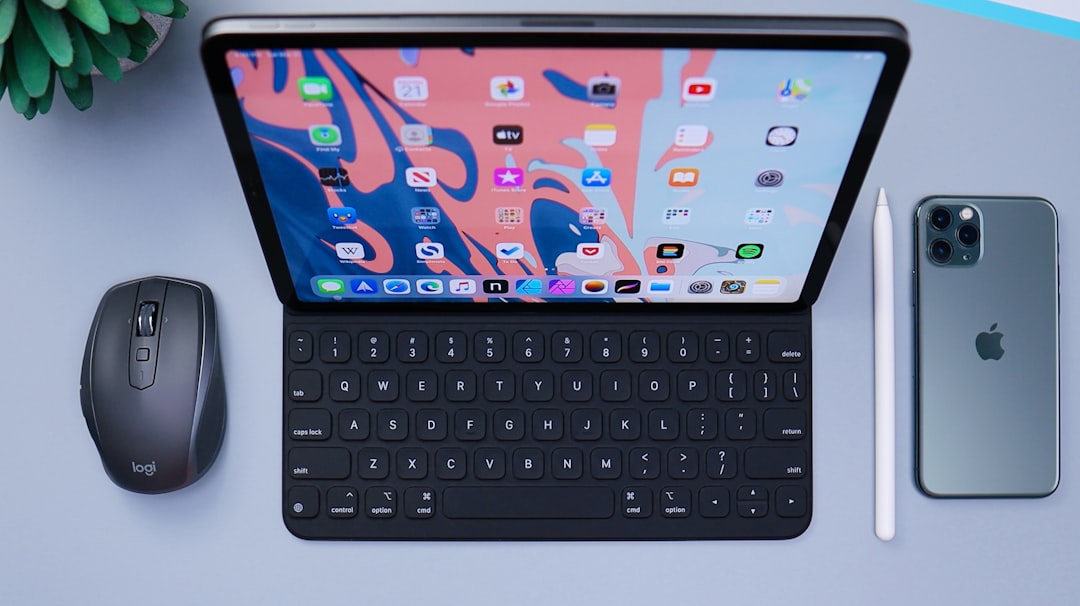
The Logitech MX Keys S isn’t a mechanical keyboard—it uses scissor switches similar to laptop keyboards—but it’s the best option I’ve found for people who constantly switch between devices. The Easy-Switch buttons let you pair up to three devices and toggle between them instantly, and the flow feature even lets you move your cursor between computers by dragging it to the edge of the screen.
What makes the MX Keys S special for productivity is the thoughtful design touches that add up over time. The keycaps are scooped to guide your fingers to the center of each key. The backlighting automatically adjusts based on ambient light and turns on when your hands approach. The build quality is excellent, with a solid metal frame that doesn’t flex or creak. For multi-device workflows, nothing else comes close.
Is it worth considering over a mechanical board? If you’re primarily a typist who values consistency over tactile feedback, absolutely. The scissor switches are smooth and consistent across all keys, with no break-in period required. And the USB-C charging is fast enough that you can get a full day of use from a 15-minute charge. It’s not for everyone—mechanical purists will miss the tactility—but for productivity-focused workflows, it’s a legitimate contender.
Best Premium Pick: Wobkey Rainy 75 Pro
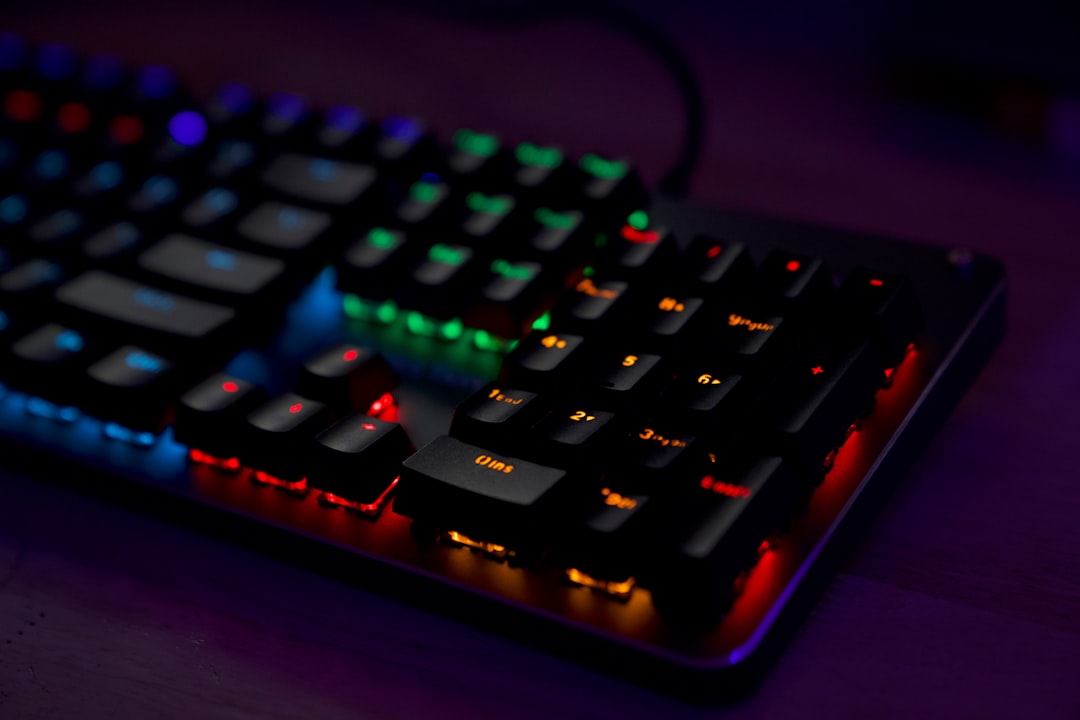
The Wobkey Rainy 75 Pro is the keyboard that made me understand why enthusiasts spend hundreds of dollars on what looks like a simple slab of metal. Everything about this board screams quality, from the CNC-machined aluminum case to the factory-tuned stabilizers that rival anything I’ve ever modded myself.
What sets the Rainy 75 Pro apart is the attention to acoustics. The gasket mount is paired with five layers of sound-dampening material, including Poron foam and silicone pads. Each keypress produces a deep, resonant thock that’s genuinely satisfying without being loud. The pre-lubed switches are smooth out of the box, with no scratchiness or inconsistency. Premium boards like this are investments, but they last for years.
This is also one of the most beautiful keyboards I’ve tested, with a translucent polycarbonate rear that lets RGB lighting shine through in a subtle, classy way. The wireless connectivity is rock-solid, and battery life is impressive for a board with this much RGB. At around $230, it’s an investment—but if you spend your entire day typing, the premium experience justifies the price.
Best Ergonomic Option: Epomaker Split65
Split keyboards are having a moment, and the Epomaker Split65 is the most accessible entry point I’ve found. Unlike some split boards that require weeks of adjustment, the Split65 feels natural within days. The split design lets you position each half exactly where your hands want to rest, which reduces ulnar deviation and shoulder strain during long typing sessions.
The Split65 uses a columnar stagger layout that aligns with your fingers’ natural movement, which feels weird at first but quickly becomes second nature. I tested it with Epomaker’s Banana switches, which are silent linear switches that provide smooth travel without the noise. The hot-swappable sockets mean you can easily try different mechanical switches to find your perfect feel.
Connectivity is excellent, with tri-mode support for wired USB, 2.4GHz wireless, and Bluetooth 5.0. The split design does make it less portable than a single-piece board, and you’ll need to commit to the learning curve for the columnar layout. But if you’re serious about ergonomics and willing to put in a week of adjustment, the Split65 can genuinely reduce typing fatigue.
Understanding Switch Types
The switches you choose matter more than the keyboard itself, and understanding the three main categories will help you pick the right board. Tactile switches provide a noticeable bump mid-press that confirms actuation—great for typists who want feedback without the noise. Linear switches have no bump, providing smooth travel from top to bottom, which many programmers prefer for rapid keypresses. Clicky switches add an audible click to the tactile bump, satisfying for some but generally terrible for shared workspaces.
For productivity specifically, I recommend tactile switches in the medium weight range—around 45-55g of actuation force. Lighter switches can lead to typos from overactive fingers, while heavier switches cause fatigue. The K Pro Brown switches I mentioned earlier hit this sweet spot, but Cherry MX Browns and Gateron Browns are solid alternatives if you prefer standard switches.
Silent switches have come a long way in the past two years. The Blush Nano line and Cherry’s new MX2A Silent series prove that you don’t have to sacrifice tactility for quiet operation. If you work in an office with other humans, these switches are genuinely worth the slight premium over standard tactile switches.
Layouts Explained: Full-Size vs. Compact
The keyboard layout you choose affects more than just desk space—it changes how you work. Full-size boards with dedicated navigation keys and number pads are great if you use those keys constantly, particularly for data entry or spreadsheet work. But the number pad pushes your mouse further to the right, which can cause shoulder strain over time.
Tenkeyless (TKL) boards drop the number pad while keeping everything else, making them more compact while retaining all navigation keys. 75% layouts compress the function row into smaller keys that double as function keys via a Fn layer, striking a balance between compactness and functionality. 60% boards go further, eliminating the dedicated navigation keys entirely—great for minimalists but frustrating if you rely on home, end, and arrow keys.
After years of testing, I’ve settled on 75% as the productivity sweet spot. The slightly smaller footprint reduces mouse distance and saves desk space, while the arrow keys and navigation cluster remain accessible without complex layer combinations. If you never use the number pad, there’s no reason to endure the ergonomic trade-off. Speaking of desk space, if you’re optimizing your workspace, check out my guide on best portable monitors for productivity.
Wireless vs. Wired: Which Is Right for You?
Wireless mechanical keyboards have finally matured to the point where latency is imperceptible for typing. The best boards maintain rock-solid connections that never drop, and Bluetooth 5.0+ makes pairing multiple devices painless. If you use multiple computers or like to work untethered from your desk, wireless is absolutely worth the small price premium.
That said, wireless does add complexity and potential failure points. Battery degradation is real—expect roughly 80% capacity after two years of daily use. Some wireless boards have slight Bluetooth lag that manifests as missed characters during rapid typing, though this is increasingly rare on quality hardware. And you’ll need to remember to charge, though most modern boards get weeks of battery life with RGB turned off.
Wired boards are simpler, cheaper, and marginally more reliable. If you have a permanent desk setup and never need portability, there’s no shame in saving money and skipping wireless. Just make sure to get a board with a detachable USB-C cable so you can replace it if it ever fails.
Keycaps and Build Quality: What Actually Matters
Cheap ABS keycaps develop a shiny, oily appearance within months of use as the plastic wears down. PBT keycaps resist this wear and maintain their texture for years—look for thick PBT doubleshot or dye-sublimated keycaps if you want your keyboard to look new years down the line. The Wobkey Rainy 75 Pro and Epomaker Split65 both include excellent PBT keycaps in the box.
Build quality goes beyond just materials. A heavy case with a solid metal plate prevents flex during typing and provides a stable platform. Gasket mounting, which uses silicone pads between the case and plate instead of rigid screws, creates a slightly cushioned typing feel that reduces finger fatigue. And sound-dampening foam layers between the plate and case eliminate the hollow ping that plagues cheaper boards.
Don’t get too hung up on brand-name switches. Modern boutique switches from Gateron, Kailh, and Outemu often outperform Cherry MX in consistency and smoothness. What matters more is factory lubing—many enthusiast boards come pre-lubed from the factory, saving you hours of tedious work. The Keychron and Wobkey boards I tested all had excellent factory lubing that required zero break-in period.
Assembly and Modding: Should You Bother?
The mechanical keyboard enthusiast community loves to mod—disassembling boards to replace stabilizers, add foam, lube switches, and swap keycaps. And yes, these mods can genuinely improve the feel and sound of a budget board. But here’s the truth most enthusiasts won’t tell you: modern factory-built boards from quality manufacturers are already tuned better than most modded builds were five years ago.
The Keychron Q5 Max, for example, comes with factory-lubed stabilizers that are smoother than anything I’ve ever modded myself. The gasket mount is tuned from the factory, and the sound-dampening layers are installed at the factory. Unless you enjoy the modding process as a hobby, there’s rarely a need to disassemble a modern quality board.
That said, one upgrade worth considering is swapping keycaps. Even nice keyboards often ship with mediocre keycaps, and a quality set of thick PBT keycaps can transform the feel and sound of any board. Look for keycaps from brands like GMK, EnjoyPBT, or Keychron’s own premium sets. Expect to spend $40-80 for a good set, which sounds expensive until you realize they’ll last the life of the keyboard.
Who Should Buy What?
Let’s cut through the noise and get specific. If you want one keyboard that does everything well—wireless, great typing feel, solid build quality, and reasonable price—the Keychron Q5 Max is the easy recommendation. It’s the board I’d buy for myself if I could only keep one from this entire test.
If you’re on a budget but still want a quality mechanical experience, the Keychron V3 Max delivers 90% of the Q5 Max experience at half the price. The savings come from the plastic case and lack of wireless charging, but the core typing feel is nearly identical. For students or anyone building their first mechanical setup, this is where I’d start.
For shared workspaces and open offices, the NuPhy Air75 V3 is the only choice if you want mechanical switches without being that person with the loud keyboard. The combination of silent switches and extensive sound-dampening makes it genuinely unobtrusive in a way most “silent” keyboards aren’t.
And if you’re serious about ergonomics and willing to put in a week of adjustment, the Epomaker Split65 can genuinely reduce typing fatigue. The columnar stagger and split design take some getting used to, but the long-term comfort payoff is real—especially if you’ve experienced wrist or shoulder pain from traditional keyboards.
The Bottom Line
After three months of testing, typing hundreds of thousands of words, and living with each keyboard as my daily driver, the clear winner for most people is the Keychron Q5 Max. It’s not the cheapest option, but it delivers a premium experience that justifies the price through genuine improvements in comfort, reliability, and typing enjoyment.
The mechanical keyboard market has never been better, and you don’t have to spend enthusiast money to get a great experience anymore. Even the budget options from three years ago feel primitive compared to the $130 Keychron V3 Max. Whether you’re a writer, programmer, or just someone who spends too much time typing, there’s never been a better time to upgrade from the cheap keyboard that came with your computer.
Your hands spend thousands of hours per year on your keyboard. It’s worth investing in one that makes those hours more comfortable and more productive. Based on extensive testing, any of the boards recommended here will serve you well—pick the one that matches your budget, workspace, and ergonomic needs. Your fingers will thank you.
If you’re building out a complete productivity setup, you might also want to check out my reviews of the best noise-canceling headphones for focus or my comparison of ultrawide vs dual monitors. A great keyboard is just one piece of the puzzle—the right displays and audio can complete your productivity workflow.

One thought on “Best Mechanical Keyboards for Productivity in 2026: I Tested Dozens to Find the Perfect Typing Experience”