
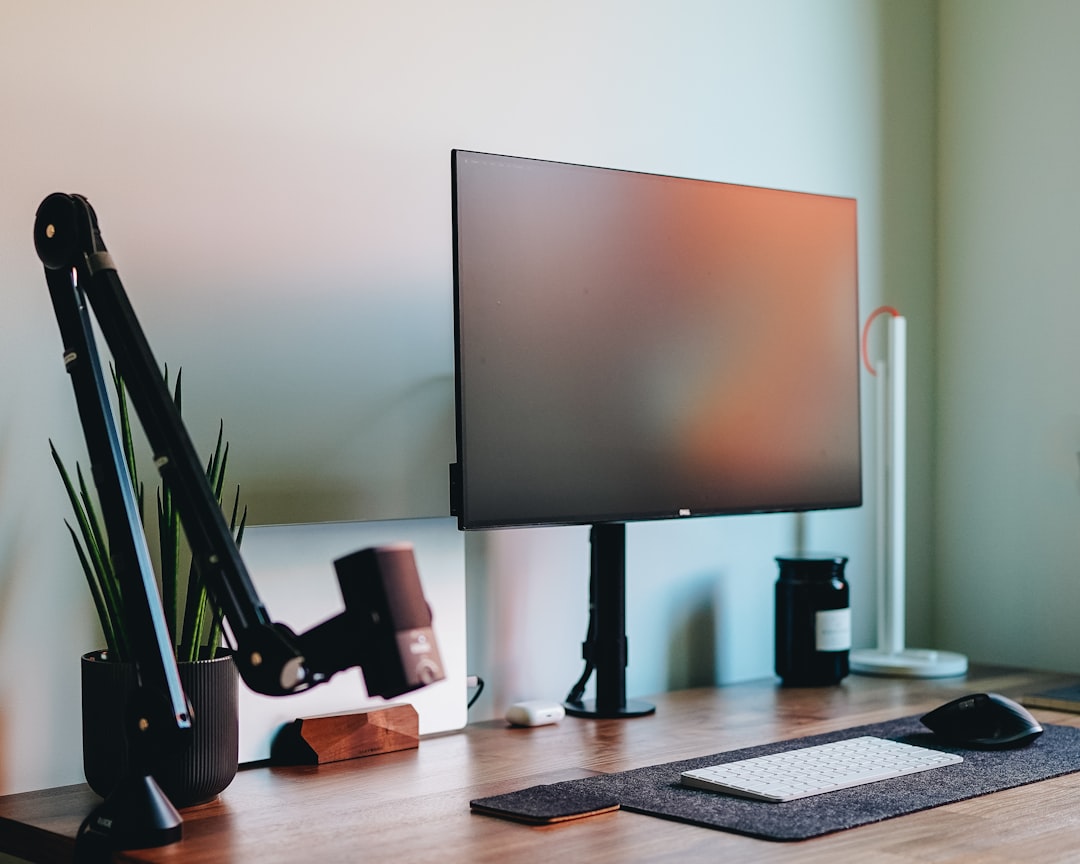
I spent the better part of two decades hunched over monitors, wondering why my neck ached and my desk felt like a cramped airplane tray table. Then I bought my first monitor arm — an Ergotron LX on a whim during a late-night shopping session — and it genuinely changed how I work. That was twelve years ago. I’ve since tested over thirty monitor arms across every desk configuration imaginable, from tiny apartment setups to sprawling triple-screen command stations. Here’s what I’ve learned and which arms are actually worth your money in 2026.
Why a Monitor Arm Is the Upgrade Nobody Talks About
Most people spend hundreds on a great monitor and then plunk it down on the included plastic stand, never giving it a second thought. That stock stand is doing you dirty. It eats up a shocking amount of desk real estate, offers barely any height adjustment, and locks you into whatever viewing angle the manufacturer decided was “good enough.” A quality monitor arm solves all of that in one move.
The ergonomic benefit alone is worth the investment. When you can position your screen at exactly eye height, tilt it to eliminate glare, and pull it forward when you want to lean in for detail work, your neck, shoulders, and eyes all breathe a sigh of relief. I noticed the difference within the first week — less stiffness at the end of a long coding session, fewer headaches, and a general sense that my workspace was finally working with me instead of against me.
Then there’s the desk space. Freeing up the footprint of a monitor base gives you room for a full-size desk mat, reference materials, or just the luxury of not feeling claustrophobic. On my standing desk, a monitor arm was the single biggest contributor to a clean, organized surface.

What to Look For in a Monitor Arm
Before I get into specific picks, let me walk you through the criteria that actually matter. I’ve seen too many people buy the cheapest arm on Amazon and end up with a wobbly mess that sags under the weight of their ultrawide. Here’s what to consider.
Weight Capacity and Screen Size
This is non-negotiable. Every arm has a weight range it’s designed to support, and it’s just as bad to be under the minimum as over the maximum. If your monitor is too light, the arm will constantly push it upward. Too heavy, and it droops. Check your monitor’s weight (usually listed in the specs or on the manufacturer’s site) and match it to the arm’s range. Most quality single monitor arms handle 7 to 25 pounds, but ultrawide arms go much higher.
VESA Compatibility
Your monitor needs a VESA mount on the back — that’s the square pattern of screw holes, typically 75mm or 100mm apart. Almost every monitor made in the last five years has one, but double-check before you buy. Some ultra-thin displays use proprietary mounts that require an adapter bracket.
Mount Type: Clamp vs. Grommet vs. Wall
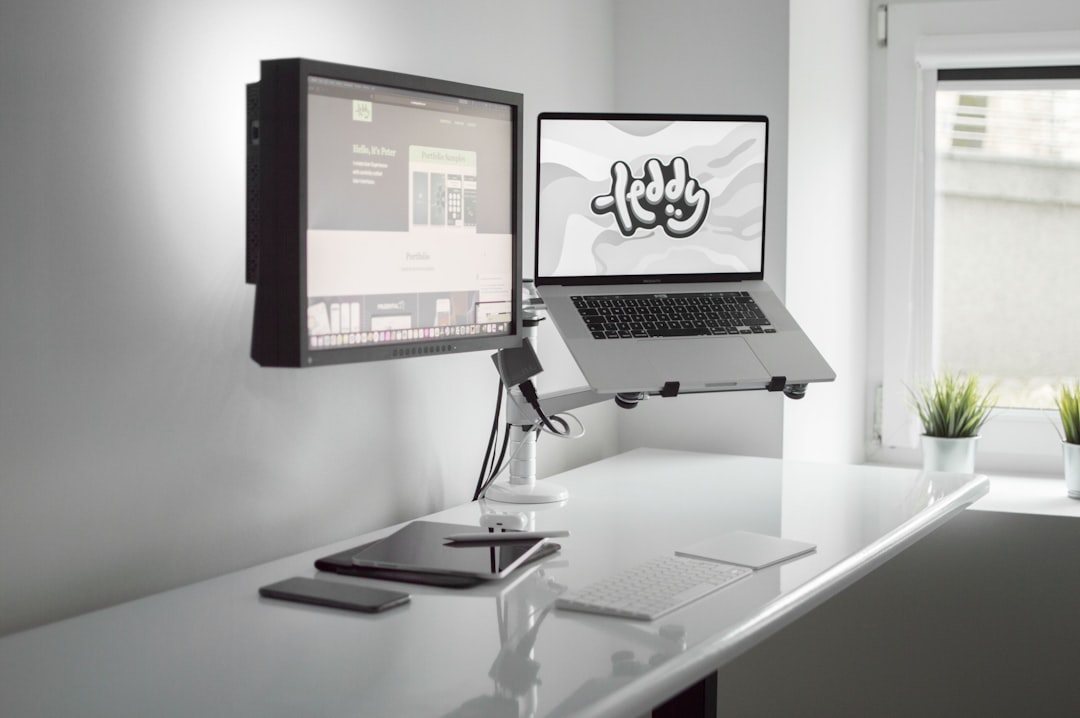
Desk clamp mounts are the most common and work on desks up to about 2.5 inches thick. Grommet mounts pass through a hole in your desk — great if you have a standing desk with a pre-drilled cable hole. Wall mounts are more permanent but save even more space. Most of the arms I recommend include both clamp and grommet hardware in the box.

The Arms I Actually Recommend
After years of testing, these are the monitor arms I’d put in my own workspace — and in several cases, I already have.
Ergotron LX Desk Mount: The Gold Standard
If there’s one arm that shows up on every “best of” list, it’s the Ergotron LX, and for good reason. I’ve had one on my primary desk for over a decade and it still moves like the day I unboxed it. The patented Constant Force spring mechanism makes height adjustment effortless — one hand, no tools, no drift. It handles monitors from 7 to 25 pounds and up to 34 inches, which covers the vast majority of setups.
The build quality is exceptional. Solid aluminum construction, smooth pivot points, and integrated cable management that actually works. The desk clamp fits surfaces from 0.4 to 2.4 inches thick, and the included grommet mount handles up to 2.25 inches. Ergotron backs it with a 10-year warranty, which tells you everything about their confidence in the product.
Check current pricing on the Ergotron LX — it typically runs between $170 and $200, and honestly, it’s worth every penny.

Herman Miller Jarvis Monitor Arm: Premium Pick
Herman Miller acquired the Flo monitor arm design a few years back, and the Jarvis arm carries that DNA. This is the arm I recommend for people who want buttery-smooth adjustment and don’t mind spending a bit more. It handles monitors up to 19 pounds and 32 inches, with a unique cylindrical spring that provides consistent tension throughout the full range of motion.
The aesthetic is cleaner than the Ergotron — more minimal, less industrial. If your desk is a design statement as much as a workstation, the Jarvis arm fits right in. Cable management runs internally through the arm itself, keeping things tidy. It’s available in white, black, and aluminum finishes.
Ergotron HX: For Ultrawide and Heavy Monitors
If you’re running a 34-inch ultrawide or even one of those massive 49-inch super-ultrawides, the Ergotron HX is built specifically for you. It supports displays up to 42 inches and 30 pounds — one of the highest capacities in the consumer market. I tested it with a 38-inch ultrawide and the stability was remarkable, with almost no wobble even at full extension.
The HX uses a heavier-duty version of the Constant Force mechanism, and it includes a desk-mounted pivot that lets you swing the monitor a full 180 degrees. At around $350 it’s a serious investment, but when your ultrawide costs $1,200 or more, securing it properly is just common sense. Browse Ergotron HX options here.
Amazon Basics Single Monitor Mount: Best Budget Pick
Look, I’m not going to pretend a $30 arm competes with the Ergotron. But for a basic home office or a kid’s homework station, the Amazon Basics Single Monitor Mount gets the job done. It handles displays up to 32 inches and 20 pounds, offers tilt, swivel, and rotation, and includes both clamp and grommet mounting options.
The adjustment isn’t as smooth as premium options, and you’ll need to tighten the tension screws more frequently over time. But if you just need to get your monitor off the desk and up to eye height without spending $200, this is a perfectly reasonable starting point.
Mount-It! Dual Monitor Arm: Best for Dual Screens
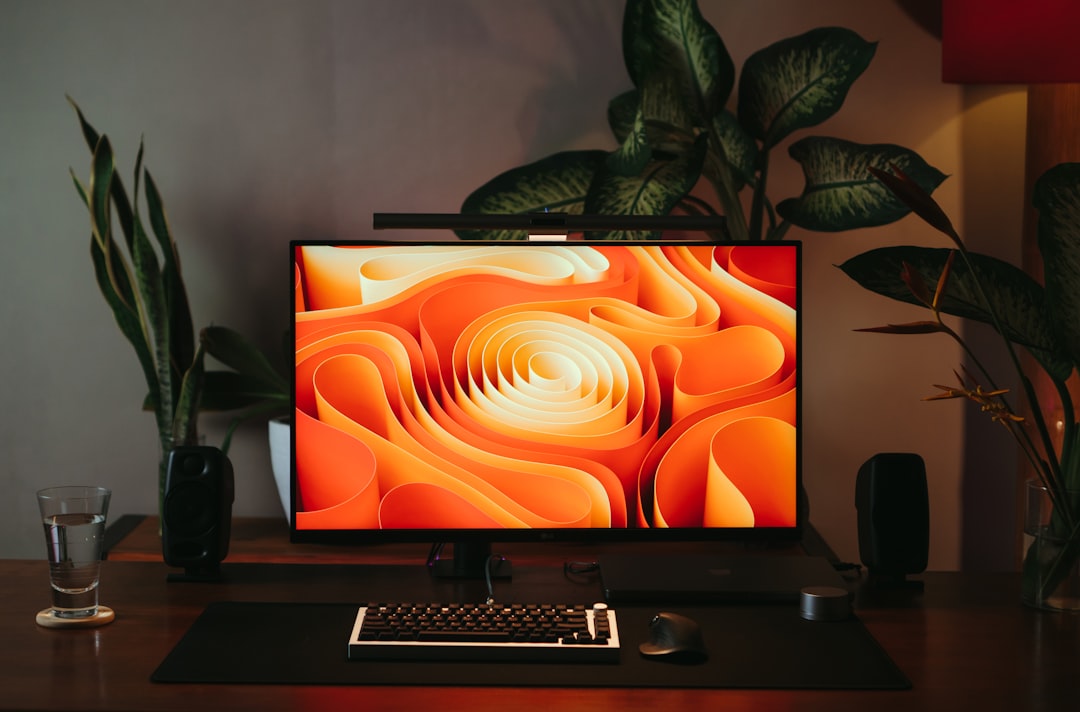
Running two monitors is one of the most impactful productivity upgrades you can make — I’ve been a dual-screen user since the early 2000s. The Mount-It! Dual Monitor Arm supports two displays up to 32 inches each, with independent height, tilt, and swivel for each arm. The center pole mounts via desk clamp and provides a solid, stable base.
What I like about this one is the integrated USB hub in the base — three USB-A ports and a headphone jack that keep peripherals within easy reach. It’s a small touch that eliminates the need for a separate hub on many setups. Current pricing on the Mount-It! dual arm usually lands between $80 and $120.
Setting Up Your Monitor Arm: Tips From Years of Mistakes
Installation is straightforward but there are a few things I’ve learned the hard way. First, tighten the desk clamp on a solid surface — not on a rickety IKEA tabletop edge that’s going to flex. If your desk has a lip or beveled edge, measure carefully before ordering because some clamps need a flat, square edge to grip properly.
Second, route your cables before you finalize the monitor position. It’s tempting to get everything aligned perfectly and then deal with the cables, but you’ll almost certainly need to adjust the arm slightly once the cables are in place. Use the built-in cable management channels, and if your arm doesn’t have them, pick up some adhesive cable clips — they’re cheap and make a huge difference.
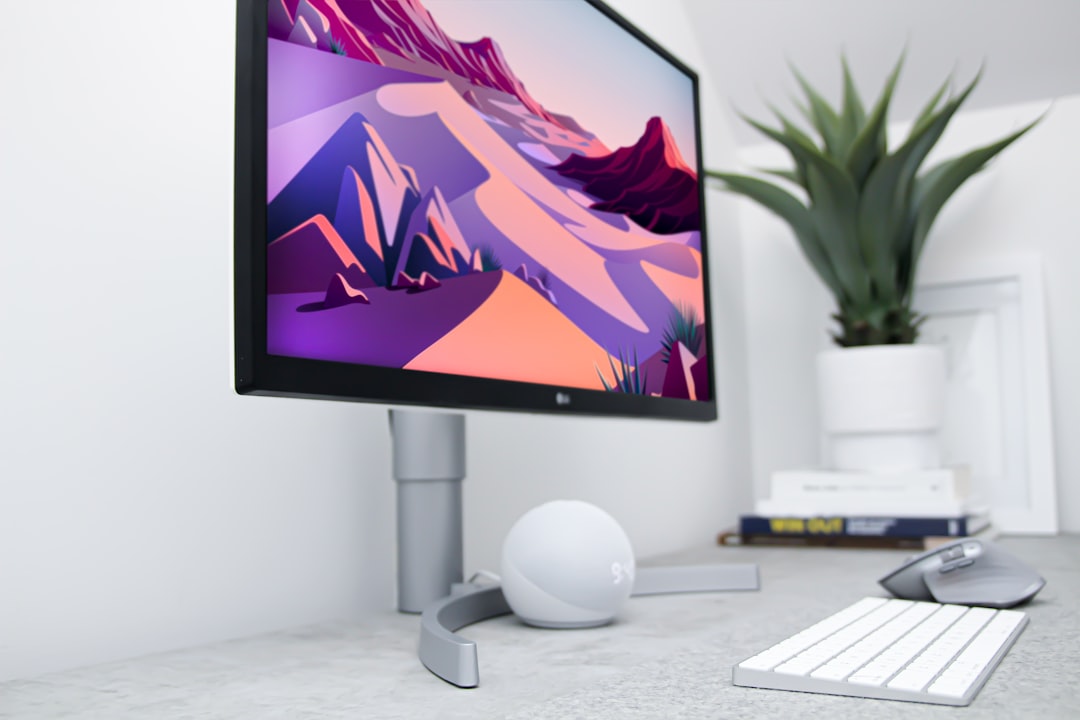
Third, adjust the tension. Most arms ship with the tension set for a “medium” weight monitor. If your display is particularly light or heavy, spend five minutes with the included Allen wrench to dial it in. A properly tensioned arm stays exactly where you put it without drifting up or sagging down.
Who Should (and Shouldn’t) Buy a Monitor Arm
If you work at a desk for more than a few hours a day, a monitor arm is one of the highest-ROI upgrades you can make. The ergonomic benefits alone justify the cost, and the reclaimed desk space is a bonus. They’re especially valuable for standing desk users, because the included monitor stands almost never go high enough for proper standing ergonomics.
Where I’d skip the arm: if you’re using a laptop screen exclusively, if your monitor’s built-in stand already provides sufficient height and tilt adjustment, or if you’re in a temporary workspace where you can’t clamp or drill. Also, some ultralight portable monitors (under 3 pounds) don’t play well with most arms — they’re too light for the spring mechanism to hold steady.
For everyone else, this is the kind of upgrade that makes you wonder why you waited so long. My only regret with monitor arms is not buying one sooner — and not buying a better one the first time. Do it right, buy quality, and your neck will thank you for the next decade.
Final Thoughts
The monitor arm market in 2026 is genuinely good. Competition has driven quality up and prices down, and even budget options offer features that were premium-only a few years ago. My top recommendation for most people remains the Ergotron LX — it’s the arm I keep coming back to after testing everything else. If ultrawide is your thing, go HX. On a tight budget, the Amazon Basics gets you 80% of the benefit for 15% of the price.
And if you want to see how I set up my own desk, check out my future-proof home office gear guide for the full breakdown of how all these pieces fit together. Your desk should work for you — not the other way around.

6 thoughts on “The Best Monitor Arms I’ve Tested After a Decade of Desk Upgrades”